You may want to manage your New Relic data ingest for several reasons, including:
- Removing unwanted data
- Managing data ingest costs
Data ingestion UI
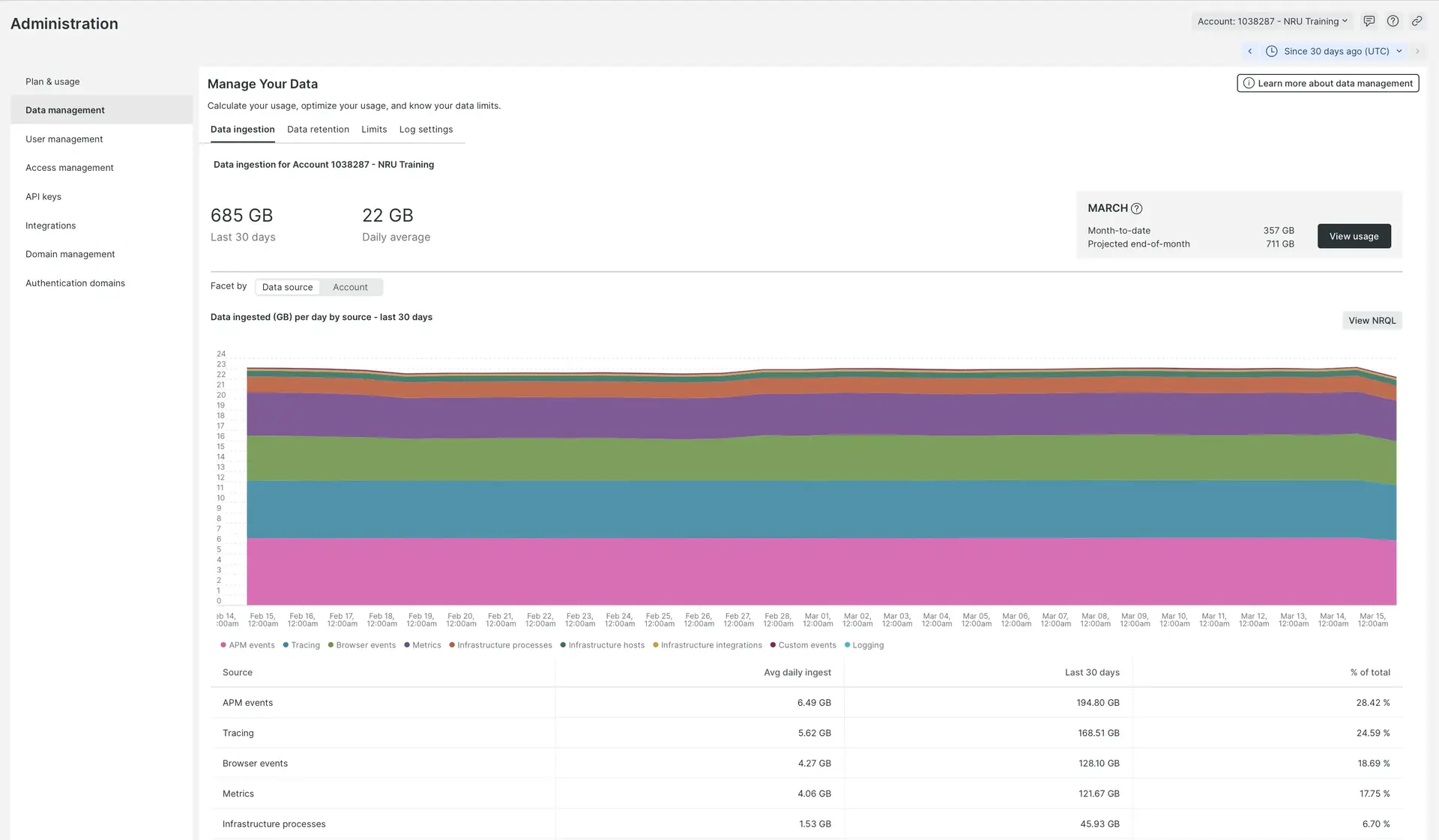
The Data ingestion tab is located in the Data management UI. It shows a summary of your data usage by source, helping you understand what data is being sent to New Relic.
From the user menu, select Manage your data.
Key features
The Data ingestion UI provides tools to help you monitor and analyze your data:
Filters and controls:
- Time range selector: Choose between Auto, Daily, Weekly, or Monthly views to analyze data ingestion trends over your preferred time period.
Important
The Auto view doesn't support the time picker. Because it shows your data in 5-minute intervals, it can display up to one day at a time. To see a longer time range, switch to the Daily, Weekly, or Monthly views.
- Data source filtering: Use the dropdown and search functionality to filter and find specific data sources.
Visualizations:
- Data source table: View all active data sources with their respective ingestion amounts. The table shows each source's contribution to your total data ingestion (such as BrowserEventsBytes, CustomEventsBytes, ApmEventsBytes).
- Visual trend chart: Displays ingestion patterns over time with color-coded bands representing different data sources, making it easy to identify spikes or trends.
- Usage by account: A pie chart showing the distribution of data ingestion across your accounts, displaying both the total volume and percentage breakdown.
- Usage by data source: A pie chart breaking down your total ingestion by data source (for example, BrowserEventsBytes might show 95.17% of your total ingestion, CustomEventsBytes at 3.33%).
For detailed definitions of the metrics shown, see Data ingest sources.
Important
Multi-tenant account filtering
For organizations with multi-tenant accounts, you can filter data ingestion by organization or account using the Select Organization and Select Account dropdowns. This allows you to view data for all organizations and accounts, or narrow down to specific ones.
Get more detail
To view additional details about a specific data source:
- Click the data source name in the table
- Use the additional filtering options that appear to drill down further into that specific data source
Advanced options:
- Click View NRQL to see the underlying query for any chart
- See Account settings for a video tour of this and other administration UIs
- For technical details about how charts display data and error messages, see Chart details
Estimate future data ingest
The Data Ingestion page includes predictive capabilities that help you forecast your organization's future data usage.
To forecast usage:
- Navigate to the Daily view of the time series chart at the top of the page
- From the chart menu, select Predict Usage
- View the data usage forecast for 1 week in both the chart and the table
To remove the forecast, select Remove prediction from the chart menu.
Important
Forecasting is only available for Advanced Compute customers and only in the Daily view of the Data source time series chart.
Manage ingest and avoid ingest spikes
How you manage your New Relic data will depend on a lot of factors specific to your organization and your needs. That said, here are some general tips for managing data ingest and avoiding unexpected spikes:
- Assign team members. Assign team members who'll be in charge of reviewing your ingest on a cadence, and managing it. Ensure they understand the data-related billing factors, including what does and doesn't count towards billing.
- Get to know your data. Spend some time getting acquainted with your data. Get to know its ebbs and flows, and understand where it's coming from.
- Monitor when you make significant changes. When you first activate a new data-reporting tool, or when you upgrade an agent or integration, or when you make any big change in your system, you should monitor your ingest to ensure there's no unexpected spike in data.
- Set up alerts. If you're concerned about specific scenarios causing sudden spikes in data, set up an alert condition to notify you if that occurs. For tips on that, see Usage queries.
Reducing ingest
Below are some tips for common approaches New Relic customers take to reduce the ingest of data that's not helpful to them.
All New Relic solutions have various configuration options that give you control over how data is reported to New Relic. Below we have some popular methods for reducing data ingest, but to learn about all the options available, we recommend reading the docs for specific tools you're using.
Data ingestion sources
The data ingestion UI chart shows you a high level breakdown of your billable data usage. The table below explains those sources. In this table, "usage metric group" refers to the value of that source's usageMetric attribute value on the NrConsumption event.
Optimize your data ingest
We also have an in-depth tutorial on how to optimize data ingest.
Stream ingested data
For more about streaming ingested data to other sources, see Streaming export.
Data from multiple data center regions
If you have accounts in multiple data center regions, learn more about how to understand your usage.
Technical details about the ingestion chart
Some technical details about the ingest UI:
- Displays are estimates. The ingest value shown on the ingest chart can vary slightly from the actual amount you may see when running your own query. This is because the calculation used for the chart is an estimate.
- No chart data available. The data ingestion chart can display a slightly longer time frame than that covered by your data retention settings. For this reason, you may get message that there's no chart data available.
- Chart time buckets. If an account has less than a terrabyte of data, we compute the volume over a 24-hour period; otherwise, we compute it for a 1-hour period.