Release builds of .NET MAUI apps for Android and iOS don't include debug information, so the C# stack traces your app reports show the method name, but not the source file or line number. New Relic can symbolicate these stack traces in your browser when you provide the matching .pdb and .dll files from that build. In-browser symbolication applies to handled exceptions only.
This page explains:
- How symbolicated and unsymbolicated C# stack traces compare
- How to generate the
.pdband.dllfiles and where to find them - How to symbolicate a stack trace in the New Relic UI
- Where to find native iOS crashes in the New Relic UI and how to symbolicate them
- How to store these files so you can symbolicate errors from any release you've shipped
Important
Symbolication runs entirely in your browser. New Relic doesn't upload, store, or keep your .pdb or .dll files or the symbolicated stack traces. The result also isn't shared between errors: You upload the files separately for each error you open, and again whenever you reload the page or come back to it later. Because you'll need the files every time, keep them for every release.
What symbolication adds
Before symbolication, each frame shows <unknown> where the file and line number would be:
<unknown> in NewRelicMaui.MainPage.OnHandledExceptionClicked(Object sender, EventArgs e)()After symbolication, the frame shows the source file and a line number:
MainPage.xaml.cs line 41 in NewRelicMaui.MainPage.OnHandledExceptionClicked()The Thread column next to each frame shows the class the frame belongs to, for example NewRelicMaui.MainPage.
Caution
The line number is where the method starts (its first statement), not the exact line that threw the exception. The stack traces New Relic receives from .NET MAUI apps don't include the IL offset that would pinpoint the line inside the method. Use the line number to find the method in your source, then look through that method for the cause.
Understand .NET MAUI symbol files
A .NET MAUI app contains both managed C# code and native platform code, and each has its own kind of debug symbol file. Each file only symbolicates errors from its own code:
| File | Platform | What it symbolicates | Where it's created | How to use it in New Relic |
|---|---|---|---|---|
.pdb + .dll (portable PDB and its assembly) | Android, iOS | C# errors from your app and class libraries | bin/Release/<target framework>/, see Find the output files | Upload in the browser, as described on this page |
.dSYM | iOS | Native iOS crashes | bin/Release/net10.0-ios/ios-arm64/<YourApp>.app.dSYM | Upload dSYM files |
New Relic uses only the .pdb and .dll files to symbolicate C# errors. Uploading a dSYM to a C# error won't symbolicate it. Keep all of them for each release, though, so you can symbolicate every kind of error the release reports.
Generate the .pdb and .dll files
Enable portable PDBs for release builds
In your app's .csproj, make sure Release builds produce portable debug symbols:
<PropertyGroup Condition="'$(Configuration)' == 'Release'"> <DebugType>portable</DebugType> <DebugSymbols>true</DebugSymbols></PropertyGroup>The build generates portable PDBs next to the assembly. They aren't packaged in your APK, AAB, or IPA, so they don't increase your app size.
Add the same settings to any class library projects whose code you want symbolicated.
Build your release
$# Android$dotnet publish -f net10.0-android -c Release$
$# iOS$dotnet publish -f net10.0-ios -c ReleaseUse your project's target framework (for example, net9.0-android).
Find the output files
For each assembly that appears in your stack traces, you need its .dll and its matching .pdb. They're in your build output folder, named after your project:
| Platform | Location |
|---|---|
| Android | bin/Release/net10.0-android/ |
| iOS | bin/Release/net10.0-ios/ios-arm64/ (ios-arm64 is the folder for physical devices. Don't use iossimulator-arm64.) |
For example, if your app project is NewRelicMaui, you need NewRelicMaui.dll and NewRelicMaui.pdb. To find which assembly a frame comes from, look at the namespace in the frame: NewRelicMaui.MainPage.OnHandledExceptionClicked is in NewRelicMaui.dll. If a frame comes from your own class library, such as MyApp.Core, use MyApp.Core.dll and MyApp.Core.pdb.
dotnet publish puts your APK, AAB, or IPA in a publish/ subfolder. The .dll and .pdb files are in the folder above it, at the locations in the table.
You may also find copies of these files under obj/Release/. Always upload the .dll and .pdb together from the same folder in the table, so that they match each other.
Caution
On iOS, don't take the .dll from inside the app bundle (NewRelicMaui.app/) or the IPA. Release builds trim and strip that copy, so it no longer matches any .pdb, and the bundle doesn't include a .pdb.
Symbolicate a stack trace in New Relic
Open the error
Open the C# error from either place:
one.newrelic.com > Errors Inbox, then select the error.
one.newrelic.com > Mobile > (select your app) > Handled exceptions, then select the error.
Scroll to the Stack trace section.
Note the error's
appVersionandappBuild. These tell you which release's files you need.
Upload the .pdb and .dll files
Above the stack trace, the Not seeing what you expected? banner offers on-demand symbolication. Click Upload .pdb and .dll files and select both the .pdb and the .dll for the assembly in the stack trace. If the stack trace includes frames from more than one of your assemblies, for example your app and a class library, select the .pdb and .dll for each of them. Both files are required: The .dll identifies the assembly and its methods, and the .pdb maps each method to its source file and line.
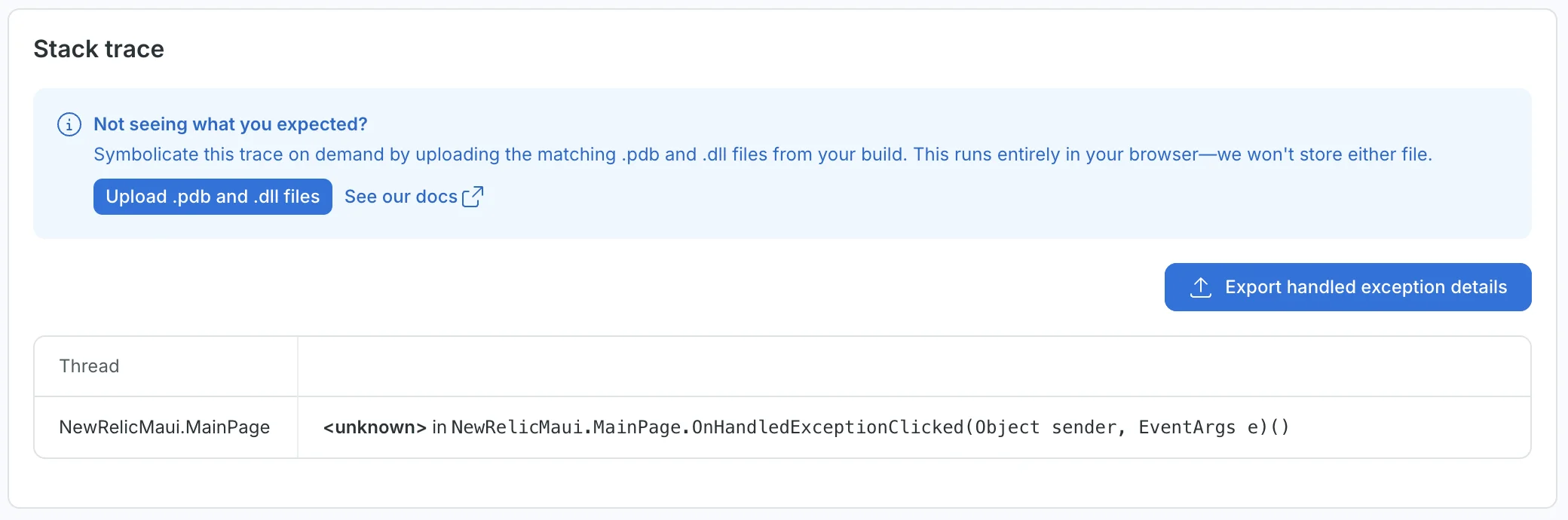
Before symbolication, the frame shows <unknown> where the source file and line number would be.
The selected files appear next to the button. Check that both are listed (remove a wrong one with ×), then click Symbolicate.
Review or export the result
When symbolication finishes, the banner changes to Symbolicated your trace and reports how many frames were resolved, for example Symbolicated 1 of 1 unresolved frame. It also reminds you that frames resolve to the start of their method, not the exact line that threw.
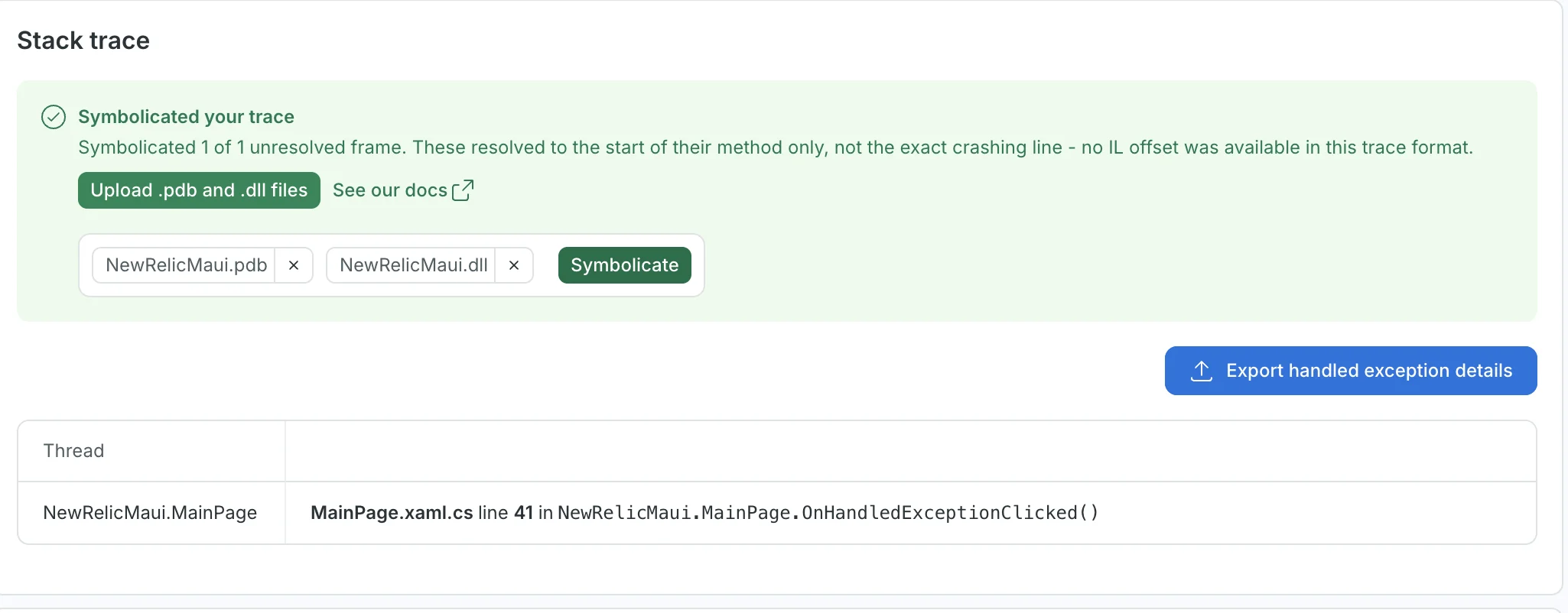
After symbolication, the frame shows the source file and the line where the method starts.
The result only lasts while the page is open. To keep it, click Export handled exception details. The export includes the symbolicated frames, so you can attach it to a ticket or share it with your team.
To symbolicate another error, open it and upload the files again. The result from one error doesn't carry over to others.
Symbolicate native iOS crashes
Native iOS crashes, such as a crash in Objective-C, Swift, or the iOS runtime, aren't C# errors, so the .pdb and .dll files don't apply to them. These crashes use the iOS .dSYM file instead.
To find native iOS crashes in the New Relic UI, go to one.newrelic.com > Mobile > (select your app) > Crashes, then select the crash. If the dSYM for that build isn't available to New Relic, the stack trace shows machine code (memory addresses) instead of readable method names, and the crash report shows the warning We were unable to locate your dsym.
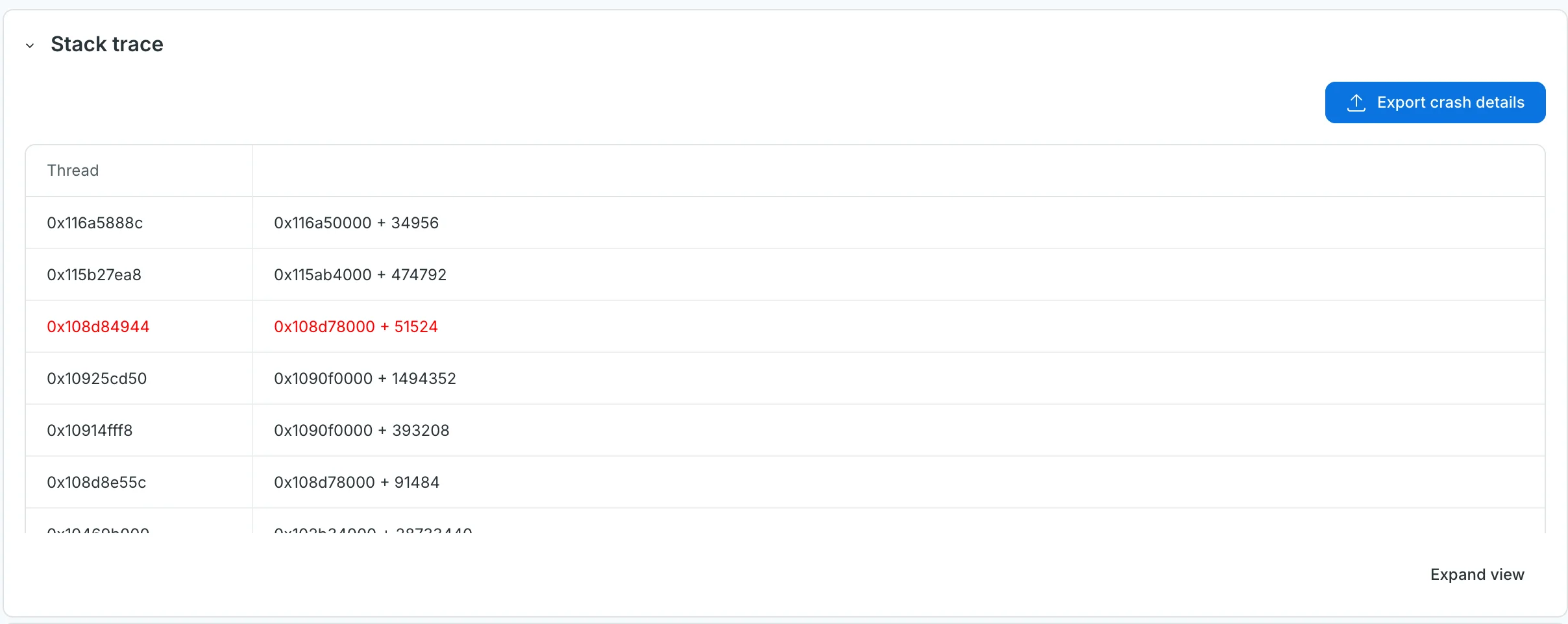
Without the dSYM, native iOS frames show memory addresses instead of method names.
To fix it:
- Find the
.dSYMfor the build that crashed, as described in Understand .NET MAUI symbol files. Match it to the crash'sappVersionandappBuild. - Upload it to New Relic by following Upload dSYM files.
Find the right files
A .dll and .pdb pair only gives correct results for stack traces from the build that produced it:
- Release: Match the error's
appVersionandappBuildto the files you saved for that release. - Platform: Use the Android files for Android errors and the iOS files for iOS errors.
- Assembly: Match the namespace in the stack frame to the assembly name, as described in Find the output files.
- Same build: Match the
.pdbto the build that produced the.dll. Don't mix files from different builds.
Caution
Because the stack trace doesn't include an assembly ID, New Relic can't always tell that the files come from a different build. Files from another version of your app can still produce a result, with line numbers that point to the wrong place if the code has changed. Even adding a single comment line above a method moves its line number. Make sure the files match the error's appVersion and appBuild before you rely on the result.
Best practice: Store symbols for every release
New Relic doesn't keep your .pdb and .dll files, so you need to store them yourself. Save them when you build each release, not after an error shows up.
- Keep the files for every build you distribute, including internal, beta, and store builds, for both Android and iOS.
- Keep every kind of symbol file, including the iOS dSYMs. See Understand .NET MAUI symbol files.
- Include your own class libraries, not only the main app assembly.
- Label them by platform, version, and build number, matching the
appVersionandappBuildattributes your app reports, so you can find the right files for an error. - Keep them for as long as that version is in use. Users often stay on old versions for months.
- Restrict access. PDBs reveal your source file paths and code structure. Store them with the same access controls as your source code.
Where you store them is up to you, for example your CI system's build artifacts, a storage bucket, or an artifact repository. If you use CI build artifacts, check how long your CI system keeps them, because many delete them automatically after a set time.
Caution
A rebuild produces identical files only if the source code, dependencies, SDK version, and build settings are all exactly the same. Save the files from the build you actually shipped. Don't count on recreating them.
Troubleshooting
Limitations
- Frames resolve to the start of their method, not the exact line that threw.
- Symbolication applies to C# errors. Native Android (Java/Kotlin) and iOS crashes use the Android and iOS symbolication workflows.
- Results aren't saved or shared between errors. You need to upload the files for each error, every time you view it.