Custom facets let you create virtual dimensions that group cloud costs based on rules you define. After you create a facet, it's available as a dimension across CCI features without needing to reapply filters each time.
Custom facets work the same way as the built-in Custom Dimensions visible in Cost Overview (for example, account name, team name, and environment), except that you define them yourself by combining tags, cloud dimensions, and conditions from your cloud accounts. Use custom facets when your cloud tags have gaps in coverage, or when you need to combine conditions across dimensions. For example, you can match costs where a service belongs to a group, a team name matches a pattern, or you exclude an environment. Because custom facets are part of the data model rather than a filter applied per session, you can use them to build budgets, set alert conditions, and calculate unit economics.
Each facet is made up of one or more named values. For each value, you define a set of conditions. The system evaluates each cost row against those conditions and assigns matching rows to the corresponding value. Rows that match no conditions receive the default value you specify. For example, a platform-team facet with conditions matching AWS tags, account names, and regions assigns every matching cost row to platform-team.
Use cases
Multi-cloud cost grouping
If the same workload runs across AWS, Azure, and GCP, you can combine all three into a single facet. Define conditions that match the accounts, services, or tags from each provider. The facet lets you view and act on the combined cost without managing filters for each cloud.
Cost per transaction across cloud providers
If a service spans multiple cloud providers, group its resources from each provider into a single facet. You can then use that facet as the cost dimension in Unit economics to calculate cost per transaction regardless of which cloud provider hosts the workload.
Dimensional budgets for teams or projects
Create a facet that matches the tags or accounts belonging to a team or project. Create a budget for that facet so the team can track their cloud spend without needing a cloud account per team.
Limits
The following limits apply to custom facets.
| Item | Detail |
|---|---|
| Maximum facets | The limit is 90 per connection, counting raw tags, Kubernetes labels, and custom facets combined. |
Create a custom facet
You can create facets through the UI or by uploading a YAML file.
Create using the UI
Follow these steps to create a custom facet.
- Go to one.newrelic.com > All Capabilities > Cloud Cost Intelligence > Custom Facets.
- Click Create facet.
- Enter a Name, Description, and Default value for the facet.
- Click + Add facet value.
- Add one or more conditions. Each condition specifies the following:
- Dimension (for example, account, cloud provider, and AI model)
- Operator (for example,
in,not in,equals, andregex) - Values (one or more)
- Save the facet.
After saving, you can optionally run the generated NRQL in the query editor to verify the facet values are correct.
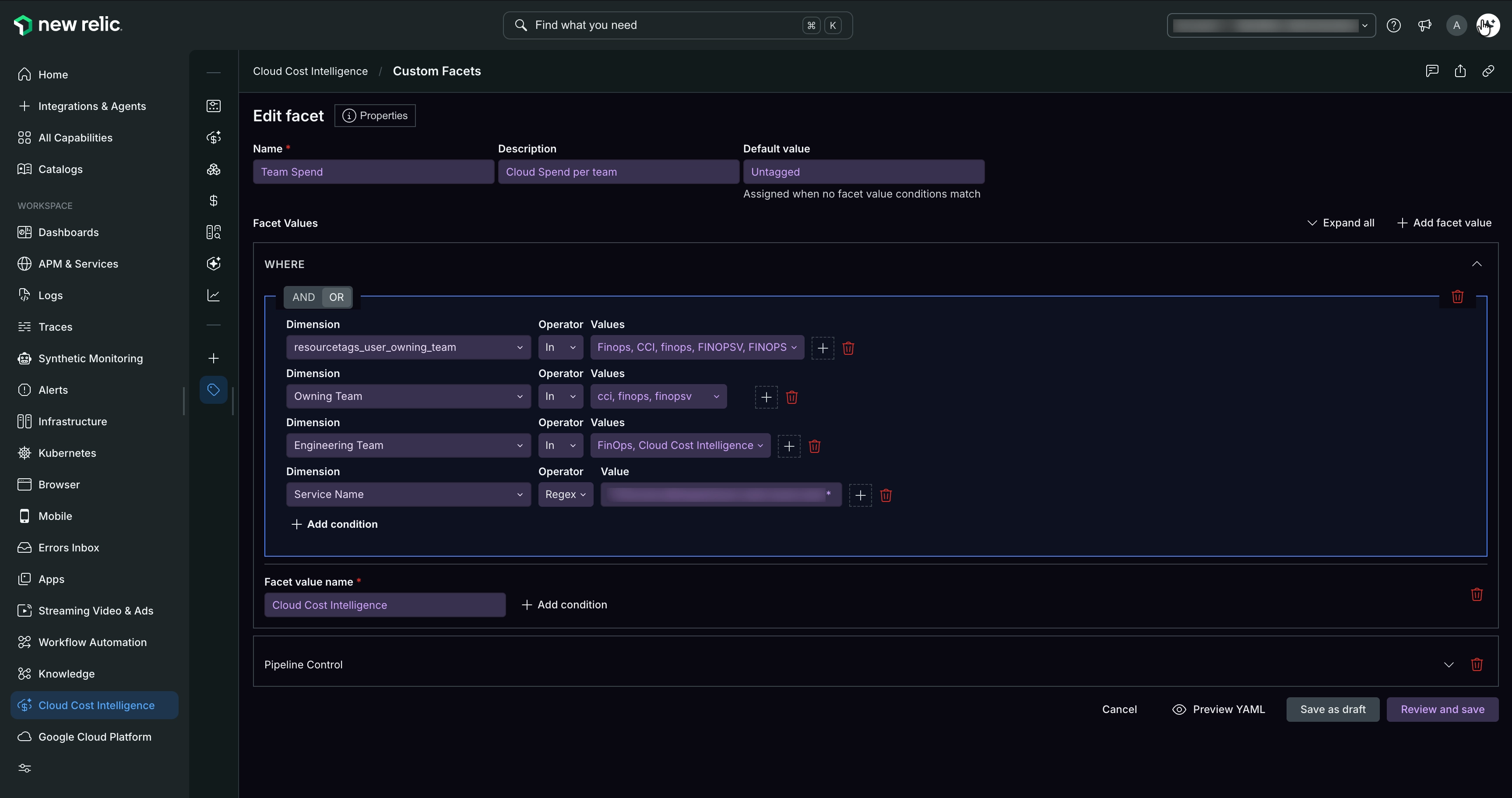
The facet appears as a dimension in Cost Overview and other CCI features after the next billing export file processing, which typically takes 4–8 hours.
Import using YAML
To define multiple facets at once or migrate rules from another system, upload a YAML configuration file. To see the required file structure before you start, click Download sample YAML and use the sample as a template.
- In Custom Facets, click Upload YAML.
- Select your configuration file.
The system validates the file and applies the rules.
Backfill historical data
By default, a facet applies to cost data from the date you create the facet. To apply the same rules to past cost data, use backfill.
- After creating or uploading your facet rules, select the Backfill option.
- Specify the start date for the past date range you want to include.
The system reprocesses the matching cost rows for that period and populates the facet dimension. Backfill processing begins after the facet reaches active status and typically completes within 8 hours. To monitor progress, on the Custom Facets page, go to the Audit tab.
Use facets across CCI
After you create a facet, it's available as a dimension in the following CCI features:
- Cost Overview: Filter and group costs by the facet dimension
- Budgets: Create a budget scoped to a facet value
- Query your data and Alert conditions: Set alerts triggered by spend on a facet group
- Unit economics: Use a facet as the denominator or numerator dimension for cost-per-unit calculations
- Recommendations: Get optimization recommendations scoped to the facet group