直接接続が利用できない場合に監視データをNew Relicに送信するミドルウェアとして、SAP BTP Integration Suite(クラウドインテグレーション)を設定します。
概要
コレクションマネージャープログラムは、直接送信する代わりに、ミドルウェアとしてSAP クラウドインテグレーション(SAP CPI)を使用してNew Relicにデータを送信するオプションを提供します。
| 方法 | 説明 |
|---|---|
| 直接 | SAPからNew Relicへの直接送信(標準的な方法) |
| SAP クラウドインテグレーション | SAP CPIをミドルウェアとして使用する |
| iFlowエンドポイント | SAP CPIのiFlowエンドポイント宛先 |
設定手順
承認方法の決定
iFlowに使用する認証タイプを選択します:
- ClientId/Secret (OAuth2)
Certificate
External Certificate
サービスインスタンスとキーを作成する
SAP Process Integration Runtimeのサービスインスタンスを作成します。
選択した認可方法を使用して、service keyまたはcertificateを割り当てます。
後で使用するためにservice keyをダウンロードします。
詳細な手順については、BTP Monitoringのサービスキーの取得を参照してください。
iFlowの設定とデプロイ
New Relicが提供するiFlowをテンプレートとして使用します:
テンプレートiFlowをコピーします。
ステップ1での選択に合わせて認証方法を更新します。
以下のマッピングが設定されていることを確認します:
重要
顧客によって作成されたカスタムiFlowバージョンには、以下に詳述する特定のマッピングを含める必要があります。
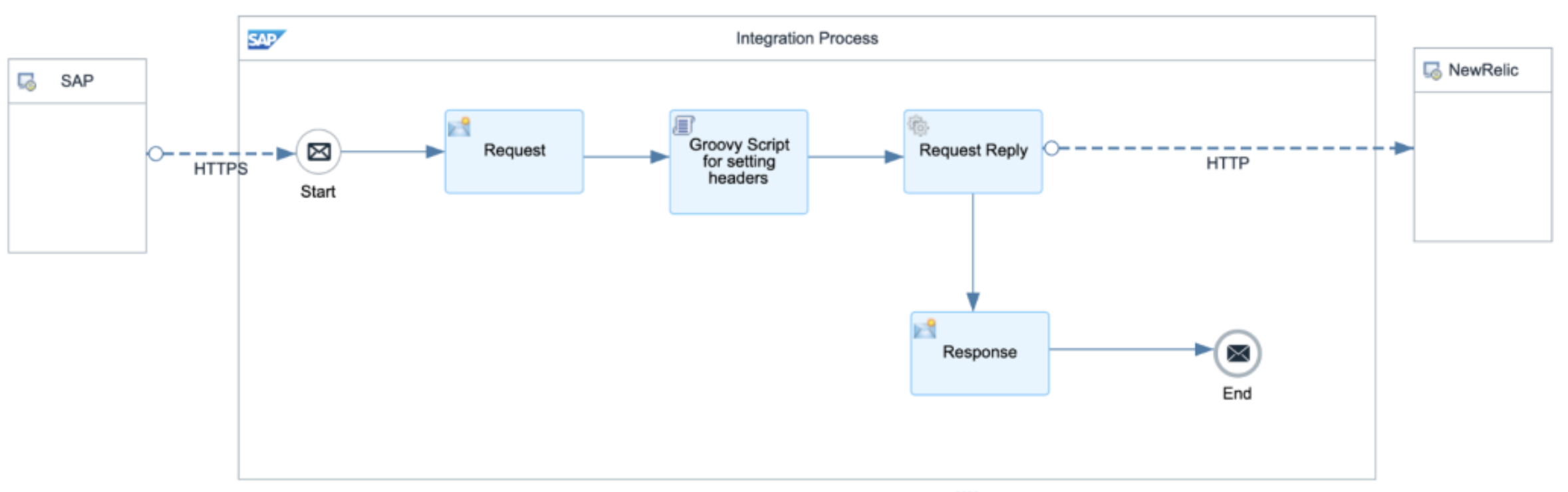
次の手順の説明に従ってallowed headers、authorization method、content modifiers、Groovy script、およびHTTP connection settingsを設定し、iFlowをデプロイしてください。
許可されるヘッダー
allowed headersに以下が含まれるように設定します:
API-Key|targetURL認証メソッド
- ClientId/SecretまたはCertificateの場合:選択 User Role
- External Certificateの場合:Client Certificateを選択して追加します root certificates
リクエストコンテンツ修飾子
以下を保持するようにexchange propertiesを設定します:
targeturl
apikey
Groovyスクリプト
scriptを追加して、ヘッダーを動的に設定します:
import com.sap.gateway.ip.core.customdev.util.Message;def Message processData(Message message) {
  message.setHeader("API-Key", message.getProperty("apikey"));  message.setHeader("Content-Type", "application/json");  message.setHeader("Accept", "application/json");
  message.setHeader("CamelHttpUri", message.getProperty("targeturl"));
  def turl = message.getHeader("CamelHttpUri", String);
  def logText = "---Headers---\n";
  message.getHeaders().each { k, v -> logText += "\${k} = \${v}\n" };  messageLogFactory.getMessageLog(message)?.addAttachmentAsString("AllHeaders", logText, "text/plain");
  messageLogFactory.getMessageLog(message)?.addAttachmentAsString("URL", turl, "text/plain");
return message;}レスポンスコンテンツ修飾子
response content modifierを使用して、message headersおよびbodyを管理します。以下を返すようにmessage bodyを設定します:
{ "statusCode": "\${header.CamelHttpResponseCode}", "response": \${body}}HTTP接続設定
- Address:
\${header.CamelHttpUri} - Method: POST
- Timeout: 60000 ms
- Request Headers:
* - Response Headers:
*
iFlowをデプロイします
- iFlowをデプロイします。
- iFlow endpoint URLに注意してください。
RFCの宛先を作成する
トランザクションSM59を使用して新しいRFC destinationを作成します。
次の情報を入力します。
- RFC Destination: 分かりやすい名前(例:NR_CPI_ENDPOINT)
- Connection Type: G (外部サーバーへの HTTP 接続)
- Description: クラウドインテグレーション経由のNew Relicへの接続
Technical Settingsタブで:
- Target Host:あなたのホスト iFlow endpoint
- Service No.: 443
- Path Prefix:ご使用の iFlow endpoint
Logon & Securityタブで:
選択した方法に基づいて認証を設定します:
- ClientId/Secretの場合:ユーザー名としてClientIdを、パスワードとしてClientSecretを入力します。
- Certificateの場合:設定 certificate details
Security Optionsタブで:
- Activeを選択します SSL
設定を保存します。
Connection Testをクリックして接続を確認します。
コレクションマネージャーの設定
- トランザクション/NEWR/ONE_COLLECTIONを実行するか、/NEWR/ABAP_COLLECTION_MANAGERNのvariantを作成します。
- Data Transmission to NRセクション:
- 代わりにSAP Cloud Integrationを選択 Direct
- {…} フィールドに:
- Create RFC destinationステップで作成したRFC destination nameを入力します(例:NR_CPI_ENDPOINT)
- variantを保存します。
- collection jobをスケジュールまたは実行します。
データ転送を確認する
- collection manager jobを実行します。
- SAP Cloud IntegrationでiFlow monitoringを確認します:
- ログイン SAP BTP Integration Suite
- Monitor > に移動します Integrations
- メッセージ処理が成功したことを確認する
- New Relicでのデータ到着を確認します:
ログイン New Relic
〜へ移動してください SAP dashboards
監視データが受信されていることを確認します。
重要
標準のiFlow templateを変更する場合は、collection manager programとの互換性を維持するために、必要なすべてのマッピングとヘッダーが保持されていることを確認します。