avance
Todavía estamos trabajando en esta característica, ¡pero nos encantaría que la probaras!
Esta característica se proporciona actualmente como parte de un programa de vista previa de conformidad con nuestras políticas de prelanzamiento.
Después de configurar la Inteligencia para costos en la nube, cree políticas de alertas con umbrales para recibir notificaciones proactivas antes de exceder los límites financieros y evitar cargos inesperados. Dentro de un presupuesto, puede establecer múltiples umbrales de alerta basados en el porcentaje de uso del presupuesto.
Crear una nueva condición de alerta
Una condición de alerta es una consulta en ejecución continua que mide un conjunto determinado de eventos contra un umbral definido y abre un incidente cuando se alcanza el umbral durante una duración especificada.
- Vaya a one.newrelic.com > Alerts > Alert Policies.
- En la página de la lista de políticas, haga clic en + New alert condition.
- Para crear alertas desde cero, use Write your own query.
importante
Para acceder a las alertas, trabaja con tu equipo de cuenta para habilitar la vista previa pública.
Establece el comportamiento de tu señal
Puede usar una consulta NRQL para definir las señales que desea que una condición de alerta use como base para su alerta. Para este ejemplo, utilizará esta consulta:
FROM CloudCost SELECT sum(line_item_unblended_cost) FACET product_region_codeUsar esta consulta para su condición de alerta le indica a New Relic que desea conocer el costo no combinado desglosado por código de región del producto.
Para obtener más información sobre el uso de NRQL (el lenguaje de consulta de New Relic), visite nuestra documentación de NRQL.
Ejecuta y obtén una vista previa de tu señal
Una vez que haya definido su señal, haga clic en Run. Aparecerá un gráfico que mostrará el parámetro que has configurado.
Sugerencia
Para configurar alertas entre cuentas, seleccione un data account de la lista desplegable. Tenga en cuenta que solo puede consultar datos de una cuenta a la vez para las alertas entre cuentas.
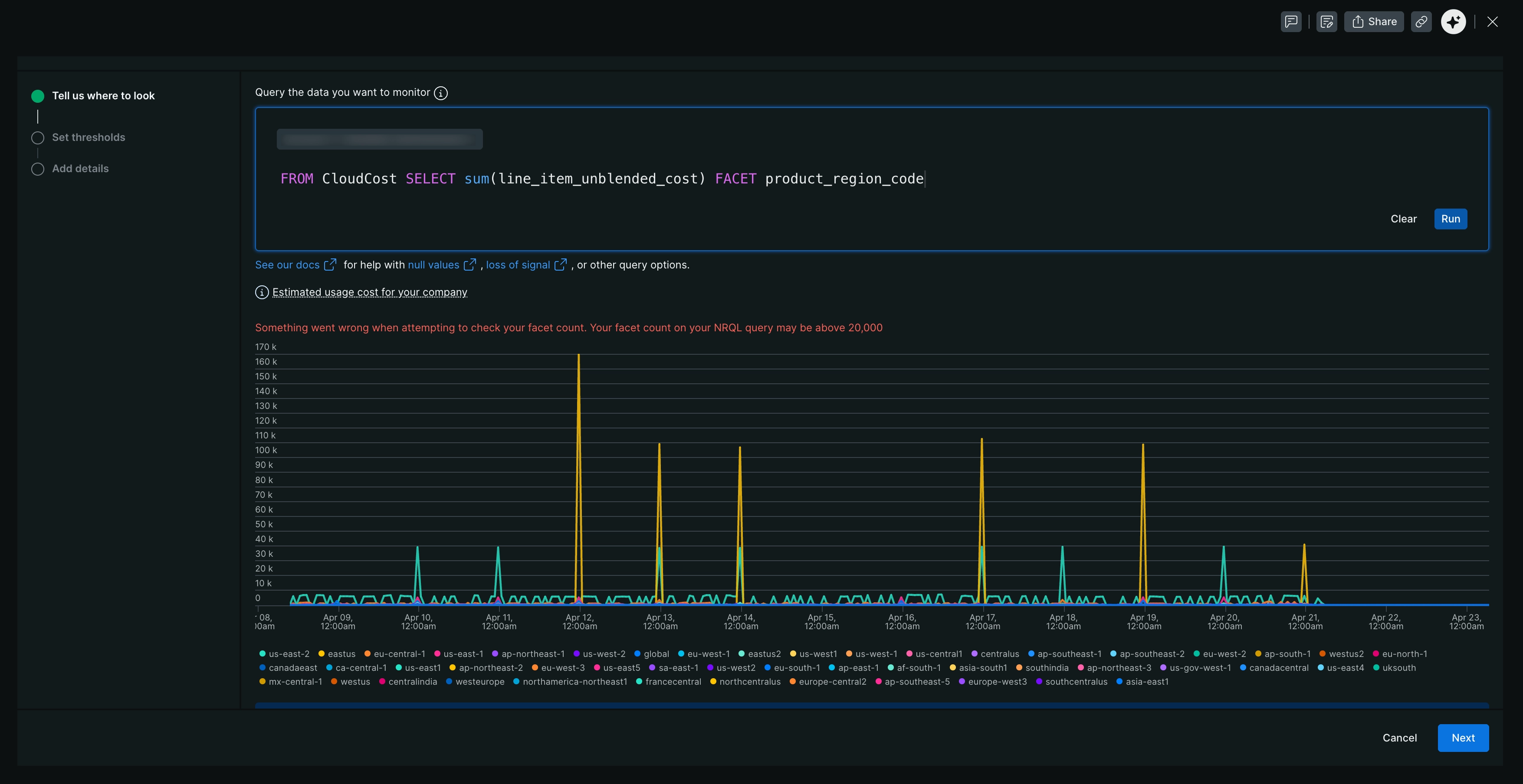
Para este ejemplo, el gráfico mostrará el costo de uso estimado de los recursos cloud de su empresa, desglosado por código de región del producto. Esto le permite monitorear el costo de sus recursos cloud en diferentes regiones.
Haga clic en Next y comience a configurar su condición de alerta.
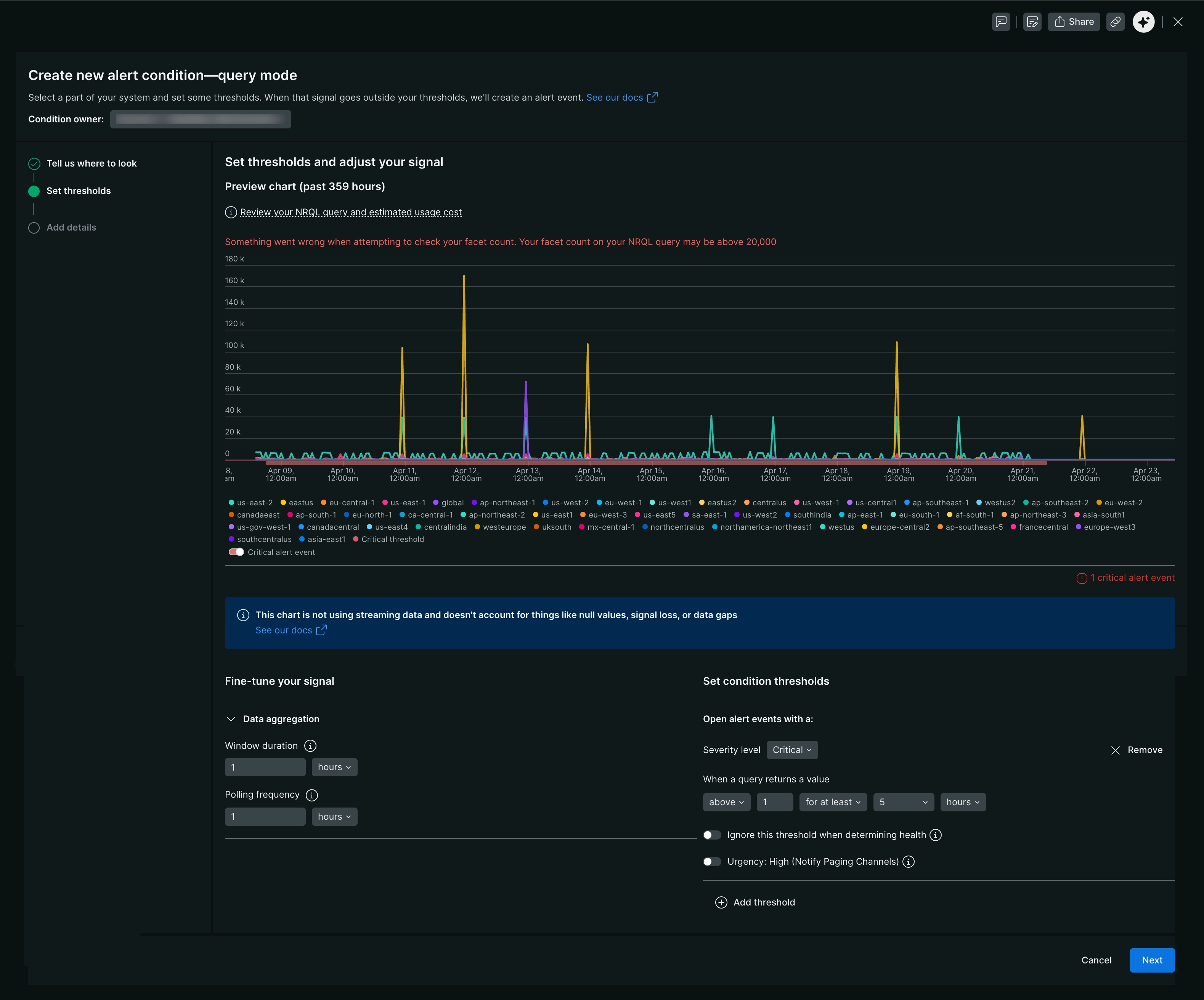
Establecer umbral para condición de alerta
Ahora tiene una condición completamente definida y reglas para abrir un incidente si se superan los umbrales. Nombre la condición y adjúntela a una política para completar la configuración.
Agregar detalles de condición de alerta
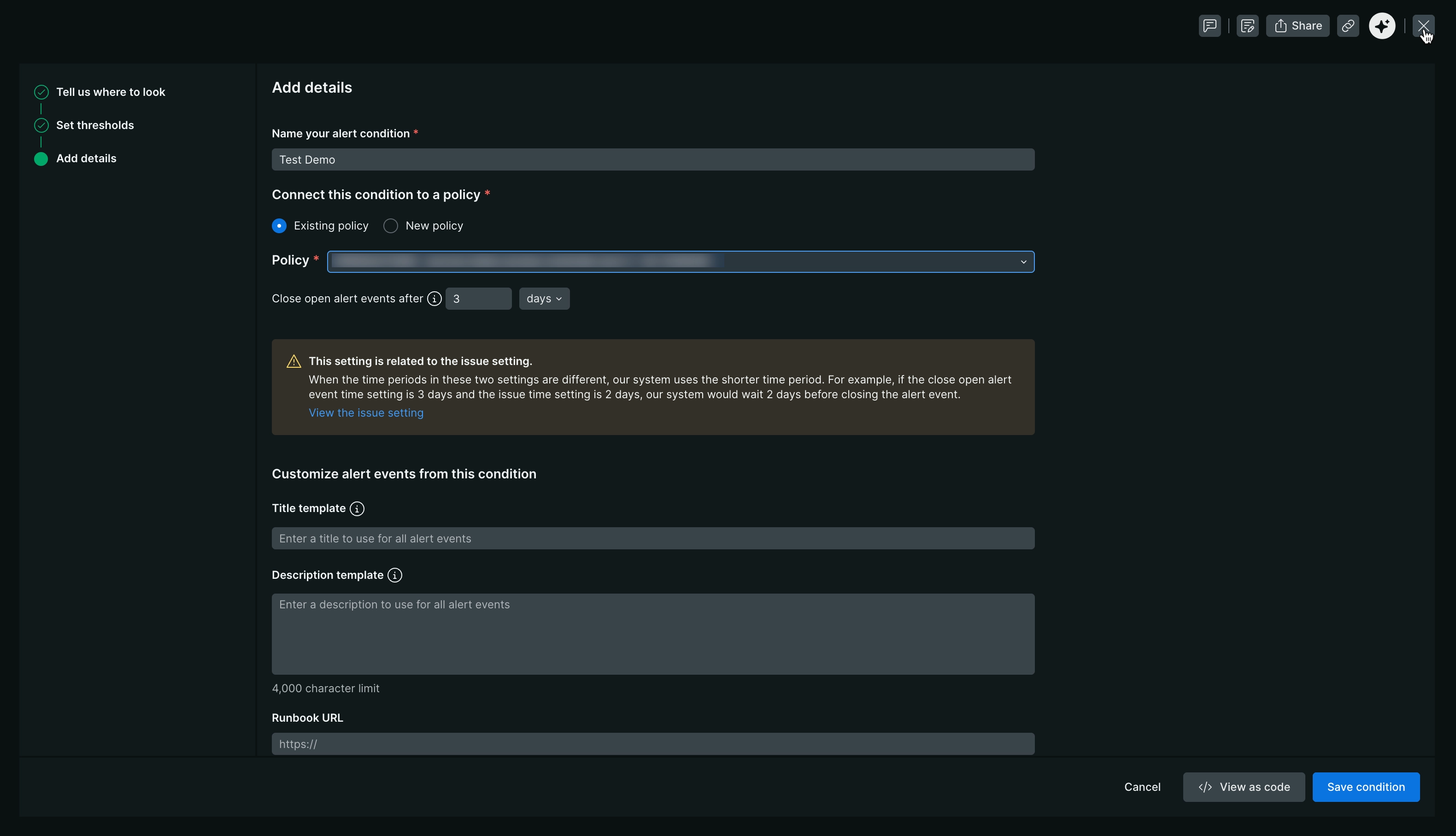
Tu condición de alerta está completamente definida y creará un incidente cuando se infrinjan tus umbrales. Nombre esta condición y adjúntela a una política para completar la configuración.
Una política es el sistema de clasificación para sus incidentes. Puede conectar políticas a flujos de trabajo para definir a dónde desea que New Relic envíe esta información y con qué frecuencia.
Nombre del campo | Descripción |
|---|---|
Nombre su condición de alerta | Una de las mejores prácticas para nombrar su condición implica un formato estructurado que transmite información esencial de un vistazo. Incluya los siguientes elementos en sus nombres de condición:
|
Política existente | Si ya tiene una política que desea conectar a una condición de alerta, entonces seleccione la política existente. Consulte políticas de alertas para obtener más información. |
Nueva política | Equilibrar la capacidad de respuesta y la fatiga en su estrategia de alertas es crucial. Exploremos las opciones de política:
|
Cerrar eventos de alerta abiertos | Un incidente se cierra automáticamente cuando la señal objetivo vuelve a un estado de no infracción durante el período indicado en el umbral de la condición. Este tiempo de espera se llama período de recuperación. Cuando un incidente se cierra automáticamente:
|
Plantilla de título | Dado que está creando una condición de alerta que le avisa si hay problemas de latencia con su |
Plantilla de descripción | Usar la plantilla de título es opcional, pero lo recomendamos. Una condición de alerta define un conjunto de umbrales que desea monitorear. Si se supera cualquiera de esos umbrales, se crea un incidente. Las plantillas de títulos significativas lo ayudan a identificar problemas y resolver interrupciones más rápido. Consulte las plantillas de título para obtener más información. |
URL del runbook | En este campo a menudo se vincula un runbook de operaciones que detalla los pasos de investigación, clasificación o remediación. |
Para obtener más información sobre las alertas entre cuentas, consulte Alertas entre cuentas.