visualização
Ainda estamos trabalhando nesse recurso, mas adoraríamos que você experimentasse!
Atualmente, esse recurso é fornecido como parte de um programa de visualização de acordo com nossas políticas de pré-lançamento.
Após configurar a Inteligência de Custos na Nuvem, crie políticas de alertas com limites para receber notificações proativas antes de exceder os limites financeiros e evitar cobranças inesperadas. Dentro de um orçamento, você pode definir vários limites de alerta com base na porcentagem de uso do orçamento.
Crie uma nova condição do alerta
Uma condição de alerta é uma consulta em execução contínua que mede um determinado conjunto de eventos em relação a um limite definido e abre um incidente quando o limite é atingido por uma duração especificada.
- Vá para one.newrelic.com > Alerts > Alert Policies.
- Na página da lista de políticas, clique em + New alert condition.
- Para criar alertas do zero, use Write your own query.
importante
Para acessar alertas, trabalhe com a equipe da sua conta para habilitar a pré-visualização pública.
Defina o comportamento do seu sinal
Você pode usar uma consulta NRQL para definir os sinais que deseja que uma condição do alerta use como base para o seu alerta. Para este exemplo, você usará esta consulta:
FROM CloudCost SELECT sum(line_item_unblended_cost) FACET product_region_codeUsar esta consulta para a sua condição do alerta informa ao New Relic que você deseja saber o custo não combinado detalhado pelo código da região do produto.
Para saber mais sobre como usar o NRQL (a linguagem de consulta do New Relic), visite nossa documentação do NRQL.
Execute e pré-visualize seu sinal
Depois de definir seu sinal, clique em Run. Um gráfico aparecerá e exibirá o parâmetro que você definiu.
Dica
Para configurar alertas entre contas, selecione um data account na lista suspensa. Observe que você só pode consultar dados de uma conta por vez para alertas entre contas.
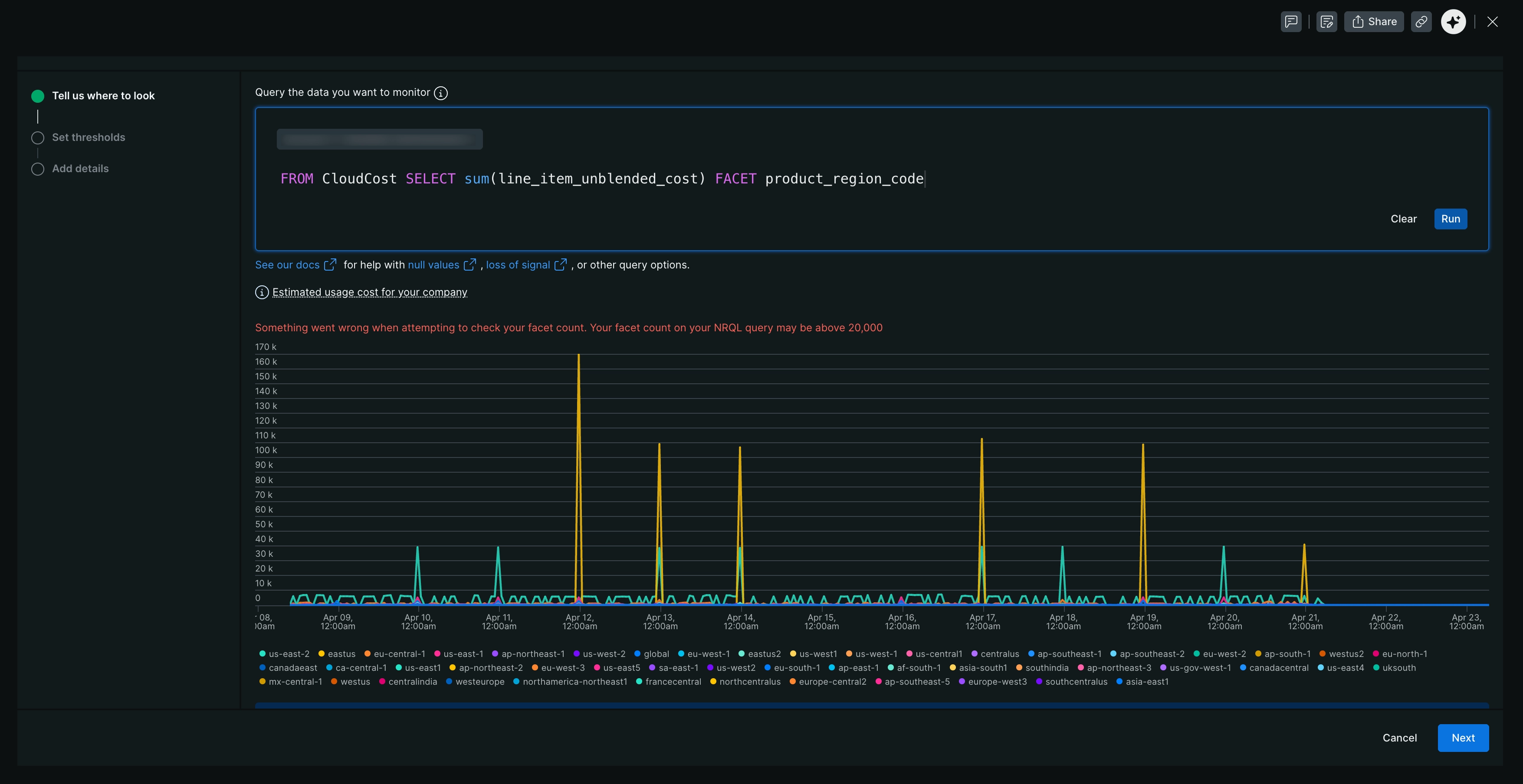
Para este exemplo, o gráfico mostrará o custo de uso estimado dos recursos de cloud da sua empresa, dividido por código de região do produto. Isso permite que você monitore o custo dos seus recursos de cloud em diferentes regiões.
Clique em Next e comece a configurar sua condição do alerta.
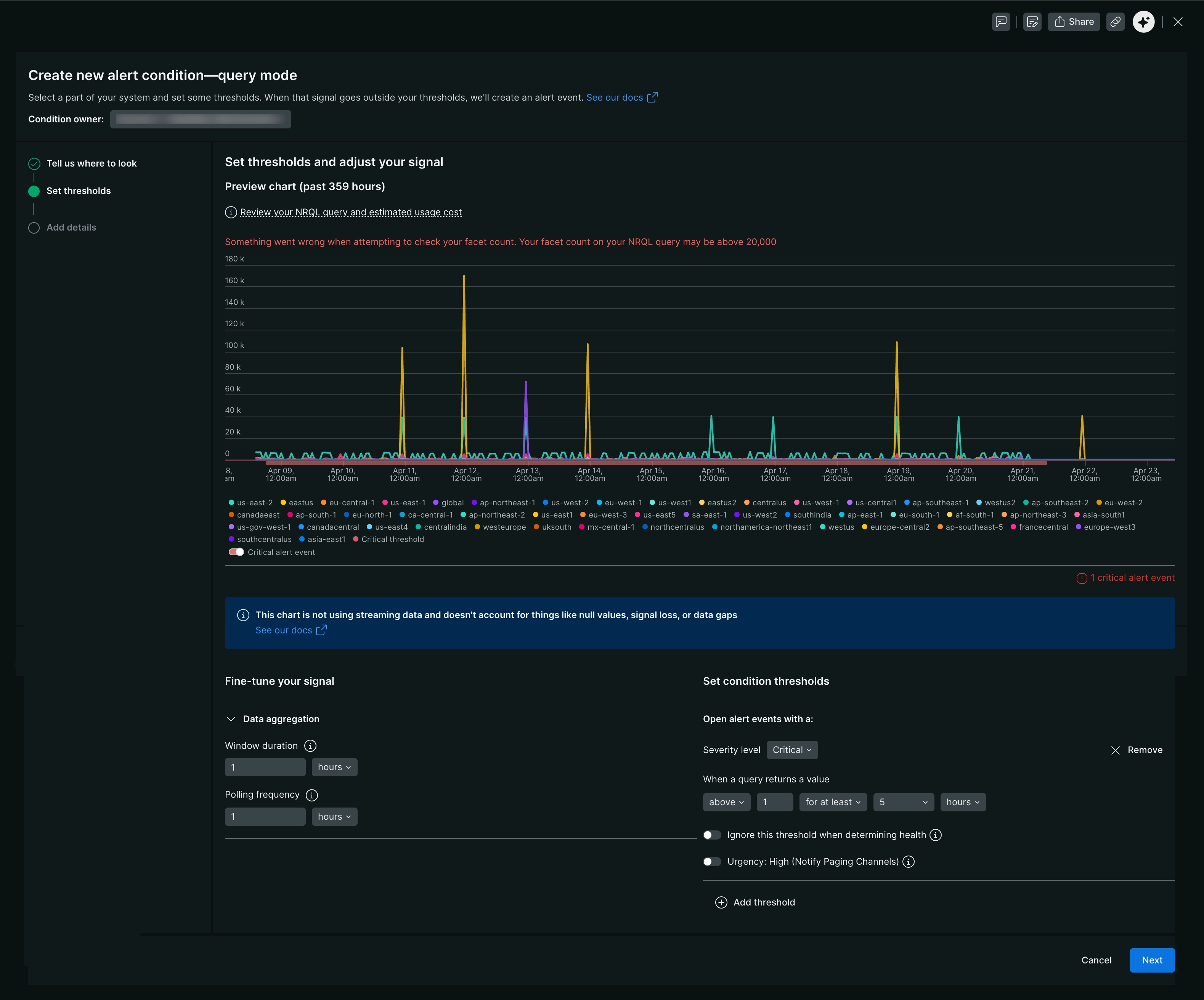
Definir limite para condição do alerta
Agora você tem uma condição totalmente definida e regras para abrir um incidente se os limites forem violados. Nomeie a condição e vincule-a a uma política para concluir a configuração.
Adicionar detalhes da condição do alerta
Sua condição do alerta está totalmente definida e criará um incidente quando seus limites forem violados. Nomeie esta condição e vincule-a a uma política para concluir a configuração.
Uma política é o sistema de classificação para seus incidentes. Você pode conectar políticas a fluxos de trabalho para definir para onde você deseja que a New Relic envie essas informações e com que frequência.
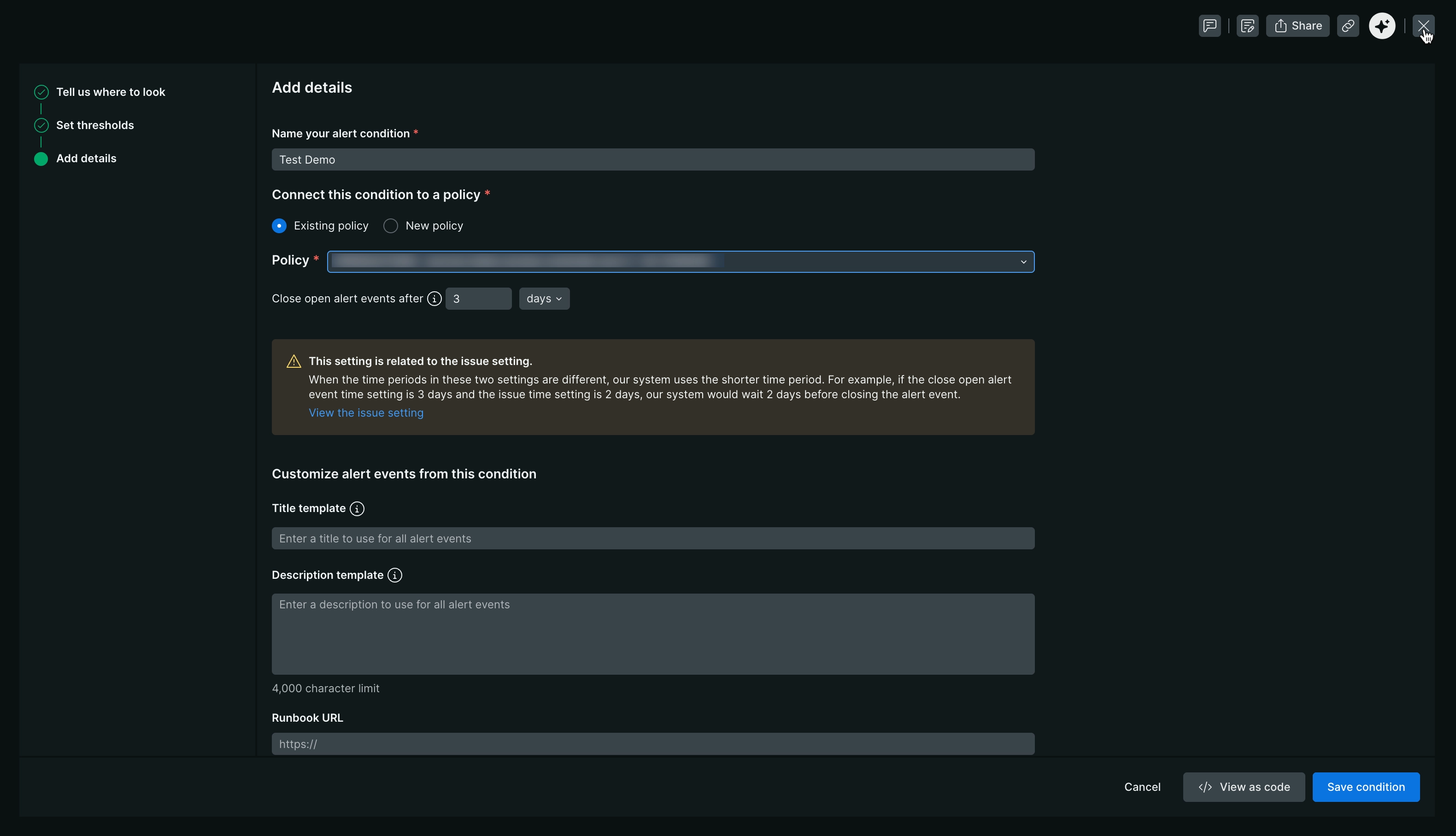
Nome do campo | Descrição |
|---|---|
Nomeie sua condição do alerta | Uma prática recomendada para nomear sua condição envolve um formato estruturado que transmite informações essenciais de relance. Inclua os seguintes elementos nos nomes das suas condições:
|
Política existente | Se você já tem uma política que deseja conectar a uma condição do alerta, então selecione a política existente. Consulte políticas de alertas para obter mais informações. |
Nova política | Equilibrar a capacidade de resposta e a fadiga na sua estratégia de alertas é crucial. Vamos explorar as opções de política:
|
Fechar eventos de alerta abertos | Um incidente é encerrado automaticamente quando o sinal de destino retorna a um estado sem violação pelo período indicado no limite da condição. Esse tempo de espera é chamado de período de recuperação. Quando um incidente é encerrado automaticamente:
|
Modelo de título | Como você está criando uma condição do alerta que permite saber se há problemas de latência com seu |
Modelo de descrição | O uso do modelo de título é opcional, mas nós o recomendamos. Uma condição do alerta define um conjunto de limites que você deseja monitorar. Se algum desses limites for excedido, um incidente é criado. Modelos de título significativos ajudam a identificar problemas e resolver interrupções mais rapidamente. Consulte modelos de títulos para mais informações. |
URL do runbook | Um runbook de operações detalhando as etapas de investigação, triagem ou remediação costuma estar vinculado a esse campo. |
Para saber mais sobre alertas entre contas, consulte Alertas entre contas.