プライバシーとマスキング
プライバシー要件に最適なマスキング戦略を選択してください。
マスキング戦略
モバイル セッションリプレイは、プライバシー保護とリプレイ ユーティリティのバランスをとるための 2 つのマスキング戦略を提供します。 選択内容によって、セッション記録で機密データがどのように処理されるかが決まります。
デフォルトのマスキング戦略
デフォルトのマスキング戦略では、すべてのテキストと画像を例外なくマスキングすることで、最大限のプライバシー保護を実現します。次の場合にこの戦略を選択します。
- アプリでは非常に機密性の高いデータ(医療、金融サービスなど)を扱います
- 規制遵守には厳格なデータ保護が必要
- 個人情報を盗まれるリスクをゼロにしたい
マスクされるもの:
- すべてのテキストはアスタリスクに置き換えられます(例:「hello」は「*****」になります)
- すべての画像が同じ寸法のプレースホルダーブロックに置き換えられます
- ユーザーのタップやスワイプは引き続きキャプチャされます(非表示にしない限り)
これにより、誤ってマスク解除コードを追加した場合でも、デフォルトの戦略によって常にすべてがマスクされるようになります。
デフォルトのマスキング戦略の重要な制限:
- マスキングモードは設定できません
- インライン マスキング オーバーライド (
nr-unmaskタグなど) は無視されます - サーバー側のマスキングルールは効果がない
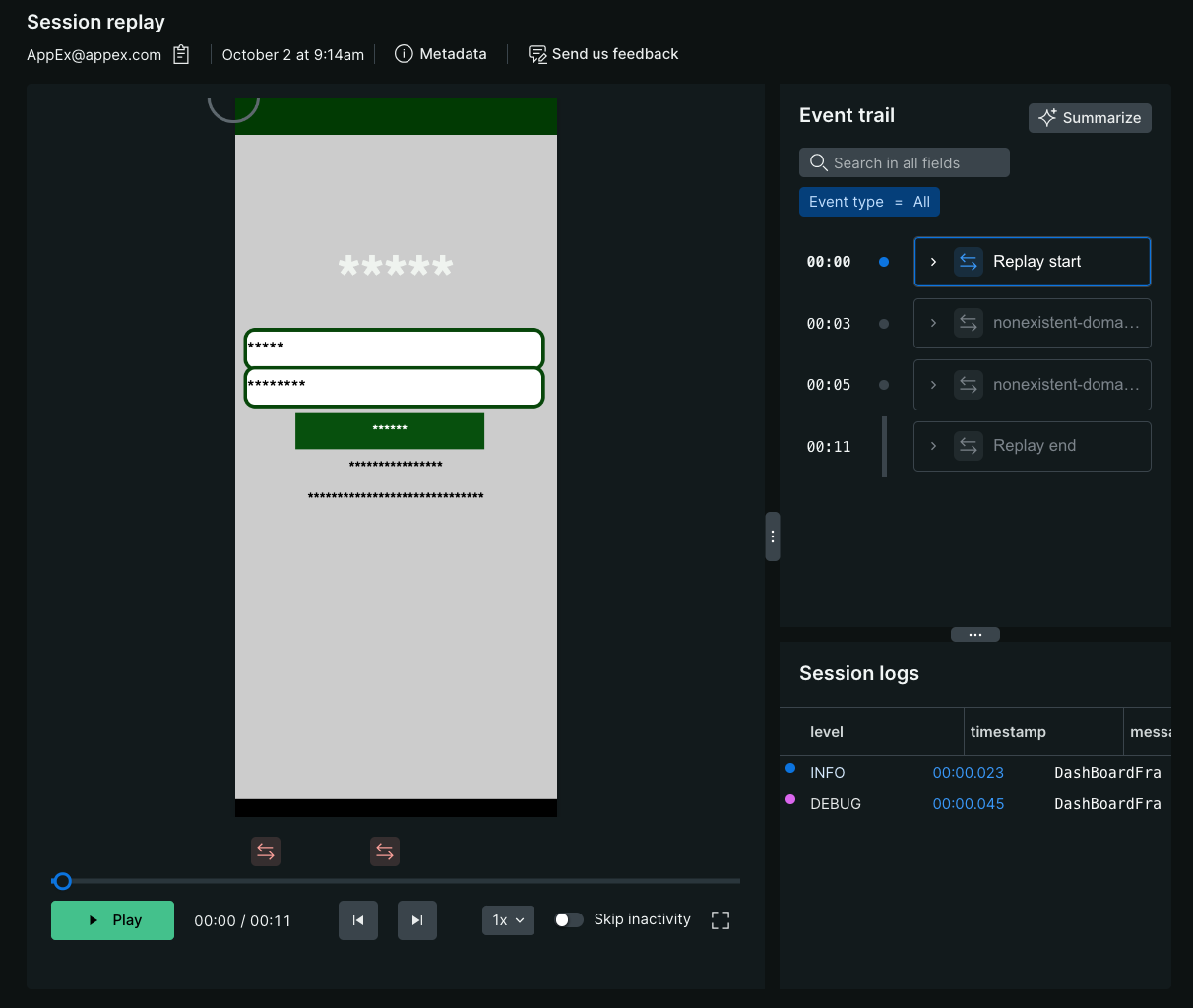
マスキングとブロッキングの違い
マスキングとブロッキングは、リプレイ時に機密データを扱う方法が異なるため、両者を区別することが重要です。
マスキング: レイアウトを維持しながら特定のコンテンツを置き換えます。テキストはアスタリスク (*) となり、画像はプレースホルダーブロックとなります。
ブロッキング:画面全体を覆う、完全な黒色のオーバーレイを作成します。
視界が遮られた場合:
セッションリプレイではビューエリア全体が隠れます。
そのビュー内のすべてのコンテンツは完全に非表示になります。
連鎖的な影響:すべてのサブビューが自動的にブロックされます。
そのエリアのユーザー インタラクションはキャプチャされず、視覚要素は隠されたままになります。
カスタムマスキング戦略
カスタム マスキング戦略を使用すると、マスクする内容と表示したままにする内容をきめ細かく制御できます。この戦略は次の場合に使用します。
- アプリには公開コンテンツとセンシティブなコンテンツが混在しています
- 問題を効果的に診断するには、特定のUI要素を確認する必要があります
- 非機密領域を選択的にマスク解除したい
カスタム戦略は次の要素で構成されます。
- マスキング モード: さまざまなコンテンツ タイプ (テキスト、画像、インタラクション) のベースライン ルール
- オーバーライドルール: 特定のコンポーネントをマスクまたはマスク解除する例外
カスタム マスキングに切り替えるには:
New Relic ウェブインターフェースの場合:
- Mobile > [あなたのエンティティ] > Settings > Application > Session Replayに移動します
- Masking strategy [マスキング戦略]セクションで、Custom [カスタム]を選択します。
- マスキングモードを設定します(次のセクションを参照)
- オプションで、特定のコンポーネントのオーバーライドルールを追加します
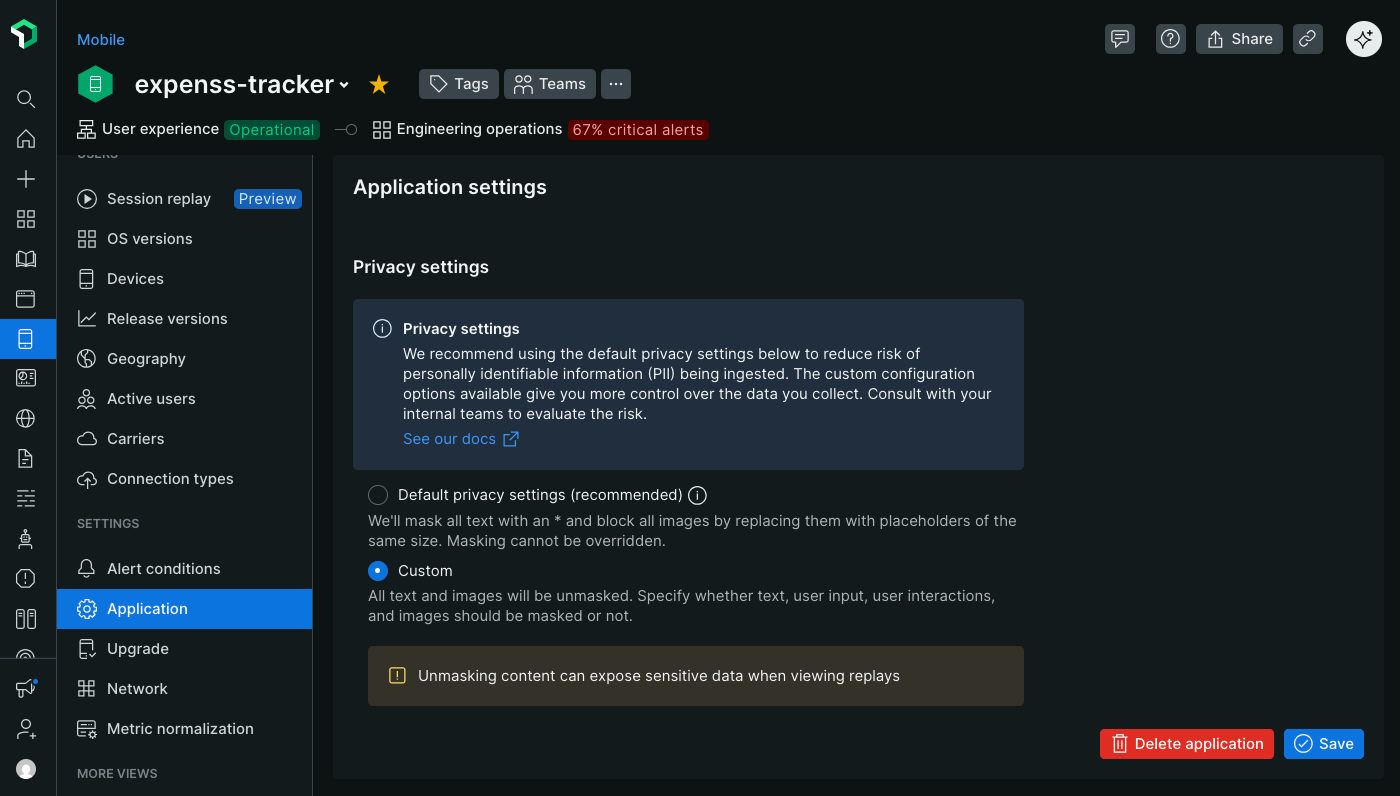
マスキングモード
カスタム マスキング戦略を使用する場合、マスキング モードはセッション リプレイのベースライン プライバシー動作を確立します。 これらのモードは、個々のコンポーネントの特定のルールによって上書きされない限り、アプリ全体にグローバルに適用されます。
マスキング モードを構成するには:
New Relic ウェブインターフェースの場合:
- Mobile > [あなたのエンティティ] > Settings > Application > Session Replayに移動します
- Custom [カスタム]マスキング戦略が選択されていることを確認します
- Masking modes [マスキングモード]セクションで、必要に応じて各モードのオン/オフを切り替えます。
- 変更はすべての新しいセッション記録に直ちに反映されます
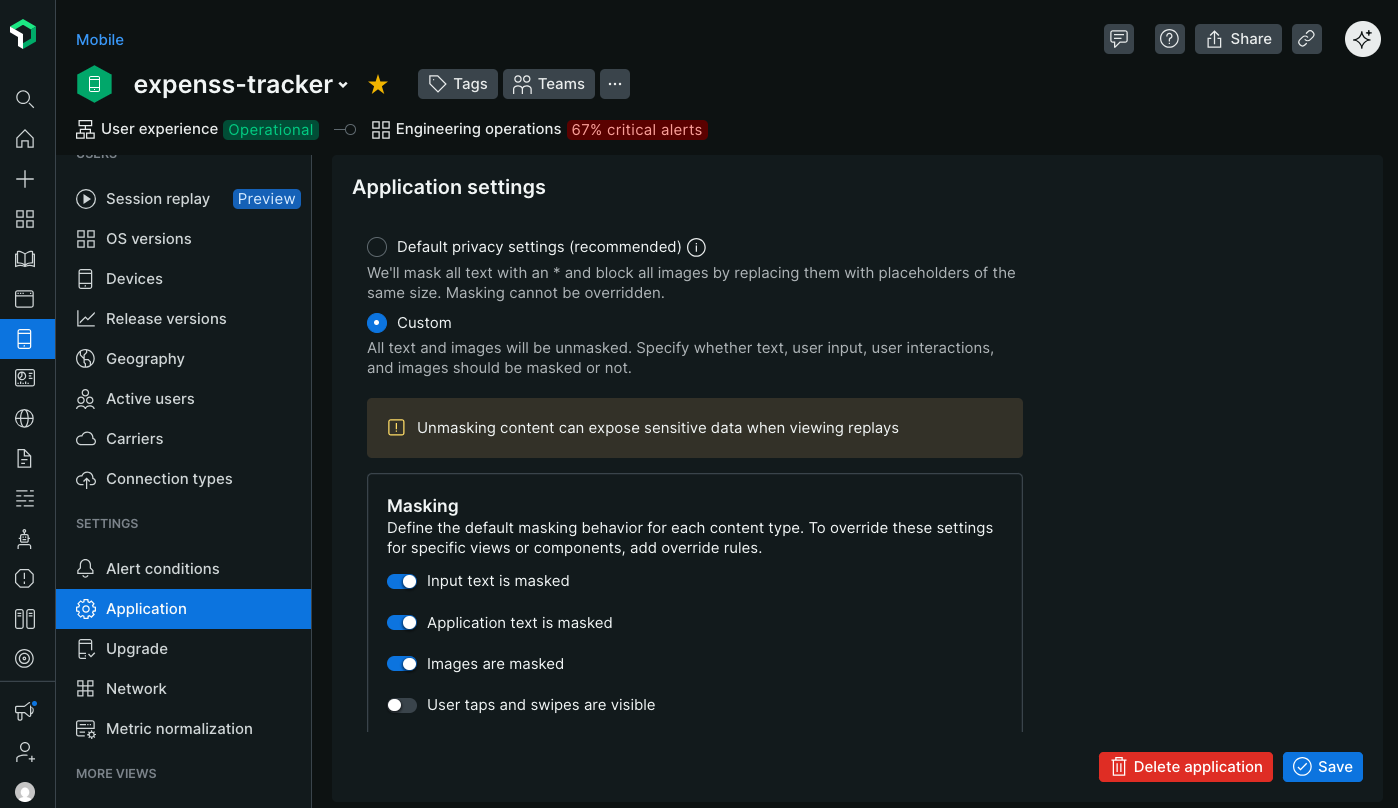
4 つのマスキング モードは、異なる種類のコンテンツを制御します。
ユーザー入力テキストをマスクする
ユーザーが入力フィールドに入力したテキストがリプレイに表示されるかどうかを制御します。
有効にした場合(推奨):
- ユーザーが入力したすべての文字はアスタリスクに置き換えられます
- 例:ユーザーが「john.doe@email.com」と入力します→ リプレイでは"******************"と表示されます
- ユーザー名、メールアドレス、検索クエリ、フォームデータ、その他のユーザーが入力したコンテンツを保護します
無効にした場合:
- ユーザーが入力したテキストは、リプレイに入力したとおりに表示されます。
- 入力フィールドに機密情報が含まれていない場合にのみ使用してください
- フォーム検証の問題や検索機能のデバッグに役立ちます
重要
この設定に関係なく、パスワード フィールドは常にマスクされます。SecureField (iOS)、パスワード入力タイプ (Android)、および安全なテキスト入力フィールドでは、リプレイでプレーンテキストが表示されることはありません。
デフォルト設定:カスタム マスキング戦略で有効。
このモードを無効にする必要がある場合:
- クエリが個人を特定できない公開検索バー
- 非機密フィルターまたはカテゴリ選択
- オートコンプリートまたは入力検証の問題のデバッグ
マスクアプリケーションのテキスト
アプリケーションによって表示されるテキスト (ラベル、ボタン、ヘッダー、コンテンツ) がリプレイに表示されるかどうかを制御します。
有効にすると:
- アプリによってレンダリングされるすべての静的および動的テキストはアスタリスクに置き換えられます
- 例: 「First Name:」ラベルはリプレイでは「***********」になります
- 機密情報を含む、または漏洩する可能性のあるテキストを保護します
無効にした場合:
- アプリケーションのすべてのテキストは、ユーザーが見ているとおりに表示されます
- ラベル、ボタン、見出し、コンテンツは完全に読みやすい
- リプレイの理解と操作がはるかに簡単になります
- ユーザーがどの画面や機能を操作したかを特定するために不可欠
デフォルト設定:カスタム マスキング戦略で有効。
ほとんどのアプリに対する推奨事項:非常に機密性の高い情報を表示する場合を除き、このモードを無効にします。表示される UI テキストは、次の点で重要です。
- ユーザーのナビゲーションパスを理解する
- ユーザーがクリックしたボタンや機能を特定する
- 表示されたエラーメッセージを見る
- レイアウトまたはローカリゼーションの問題の診断
- リプレイと特定のアプリ機能を相関させる
次の場合にはこのモードを有効にしてください。
- 患者情報を表示するヘルスケアアプリ
- 口座の詳細や取引を表示する金融アプリ
- センシティブな内容を含む可能性のあるユーザー生成コンテンツを含むアプリ
- コンプライアンス要件により、表示されるすべてのテキストをマスクすることが義務付けられています
ヒント
このモードを無効にして、特定の機密テキスト要素をマスクする必要がある場合は、オーバーライド ルールを使用して、UI の残りの部分を表示したまま、それらのコンポーネントのみを選択的にマスクします。
マスク画像
重要
イメージキャプチャをサポートするエージェントの最小バージョン:
- iOS エージェント v7.5.10 (2025 年 9 月 15 日リリース)
- Android エージェント v7.6.9(2025 年 9 月 15 日リリース)
- React Native エージェント v1.5.10 (2025年9月15日リリース)
アプリケーション内の画像をキャプチャしてリプレイで表示するかどうかを制御します。
有効にした場合(推奨):
- すべての画像は同じサイズのプレースホルダーブロックに置き換えられます
- プレースホルダーはレイアウト構造を維持するので、画像の位置を確認できます。
- 画像データはNew Relicに送信されません
- ユーザーがアップロードした写真、プロフィール写真、および機密性の高い可能性のある画像を保護します
無効にした場合:
- 画像はキャプチャされ、圧縮され、Base64でエンコードされ、リプレイペイロードに含められます。
- リプレイでは画像が表示されるが、ユーザーが見たものよりも画質が低い
- データ転送と保存コストが大幅に増加する
- 画像の読み込み、レンダリング、レイアウトに関する問題の診断に役立ちます
画像を撮影する際の重要な考慮事項
画像キャプチャを有効にすると、データ使用量とパフォーマンスに大きな影響が出ます。
データ使用量: 画像はリプレイペイロードサイズを大幅に増加させ、ユーザーデータとNew Relicのストレージクォータを大幅に消費します。
品質: 画像は影響を最小限に抑えるためにクライアント側で積極的に圧縮されるため、元の画像よりも品質が低くなります。
パフォーマンス: 画像のキャプチャと圧縮は、古いデバイス上のアプリのパフォーマンスに影響を与える可能性があります
プライバシー:画像に機密情報や個人情報が含まれているかどうかを考慮する
視覚的なデバッグがユースケースに不可欠な場合にのみ、画像マスクを無効にしてください。
デフォルト設定:カスタム マスキング戦略で有効。
このモードを無効にする必要がある場合:
- 画像の読み込み失敗やレンダリングの問題の診断
- 画像寸法に関連するレイアウトの問題の調査
- 画像ギャラリーやメディアコンテンツに対するユーザーのインタラクションを理解する
- アプリには、公開されている機密情報を含まない画像(アイコン、ロゴ、イラスト)のみが表示されます。
次の場合にはこのモードを有効にしてください。
- ユーザーのプロフィール写真またはアップロードされた写真
- アプリ内でキャプチャされたドキュメントまたはスクリーンショット
- 医療画像またはヘルスケア関連の画像
- ユーザーが作成した視覚コンテンツ
ユーザーのタップとスワイプを非表示にする
ユーザーのタッチ インタラクションをリプレイで視覚化するかどうかを制御します。
無効にした場合(推奨):
- ユーザーのタップは、リプレイ上に緑色の円として表示されます。
- スワイプジェスチャーは、モーションパスを示す緑色の線として表示されます。
- ユーザーがどのUI要素を操作したかを理解するために不可欠
- ユーザビリティの問題、タップのミス、または混乱を招くインタラクションを特定するのに役立ちます
有効にすると:
- リプレイにはタップやスワイプの視覚化は表示されません
- ユーザーは目に見えるインタラクションなしでアプリ内を移動しているように見えます
- タッチパターンによって機密情報が明らかになる可能性がある場合に使用します
ヒント
この設定に関係なく、OS キーボードとそのタップおよびスワイプはリプレイではキャプチャされません。 これにより、パスワードの入力と機密テキストの入力が自動的に保護されます。
デフォルト設定:カスタム マスキング戦略では無効 (タップとスワイプは表示されます)。
インタラクションを非表示にする必要がある場合:通常はテキストをマスクするだけで十分ですが、次の場合にはタップ/スワイプを非表示にする必要がある場合があります。
- アプリにはPINパッドまたはテンキーが統合されており、タップパターンでセキュリティコードが表示されます
- スワイプパターンは認証に使用されます(パターンロック、ジェスチャーパスワード)
- 特定の画面でのタッチインタラクションは、繊細な選択(医学的症状の選択、財務上の決定)を推測する可能性があります。
ほとんどのアプリに対する推奨事項:インタラクションを次のユーザーに見えるようにしておきます:
- 見逃された領域や反応しない領域も含め、ユーザーがタップした場所を正確に確認します
- アプリのナビゲーションパターンとユーザーフローを理解する
- 小さなタッチターゲットやわかりにくいボタンなどのユーザビリティの問題を特定する
- ジェスチャベースの機能(スワイプして削除、引いて更新など)を診断します
高度なマスキング設定
アプリケーションの特定の部分に、指定したマスキング モードとは異なるマスキング設定を適用する場合は、マスキング オーバーライドを使用します。たとえば、アプリケーションの大部分に機密データが含まれていない場合は、モードをマスク解除に設定し、オーバーライドを指定して、機密データが含まれるアプリケーションの部分のみをマスクすることができます。
マスクオーバーライドメソッド
マスキング オーバーライド ルールを作成するには、次の 3 つの方法があります。
インライン属性
インライン マスキング オーバーライドは、マスクまたはマスク解除するコンポーネントにタグを付けることでコード内に適用されます。アップデートを適用するには、アプリの新しいバージョンを 作成し、ユーザーに採用してもらう必要があるため、変更のマスキングを管理するために変更管理プロセスを監視したい場合に最適です。
SwiftUI
特定のマスキング動作が必要なコンテンツをラップするには、 NRConditionalMaskViewを使用します。この SwiftUI コンポーネントは、セッションリプレイでのデータマスキングをきめ細かく制御できます。
要件:
iOS 16.0以降
Swift 5.0以降
輸入:
import SwiftUIimport NewRelic基本的な使用方法:
// Mask all text content within this viewNRConditionalMaskView(maskApplicationText: true) {VStack {Text("This text will be masked in session replay")Text("This text will also be masked")}}コンテンツのマスクを解除:
// Explicitly unmask content (useful when parent views have masking enabled)NRConditionalMaskView(maskApplicationText: false) {Text("This text will be visible in session replay")}識別子ベースのマスキング:
// Use an identifier to control masking via API or dashboard settingsNRConditionalMaskView(sessionReplayIdentifier: "unmasked-section") {Text("This text masking is controlled by the identifier")}コンテンツをラップするには、
NRConditionalMaskViewを使用します。blockViewパラメーターを使用して、ビュー階層を完全に隠すことができます。SwiftUI
// Block all content within this view (renders as a black rectangle)NRConditionalMaskView(blockView: true) {YourSensitiveView()}SwiftUIでテキストが表示されない問題のトラブルシューティング
リプレイでテキストが欠落している場合は、問題を解決するために画面領域全体を
NRConditionalMaskViewで囲みます。NRConditionalMaskView {// Your entire screen region content hereYourScreenView()}UIキット
blockViewプロパティを直接使用するか、特定のアクセシビリティ識別子を使用することで、ビューをブロックできます。プロパティを使用する:
let sensitiveView = UIView()sensitiveView.blockView = trueアクセシビリティ識別子を使用する場合:識別子に
nr-blockを追加すると、ブロック動作がトリガーされます。let sensitiveView = UIView()sensitiveView.accessibilityIdentifier = "nr-block"パラメーター:
maskApplicationText:trueの場合、ビュー内のすべてのテキスト コンテンツをマスクします。falseの場合、テキストが表示されるようにします。nilの場合、親から継承します。maskUserInputText:trueの場合、ビュー内のユーザー入力フィールドをマスクします。falseの場合、入力内容が表示されます。nilの場合、親から継承します。maskAllImages:trueの場合、ビュー内のすべての画像をマスクします。falseの場合、画像が表示されます。nilの場合、親から継承します。maskAllUserTouches:trueのとき、マスクユーザーはビュー内のインタラクションをタッチします。falseの場合、タッチイベントが表示されます。nilの場合、親から継承します。sessionReplayIdentifier:addSessionReplayMaskedAccessibilityIdentifier、addSessionReplayUnmaskedAccessibilityIdentifier、または New Relic アプリケーション ダッシュボードを介してマスキングを制御するためのオプションの識別子。blockView:trueの場合、セッションリプレイではビュー領域全体が隠れます。falseの場合、ブロッキング動作はありません。activated:falseの場合、このビューのマスキング機能が完全に無効になります。デフォルトはtrueです。高度な例 - フォーム内の混合マスキング:
struct RegistrationForm: View {@State private var firstName = ""@State private var email = ""@State private var password = ""var body: some View {VStack(alignment: .leading, spacing: 16) {// Public form labels remain visibleNRConditionalMaskView(maskApplicationText: false) {Text("Create Your Account").font(.title)}// Personal informationNRConditionalMaskView(sessionReplayIdentifier: "personal-info") {TextField("First Name", text: $firstName)TextField("Email", text: $email)}// Highly sensitive - mask everythingNRConditionalMaskView(sessionReplayIdentifier: "password-section") {SecureField("Password", text: $password)Text("Password must be at least 8 characters")}Button("Sign Up") {// Handle registration}}.padding()}}UIキット
マスクまたはマスク解除する
UIViewのaccessibilityIdentifierにnr-maskまたはnr-unmaskを追加します。既存の識別子を追加すると、自動テスト用に一意の識別子を維持する必要がある場合に役立ちますが、値を変更した後にテストを更新する必要がある可能性が高くなります。accessibilityIdentifier追加する例:let myView = UIView()myView.accessibilityIdentifier = "nr-mask"既存の
accessibilityIdentifierに追加する例:let myView = UIView()myView.accessibilityIdentifier = "someExistingId.nr-unmask"
ジェットパックコンポーズ
Modifier拡張機能を使用して、Jetpack Composeのマスキングとブロッキングの動作を制御します。
例:
// Mask a composableText(    text = "Sensitive information",    modifier = Modifier.newRelicMask())
// Unmask a composableText(    text = "Public information",    modifier = Modifier.newRelicUnmask())
// Block a composableText( text = "Sensitive User information", modifier = Modifier.newRelicBlock())XMLレイアウト
マスク、マスク解除、またはブロックするビューまたはコンポーネントに、nr-mask、nr-unmask、またはnr-blockタグを追加します。
例:
<EditText    android:id="@+id/editTextEmail"    android:layout_width="390dp"    android:inputType="text"    android:tag="nr-mask"    android:importantForAutofill="no" />
<EditText    android:id="@+id/editTextEmail"    android:layout_width="390dp"    android:inputType="text"    android:tag="nr-unmask"    android:importantForAutofill="no" />
<CustomPinView android:id="@+id/editTextEmail" android:layout_width="390dp" android:inputType="text" android:tag="nr-block" android:importantForAutofill="no" />ビューまたはコンポーネントをマスクまたはマスク解除するには、 <NewRelicMask>および<NewRelicUnMask>コンポーネントを使用します。
例:
<View>  <NewRelicMask>    <Text>Sensitive information</Text>  </NewRelicMask></View>
<View> <NewRelicUnmask> <Text>Non-sensitive information</Text> </NewRelicUnmask></View>ローカルAPIメソッド
ローカルAPIメソッドのマスキング オーバーライドは、 New Relicエージェント設定内のコードにも適用されます。 これらは、ターゲット ビューに既に一意の識別子があり、コード全体で各ビューを個別にタグ付けするのではなく、集中リストでターゲット ビューを管理したい場合に便利です。
SwiftUI
SwiftUI ビューの場合は、次のメソッドとともにNRConditionalMaskViewのsessionReplayIdentifier問題を使用します。
addSessionReplayMaskedAccessibilityIdentifieraddSessionReplayUnmaskedAccessibilityIdentifier例:
// In your app initializationNewRelic.addSessionReplayMaskedAccessibilityIdentifier("sensitive-section")NewRelic.addSessionReplayUnmaskedAccessibilityIdentifier("public-section")// In your SwiftUI viewsNRConditionalMaskView(sessionReplayIdentifier: "sensitive-section") {Text("This will be masked")}NRConditionalMaskView(sessionReplayIdentifier: "public-section") {Text("This will be visible")}UIキット
次のメソッドに
classまたはaccessibilityIdentifierを追加して、ビューをマスクまたはマスク解除します。addSessionReplayMaskViewClassaddSessionReplayUnmaskViewClassaddSessionReplayMaskViewAccessibilityIdentifieraddSessionReplayUnmaskViewAccessibilityIdentifier例:
NewRelic.addSessionReplayMaskViewClass("SecureLabel")NewRelic.addSessionReplayUnmaskViewClass("UnsecureLabel")NewRelic.addSessionReplayMaskViewAccessibilityIdentifier("login")NewRelic.addSessionReplayUnmaskViewAccessibilityIdentifier("editTextEmail")
ジェットパックコンポーズ
Modifier拡張機能を使用して、Jetpack Composeのマスキングとブロッキングの動作を制御します。
例:
// Mask a composableText(    text = "Sensitive information",    modifier = Modifier.newRelicMask())
// Unmask a composableText(    text = "Public information",    modifier = Modifier.newRelicUnmask())
// Block a composableText( text = "Sensitive User information", modifier = Modifier.newRelicBlock())XMLレイアウト
次のメソッドにclassまたはandroid:tagを追加して、ビューをマスクまたはマスク解除します。
addSessionReplayMaskViewClassaddSessionReplayUnmaskViewClassaddSessionReplayMaskViewTagaddSessionReplayUnmaskViewTag
例:
NewRelic.addSessionReplayMaskViewTag("login");NewRelic.addSessionReplayUnmaskViewTag("editTextEmail");NewRelic.addSessionReplayUnmaskViewClass("android.widget.Button");NewRelic.addSessionReplayMaskViewClass("android.widget.TextView");NewRelic.addSessionReplayMaskViewClass("com.yourpackagename.CustomView");サーバー側のルール
重要
サーバー側ルールをサポートする最小エージェント バージョン:
- iOS エージェント v7.5.10 (2025 年 9 月 15 日リリース)
- Android エージェント v7.6.9(2025 年 9 月 15 日リリース)
- React Native エージェント v1.5.10 (2025年9月15日リリース)
サーバー側のマスキング ルールを使用すると、すでにリリースされているアプリのバージョンのマスキングの間違いを遡及的に修正できます。アプリの更新を必要とせず、すべての新しいセッションの開始時にすぐに有効になります。
ルールは 3 つのコンポーネントで構成されます。
- タイプ: 一致するコンポーネントをマスクするかマスク解除するかを決定します
- 識別子: 対象要素をどのように扱うかを指定します (例: クラス別、タグ別など)。
- 値: ルールが適用される選択された識別子の値
たとえば、 Mask class android.widget.EditTextのルールは、Android アプリ内のユーザーが編集可能なすべてのテキスト フィールドをマスクします。
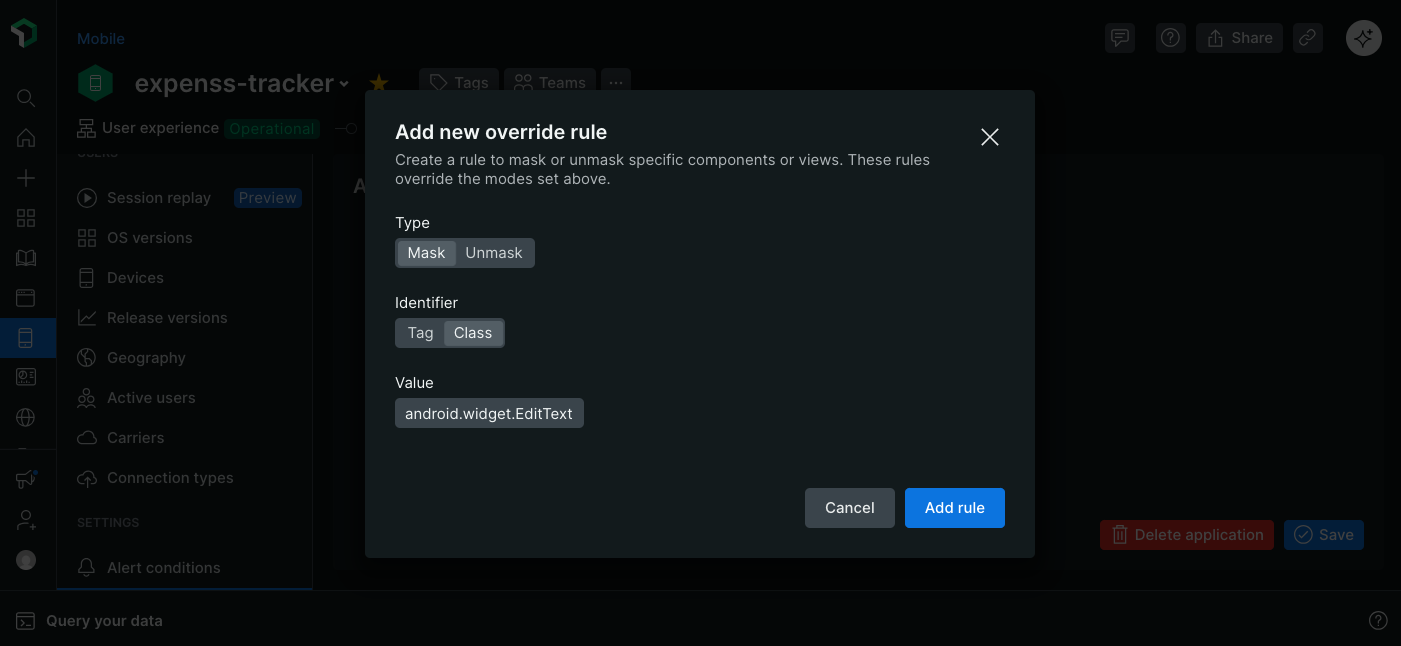
アプリケーション設定でモバイル セッションリプレイのマスキング オーバーライドを定義します。
新しいルールを作成するには
New Relic ウェブインターフェースの場合:
- Mobile > [あなたのエンティティ] > Settings > Application > Session Replayに移動します。
- Override rules [オーバーライド ルール]までスクロールし、 Add new override rule [新しいオーバーライド ルールの追加]をクリックします。
- ルールの種類 (マスクまたはマスク解除) を選択します。
- コンポーネントをターゲットするために使用する識別子を選択します。
- ルールを適用する識別子の値を入力します。
- Add rule [ルールの追加]をクリックします。
新しいルールはオーバーライド ルール テーブルに追加され、すべての新しいセッションに適用されます。
ルールを削除または編集するには:
New Relic ウェブインターフェースの場合:
- Mobile > [あなたのエンティティ] > Settings > Application > Session Replayに移動します。
- 「オーバーライド ルール」テーブルで、変更するルールを見つけます。
...メニューをクリックし、 Delete [削除]またはEdit [編集]を選択します。
マスキングルールの優先度
1 つのビューまたは要素に複数のマスキング ルールが適用される場合、次の優先順位によってどのルールが適用されるかが決まります。
戦略はすべてに優先する
マスキング戦略が
Defaultの場合、モードとオーバーライドは適用されません。例:コードにインライン
nr-unmask属性オーバーライドを追加したが、設定でDefaultマスキング戦略が選択されている場合は、すべてがマスクされたままになります。オーバーライドはモードを優先します
モードはオーバーライドが存在しない場合に標準的な動作を決定するため、オーバーライドが存在する場合は、それが常にモードよりも優先されます。
例:
Mask application textモードが有効で、コード内のビューにインラインnr-unmask属性オーバーライドを追加すると、そのビューはマスク解除されますが、他のすべてのビューはマスクされます。マスクのオーバーライドはマスク解除のオーバーライドよりも優先されます
1 つのビューにマスクとマスク解除の両方のオーバーライドがある場合、そのビューは常にマスクされます。
例:ビューにインライン
nr-unmask属性オーバーライドとnr-maskサーバー側ルールがある場合、ビューはマスクされます。親/子優先順位ルール
競合するルールがある場合、親のマスキングはサブツリーのルールよりも優先されることに注意してください。
例:親に
nr-block属性があるが、子にnr-unmaskがある場合、サブツリー全体がコンテンツをブロックする黒い長方形のプレースホルダーに置き換えられます;サブツリー内の子コンテンツはキャプチャされません。