Privacidade e mascaramento
Escolha a estratégia de mascaramento que melhor se adapte às suas necessidades de privacidade.
estratégias de mascaramento
O Mobile Session Replay oferece duas estratégias de mascaramento para equilibrar a proteção da privacidade com a utilidade da reprodução. Sua escolha determina como os dados sensíveis são tratados nas gravações de sessão.
estratégia de mascaramento padrão
A estratégia de mascaramento padrão oferece proteção máxima à privacidade, ocultando todo o texto e as imagens sem exceção. Escolha esta estratégia quando:
- Seu aplicativo lida com dados altamente sensíveis (saúde, serviços financeiros, etc.).
- A conformidade regulamentar exige proteção de dados rigorosa.
- Você quer risco zero de que informações privadas sejam capturadas.
O que fica mascarado:
- Todo o texto é substituído por asteriscos (por exemplo, "olá" torna-se "*****").
- Todas as imagens foram substituídas por blocos de espaço reservado com as mesmas dimensões.
- Os toques e gestos de deslizar do usuário ainda são capturados (a menos que você os oculte).
Isso garante que, mesmo se você adicionar acidentalmente um código de desmascaramento, a estratégia padrão sempre mascarará tudo.
Limitações importantes da estratégia de mascaramento padrão:
- Os modos de mascaramento não são configuráveis.
- As sobreposições de máscara embutidas (como a tag
nr-unmask) são ignoradas. - As regras de mascaramento do lado do servidor não têm efeito.
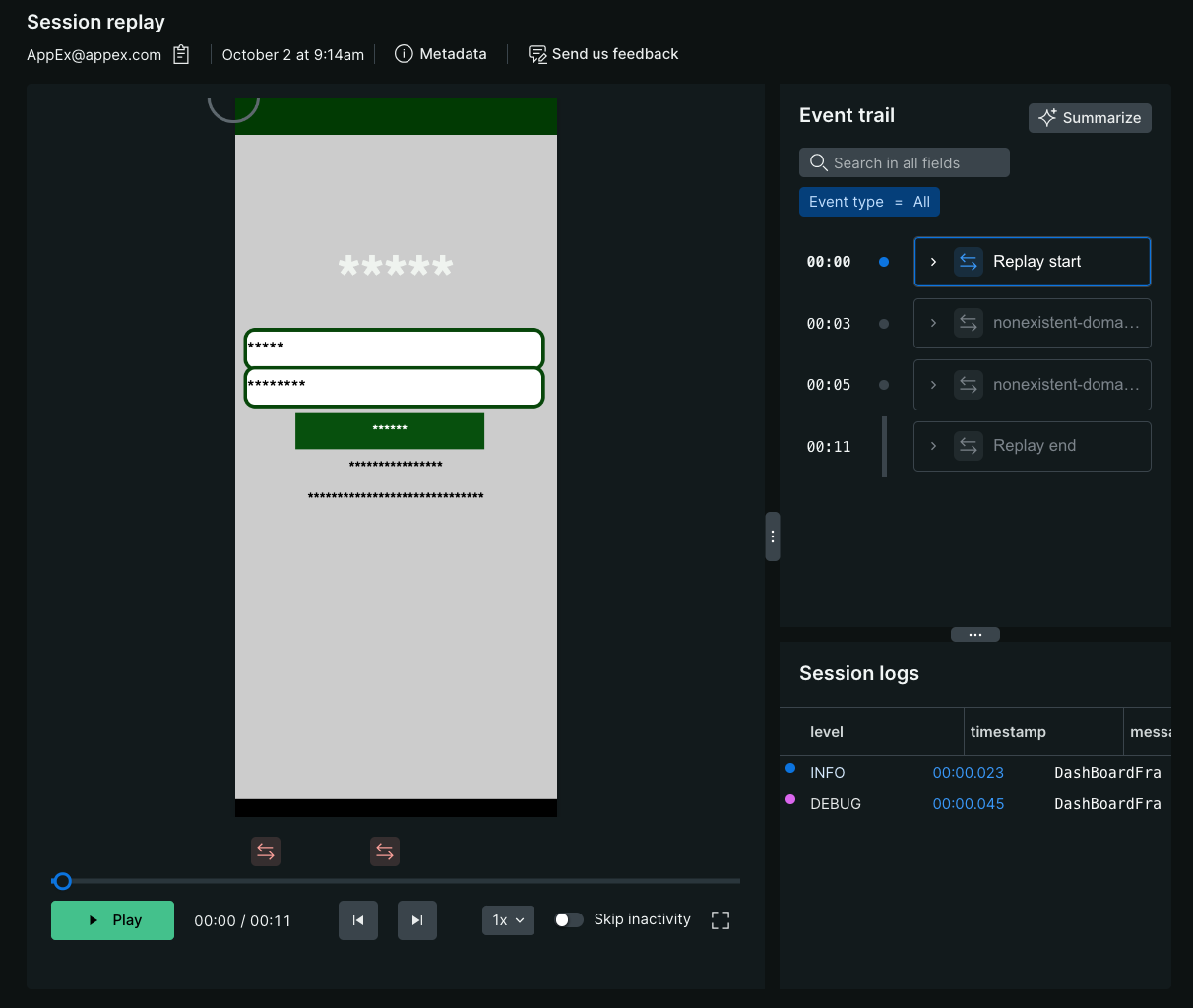
Diferença entre Mascaramento e Bloqueio
É importante distinguir entre Mascaramento e Bloqueio, pois eles tratam dados sensíveis de forma diferente no replay:
Mascaramento: Substitui conteúdo específico enquanto preserva o layout. O texto se torna asteriscos (*) e as imagens se tornam blocos de espaço reservado.
Bloqueio: Cria uma sobreposição preta sólida completa cobrindo toda a área de visualização.
Quando uma visualização é bloqueada:
Toda a área de visualização está obscurecida no replay da sessão.
Todo o conteúdo dentro dessa visualização está completamente oculto.
Efeito em cascata: Todas as subviews são bloqueadas automaticamente.
As interações do usuário nessa área não são capturadas e os elementos visuais permanecem ocultos.
Estratégia de mascaramento personalizada
A estratégia de mascaramento personalizada oferece controle preciso sobre o que será mascarado e o que permanecerá visível. Utilize esta estratégia quando:
- Seu aplicativo contém uma mistura de conteúdo público e conteúdo sensível.
- Você precisa visualizar elementos específicos da interface do usuário para diagnosticar problemas com eficácia.
- Você deseja revelar seletivamente áreas não sensíveis.
Uma estratégia personalizada consiste em:
- Modos de mascaramento: regras básicas para diferentes tipos de conteúdo (texto, imagens, interatividade)
- Regras de sobreposição: Exceções para mascarar ou desmascarar componentes específicos.
Para alternar para máscara personalizada:
Na interface web do New Relic:
- Acesse Mobile > [sua entidade] > Settings > Application > Session Replay
- Na seção Masking strategy, selecione Custom
- Configure seus modos de mascaramento (consulte a próxima seção)
- Opcionalmente, adicione regras de sobreposição para componentes específicos.
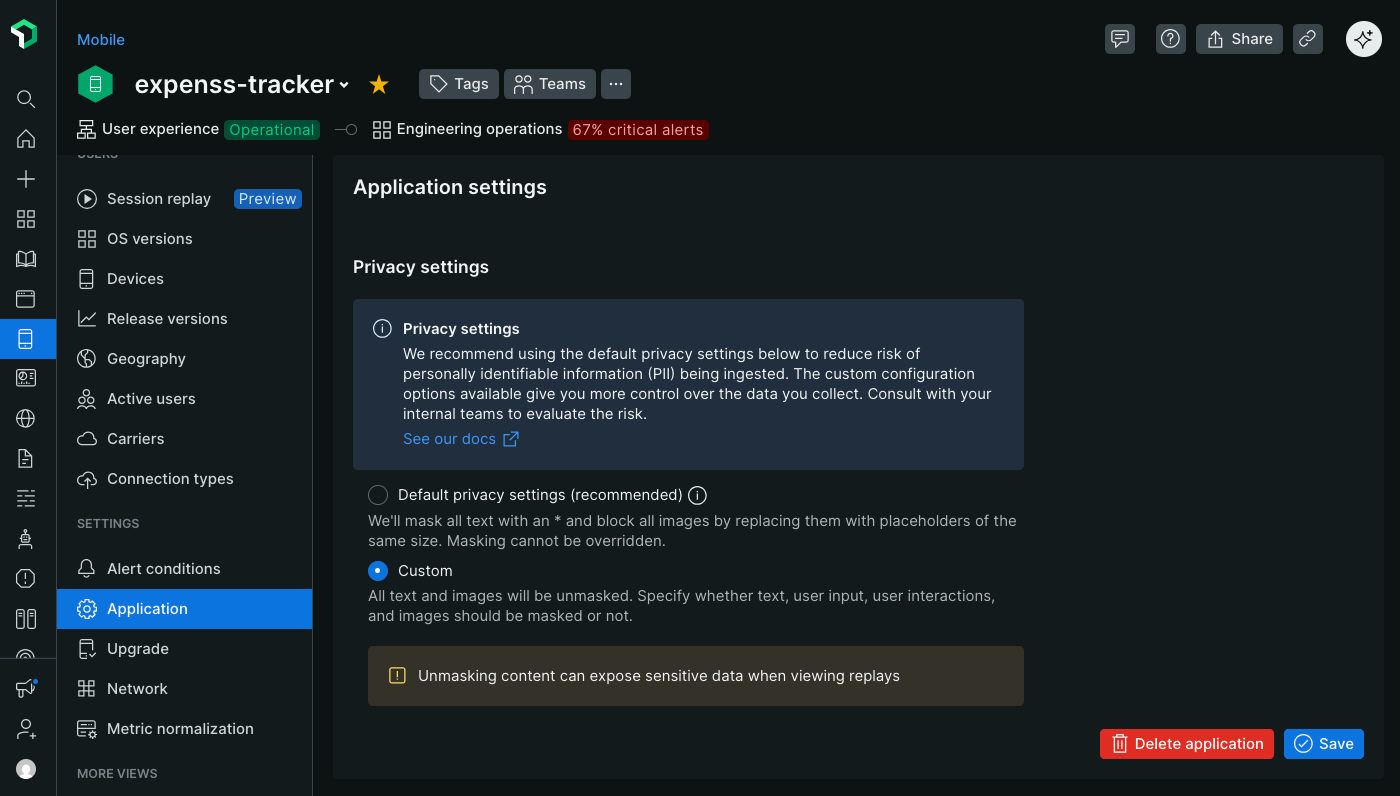
Modos de mascaramento
Ao usar a estratégia de mascaramento personalizada, os modos de mascaramento estabelecem o comportamento baseline de privacidade para a reprodução da sua sessão. Esses modos se aplicam globalmente em todo o seu aplicativo, a menos que sejam substituídos por regras específicas para componentes individuais.
Para configurar os modos de mascaramento:
Na interface web do New Relic:
- Acesse Mobile > [sua entidade] > Settings > Application > Session Replay
- Certifique-se de que a estratégia de mascaramento Custom esteja selecionada.
- Na seção Masking modes, ative ou desative cada modo de acordo com suas necessidades.
- As alterações entram em vigor imediatamente para todas as novas gravações de sessão.
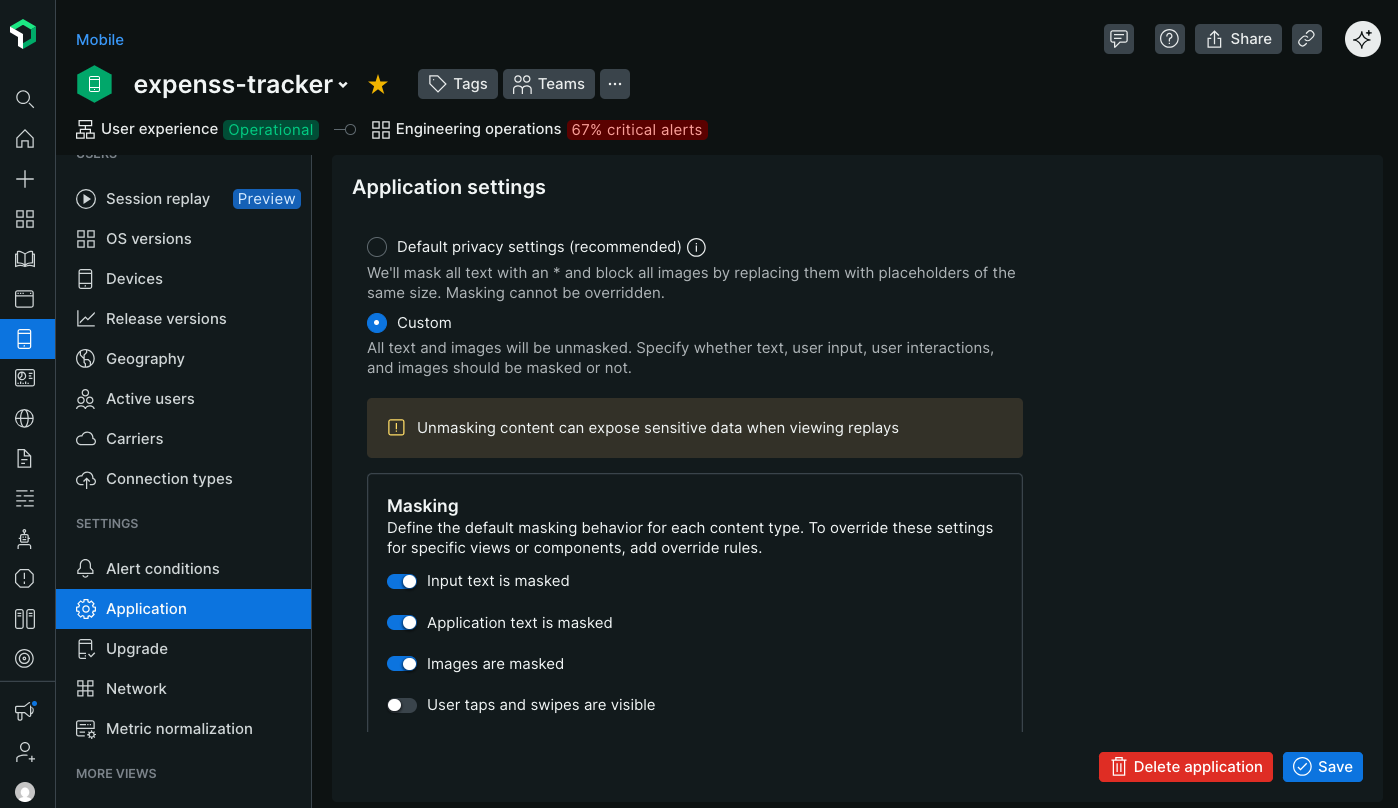
Os quatro modos de mascaramento controlam diferentes tipos de conteúdo:
texto de entrada do usuário mascarar
Controla se o texto inserido pelo usuário nos campos de entrada fica visível nas reproduções.
Quando ativado (recomendado):
- Todos os caracteres digitados pelo usuário são substituídos por asteriscos.
- Exemplo: o usuário digita "john.doe@email.com" → aparece como "******************" no replay
- Protege nomes de usuário, endereços de e-mail, consultas de pesquisa, dados de formulários e outros conteúdos inseridos pelo usuário.
Quando desativado:
- O texto inserido pelo usuário aparece exatamente como digitado na reprodução.
- Utilize somente quando os campos de entrada contiverem informações não sensíveis.
- Útil para depurar problemas de validação de formulários ou funcionalidades de pesquisa.
Importante
Os campos de senha são sempre ocultados, independentemente dessa configuração. Os campos SecureField (iOS), os tipos de entrada de senha (Android) e os campos de entrada de texto seguros nunca exibirão texto simples nas reproduções.
Configuração padrão: Ativada na estratégia de mascaramento personalizada.
Quando você pode desativar este modo:
- Barras de pesquisa públicas onde os consultados não são pessoalmente identificáveis
- Filtros não sensíveis ou seleções de categoria
- Depurando problemas de preenchimento automático ou validação de entrada
aplicativo mascarar texto
Controla se o texto exibido pelo seu aplicativo (rótulos, botões, cabeçalhos, conteúdo) fica visível nas reproduções.
Quando ativado:
- Todo o texto estático e dinâmico renderizado pelo seu aplicativo é substituído por asteriscos.
- Exemplo: o rótulo "Nome:" torna-se "***********" na repetição.
- Protege qualquer texto que possa conter ou revelar informações sensíveis.
Quando desativado:
- Todo o texto do aplicativo aparece exatamente como o usuário o vê
- Rótulos, botões, títulos e conteúdo são totalmente legíveis.
- Torna as repetições muito mais fáceis de entender e navegar.
- Essencial para identificar com quais telas ou recursos o usuário interagiu.
Configuração padrão: Ativada na estratégia de mascaramento personalizada.
Recomendação para a maioria dos aplicativos: desative este modo, a menos que esteja exibindo informações altamente confidenciais. O texto visível na interface do usuário é crucial para:
- Entendendo os caminhos de navegação do usuário
- Identificar quais botões ou recursos o usuário clicou.
- Vendo mensagem de erro que apareceu
- Diagnóstico de problemas de layout ou localização
- Correlação entre replays e recursos específicos do aplicativo
Mantenha este modo ativado quando:
- Aplicativos de saúde que exibem informações do paciente
- Aplicativos financeiros que exibem detalhes da conta ou transações.
- Aplicativos com conteúdo gerado pelo usuário que pode ser sensível.
- Os requisitos de conformidade exigem que todo o texto exibido seja ocultado.
Dica
Se você desativar esse modo, mas precisar mascarar elementos de texto sensíveis específicos, use regras de substituição para mascarar seletivamente apenas esses componentes, mantendo o restante da interface do usuário visível.
imagens de rímel
Importante
Versões mínimas do agente que suportam captura de imagem:
- Agente iOS v7.5.10 (lançado em 15 de setembro de 2025)
- Agente Android v7.6.9 (lançado em 15 de setembro de 2025)
- Agente React Native v1.5.10 (lançado em 15 de setembro de 2025)
Controla se as imagens do seu aplicativo são capturadas e exibidas nas reproduções.
Quando ativado (recomendado):
- Todas as imagens foram substituídas por blocos de espaço reservado do mesmo tamanho.
- pt reservado preservar estrutura de layout para que você possa ver as posições das imagens
- Nenhum dado de imagem é transmitido para o New Relic.
- Protege fotos enviadas pelo usuário, fotos de perfil e imagens potencialmente sensíveis.
Quando desativado:
- As imagens são capturadas, compactadas, codificadas em base64 e incluídas na carga útil de reprodução.
- As imagens aparecem nas reprises, embora com qualidade inferior à vista pelo usuário.
- Aumenta significativamente os custos de transmissão e armazenamento de dados.
- Ajuda a diagnosticar problemas com o carregamento, renderização ou layout de imagens.
Considerações importantes ao capturar imagens
Habilitar a captura de imagens impacta significativamente o uso de dados e o desempenho:
Uso de dados: As imagens aumentam drasticamente o tamanho da carga útil da reprodução, consumindo substancialmente mais dados do usuário e sua cota de armazenamento do New Relic.
Qualidade: As imagens são comprimidas agressivamente no lado do cliente para minimizar o impacto, resultando em qualidade inferior à original.
desempenho: a captura e compactação de imagens podem afetar o desempenho do aplicativo em dispositivos mais antigos
Privacidade: Considere se as imagens podem conter informações sensíveis ou privadas.
Desative a máscara de imagem somente quando a depuração visual for essencial para o seu caso de uso.
Configuração padrão: Ativada na estratégia de mascaramento personalizada.
Quando você pode desativar este modo:
- Diagnóstico de falhas no carregamento de imagens ou problemas de renderização
- Investigando problemas de layout relacionados às dimensões da imagem.
- Compreender a interação do usuário com galerias de imagens ou conteúdo de mídia
- Seu aplicativo exibe apenas imagens públicas e não confidenciais (ícones, logotipos, ilustrações).
Mantenha este modo ativado quando:
- Fotos de perfil do usuário ou fotos enviadas
- Documentos ou captura de tela capturados dentro do aplicativo
- Imagens médicas ou imagens relacionadas à saúde
- Qualquer conteúdo visual gerado pelo usuário
Ocultar toques e gestos de deslizar do usuário
Controla se a interação de toque do usuário é visualizada nos replays.
Quando desativado (recomendado):
- Os toques do usuário aparecem como círculos verdes no replay
- Gestos de deslizar aparecem como linhas verdes mostrando o caminho do movimento.
- Essencial para entender com quais elementos da interface do usuário os usuários interagiram.
- Ajuda a identificar problemas de usabilidade, toques perdidos ou interações confusas.
Quando ativado:
- Nenhuma visualização por toque ou deslize aparece na reprodução.
- O usuário parece navegar pelo seu aplicativo sem nenhuma interação visível.
- Utilize quando os padrões de toque puderem revelar informações sensíveis.
Dica
O teclado do sistema operacional, bem como os toques e gestos de deslizar nele, nunca são capturados nas reproduções, independentemente dessa configuração. Isso proporciona proteção automática para a entrada de senhas e textos sensíveis.
Configuração padrão: Desativada na estratégia de mascaramento personalizada (toques e gestos de deslizar são visíveis).
Quando ocultar interações: Mascarar o texto geralmente é suficiente, mas ocultar toques/deslizamentos pode ser necessário quando:
- Seu aplicativo possui um teclado PIN ou numérico integrado, onde padrões de toque revelam códigos de segurança.
- Os padrões de deslizar são usados para autenticação (bloqueios por padrão, senhas por gestos).
- A interação por toque em telas específicas pode sugerir escolhas sensíveis (seleção de sintomas médicos, decisões financeiras).
Recomendação para a maioria dos aplicativos: Mantenha a interação visível para:
- Veja exatamente onde o usuário clicou, incluindo áreas não tocadas ou que não responderam.
- Compreenda os padrões de navegação e o fluxo do usuário em seu aplicativo.
- Identifique problemas de usabilidade com botões de toque pequenos ou pouco claros.
- Diagnosticar recursos baseados em gestos (deslizar para excluir, puxar para atualizar, etc.)
Configuração avançada de mascaramento
Utilize substituições de mascaramento quando desejar que partes específicas do seu aplicativo tenham configurações de mascaramento diferentes dos modos de mascaramento especificados. Por exemplo, se a maior parte do seu aplicativo não contém dados sensíveis, você pode configurar seus modos para revelar e especificar substituições para ocultar apenas as partes do seu aplicativo que contêm dados sensíveis.
Métodos de sobreposição de mascaramento
Oferecemos três maneiras de criar regras de sobreposição de mascaramento:
Atributo em linha
As sobreposições de mascaramento embutidas são aplicadas no seu código ao marcar o componente que você deseja mascarar ou exibir. Você precisará implantar uma nova versão do seu aplicativo e que o usuário a adote para que as atualizações sejam aplicadas; portanto, elas são mais adequadas quando você deseja que o controle do seu processo de controle de alterações gerencie as mudanças de mascaramento.
SwiftUI
Use NRConditionalMaskView para envolver conteúdo que deve ter um comportamento de mascaramento específico. Este componente SwiftUI fornece controle preciso sobre a manipulação de dados no Session Replay.
Requisitos:
iOS 16.0+
Swift 5.0+
Importar:
import SwiftUIimport NewRelicUso básico:
// Mask all text content within this viewNRConditionalMaskView(maskApplicationText: true) {VStack {Text("This text will be masked in session replay")Text("This text will also be masked")}}Revelar conteúdo:
// Explicitly unmask content (useful when parent views have masking enabled)NRConditionalMaskView(maskApplicationText: false) {Text("This text will be visible in session replay")}mascaramento baseado em identificadores:
// Use an identifier to control masking via API or dashboard settingsNRConditionalMaskView(sessionReplayIdentifier: "unmasked-section") {Text("This text masking is controlled by the identifier")}Use
NRConditionalMaskViewpara envolver o conteúdo. Você pode usar o parâmetroblockViewpara ofuscar completamente uma hierarquia de views.SwiftUI
// Block all content within this view (renders as a black rectangle)NRConditionalMaskView(blockView: true) {YourSensitiveView()}Solução de problemas de texto ausente no SwiftUI
Se houver alguma instância em que o texto esteja ausente do replay, envolva toda a região da tela em um
NRConditionalMaskViewsem parâmetros para corrigir o problema:NRConditionalMaskView {// Your entire screen region content hereYourScreenView()}UIKit
Você pode bloquear visualizações usando a propriedade
blockViewdiretamente ou usando um identificador de acessibilidade específico.Usando a propriedade:
let sensitiveView = UIView()sensitiveView.blockView = trueUsando o identificador de acessibilidade: Adicionar
nr-blockao identificador acionará o comportamento de bloqueio.let sensitiveView = UIView()sensitiveView.accessibilityIdentifier = "nr-block"Parâmetro:
maskApplicationText: Quandotrue, mascara todo o conteúdo de texto dentro da visualização. Quandofalse, garante que o texto esteja visível. Quandonil, herda do pai.maskUserInputText: Quandotrue, mascara os campos de entrada do usuário dentro da visualização. Quandofalse, mostra o conteúdo de entrada. Quandonil, herda do pai.maskAllImages: Quandotrue, mascarar todas as imagens dentro da visualização. Quandofalse, mostra imagens. Quandonil, herda do pai.maskAllUserTouches: Quandotrue, mascarar interação de toque do usuário dentro da visualização. Quandofalse, mostra o evento de toque. Quandonil, herda do pai.sessionReplayIdentifier: Identificador opcional para controlar a máscara viaaddSessionReplayMaskedAccessibilityIdentifier,addSessionReplayUnmaskedAccessibilityIdentifierou através do dashboard do aplicativo New Relic.blockView: Quandotrue, toda a área de visualização é ocultada no replay da sessão. Quandofalse, não há comportamento de bloqueio.activatedQuandofalse, desativa completamente a funcionalidade de mascaramento para esta visualização. O valor padrão étrue.Exemplo avançado - Mascaramento misto em um formulário:
struct RegistrationForm: View {@State private var firstName = ""@State private var email = ""@State private var password = ""var body: some View {VStack(alignment: .leading, spacing: 16) {// Public form labels remain visibleNRConditionalMaskView(maskApplicationText: false) {Text("Create Your Account").font(.title)}// Personal informationNRConditionalMaskView(sessionReplayIdentifier: "personal-info") {TextField("First Name", text: $firstName)TextField("Email", text: $email)}// Highly sensitive - mask everythingNRConditionalMaskView(sessionReplayIdentifier: "password-section") {SecureField("Password", text: $password)Text("Password must be at least 8 characters")}Button("Sign Up") {// Handle registration}}.padding()}}UIKit
Adicione ou anexe
nr-maskounr-unmaskaoaccessibilityIdentifierdoUIViewa ser mascarado ou desmascarado. Adicionar um identificador existente é útil se você precisar manter identificadores exclusivos para testes automatizados, mas provavelmente precisará atualizar seus testes após alterar os valores.Exemplo de adição de um
accessibilityIdentifier:let myView = UIView()myView.accessibilityIdentifier = "nr-mask"Exemplo de adição a um
accessibilityIdentifierexistente:let myView = UIView()myView.accessibilityIdentifier = "someExistingId.nr-unmask"
Jetpack Compose
Use extensões do Modifier para controlar o comportamento de mascaramento e bloqueio no Jetpack Compose.
Exemplo:
// Mask a composableText(    text = "Sensitive information",    modifier = Modifier.newRelicMask())
// Unmask a composableText(    text = "Public information",    modifier = Modifier.newRelicUnmask())
// Block a composableText( text = "Sensitive User information", modifier = Modifier.newRelicBlock())layouts XML
Adicione uma tag nr-mask,nr-unmask ou nr-block às visualizações ou componentes a serem mascarados, desmascarados ou bloqueados.
Exemplo:
<EditText    android:id="@+id/editTextEmail"    android:layout_width="390dp"    android:inputType="text"    android:tag="nr-mask"    android:importantForAutofill="no" />
<EditText    android:id="@+id/editTextEmail"    android:layout_width="390dp"    android:inputType="text"    android:tag="nr-unmask"    android:importantForAutofill="no" />
<CustomPinView android:id="@+id/editTextEmail" android:layout_width="390dp" android:inputType="text" android:tag="nr-block" android:importantForAutofill="no" />Use os componentes <NewRelicMask> e <NewRelicUnMask> para mascarar ou revelar visualizações ou componentes.
Exemplo:
<View>  <NewRelicMask>    <Text>Sensitive information</Text>  </NewRelicMask></View>
<View> <NewRelicUnmask> <Text>Non-sensitive information</Text> </NewRelicUnmask></View>Métodos da API local
As substituições de mascaramento de métodos da API local também são aplicadas no seu código dentro da configuração do agente New Relic. São úteis quando as visualizações de destino já possuem um identificador único e você deseja gerenciá-las em uma lista centralizada, em vez de marcar cada visualização individualmente em todo o seu código.
SwiftUI
Para visualizações SwiftUI, use o parâmetro sessionReplayIdentifier em NRConditionalMaskView juntamente com estes métodos:
addSessionReplayMaskedAccessibilityIdentifieraddSessionReplayUnmaskedAccessibilityIdentifierExemplo:
// In your app initializationNewRelic.addSessionReplayMaskedAccessibilityIdentifier("sensitive-section")NewRelic.addSessionReplayUnmaskedAccessibilityIdentifier("public-section")// In your SwiftUI viewsNRConditionalMaskView(sessionReplayIdentifier: "sensitive-section") {Text("This will be masked")}NRConditionalMaskView(sessionReplayIdentifier: "public-section") {Text("This will be visible")}UIKit
mascarar ou desmascarar visualizações adicionando seus
classouaccessibilityIdentifieraos seguintes métodos:addSessionReplayMaskViewClassaddSessionReplayUnmaskViewClassaddSessionReplayMaskViewAccessibilityIdentifieraddSessionReplayUnmaskViewAccessibilityIdentifierExemplo:
NewRelic.addSessionReplayMaskViewClass("SecureLabel")NewRelic.addSessionReplayUnmaskViewClass("UnsecureLabel")NewRelic.addSessionReplayMaskViewAccessibilityIdentifier("login")NewRelic.addSessionReplayUnmaskViewAccessibilityIdentifier("editTextEmail")
Jetpack Compose
Use extensões do Modifier para controlar o comportamento de mascaramento e bloqueio no Jetpack Compose.
Exemplo:
// Mask a composableText(    text = "Sensitive information",    modifier = Modifier.newRelicMask())
// Unmask a composableText(    text = "Public information",    modifier = Modifier.newRelicUnmask())
// Block a composableText( text = "Sensitive User information", modifier = Modifier.newRelicBlock())layouts XML
mascarar ou desmascarar visualizações adicionando seus class ou android:tag aos seguintes métodos:
addSessionReplayMaskViewClassaddSessionReplayUnmaskViewClassaddSessionReplayMaskViewTagaddSessionReplayUnmaskViewTag
Exemplo:
NewRelic.addSessionReplayMaskViewTag("login");NewRelic.addSessionReplayUnmaskViewTag("editTextEmail");NewRelic.addSessionReplayUnmaskViewClass("android.widget.Button");NewRelic.addSessionReplayMaskViewClass("android.widget.TextView");NewRelic.addSessionReplayMaskViewClass("com.yourpackagename.CustomView");Regras do lado do servidor
Importante
Versões mínimas do agente que suportam regras do lado do servidor:
- Agente iOS v7.5.10 (lançado em 15 de setembro de 2025)
- Agente Android v7.6.9 (lançado em 15 de setembro de 2025)
- Agente React Native v1.5.10 (lançado em 15 de setembro de 2025)
As regras de mascaramento do lado do servidor permitem corrigir retroativamente erros de mascaramento em versões de aplicativos que já foram lançadas. Elas entram em vigor imediatamente em todas as novas sessões, sem necessidade de atualização do aplicativo.
As regras são compostas por três componentes:
- Tipo: Determina se os componentes correspondentes devem ser mascarados ou não mascarados.
- identificador: Especifica como você deseja que o elemento alvo seja identificado (por exemplo, por classe, tag, etc.)
- Valor: O valor do identificador selecionado ao qual a regra será aplicada.
Por exemplo, uma regra para Mask class android.widget.EditText mascararia todos os campos de texto editáveis pelo usuário em um aplicativo Android.
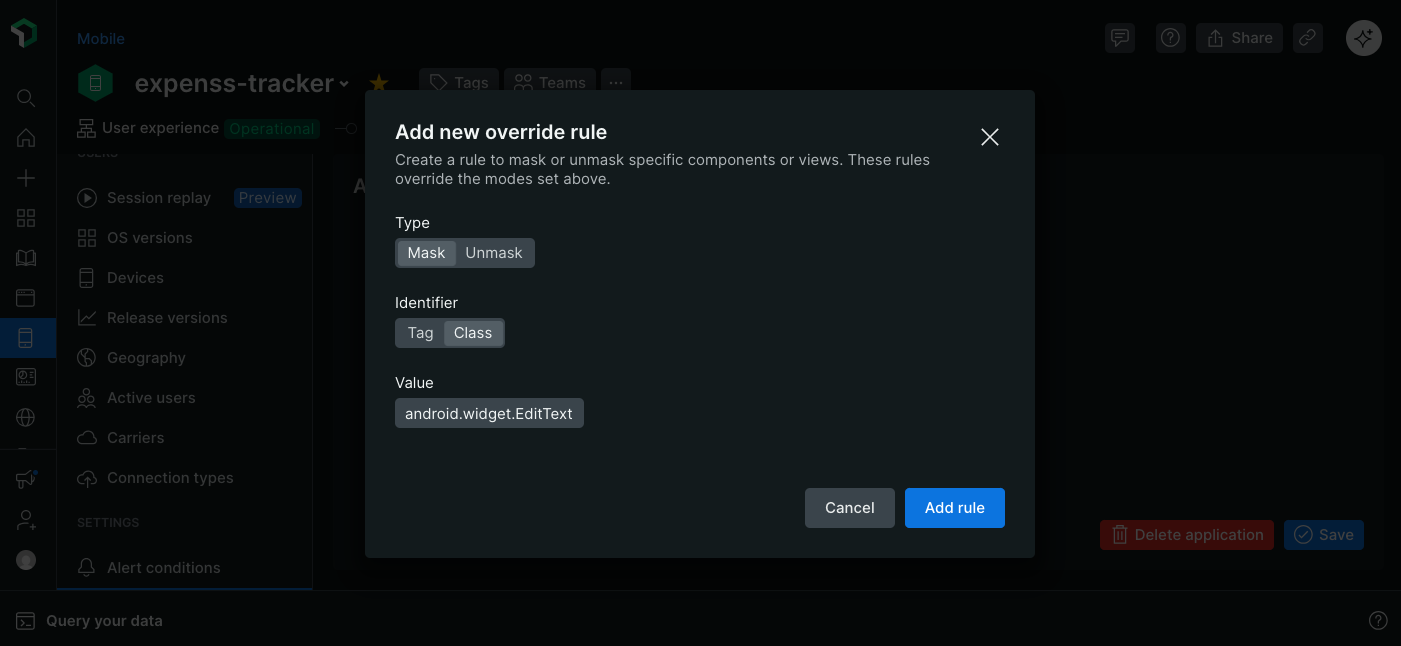
Defina as opções de mascaramento para Session Replay móvel nas configurações do aplicativo.
Para criar uma nova regra:
Na interface web do New Relic:
- Acesse Mobile > [sua entidade] > Settings > Application > Session Replay.
- Desloque-se até Override rules e clique em Add new override rule.
- Selecione o tipo de regra (mascarar ou revelar).
- Escolha o identificador que deseja usar para os componentes de destino.
- Insira o valor do identificador ao qual você deseja que a regra seja aplicada.
- Clique em Add rule.
A nova regra foi adicionada à tabela de Regras de Substituição e será aplicada a todas as novas sessões.
Para excluir ou editar uma regra:
Na interface web do New Relic:
- Navegue até Mobile > [sua entidade] > Settings > Application > Session Replay.
- Localize a regra que deseja modificar na tabela "Substituir regras".
- Clique no menu
...e selecione Delete ou Edit.
prioridade da regra de mascaramento
Quando várias regras de mascaramento se aplicam a uma mesma visualização ou elemento, a seguinte ordem de prioridade determina qual regra será aplicada:
A estratégia está acima de tudo.
Se sua estratégia de mascaramento for
Default, os modos e substituições não serão aplicados.Exemplo: Se você adicionou substituições de atributos
nr-unmaskembutidas em seu código, mas a estratégia de mascaramentoDefaultestá selecionada nas configurações, tudo ainda será mascarado.Substitui os modos anteriores.
Os modos determinam o comportamento padrão quando não há uma configuração de substituição; portanto, se houver uma configuração de substituição, ela sempre terá precedência sobre o modo.
Exemplo: Se o modo
Mask application textestiver ativado e você adicionar uma substituição de atributonr-unmaskembutida a uma visualização em seu código, essa visualização será desmascarada, mas todas as outras visualizações serão mascaradas.As configurações de mascaramento têm precedência sobre as configurações de desmascaramento.
Se uma única visualização tiver configurações de mascaramento e desmascaramento definidas, ela estará sempre mascarada.
Exemplo: Se uma visualização tiver uma substituição de atributo inline
nr-unmaske uma regra do lado do servidornr-mask, a visualização será mascarada.Regras de prioridade pai/filho
Observe que, se houver regras conflitantes, o mascaramento de um pai tem prioridade sobre as regras de subárvore.
Exemplo: Se um pai tiver o atributo
nr-block, mas um filho tivernr-unmask, toda a subárvore é substituída pelo espaço reservado de retângulo preto bloqueando o conteúdo; nenhum conteúdo filho na subárvore é capturado.
Próximo: Ver Session Replay na New Relic