セッションリプレイの収集を開始すると、一般的なパターンやユーザーエクスペリエンスで摩擦が生じる領域を特定することで、デジタルエクスペリエンスを向上させるために使用できます。 また、エラーや予期しない動作が発生する前にユーザーが実行した手順を確認することで、問題を迅速に診断して解決するのにも役立ちます。
セッションリプレイページでリプレイを表示する
セッションリプレイ ページには、選択した期間に収集されたすべてのリプレイのリストが表示されます。 デフォルトでは、少なくとも 5 秒間続いたリプレイのみをリストにフィルターします。表にはエラー数などの役立つデータ ポイントが表示され、フィルターを使用すると、問題の解決に役立つセッションにリストを絞り込むことができます。
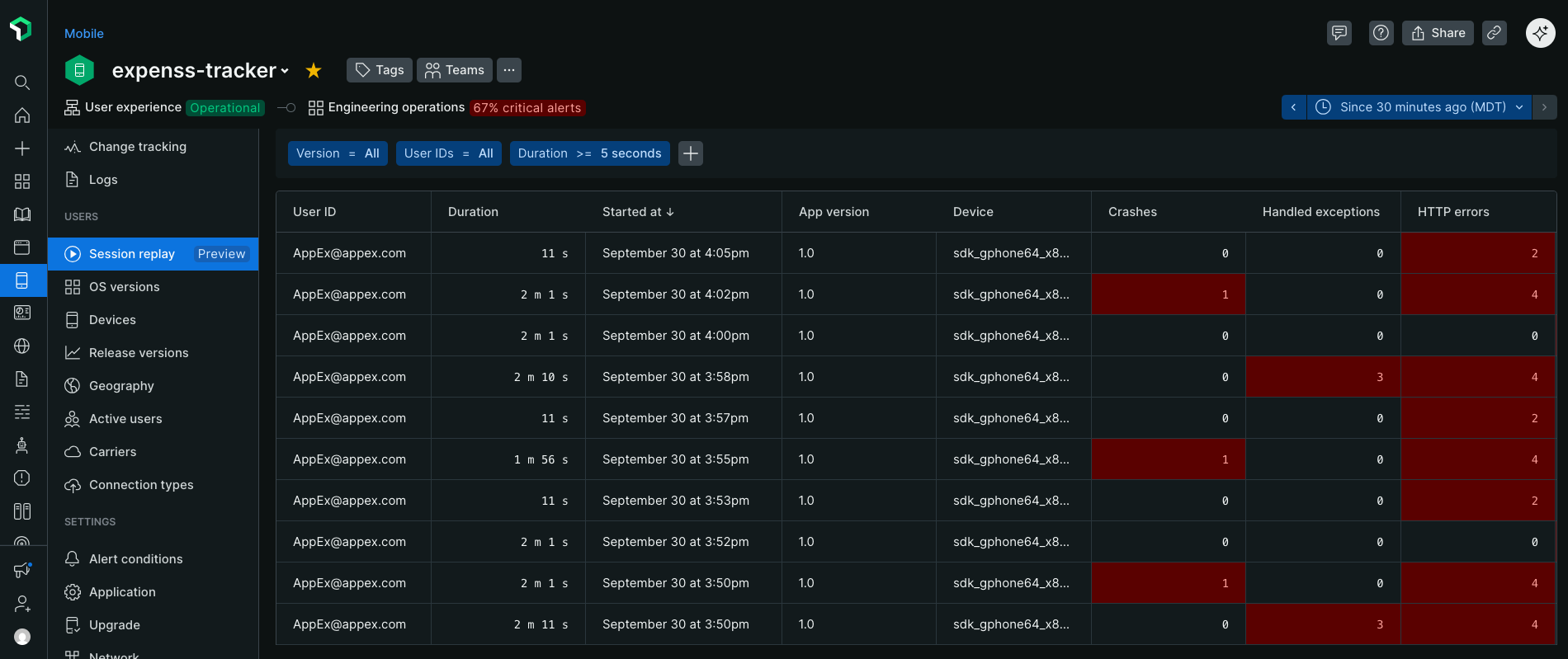
Mobile > [あなたのアプリ] > Session replayでリプレイを表示およびフィルタリングします。
たとえば、 countryCodeフィルターを追加して特定の地域からのリプレイを表示し、ローカリゼーションが期待どおりに機能しているかどうかを確認したり、 deviceModelフィルターを追加して互換性の問題がある可能性のある特定の電話機モデルからのリプレイを表示したりできます。
セッションリプレイページにアクセスするには:
New Relic ウェブインターフェースの場合:
- one.newrelic.com > All Capabilities > Mobileに移動します。
- モバイルアプリを選択します。
- 左側のメニューで下にスクロールし、 Session replay [セッション リプレイ] をクリックします。
- リプレイを表示するには行をクリックします。
エラーやパフォーマンスの問題のあるリプレイを表示する
Errors Inbox ページで:
- 左側のモバイル メニューで、 Errors [エラー] をクリックします。
- Triage [トリアージ] ページとGroup errors [エラーのグループ化] ページをクリックすると、エラーに添付されたリプレイが表示されます。
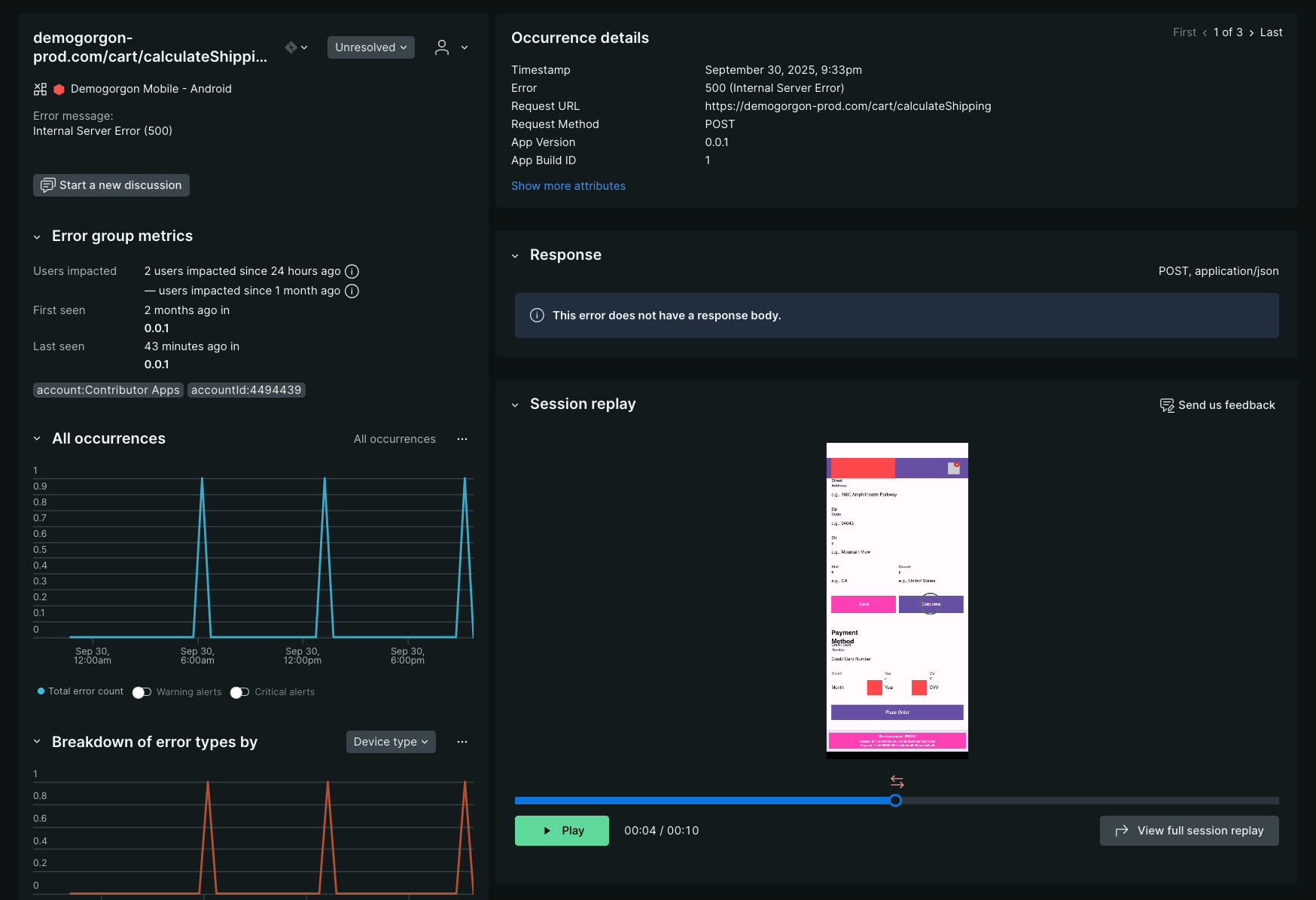
リプレイのキャプチャ中にユーザーが問題に遭遇した場合、クラッシュ、処理された例外、およびANRのエクスペリエンスのエラー発生箇所で、リプレイのプレビューを利用できます。
プレビューには、問題が発生する前の5~10秒間と、致命的ではない問題の場合は発生後の5~10秒間が表示されます。タイムライン上にアイコンがオーバーレイ表示され、リプレイ中にエラーが発生した正確なタイミングを示します。これにより、問題の原因となった可能性のあるユーザーのアクションと、エンドユーザーへの影響の深刻度を迅速に評価できます。
プレビューだけでは問題を解決できない場合は、View full session replay [完全なセッションリプレイを表示]ボタンをクリックして、キャプチャされた他のテレメトリーデータと同期されたセッション全体を確認してください。
UIの理解
UIには、非アクティブ状態のスキップや0.5倍から8倍の速度など、他の一般的なビデオプレーヤーと非常によく似た要素がいくつかあります。また、処理された例外、HTTPエラー、アプリケーションの応答なしイベント、クラッシュのマーカーなど、スキップして進むことができる時点も見つかります。
Skip Inactivity機能は、ページやビューの非アクティブ状態ではなく、ユーザーの非アクティブ期間をスキップします。
- 赤いマーカーはクラッシュを示します。
- 炎のアイコンは、その期間内に99件を超えるエラーまたはクラッシュイベントが発生したことを意味します。
- デュレーションライン上の赤い斜線は、ANRが発生する前にリプレイが終了したことを意味します。
- デュレーションライン上のオレンジ色の斜線は、ANRが発生する前にリプレイが終了したことを意味します。
完全な診断コンテキストを得るために、セッションリプレイUI内にログが存在します。セッションリプレイが(標準サンプリング、エラーモードサンプリング、または手動APIを介して)有効かつアクティブな場合、ログ機能がグローバルに有効になっていれば、そのセッションが元々ログ記録のためにサンプリングされていなかったとしても、エージェントはそのセッションのリモートログもキャプチャします。