The Workflow Automation dashboard provides a central location to view, manage, and monitor all workflows in your account. Use the dashboard to edit configurations, track version history, manage execution schedules, and troubleshoot failures.
Before you begin
Before managing workflows, ensure you have:
- At least one workflow in your account (from a template or custom-built).
- Edit and delete permissions for workflows.
Important
Disabling Workflow Automation? If you plan to turn off Workflow Automation through Feature Control Management (FCM), ensure all scheduled workflows are removed first. See Disabling Workflow Automation for detailed steps.
New to workflows? Start with Use a template or Create your own workflow to build your first workflow.
View workflows
The Workflow Automation dashboard displays differently based on whether your account has workflows.
Access the dashboard
Go to All Capabilities > Workflow Automation
Empty state
If your account has no workflows, the dashboard displays an empty state with options to create your first workflow.
Dashboard tabs
Once you create workflows, the dashboard displays two tabs:
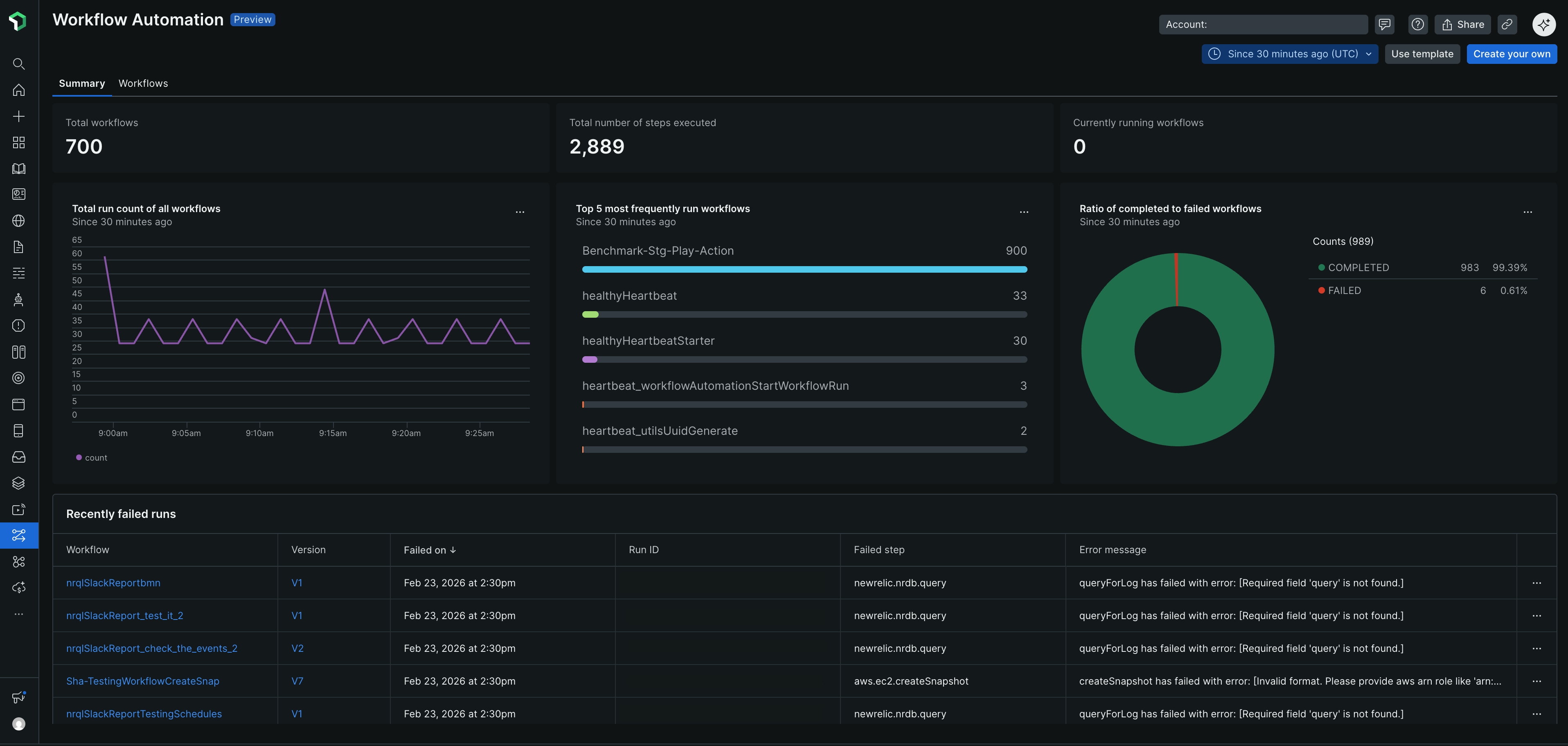
Summary tab (default): Displays account-level metrics and visualizations:
Top metrics:
- Total workflows: Count of all workflows in your account
- Total number of steps executed: Cumulative step count across all workflow runs
- Currently running workflows: Number of active executions
Performance charts:
- Total run count of all workflows: Line chart showing workflow execution trends over time
- Top 5 most frequently run workflows: Bar chart displaying the workflows with the highest execution counts
- Ratio of completed to failed workflows: Pie chart showing success vs. failure percentages and counts
Recently failed runs table: Displays failed workflow executions with these columns:
- Workflow: Name of the failed workflow
- Version: Workflow version that failed
- Failed on: Timestamp of the failure
- Run ID: Unique identifier for the failed run
- Failed step: Step where the failure occurred
- Error message: Description of the error
Each chart widget includes a context menu (three dots) to view query, get image, or create alert condition
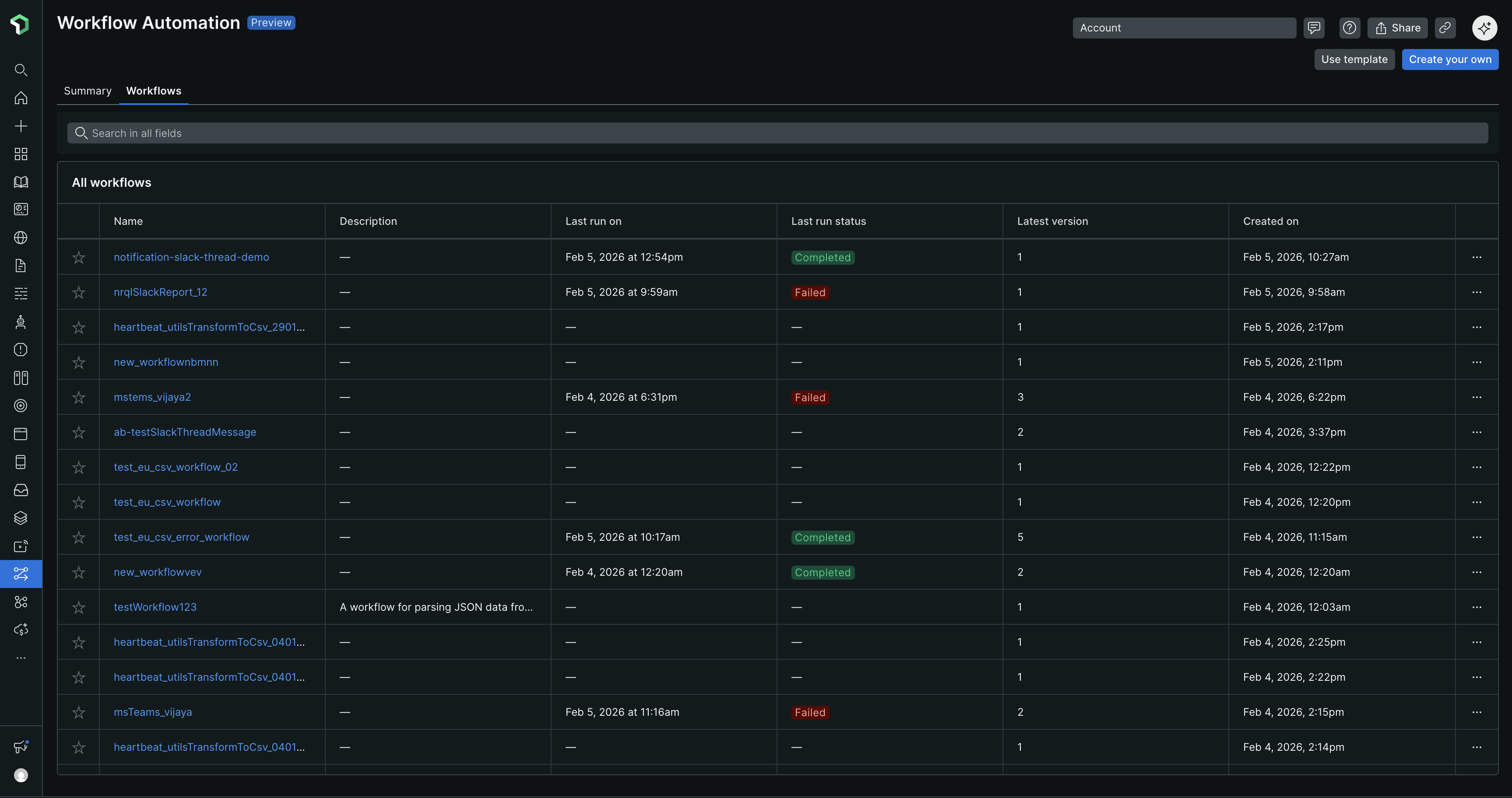
Workflows tab:
Search: Use the Search in all fields bar to find workflows by any column value
All workflows table displays these columns:
- Favorite (star icon): Mark workflows as favorites
- Name: Workflow identifier
- Description: Purpose or function of the workflow
- Last run on: Timestamp of most recent execution
- Last run status: Execution result (displayed as colored badges: green for Completed, red for Failed)
- Latest version: Current version number
- Created on: Date when workflow was created
- Actions menu (three dots): Access workflow operations
Empty values in the table display as —
Row actions menu (click three dots next to workflow):
- Run: Execute the workflow immediately
- Schedule: Create a scheduled run
- Open in editor: Modify workflow configuration
- Duplicate: Create a copy of the workflow
- Delete: Remove the workflow permanently
Click a workflow name to view its Entity Overview page with detailed metrics, run history, schedules, and logs.
Edit a workflow
Update workflow name, description, or configuration.
- Go to All Capabilities > Workflow Automation
- Locate the workflow you want to edit
- Click the ellipsis (three vertical dots) next to the workflow name
- Select Open in editor
- Update any of these:
- Name - The workflow identifier
- Description - What the workflow does
- Configuration - Input parameters, actions, or logic
- Click Save
You can also access the editor from the Entity Overview page by clicking the Edit button.
Manage versions
Workflow automation automatically creates a new version every time you update a workflow definition. All previous versions remain available for reference.
Version pinning for scheduling
When you schedule a workflow, you must pin it to a specific version. This requirement ensures that scheduled executions continue to run the same tested version even when you update the workflow definition.
Start and schedule workflows support version pinning:
- When scheduling a workflow, specify which version to run
- When manually starting a workflow run, select which version to execute
- Existing schedules continue using their pinned version until you update them
This allows you to:
- Update workflows without affecting running schedules
- Test new versions manually before updating schedules
- Maintain stability for production workflows
Duplicate a workflow
Duplicate workflows when you need to adapt a template or existing workflow for a different purpose while keeping the original intact.
- Go to All Capabilities > Workflow Automation
- Locate the workflow you want to duplicate
- Click the ellipsis (three vertical dots)
- Select Duplicate
- The system creates a copy with (Copy) appended to the name
- Rename and customize the duplicated workflow for your needs
Common duplication scenarios:
- Adapting a workflow template for your specific use case
- Creating a workflow for a different team with similar requirements
- Experimenting with significant changes while preserving the original
Important
Don't duplicate workflows for version control - the system does this automatically. Duplicating workflows only for version control or rollback purposes can cause you to hit workflow limits. See Manage versions for information about automatic versioning.
Delete a workflow
Remove workflows you no longer need.
- Go to one.newrelic.com > All Capabilities > Workflow Automation
- Locate the workflow you want to delete
- Click the more options menu (three vertical dots)
- Select Delete
- Confirm the deletion in the dialog box
Caution
Deleting a workflow is permanent and cannot be undone. All versions and execution history are removed. If you might need the workflow later, consider deactivating it instead of deleting it.
What gets deleted:
- All versions of the workflow
- All execution history and logs
- All scheduled runs associated with the workflow
Before deleting, verify:
- No critical automations depend on this workflow
- You have a backup copy if you might need it later
- All scheduled runs are identified and accounted for