Once you've added facets to a service level, you can view and analyze compliance and error budget data broken down by those facets to identify where performance issues are occurring.
View faceted results
To view compliance and error budget for individual attribute values and their combinations:
- Go to one.newrelic.com > All capabilities > Service Levels.
- Select the service level.
- Use the View by group dropdown and Group by panel to analyze the attributes you configured for grouping.
Example
When you group by environment and region, the View by group dropdown and Group by panel display performance data for each individual attribute value (all environments, all regions) as well as each combination of environment and region:
| Attribute value | Compliance | Error budget remaining |
|---|---|---|
| production | 99.05% | 48.5% |
| staging | 99.50% | 60% |
| us-east-1 | 99.70% | 72.5% |
| us-west-1 | 98.20% | 12% |
| production, us-east-1 | 99.9% | 85% |
| production, us-west-1 | 98.2% | 12% |
| staging, us-east-1 | 99.5% | 60% |
Analyze your data
Use the faceted view to filter and compare compliance data across different segments.
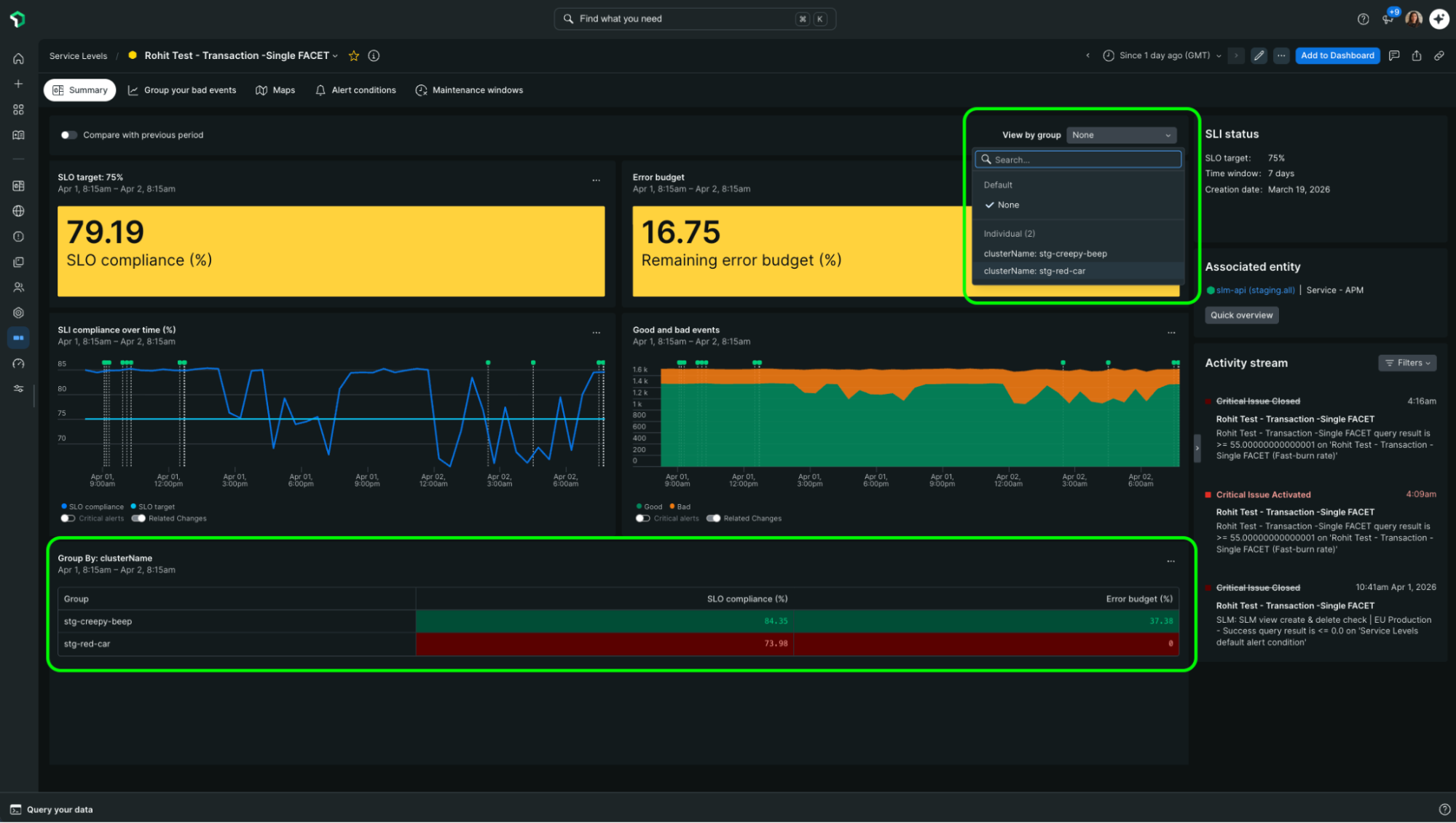
- To view data for a specific segment: Select a facet from the dropdown at the top of the page. The primary charts update to show data only for that segment, and a Group SLO graph appears showing how the selected group is performing relative to the overall compliance.
- To compare individual attributes versus combinations: When you have two facets selected, use the individual view to see each attribute on its own, or the combined view to see attribute combinations.
- To return to the overall view: Select None in the dropdown.
Faceted alerting
You can create alerts based on specific facets to ensure you're notified when a particular segment is failing.
Supported alert types:
- SLI compliance alerts
- Fast burn alerts
- Slow burn alerts
Not supported:
Remaining error budget alerts (these remain available at the aggregate level only)