preview
We're still working on this feature, but we'd love for you to try it out!
This feature is currently provided as part of a preview program pursuant to our pre-release policies.
A budget sets a spending limit for your account over one to twelve months. You can track actual spending against this limit to control cloud costs.
Set up budgets
Go to one.newrelic.com > All Capabilities > Cloud Cost Intelligence.
From the left-hand navigation menu, select the Budgets tab.
Click + Create a budget on the Budgets page.
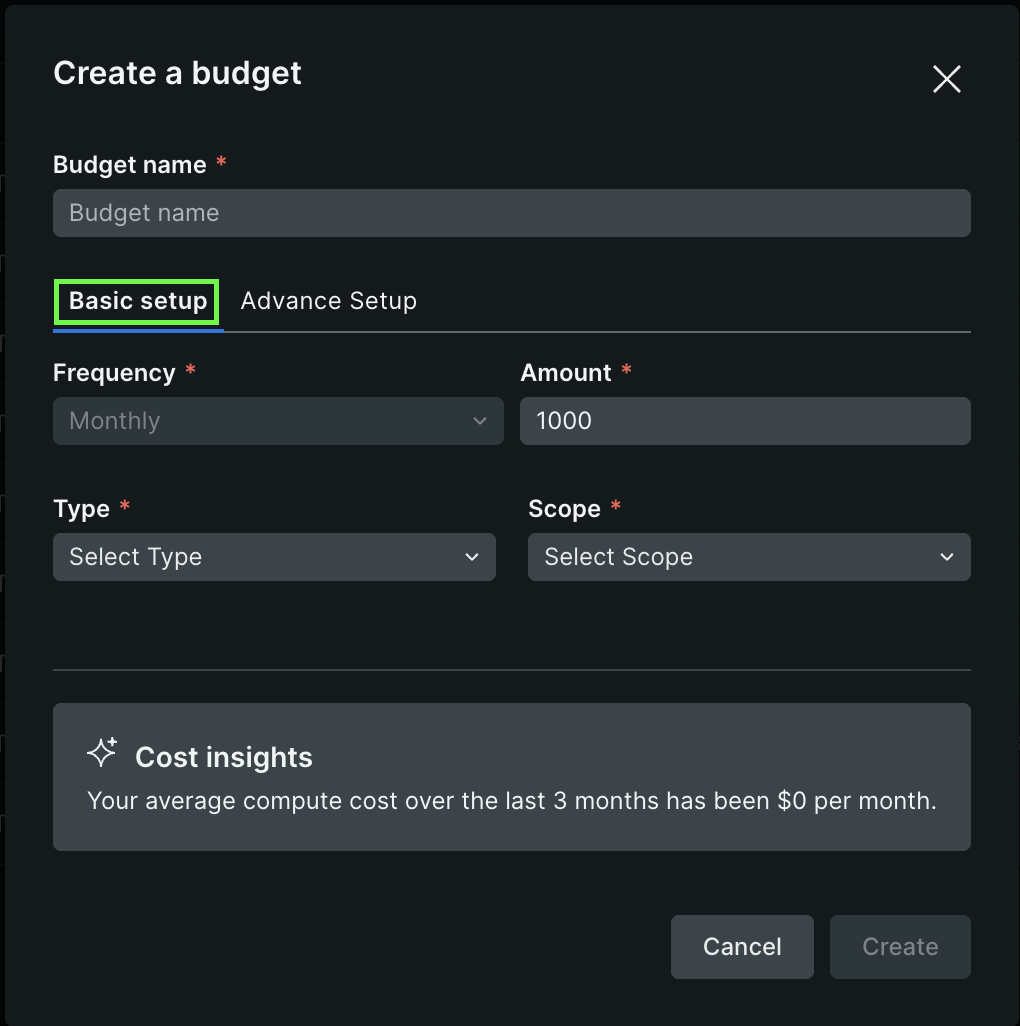
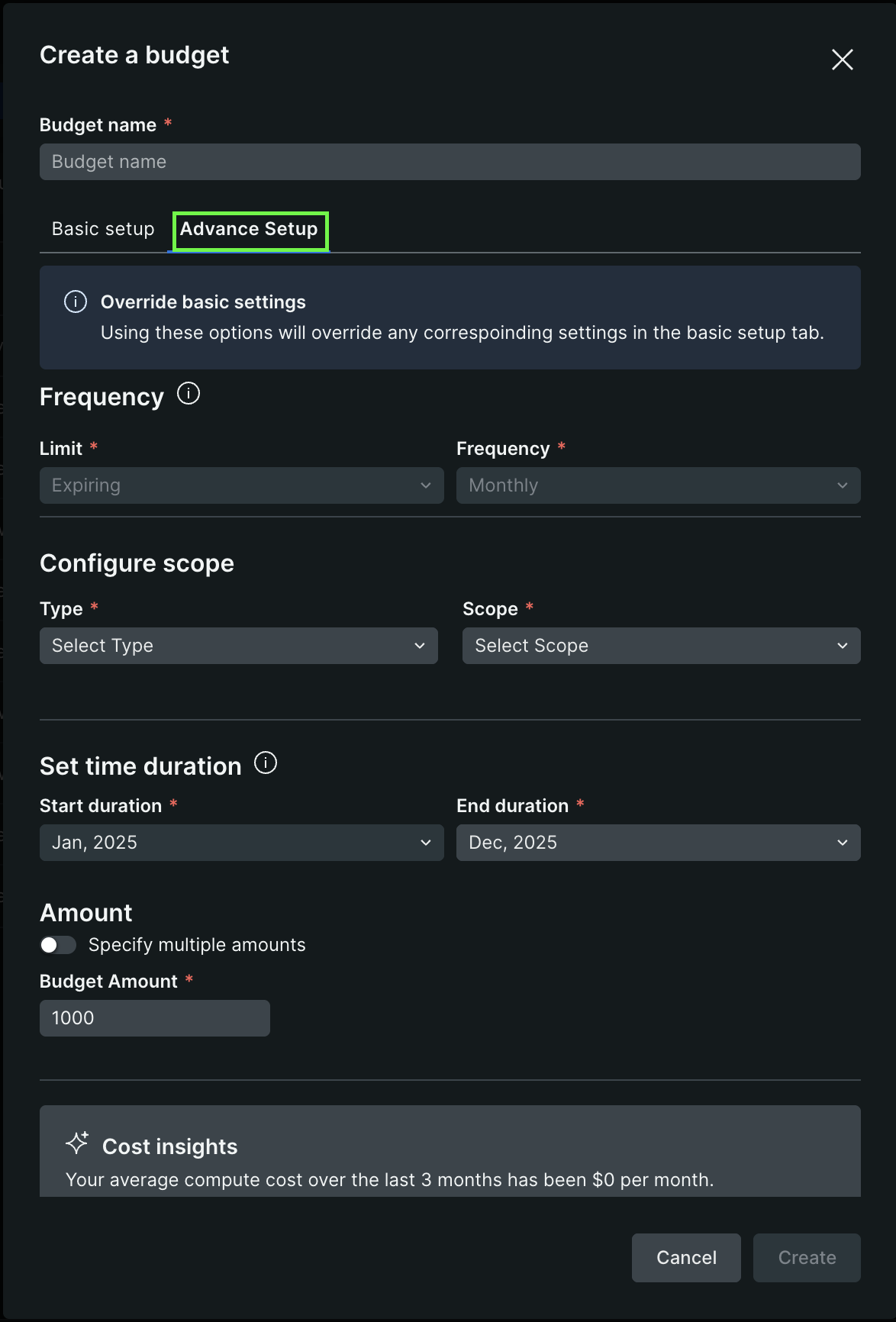
Enter the following information in the dialog:
Budget name: A descriptive name for your budget.
Select the required setup type:
Review the final budget setup, then click Create.
Monitor budgets
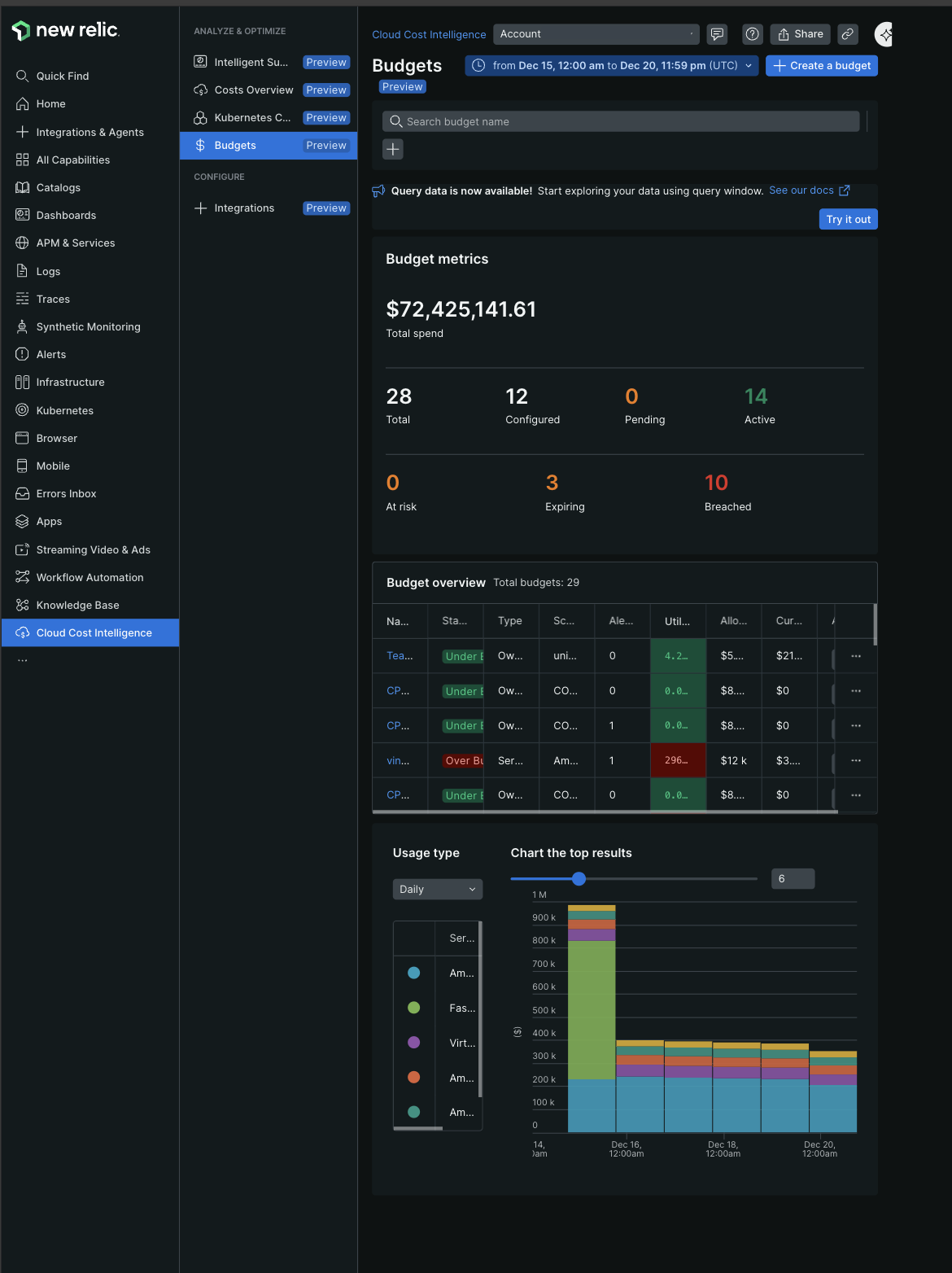
After creating budgets, the Budgets page displays key metrics and an overview table to track spending.
Budget metrics
The metrics section shows:
- Total spend: Aggregate spending across all budgets
- Status counts: Number of budgets by status (Total, Configured, Pending, Active, At risk, Expiring, Breached)
Budget overview
The budget overview table includes:
Column | Description |
|---|---|
Name | Budget identifier |
Status | Current spending status (Under Budget, Over Budget) |
Type | Cost category being tracked |
Scope | Accounts or resources covered |
Alert policies | Number of configured alerts |
Utilization | Percentage of budget consumed |
Allocated | Total budget amount |
Current spend | Actual spending to date |
Actions | Configure alerts, view details, or delete the budget |
Tip
Monitor budgets with At risk or Over Budget status regularly to prevent unexpected costs. Use the Usage type dropdown to switch between daily, weekly, or monthly views of spending trends.
The chart visualization displays cost trends over time, with a breakdown of services contributing to your spending.
View budget details
Click the ellipsis icon (...) next to a budget in the overview table and select Show details to view:
Budget summary
- Budget amount and time range
- Budget consumption with percentage
- Spend trend chart comparing budget vs. actual costs
Configuration details
- Budget name and creator
- Limit type (Expiring or Recurring)
- Frequency and time range
- Scope (service type, accounts, or resources)
- Budget breakdown showing monthly allocations
Alert Policies
The Alert Policies section displays configured alert conditions with:
Alert condition name
Threshold percentage
Last modified date
To manage alert policies, click the ellipsis icon (...) next to a policy and select:
- Edit: Modify alert thresholds or conditions
- Delete: Remove the alert policy
Tip
Set alert thresholds between 70-90% to receive early warnings before budgets are exceeded. Multiple alert conditions help track spending at different budget milestones.