To create a compound alert condition,
Go to Alerts > Compound Alerts.
All component conditions must be from the same owning account. Select it from the dropdown.
Tip
To include a condition that targets data from another account, set up a cross-account alert condition in the same owning account as the compound alert.
Click Create a compound alert and enter a name for the compound alert.
Click Add conditions and choose up to five conditions. Each condition is automatically assigned a variable (a, b, c, d, e) for use in the trigger expression. You can only select standard alert conditions, not other compound alert conditions. See compound alert limitations for all restrictions.
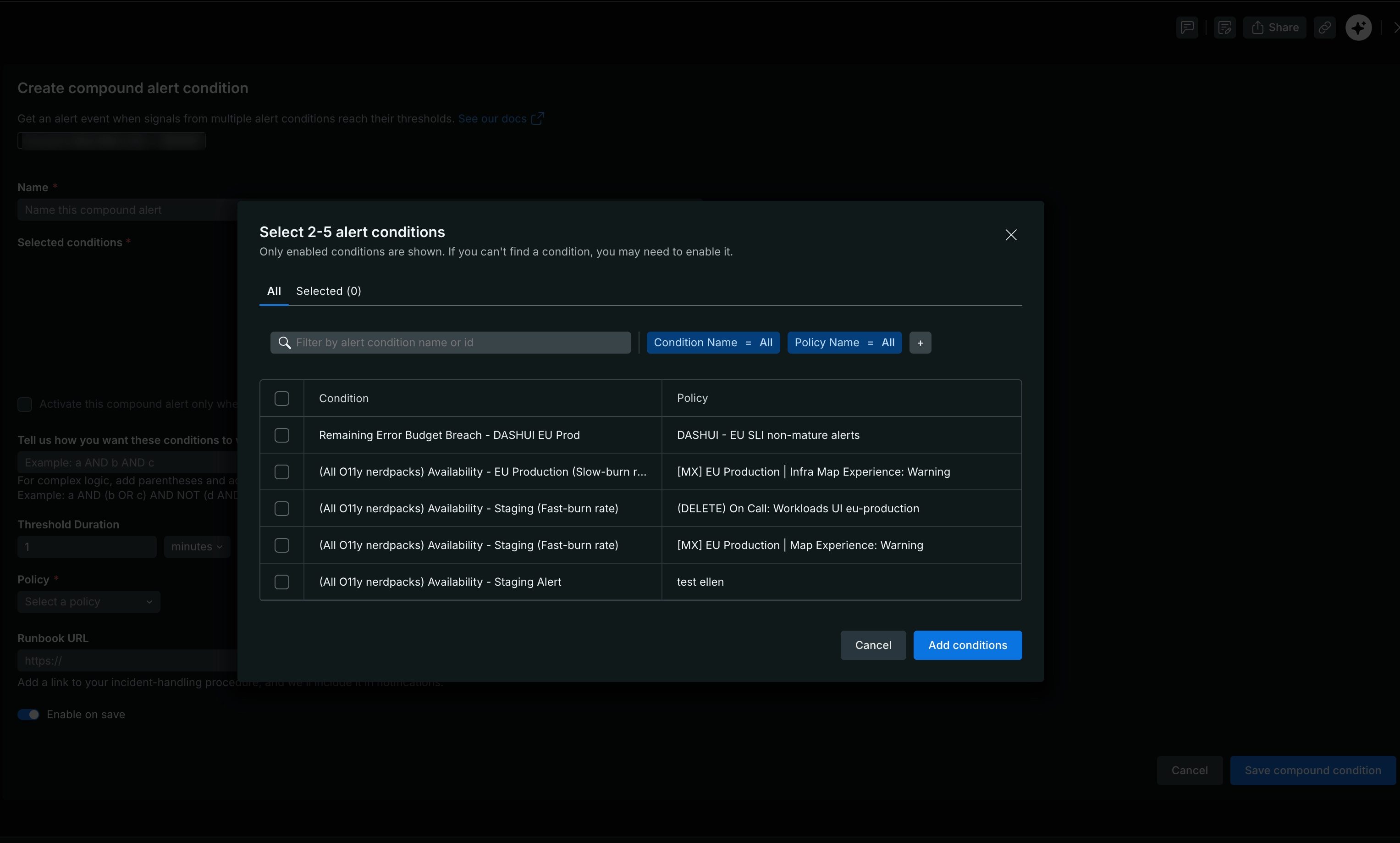
Important
Each condition may have multiple thresholds like warning, critical, or loss of signal. When any threshold of a condition is met, that condition is treated as triggered in the compound expression.
If your conditions share facets, select the checkbox to trigger only when the same facet value meets thresholds across all conditions. Leave it unselected to trigger regardless of matching facet values.
Tip
When a condition is faceted by multiple attributes, a match occurs when at least one attribute is the same across conditions.
To define how conditions should work together, in the Tell us how you want these conditions to work together field, write a trigger expression using the assigned variables and logical operators (AND, OR, NOT). Use parentheses to group expressions for complex logic.
Examples:
a AND b,a OR b OR c,a AND (b OR c),a AND NOT b,a AND (b OR c) AND NOT dSet the Threshold duration to control how long the trigger expression must remain true before an alert event opens.
From the Policy dropdown, select a policy. Learn more about alert policies.
Tip
To group compound and component alert events into the same issue, configure your component conditions to use the same policy you select here.
(Optional) Set a Title template and Description template to customize how this condition's issues appear. See Title and description templates for details.
(Optional) To link to your incident-handling procedure, add a Runbook URL. New Relic includes this URL in notifications.
Toggle Enable on save to activate the condition immediately.
Review your configuration, then save. The condition appears on the Compound Alerts page.
Manage compound alert conditions
To view all compound alert conditions, go to Alerts > Compound Alerts.
- Edit: Click any compound alert name to edit its configuration, including its title and description templates. Changes to component conditions automatically reflect in the compound alert.
- Delete: Click > Delete. Deleting a compound alert doesn't delete the individual component conditions — those remain active individually.
Title and description templates
Use the Title template and Description template fields to control how a compound alert condition's issues are titled and described:
- Title template: Replaces the system-generated issue title with your own text, so you can tell at a glance which issues come from a compound condition.
- Description template: Adds a description of the compound condition. It's displayed on the issue page, under the alert events section.
Both fields support Handlebars variables, such as {{ policy.name }}, to dynamically pull in condition details.
Tip
If you save a template with invalid Handlebars syntax, the condition still saves. A variable that doesn't resolve simply won't render in the title or description.
To see how these templates appear on the issue page, see Custom titles and descriptions.