visualização
Ainda estamos trabalhando nesse recurso, mas adoraríamos que você experimentasse!
Atualmente, esse recurso é fornecido como parte de um programa de visualização de acordo com nossas políticas de pré-lançamento.
A UI de carga de trabalho inteligente oferece visualizações abrangentes para monitorar fluxos de transação, acompanhar KPIs personalizados e entender a saúde da carga de trabalho. Esta página apresenta a interface do usuário do ponto de vista do usuário, explicando cada componente e como utilizá-lo de forma eficaz.
Esta página descreve a interface para carga de trabalho inteligente. Para workload padrão, consulte a documentação da IU de workload padrão.
Acessar carga de trabalho inteligente
Após criar uma carga de trabalho inteligente, você pode acessá-la na página principal de Cargas de trabalho:
- Vá para one.newrelic.com > All capabilities > Workloads
- Use o filtro Type para selecionar Intelligent
- Clique em uma carga de trabalho para abrir seu dashboard
Navegação da barra lateral esquerda
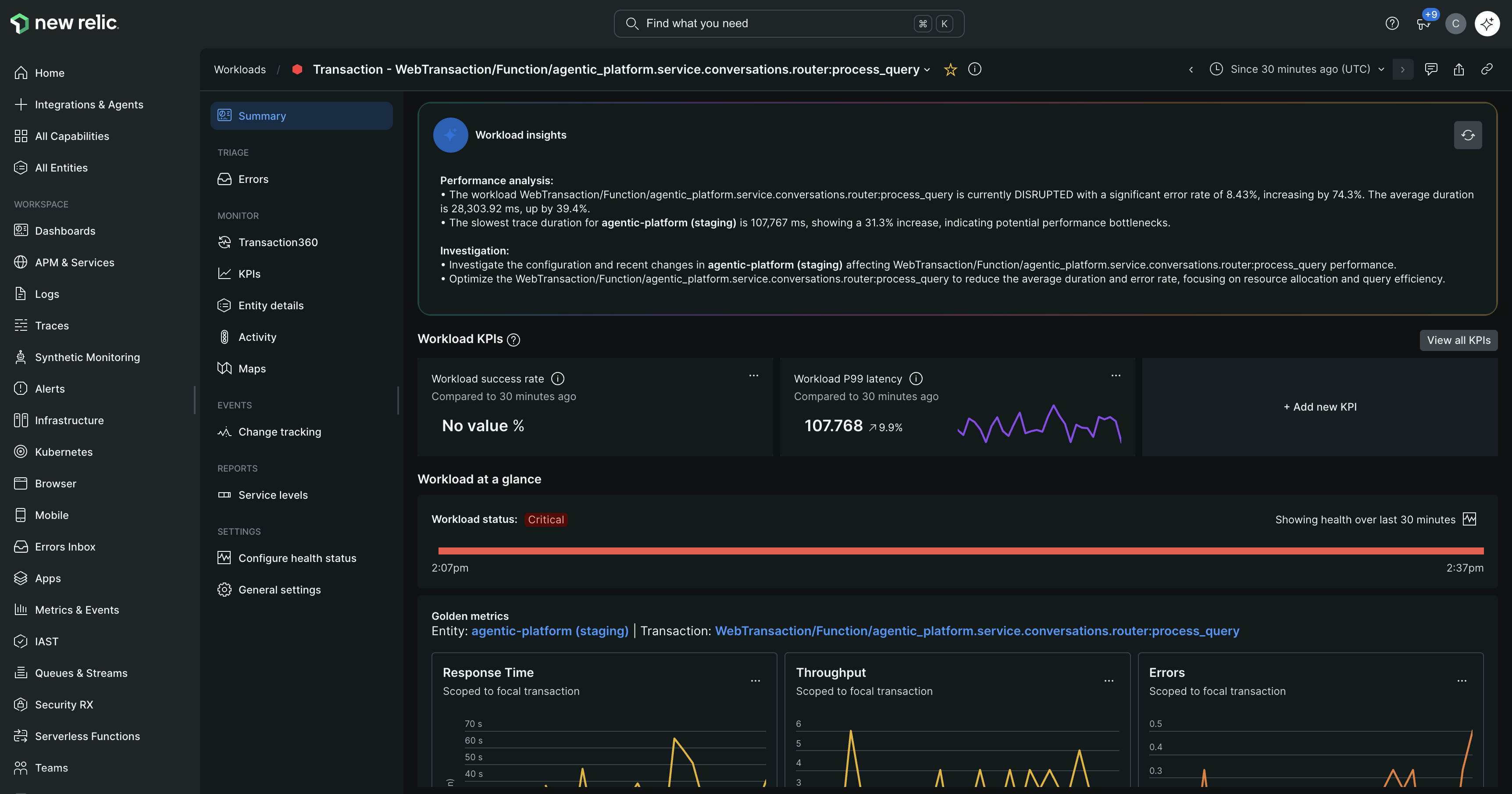
A barra lateral esquerda organiza os recursos de carga de trabalho em seções lógicas. Cada seção fornece diferentes visualizações e ferramentas para monitorar sua transação:
Summary: Visão geral da integridade da carga de trabalho, KPIs e desempenho (detalhado abaixo)
TRIAGE: Ferramentas para investigar problemas
- Errors: Visualize e analise erros em toda a carga de trabalho (consulte a seção Erros)
MONITOR: Diferentes visualizações de dados de carga de trabalho
- Transaction360: Visualização de rastreamento distribuído (consulte Transaction360)
- KPIs: Página dedicada para visualizar e gerenciar todos os KPIs (consulte a página de KPIs)
- Entity details: Informações sobre entidades participantes (consulte Detalhes da entidade)
- Activity: Linha do tempo de implantações, incidentes e mudanças (ver Atividade)
- Maps: Visualizações de dependência de serviços (consulte Mapas)
EVENTS: Acompanhe mudanças ao longo do tempo
- Change tracking: Visualize implantações e alterações de configuração
REPORTS: Relatórios de desempenho
- Service levels: Acompanhe SLOs e SLIs
SETTINGS: Configure o comportamento da carga de trabalho
- Configure health status: Defina regras de rollup de integridade (consulte Configuração de status de workload)
- General settings: Edite o nome da carga de trabalho, a descrição e outras configurações
Página de resumo (de cima para baixo)
A página Resumo é a visualização padrão e fornece uma visão geral completa da integridade e do desempenho da sua carga de trabalho. Aqui está o que você verá de cima para baixo:
1. Banner de insights de IA
Bem no topo da página de Resumo, você verá um banner azul anunciando:
AI insights available for this workload [Generate insights button]Clique em Generate insights para visualizar análises de desempenho e sugestões de investigação geradas por IA com base nos dados da sua carga de trabalho.
Requisitos:
- O New Relic AI deve ser ativado para sua conta. Saiba como habilitar o New Relic AI
- Disponível apenas na infraestrutura da AWS e não para clientes FedRAMP
Importante
Preços: A geração de insights de IA incorre em custos adicionais com base no seu uso do New Relic AI. Certifique-se de revisar os preços e monitorar seu uso se habilitar este recurso. Para mais informações sobre os preços do New Relic AI, consulte a documentação de preços do New Relic AI.
Cuidado
Sempre verifique os insights de IA em relação aos dados reais antes de tomar uma ação. Insights são sugestões para orientar a investigação, não diagnósticos definitivos.
Solução de problemas: Se você não vir o banner de insights de IA, verifique seus requisitos de infraestrutura ou verifique se o New Relic AI está habilitado para sua conta.
2. KPIs de carga de trabalho
Abaixo do banner de IA, você encontrará a seção de blocos de KPI exibindo métricas de negócios personalizadas:
Cada bloco de KPI exibe:
- Nome e descrição do KPI: Contexto sobre o que a métrica representa
- Valor atual: Medição em tempo real da métrica
- Gráfico de série temporal: Tendência visual mostrando o desempenho ao longo do intervalo de tempo selecionado
- Menu de ações (...): Opções para editar, ocultar ou criar alertas para este KPI
O que você pode fazer:
- Ver todos os KPIs: Clique em View all KPIs no canto superior direito para navegar até a página de KPIs dedicada com gráficos detalhados
- Adicionar KPIs: Clique em + Add new KPI para criar métricas adicionais
- Gerenciar KPIs: Acesse a interface completa de gerenciamento de KPIs em Settings > Manage KPI
Nota: Você pode exibir até 3 KPIs na página de resumo simultaneamente. Os KPIs padrão incluem Latência P99 da carga de trabalho e Taxa de sucesso da carga de trabalho para sua transação focal.
Saiba mais sobre o gerenciamento de KPIs →
3. Métricas de carga de trabalho (Status de integridade)
Abaixo dos blocos de KPI, você encontrará a seção de métricas de Carga de trabalho exibindo o status geral de integridade. Para saber mais sobre a configuração do status de saúde, consulte Configuração de status da carga de trabalho.
4. Métricas douradas (No escopo da transação focal)
Três gráficos lado a lado mostrando indicadores-chave de desempenho com escopo específico para sua transação focal:
Tempo de resposta
- Exibe tendências de latência para sua transação focal no intervalo de tempo selecionado. Para mais detalhes, consulte a documentação do tempo de resposta.
Taxas de transferência
- Exibe o volume de solicitações para sua transação focal durante o intervalo de tempo selecionado. Para mais detalhes, consulte a documentação sobre Throughput.
Erros
- Exibe a contagem de erros para sua transação focal durante o intervalo de tempo selecionado. Para mais detalhes, consulte a documentação de Erros.
Por que são importantes: esses gráficos têm o escopo definido automaticamente para sua transação focal, oferecendo visibilidade imediata da integridade do seu fluxo de trabalho de negócios específico, sem precisar filtrar todos os dados da entidade.
5. Entidades participantes
A seção inferior mostra métricas de desempenho para todas as entidades participantes da sua transação:
Tempo de resposta (20 principais serviços no escopo da transação)
- O que isso mostra: Latência de até 20 serviços que processam sua transação
- Várias linhas: Cada linha colorida representa um serviço diferente
- Caso de uso: Identificar quais serviços são os mais lentos e contribuem para a latência geral
Vazão (20 principais serviços no escopo da transação)
- O que isso mostra: Volume de solicitações processado por cada serviço
- Caso de uso: Veja quais serviços processam o maior número de requisições no seu fluxo de transação
Taxa de erro (20 principais serviços com escopo na transação)
- O que isso mostra: Taxas de erro para cada serviço participante
- Caso de uso: Identifique quais serviços estão gerando erros
Por que isso é importante: Enquanto as métricas douradas mostram o desempenho da transação focal, os gráficos de entidades participantes revelam quais serviços específicos no seu sistema distribuído estão causando problemas. Isso ajuda você a chegar rapidamente à causa raiz durante a solução de problemas.
Entendendo lacunas em mapas de serviço
Você pode notar lacunas ou serviços desconectados em suas visualizações de dependência de serviços. Aqui está o que os causa e o que você pode fazer:
Causas comuns de lacunas:
Taxa de amostragem baixa: Se a amostragem de rastreamento for muito baixa para certas conexões de serviço, o New Relic pode não ter dados de rastreamento suficientes para essa conexão durante sua janela de consulta para exibir esses relacionamentos.
- O que você pode fazer: Verifique a versão mais recente e a configuração de amostragem do seu agente para aproveitar os recursos aprimorados de amostragem.
Telemetria ausente: Um serviço no meio do rastreamento pode estar participando do rastreamento corretamente, mas falhando ao enviar dados de span para a New Relic.
O que você pode fazer:
- Verifique se o serviço está instrumentado e configurado corretamente para enviar dados para o New Relic
- Verifique a conectividade de rede e as regras de firewall
- Verifique os logs do agente em busca de erros
Quando não é possível corrigir: Alguns tipos de serviço ou instrumentações (como certos tipos de entidade da AWS) podem não suportar o envio de dados de span. Nestes casos, lacunas são esperadas e não podem ser resolvidas.
Serviços desconectados:
Quando um serviço no meio do seu trace falha ao enviar dados, você pode ver serviços downstream aparecerem na sua carga de trabalho, mas desconectados da sua entidade focal. Estes serviços desconectados:
- Aparecem porque enviam dados de rastreamento com sucesso para o New Relic
- Aparecem isolados porque seu serviço pai está ausente do trace
- Podem ter seus próprios serviços filhos conectados formando fragmentos separados
Dica
Se você observar lacunas persistentes ou serviços desconectados, comece verificando a configuração de amostragem e a integridade da instrumentação dos serviços ausentes. Concentre-se nos serviços que aparecem entre sua entidade focal e os fragmentos desconectados.
Erros
A página de Erros fornece uma visão centralizada de todos os erros que ocorrem em sua carga de trabalho. Para saber mais sobre o rastreamento de erros do New Relic, consulte a documentação do Errors inbox.
Quando a saúde da sua carga de trabalho degradar, verifique a página de Erros primeiro para ver se as taxas de erro tiveram um pico e quais serviços foram afetados.
Seção Monitor
A seção Monitor oferece diferentes lentes para visualizar os dados da sua carga de trabalho.
Transaction360
O Transaction360 visualiza o rastreamento distribuído completo da sua transação focal. Para saber mais sobre o Transaction360, consulte a documentação do Transaction360.
Ao solucionar problemas de transações lentas ou erros, use o Transaction360 para ver exatamente quais chamadas de serviço estão lentas ou falhando.
Página de KPIs
A página de KPIs fornece uma visão centralizada de todos os seus KPIs de carga de trabalho com gráficos detalhados e opções de gerenciamento.
Acesse a página de KPIs na barra lateral esquerda em MONITOR > KPIs.
O que você verá
A página de KPIs exibe:
Barra de pesquisa: Encontre rapidamente KPIs específicos por nome
Agrupamento de categorias: KPIs organizados pela categoria atribuída (por exemplo, "KPIs sem categoria")
Gráficos detalhados de KPI: Cada KPI exibe:
- Nome do KPI
- Gráfico de série temporal em tamanho completo com dicas de ferramenta ao passar o mouse
- Valores atuais e tendências no intervalo de tempo selecionado
- Menu de ações (...) para editar, ocultar ou criar alertas
Recurso chave
- Ver todos os KPIs: Veja seu catálogo completo de KPIs em um só lugar, incluindo KPIs visíveis e ocultos
- Pesquisar e filtrar: Use a barra de pesquisa para localizar rapidamente KPIs específicos
- Visualização detalhada: Gráficos maiores em comparação com os blocos da página de resumo proporcionam uma análise melhor
- Ações rápidas: Acesse opções de edição, ocultação e criação de alertas no menu de cada KPI
Quando usar esta página
Use a página de KPIs quando você precisar:
- Analise todos os KPIs da sua carga de trabalho em detalhes
- Compare múltiplos KPIs lado a lado
- Analise as tendências de KPI com gráficos maiores e mais detalhados
- Gerencie quais KPIs aparecem na sua página de resumo
Saiba mais sobre a criação e gerenciamento de KPIs →
Detalhes da entidade
A página de detalhes da Entidade lista todas as entidades participantes da sua carga de trabalho. Para saber mais sobre entidades, veja Saiba mais sobre entidades.
Quando você sabe que há um problema, mas não tem certeza de qual serviço o está causando, verifique a página de detalhes da Entidade para encontrar entidades não saudáveis.
Atividade
A página de Atividade fornece monitoramento e análise abrangentes do desempenho da sua carga de trabalho, combinando métricas de entidade, insights de transação e saúde da infraestrutura em uma única visualização.
Acesse a página Atividade na barra lateral esquerda em MONITOR > Activity.
O que você verá
A página de Atividade é organizada em várias seções principais:
1. Vincular dashboards Conecte dashboards relevantes à sua carga de trabalho para acesso rápido a visualizações relacionadas.
2. Métricas de entidade de carga de trabalho Gráficos de desempenho visual agrupados por tipo de entidade (por exemplo, Serviços - APM):
- Vazão: Volume de requisições em todos os serviços de carga de trabalho ao longo do tempo
- Taxa de erros: Percentuais de erro para cada serviço com linhas de tendência
- Latência: Tempos de resposta mostrando variações de desempenho entre serviços
Cada gráfico exibe várias linhas coloridas representando diferentes serviços, facilitando a identificação de outliers ou degradação de desempenho.
3. Transações participantes Uma tabela detalhada mostrando o desempenho no nível da transação com análise comparativa:
- Transaction name: A transação específica sendo monitorada
- Entity name: O serviço que processa a transação
- Slowest time: Tempo máximo de execução da transação
- Taxa de erros: Percentage of failed requests
- Average duration: Tempo médio de execução
- %change columns: Variações percentuais em comparação com o período anterior (verde para melhorias, vermelho para regressões)
A tabela também inclui:
- Indicador piloto: Marcadores visuais para tipos de transação
- Setas de posição: Mostra a direção do fluxo da transação (→ ou ←→)
- Colunas ordenáveis: Clique nos cabeçalhos das colunas para ordenar por qualquer métrica
4. Resumo da infraestrutura Visão geral rápida na parte inferior mostrando:
- Número de alertas ativos
- Alterações recentes (implantações, atualizações de configuração)
- Contagem de erros
Quando usar esta página
Use a página de Atividade quando precisar:
- Compare o desempenho dos serviços: Veja quais serviços estão com bom desempenho ou enfrentando dificuldades
- Identifique regressões de desempenho: Detecte rapidamente alterações percentuais negativas nas principais métricas
- Investigue problemas de transação: Aprofunde-se em transações específicas que estão causando problemas
- Correlacione eventos: Conecte alterações de desempenho a implantações, alertas ou problemas de infraestrutura
- Monitore tendências: Acompanhe como as métricas evoluem no intervalo de tempo selecionado
Recurso chave
- Alternar para o modo de investigação: Alterne o modo de análise detalhada para insights mais profundos
- Dados de faceta: Filtre e agrupe métricas por diferentes dimensões
- Comparação de tempo: Compara automaticamente as métricas atuais com períodos anteriores
- Visualização de múltiplos serviços: Veja todos os serviços de carga de trabalho nos mesmos gráficos para facilitar a comparação
- Contexto de alerta: Entenda quantos alertas críticos estão ativos na sua carga de trabalho
A página de Atividade serve como um hub central para investigação de desempenho, combinando tendências de alto nível com detalhes específicos de transações para ajudar você a identificar e diagnosticar problemas rapidamente.
Mapas
A página Mapas visualiza as dependências de serviço em sua carga de trabalho. Para mais informações sobre mapas de serviço, consulte a documentação de mapas de serviço.
Ao diagnosticar falhas em cascata ou compreender dependências complexas, use a visualização de Mapas para ver como os serviços interagem em sua carga de trabalho.
Monitoramento de Alterações
A página de Rastreamento de alterações registra implantações e alterações de configuração que impactam sua carga de trabalho. Para mais informações sobre rastreamento de alterações, consulte a documentação de rastreamento de alterações.
Quando o desempenho diminuir, verifique o Rastreamento de alterações para ver se implantações recentes ou alterações de configuração podem ser a causa.
Seção de relatórios
A seção Relatórios fornece acompanhamento de desempenho e visualizações de conformidade.
Nível de serviço
A página Níveis de serviço permite definir e monitorar SLOs e SLIs para sua carga de trabalho. Para mais informações sobre níveis de serviço, consulte a documentação de níveis de serviço.
Seção de configurações
A seção Configurações permite configurar o comportamento da carga de trabalho.
Configurar status de integridade
Configure regras de rollup de integridade para sua carga de trabalho. Para saber mais sobre a configuração do status de saúde, consulte Configuração de status da carga de trabalho.
Importante
Não é possível alterar a transação focal após criar um workload inteligente. Para monitorar uma transação diferente, crie uma nova carga de trabalho.
Próximos passos
- Gerenciar KPIs personalizados: Defina métricas específicas de negócios
- Configurar status de integridade: Personalize como a integridade da carga de trabalho é calculada
- Configurar notificações: Receba alertas sobre alterações no status da carga de trabalho