Confirme que ha cumplido con todos los requisitos previos antes de comenzar la instalación.
El componente ABAP de NRM4SAP está empaquetado como un add-on de SAP. Instálelo usando la transacción SAINT en client 000.
Archivo de instalación del complemento
- Initial installation: descargue el archivo de complemento
K-xxxAOIINNEWR.SARa una carpeta en su PC local - Upgrade from previous version: use el archivo llamado
K-xxxAOUINNEWR.SAP
Instalar el archivo complementario de SAP
- Iniciar sesión en client 000
- Escriba
SAINTen el campo de comando SAP GUI - Vaya a Installation Package > Load Packages
- Elija el método adecuado según dónde se encuentre su archivo de instalación:
Sugerencia
Los siguientes pasos asumen DIR_TRANS = /usr/sap/trans. Verifique este valor con la configuración del sistema antes de continuar.
Which method should you use?
- SAR archive from frontend (Más común): el archivo de instalación está en su computadora local
- SAR archive from application server: el archivo SAR se ha precargado en
/usr/sap/trans/download/ - EPS files from application server: primero, necesita extraer el archivo SAR en archivos PAT en el servidor
Navegar y abrir
K-xxxAOIINNEWR.SAREn la ventana emergente Content of the compressed file, haga clic Decompress
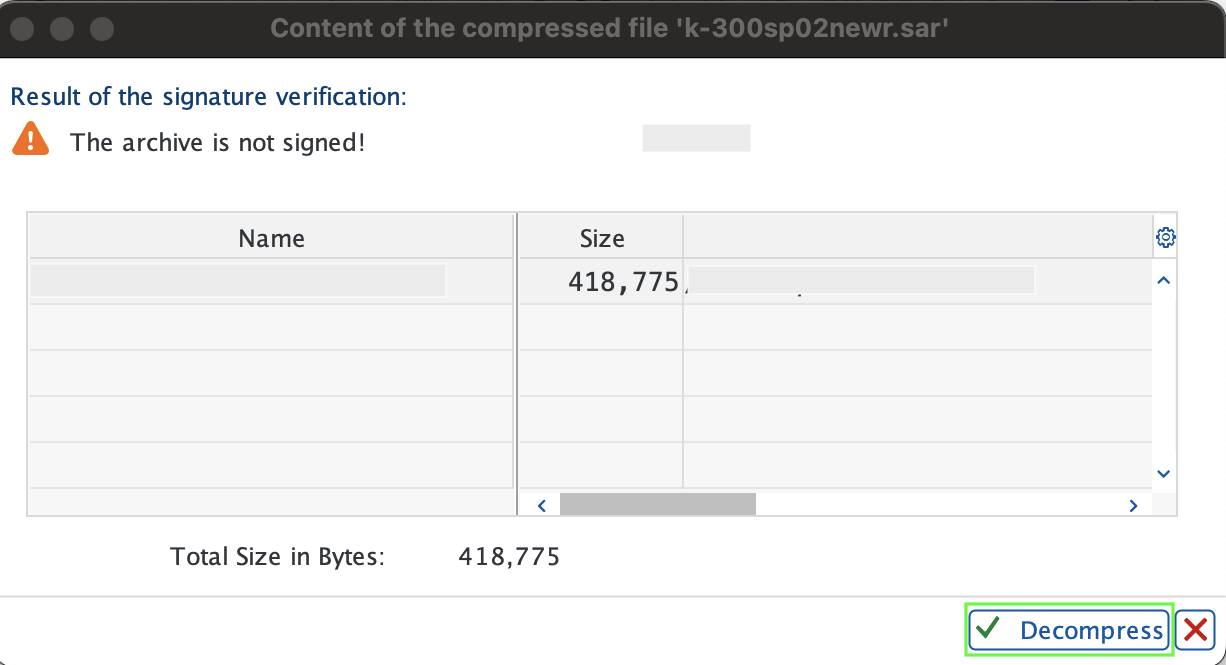
Verifique que el mensaje File K-xxxAOIINNEWR.SAR successfully transferred, decompressed, and deleted aparezca
- Asegúrese de que haya un download directory debajo de trans directory en el servidor de la aplicación (
/usr/sap/trans/download) - Copie el add-on file a este directorio
Extraiga SAR file en PAT files. Ejecute los siguientes comandos como el usuario de Linux
<sid>adm:bash$cd /usr/sap/trans$cp /tmp/K-xxxAOIINNEWR.SAR /usr/sap/trans$SAPCAR -xvf K-xxxAOIINNEWR.SAREn la ventana emergente Do you want to upload OCS Packages from the EPS inbox?, seleccione Yes
Asegúrese de que el OCS file se cargue sin errores
Complete la instalación
Haga clic en Start, seleccione Installable Add-on packages for your system, elija el paquete New Relic Add-on y haga clic Continue
Cuando se le pregunte Do you want to add Modification Adjustment Transports to the queue?:
- Haga clic en No para la instalación estándar (por defecto)
- Haga clic en Yes solo si su paquete incluye transportes de ajuste con instrucciones específicas
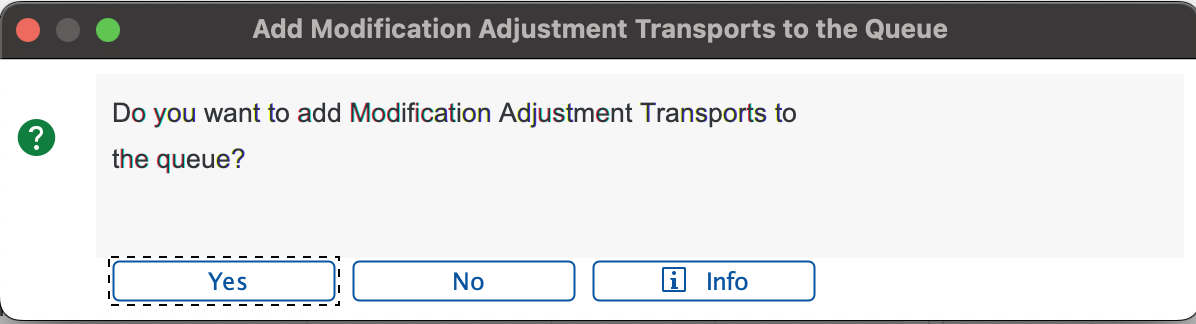
Haga clic en el ícono de verificación para continuar
Importante
Si aparece la página Errors during Disassembling OCS Packages, haga clic en Ignore. Este error es esperado para ciertos tipos de paquetes y no afectará la instalación. Consulte la nota de SAP 2 687 814 para obtener más detalles.
Una vez instalado el paquete, haga clic Finish
Aparece la ventana emergente Sending the runtime analysis. Seleccione uno de los siguientes:
- Send: abre un formulario de comentarios con el runtime analysis data en una ventana del navegador local
- Display: muestra primero el runtime analysis, luego abre el formulario de comentarios
- Do not send: cierra el cuadro de diálogo sin enviar runtime analysis data
Verifique la instalación en la pestaña Installed Components. El New Relic add-on aparece en la lista con un estado que indica una instalación exitosa
Cerrar sesión en Client 000