Preview
We're still working on this feature, but we'd love for you to try it out!
This feature is currently provided as part of a preview pursuant to our pre-release policies.
Learn how to install and configure the Adaptive Telemetry Processor (ATP) with the NRDOT Collector in Kubernetes environments. ATP reduces telemetry data volume while maintaining critical visibility into your applications.
Important
ATP for Kubernetes uses an experimental build. This entire build is experimental for Kubernetes installation, not just the ATP feature being in preview.
Installation methods
You can install the OpenTelemetry Collector with ATP using either Helm (recommended) or Kubernetes manifests:
The Helm installation method is the recommended approach for deploying ATP-enabled collectors in Kubernetes.
Before you begin
Ensure you have:
- Your New Relic license key
- kubectl configured to access your cluster
- Cluster admin permissions
Download and customize values.yaml
Download the Helm chart
values.yamlfile:bash$curl -o values.yaml https://raw.githubusercontent.com/newrelic/helm-charts/master/charts/nr-k8s-otel-collector/values.yamlEdit the
values.yamlfile with your specific configuration:# Required: Set your cluster name and license keycluster: "YOUR_CLUSTER_NAME"licenseKey: "YOUR_NEW_RELIC_LICENSE_KEY"# Enable ATPenable_atp: true# IMPORTANT: Use experimental collector image for ATPimages:collector:repository: "newrelic/nrdot-collector" # Changed from nrdot-collector-k8stag: "<NRDOT_COLLECTOR_LATEST_VERSION>" # Use latest version from releases pageFind the latest NRDOT Collector version at the releases page and update the
tagvalue.For additional configuration options, see configuration parameters.
Install the Helm chart
Add the New Relic Helm repository:
bash$helm repo add newrelic https://helm-charts.newrelic.com$helm repo updateInstall the chart using your customized
values.yamlfile:bash$helm upgrade nr-k8s-otel-collector newrelic/nr-k8s-otel-collector \>-f values.yaml \>-n newrelic \>--create-namespace \>--install
Verify the installation
Check that pods are running:
bash$kubectl get pods -n newrelic --watchYou should see pods with names like
nr-k8s-otel-collector-<hash>in thenewrelicnamespace.Verify New Relic is receiving process data by running these queries in the query builder:
FROM Metric SELECT *WHERE k8s.cluster.name='YOUR_CLUSTER_NAME'AND metricName LIKE 'process.%'LIMIT 100FROM Metric SELECT uniqueCount(metricName)WHERE k8s.cluster.name='YOUR_CLUSTER_NAME'AND metricName LIKE 'process.%'
Access the ATP data in New Relic
Once the ATP is configured, it starts collecting data from your Kubernetes cluster. You can access this data in New Relic OpenTelemetry UI. For more information on New Relic OpenTelemetry UI, refer to OpenTelemetry APM UI.
To view the ATP process metric data in New Relic:
Go to one.newrelic.com > All Entities.
OR
Go to one.newrelic.com > Catalogs > Infrastructure.
Search for entity where you installed the NRDOT collector with ATP.
Select the entity then click Process in the left pane.
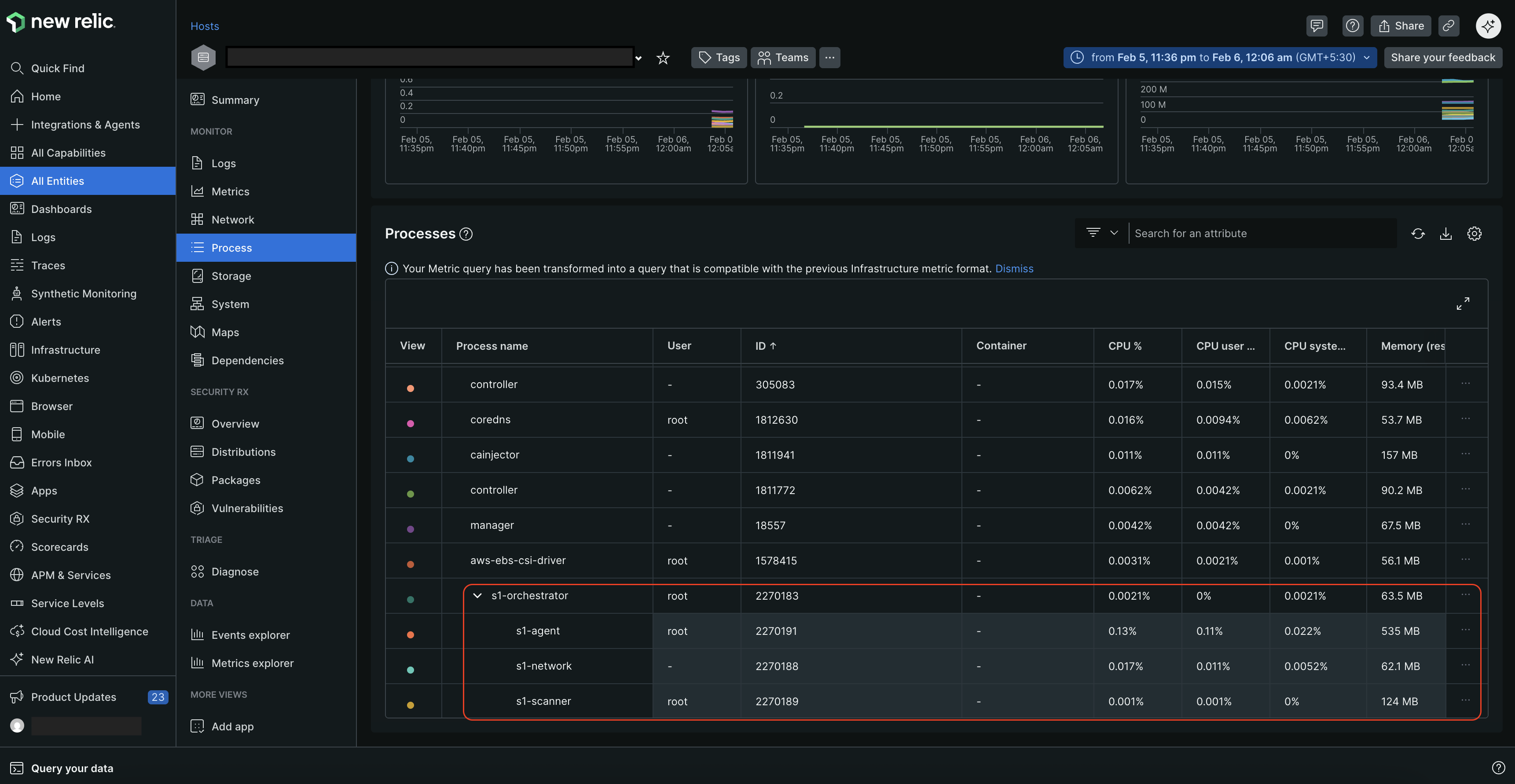
On the Process page, you can view all the processes running, along with their IDs, CPU and memory utilization metrics. It also displays the parent-child relationship between processes if a process spawns other processes.
The manifest installation method provides a way to set up OpenTelemetry for Kubernetes without using Helm. This method is suitable for users who prefer a more hands-on approach or have specific requirements that necessitate manual configuration.
Before you begin
Ensure you have:
- Your New Relic license key
- kubectl configured to access your cluster
- Cluster admin permissions
Download and prepare manifest files
Copy the contents of the
nr-k8s-otel-collector's rendered examples directory to your local workspace:bash$git clone https://github.com/newrelic/helm-charts.git$cd helm-charts/charts/nr-k8s-otel-collector/examples/k8s-with-atp/renderedUpdate the collector image in both
daemonset.yamlanddeployment.yamlfiles:Change from:
image: docker.io/newrelic/nrdot-collector-k8sTo:
image: docker.io/newrelic/nrdot-collector:<NRDOT_COLLECTOR_LATEST_VERSION>Important
This is an experimental build for Kubernetes installation. Find the latest version at the releases page.
Configure license key and cluster name
Update the
secret.yamlfile with your Base64-encoded New Relic license key:data:licenseKey: <YOUR_BASE64_ENCODED_LICENSE_KEY>To encode your license key:
- Linux/macOS:
echo -n "<YOUR_LICENSE_KEY>" | base64 - Windows (PowerShell):
[System.Convert]::ToBase64String([System.Text.Encoding]::UTF8.GetBytes("<YOUR_LICENSE_KEY>"))
- Linux/macOS:
Update your cluster name in both
daemonset-configmap.yamlanddeployment-configmap.yamlfiles:Locate instances of
k8s.cluster.nameand replace<YOUR_CLUSTER_NAME>with your desired cluster name:- key: k8s.cluster.nameaction: upsertvalue: YOUR_CLUSTER_NAME # Replace with your cluster name
Deploy the manifests
Create the
newrelicnamespace and apply the manifests:bash$kubectl create namespace newrelic$kubectl apply -n newrelic -R -f .Verify the pods are running:
bash$kubectl get pods -n newrelic --watchVerify New Relic is receiving process data by running these queries in the query builder:
FROM Metric SELECT *WHERE k8s.cluster.name='<YOUR_CLUSTER_NAME>'AND metricName LIKE 'process.%'LIMIT 100FROM Metric SELECT uniqueCount(metricName)WHERE k8s.cluster.name='<YOUR_CLUSTER_NAME>'AND metricName LIKE 'process.%'
Access the ATP data in New Relic
Once the ATP is configured, it starts collecting data from your Kubernetes cluster. You can access this data in New Relic OpenTelemetry UI. For more information on New Relic OpenTelemetry UI, refer to OpenTelemetry APM UI.
To view the ATP process metric data in New Relic:
Go to one.newrelic.com > All Entities.
OR
Go to one.newrelic.com > Catalogs > Infrastructure.
Search for entity where you installed the NRDOT collector with ATP.
Select the entity then click Process in the left pane.
On the Process page, you can view all the processes running, along with their IDs, CPU and memory utilization metrics. It also displays the parent-child relationship between processes if a process spawns other processes.
ATP configuration options
When ATP is enabled, the following configuration is automatically applied:
Parameter | Description | Default value |
|---|---|---|
| Enable/disable ATP functionality. Set to |
|
| Must be changed to |
|
| Image tag for ATP-enabled collector. |
|