Diagnosing AJAX failures is difficult when you only have metadata like URL, status code, and duration. Modern frameworks like GraphQL make this even harder — errors can hide inside the response body even when a request appears successful.
Our AJAX UI gives you full visibility into AJAX requests from browsers to external HTTP or HTTPS endpoints. You can identify time-consuming or failing calls, capture full request and response payloads, and trace issues across your entire stack. You can also review issues by device type, including desktop browsers, mobile devices, and tablets.
What to troubleshoot
Here are some troubleshooting tips for identifying performance problems with your app:
Troubleshooting AJAX calls
Examples
Problems across the entire request
If you're not sure where the problem is, or if you want to trace your requests from start to finish, click the distributed tracing link in the AJAX UI.
Timing problems
Total time percentages, throughput requests per minute (rpm), and average data transfer rates per request can help identify timing problems.
Look for large spikes in the AJAX summary page's Average data transfer per request chart.
Analyze the trends of your data using the Group By drop-down to evaluate your AJAX performance by request URL, GraphQL operation names, and many other fields.
From the individual call's AJAX performance tab, look for correlations between high callback time values and data transfer rates.
Endpoint problems
Look for any outlier endpoints, and investigate individual requests made from them.
The Status codes chart on the AJAX summary page provides information about the return behavior from the call. If you see a large number of status codes outside the 200 range, this may indicate a problem with your AJAX endpoints.
Specific webpage location problems
Examine potential AJAX problems within the context of the page where they load. Select an AJAX transaction, then select any trace from the Session traces with AJAX table.
Investigate AJAX requests
To troubleshoot problems with AJAX requests for your app:
Select the type of device: desktop (default), mobile, and tablet.
Click on an AJAX request.
Once you've zeroed in on an AJAX request, it's time to investigate. Try some of these strategies:
The summary page provides several charts to help you troubleshoot AJAX calls.
AJAX summary page
Comments
Groups and filters
Use any of the available Sort by options in the UI. All AJAX requests that take longer than two minutes are filtered out automatically.
Use the Group by option to select either requestUrl or groupedRequestUrl for more flexibility in seeing your data.
Endpoints
The Throughput chart shows the five endpoints with the highest throughput. If the call has more than five endpoints, they are consolidated on the chart as Other.
Calls from New Relic
You may see our own browser monitoring AJAX calls to your app. This is normal, because all activity is captured during the browser session.
Missing browser data
AJAX timing details are not available from IE 7, IE 8, or Chrome for iOS browsers. If you do not see expected data from other browsers, follow our AJAX troubleshooting procedures.
After selecting a specific call from the AJAX summary page, you can drill down into detailed information with the AJAX performance link. This includes a direct link to session trace details.
From here you can also select the tab to get performance data by page views. (If your app server requests greatly outnumber your browser PageView transactions, this is because some requests to your backend are made through AJAX. For more information, see our troubleshooting procedures.)
one.newrelic.com > All capabilities > Browser > (select an app) > AJAX > (select an AJAX call): This example shows performance details for a specific AJAX call. You can also view performance details by page views.
AJAX endpoints on the Average response time chart appear either as four or two time periods. This depends on whether there are cross application tracing headers.
Four time periods (Application time, Queue time, Network time, and Callback time): These AJAX calls are made against apps monitored by agents that provide cross application tracing headers.
Two time periods (Response time and Callback time): These AJAX calls are made against apps that either are not monitored by APM agents, or they are monitored by agents that do not provide cross application tracing headers.
Important
Payload capture requires browser agent version 1.317.0 or higher.
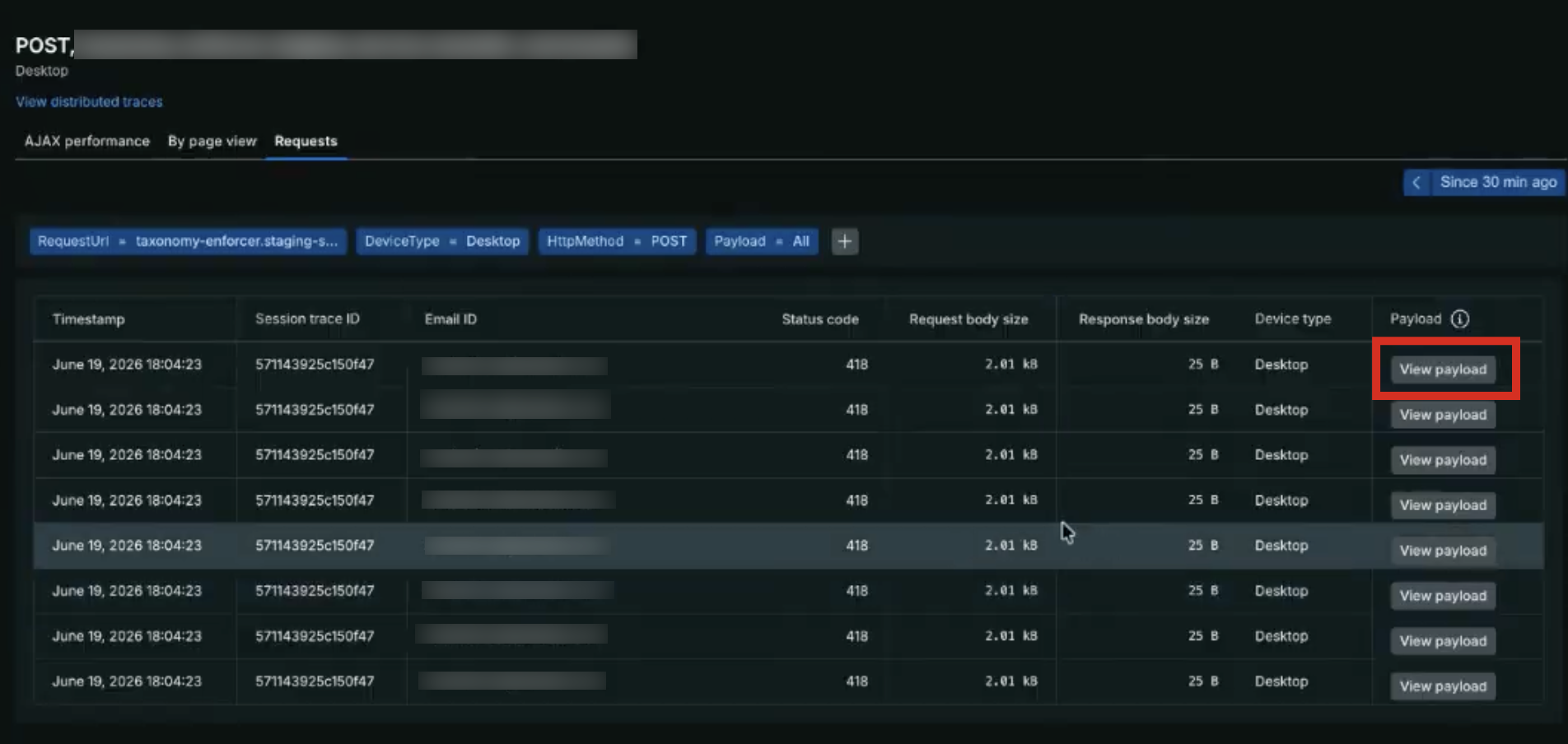
When metadata like URL, status code, and duration aren't enough to diagnose a failure, the capture payload option gives you the full picture. It adds four new attributes to each AjaxRequest event, each truncated at 4KB and queryable in NRQL. You can also use the View payload button to see the payload in the AJAX details UI:
one.newrelic.com > All capabilities > Browser > (select an app) > AJAX > (select an AJAX call): This example shows request details for a specific AJAX call. You can also view request details by page views.
If the URL is on the deny list, the event is dropped entirely and no metadata or payload is captured.
If the URL isn't on the deny list, based on your capture payload settings, the agent captures the request and response payloads and applies obfuscation rules before sending the data to New Relic.
PII protection
The browser agent automatically obfuscates common sensitive data patterns in captured payloads before ingestion, including credit card numbers, Social Security Numbers, and common keys like password and token. You can also configure custom regex rules to mask business-specific sensitive data. For more information, see Obfuscate browser data.
To trace your requests from start to finish, you can also click the distributed tracing link in the AJAX UI.
To view a list of distributed traces, click the link in the AJAX UI at the AJAX summary level.
To view all traces filtered by your application and a specific request type, click the distributed tracing link for the request you select in the AJAX UI.
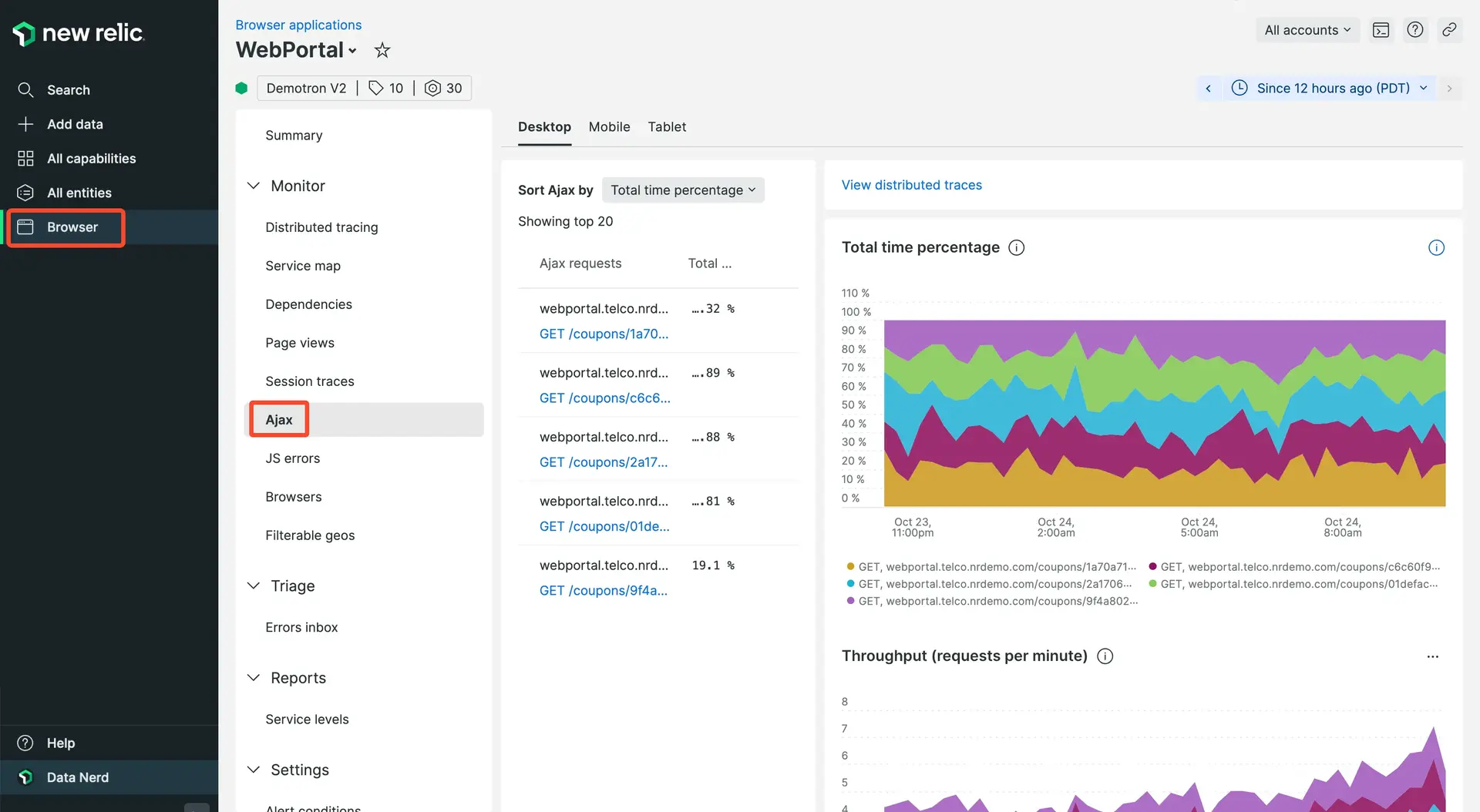
When you sort the AJAX category list by Total time percentage, the list shows the percentage for each AJAX category. Also, the chart shows the top requests with the highest time percentages.
To present this information, browser takes the cumulative request time for each AJAX category and divides it by the cumulative request time for all AJAX requests. This helps identify where to optimize response times, because high throughput requests will be favored over low throughput requests.
Example: Calculating time percentages for two AJAX categories
This example uses two AJAX categories: api1.example.com and api2.example.com.
Your api1.example.com is hit 1 time, and it takes 1 second (1000ms) to respond (1 x 1 second = 1 second).
Your api2.example.com is hit 500 times, and it takes 1ms to respond (500 x 1ms = 500ms, or 0.5 second).
The cumulative request time for all of your AJAX categories is 1500 ms, or 1.5 seconds. To get the time percentages, divide each AJAX category by the cumulative request time, and then multiply by 100 for the percentage.
So api1.example.com is 67% (1000 divided by 1500, times 100) and api2.example.com is 33% (500 divided by 1500, times 100) of the total time percentage.
Time calculations
api1
api2
Number of hits
1
500
Time to respond
1 second (1000ms)
1 hit x 1000ms = 1000ms (1 second)
1 millisecond (1ms)
500 hits x 1ms = 500ms (.5 second)
Cumulative request time for all AJAX categories
1000ms + 500ms = 1500ms (1.5 seconds)
1000ms + 500ms = 1500ms (1.5 seconds)
Time percentage = Category / 1500ms cumulative request time x 100 for percentage
1000ms / 1500 x 100 = 67%
500ms / 1500 x 100 = 33%
What's next
In addition to the AJAX UI, you can also use these resources:
Help prevent problems from occurring by using alerts for your key performance indicators.
Use single-page app (SPA) monitoring. This is valuable for any app that uses AJAX requests to pull content dynamically and create a fluid user experience.