Maintenance Windows UI를 사용하여 하나 이상의 서비스 수준에 대한 계획된 다운타임 제외를 예약하고 관리하세요.
시작하기 전에
유지 관리 기간을 사용하려면 기존 서비스 수준 이 있거나 이를 생성할 수 있어야 합니다.
유지보수 기간 액세스
유지보수 기간에 액세스하려면:
one.newrelic.com 으)로 이동합니다.
Service Levels 으로 이동합니다.
두 위치에서 유지 관리 기간에 액세스할 수 있습니다:
- 계정의 모든 유지보수 기간의 경우: Service Levels 페이지에서 Maintenance Windows 탭을 엽니다.
- 특정 서비스 수준의 유지 관리 기간의 경우: Service Levels 페이지에서 개별 서비스 수준을 선택한 다음, 왼쪽 탐색 메뉴에서 Maintenance Windows 페이지로 이동합니다.
유지 관리 기간 예약
동일한 계정 내의 하나 이상의 서비스 수준에 대한 유지 관리 기간을 예약하려면 Service Levels 페이지 또는 특정 서비스 수준의 Maintenance Windows 페이지에서:
오른쪽 상단 코너에 있는 Schedule maintenance window 을(를) 클릭합니다.
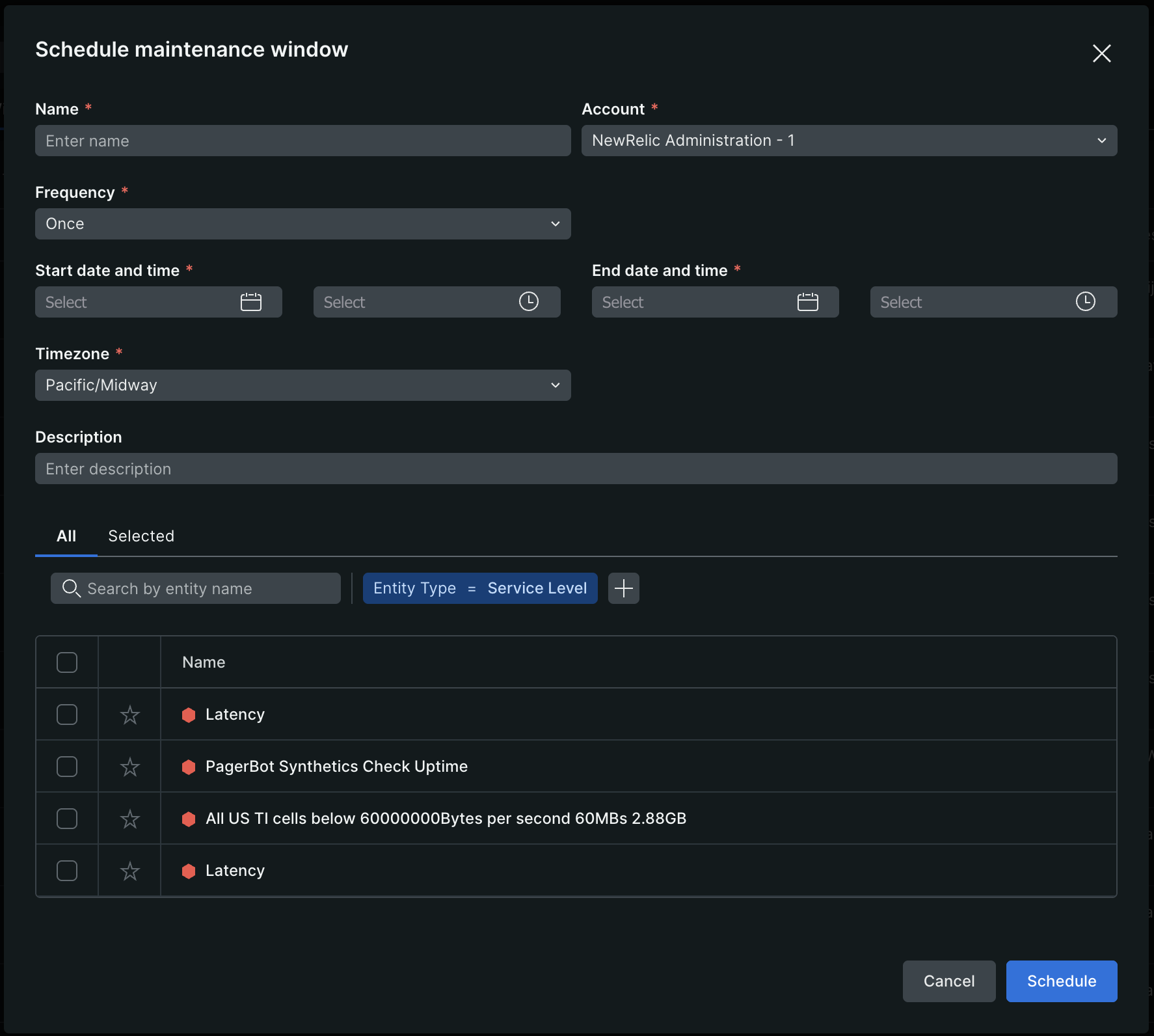
유지 관리 기간 이름을 입력합니다.
Account 드롭다운 메뉴에서 계정을 선택합니다(미리 선택되지 않은 경우). 선택한 모든 서비스 수준은 이 계정에 속해야 합니다.
Frequency 드롭다운 메뉴에서 다음을 선택합니다:
- 한 번: 단일 유지보수 이벤트용입니다.
- 매일: 매일 반복됩니다.
- 매주: 특정 요일에 반복됩니다.
- 매월: 특정 날짜 또는 요일에 반복됩니다.
유지보수 기간에 대한 Start date and time 및 End date and time 을(를) 설정합니다.
반복 주기를 선택한 경우, Active from 및 Active until 날짜를 설정하여 반복 유지보수 기간 패턴이 시작되고 끝나는 시점을 지정하십시오. 유지보수 기간이 무기한 계속되어야 하는 경우 Never ends 을(를) 선택하십시오.
유지 관리 기간이 올바른 현지 시간에 실행되도록 Timezone 드롭다운 메뉴에서 시간대를 선택하세요.
(선택 사항) Description 필드에 유지보수 기간에 대한 컨텍스트를 추가합니다.
유지 관리 기간에 대한 하나 이상의 서비스 수준을 선택하십시오. 서비스 수준 이름으로 검색하거나 필터를 추가할 수 있습니다.
유지보수 기간을 생성하려면 Schedule을(를) 클릭합니다.
중요
일정 예약 후, 유지보수 기간이 표시되는 데 최대 1분이 소요될 수 있습니다. 즉시 보이지 않으면, 페이지를 새로고침하십시오.
유지보수 기간 보기 및 관리
Maintenance Windows 탭은 이름, 서비스 수준, 기간, 빈도, 활성 기간, 생성자 및 설명과 같은 세부 정보가 포함된 유지 관리 기간을 표시합니다. 각 유지보수 기간에는 상태도 표시됩니다:
- 예정됨: 유지 관리 기간이 나중에 실행되도록 구성되었지만 아직 시작되지 않았습니다.
- 활성: 유지 관리 기간이 현재 실행 중이며 SLO 계산에서 데이터를 제외하고 있습니다.
- 비활성: 유지보수 기간이 종료되어 더 이상 데이터를 제외하지 않습니다.
유지보수 기간 편집
기존 유지보수 기간을 편집하려면:
- Maintenance Windows 페이지에서 편집할 유지 관리 기간을 찾습니다.
- ... > Edit 을(를) 클릭합니다.
- 변경 사항을 적용하고 Schedule을(를) 클릭하십시오.
중요
빈도 유형에 따라 편집 제한이 적용됩니다:
- 일회성 윈도우: 윈도우가 시작된 후에는 편집할 수 없습니다.
- 반복 윈도우: 편집할 수 있지만, 윈도우가 활성화되어 실행 중인 동안에는 편집할 수 없습니다.
유지보수 기간 삭제
유지보수 기간을 삭제하려면:
- Maintenance Windows 페이지에서 삭제하려는 유지 관리 기간을 찾으세요.
- ... > Delete 을(를) 클릭합니다.
- 삭제를 확인하세요.
중요
유지 관리 기간을 삭제해도 서비스 수준 자체에는 영향을 미치지 않습니다. 제외 기간 없이 정상적으로 SLO 준수 여부를 계속 추적합니다.
차트에서 유지보수 기간 시각화하기
서비스 수준의 요약 페이지를 볼 때, 유지 관리 기간이 SLO 준수 및 양호/불량 이벤트 차트에 시각적으로 표시됩니다:
- 회색 막대: 유지보수 기간은 타임라인 차트에서 회색 음영 영역으로 표시됩니다.
- 호버 세부 정보: 유지 관리 기간 마커 위에 마우스를 올리면 유지 관리 기간 이름, 설명(제공된 경우), 정확한 시작 및 종료 시간이 표시됩니다.
- 메트릭에 미치는 영향 없음: 유지보수 기간 동안에는 정상 이벤트나 오류 이벤트가 모두 반영되지 않으므로 SLO 준수율과 남은 오류 예산은 영향을 받지 않습니다.
팁
예정된 유지보수 기간 동안 발생하는 어떠한 서비스 중단이나 임계값 위반도 SLO 준수 또는 남은 오류 예산 계산에 영향을 미치지 않습니다. 메트릭은 정확하게 유지되며 운영 기간에 초점을 맞춥니다.
NerdGraph로 유지보수 기간 관리하기
UI 대신 NerdGraph API를 사용하여 프로그래밍 방식으로 유지보수 기간을 생성, 업데이트, 삭제 및 쿼리할 수 있습니다. 샘플 뮤테이션 및 쿼리가 포함된 전체 API 참조는 NerdGraph 튜토리얼: 서비스 수준 유지 관리 기간 관리를 참조하십시오.