preview
We're still working on this feature, but we'd love for you to try it out!
This feature is currently provided as part of a preview program pursuant to our pre-release policies.
New Relic Change Tracking for GitHub Copilot monitors your service after each deployment that you set up for monitoring. Autopilot checks the health of the service at scheduled checkpoints, comments on the pull request, and reports the results in Slack if you've connected it. If it detects a regression, it also opens a GitHub issue assigned to GitHub Copilot, which can propose a fix as a pull request if your organization has GitHub Copilot Enterprise.
Important
New Relic Change Tracking for GitHub Copilot requires a GitHub token with write access in addition to the read access that Connect Autopilot to GitHub describes. Add the write permissions to the token you already connected, or connect a new token that has all of them.
Each deployment set up for monitoring goes through these stages:
- You merge the pull request and your pipeline deploys it. The deployment sends an event to Change Tracking that includes the release tag URL, the merge commit SHA, and the
watchpoint_monitoringattribute. - Autopilot validates the event. If it passes, Autopilot comments on the merged pull request and, if you connected Slack, posts a "monitoring started" message.
- At each checkpoint, Autopilot compares the service's metrics after the deployment with the metrics before it. It reports one of three results (no regression, inconclusive, or regression detected) as a comment on the pull request and, if you connected Slack, as a reply in the same thread. The checkpoints run at 10 minutes, 30 minutes, 1 hour, 2 hours, 24 hours, and 72 hours after the deployment.
When a checkpoint detects a regression, Autopilot does three things:
- Posts a reply in the Slack thread (if you connected Slack) with the relevant metrics and the evidence behind the finding.
- Comments on the pull request with the relevant metrics, the checkpoint that detected the regression, and the reason.
- Opens a GitHub issue that describes what regressed, the supporting evidence, where to look, and acceptance criteria, then assigns the issue to GitHub Copilot.
If Copilot proposes a fix, review it as you would any other pull request before you merge it.
Prerequisites
Before you set up New Relic Change Tracking for GitHub Copilot, confirm the following:
- You've configured Autopilot. Refer to Set up Autopilot.
- You're a New Relic Organization Manager, and you've opted in to New Relic Change Tracking for GitHub Copilot at one.newrelic.com > Administration > Preview & Trials.
- You have a GitHub account and token with write access to the repositories you want to monitor.
- Your deployments send events to Change Tracking with the
changeTrackingCreateEventmutation. New Relic Change Tracking for GitHub Copilot doesn't support the legacy endpoint. - Each event includes the following:
- The release tag URL in the
changelogfield. - The merge commit SHA in the
commitfield. - The custom attribute
watchpoint_monitoringset to"true", for each deployment you want monitored.
- The release tag URL in the
- The service reports to New Relic and has at least 3 days of history. With less data, every checkpoint returns an inconclusive result.
Optionally, connect Autopilot to Slack to receive notifications. For Copilot to start work on the issue automatically, your organization needs GitHub Copilot Enterprise.
Set up New Relic Change Tracking for GitHub Copilot
Create a GitHub token
Create a personal access token in GitHub. A fine-grained token is recommended, but a classic token also works. For instructions, refer to Creating a fine-grained personal access token in the GitHub documentation. Make sure the token has the following:
- Your GitHub organization as its resource owner.
- Access to the repositories you want New Relic Change Tracking for GitHub Copilot to monitor.
- Read and write access to Pull requests, Issues, and Contents.
If you already connected GitHub to Autopilot and have a token already, you can add these permissions to that token instead.
If your organization enforces SAML SSO, authorize the token for SSO. GitHub shows the token only once, so when generating it, copy it and paste it into New Relic right away.
Connect GitHub and enable monitoring
To open the Autopilot configuration, click Ask AI, click ..., and then click Configure.
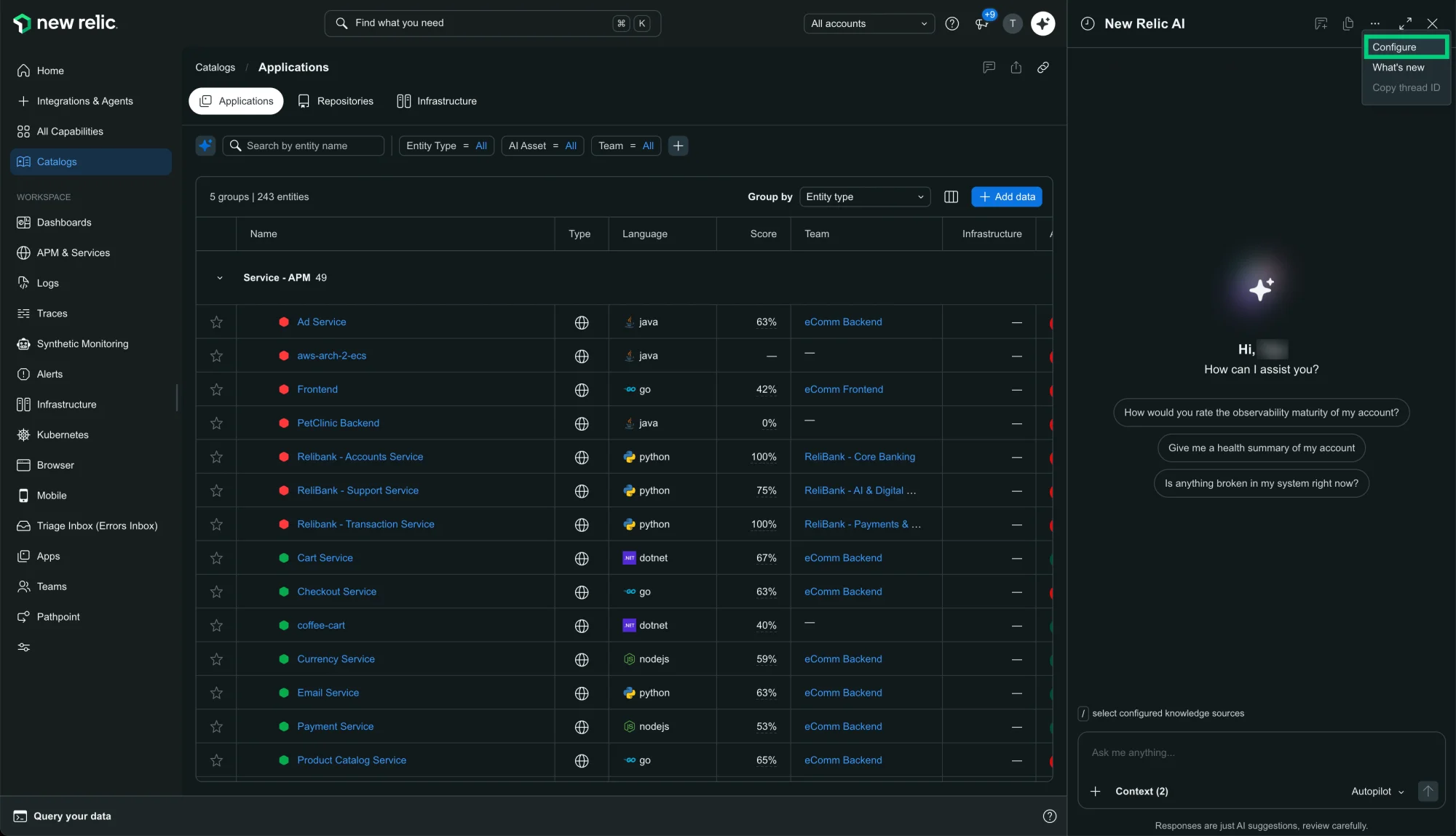
In External MCP connections, connect GitHub (Public GitHub or GitHub Enterprise Cloud) with your token and organization name, and then turn on Enable deployment monitoring. To receive notifications, also select a Slack channel in Post alerts to. This option appears only after you connect Slack to Autopilot.
Click Update agent to save your changes.
Confirm that monitoring started
Deploy a change with the watchpoint_monitoring attribute set to "true".
After Autopilot validates the deployment event, you see:
- A comment from Autopilot on the merged pull request.
- If you connected Slack, a "monitoring started" message in the channel you selected. The results of later checkpoints appear as replies in that thread.
If neither appears, check that the deployment event meets the prerequisites.