preview
We're still working on this feature, but we'd love for you to try it out!
This feature is currently provided as part of a preview program pursuant to our pre-release policies.
Custom KPIs let you define and monitor business-specific metrics at the workload level, connecting technical performance to business outcomes. Available exclusively for Intelligent workload, KPIs provide visibility into metrics that matter most to your business.
Default KPIs
When you create an Intelligent workload, New Relic automatically provides the following two default KPIs focused on your focal transaction. These KPIs are uneditable but can be hidden if not needed:
Workload P99 Latency
The maximum time it took for the fastest 99% of executions of the focal transaction to complete. Only 1% of requests were slower than this value. This KPI monitors tail latency and helps prevent user frustration, ensuring that even during peak loads or background processing spikes, the workload does not suffer from significant bottlenecks.
Workload Success Rate
The percentage of successful executions of the focal transaction, calculated as the number of successful requests divided by the total number of requests.
Add a KPI
You can add KPIs to your Intelligent workload in two ways: create custom KPIs or add existing KPIs from other workloads.
Create a custom KPI
Create new KPIs to track the metrics most important to your business:
- Open the summary page of the Intelligent workload.
- Click Add new KPI You can either create a new KPI by writing a NRQL query to define a custom metric or using an existing KPI from other workloads.
- To create a custom KPI:
- Name: Give it a descriptive, business-friendly name
- NRQL query: Write a query that calculates the metric
- Group (optional): Organize KPIs by functional area (e.g., "Performance", "Business Metrics")
- Category (optional): Further classify KPIs (e.g., "Latency", "Throughput", "Revenue")
- Click Preview to verify the query returns expected results
- Click Save
Important
You can display a maximum of 3 KPIs on the summary page at one time. This limit ensures the summary remains focused and readable.
View and monitor KPIs
After adding KPIs, up to 3 can be displayed on your workload summary page as tiles. Each KPI tile shows:
- Current value: Real-time KPI measurement
- Trend indicator: Visual showing if the metric is improving or degrading
- Time series chart: Historical performance over the selected time range
- Anomaly detection: Highlights when KPIs deviate from normal patterns
The 3-KPI limit ensures your summary page remains focused and easy to scan. Use the Manage KPIs page to view the complete catalog of all KPIs available for your workload.
Create KPI alerts
Alert on KPIs to notify teams when business-critical metrics deviate from goals:
- Click the KPI you want to alert on
- Select Create alert condition
- Configure the alert:
- Threshold type: Above or below target value
- Threshold value: Numeric value that triggers the alert
- Duration: How long the threshold must be breached before alerting
- Notification channels: Where to send alerts (Slack, PagerDuty, email, etc.)
- Give the alert a descriptive name
- Save the alert condition
Edit or delete KPIs
The Manage KPIs page provides a central location to create, edit, delete, and view all KPIs for your Intelligent workload:
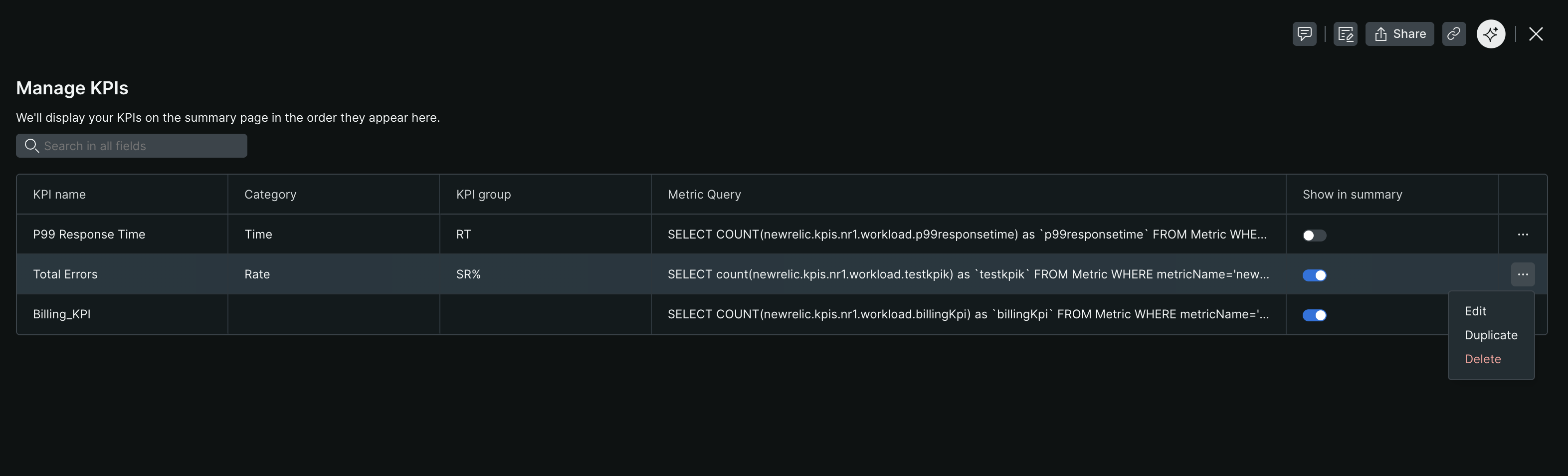
Manage KPIs: View, edit, and configure your workload KPIs from the Manage KPIs page.
Edit a KPI
Modify KPI details as your business goals evolve:
- Go to Manage KPIs in your Intelligent workload
- Find the KPI you want to modify
- Click next to the KPI name
- Select Edit
- Update any of the following:
- NRQL query: Modify the query logic
- Name: Change the KPI display name
- Group: Update the functional grouping
- Category: Adjust the classification
- Click Preview to validate changes
- Click Save
Tip
Default KPIs (Workload Success Rate and Workload P99 Latency) cannot be edited, but you can hide them from the summary page if they don't meet your needs.
Delete a KPI
Permanently remove KPIs that are no longer relevant:
- Go to Manage KPIs
- Find the KPI to remove
- Click next to the KPI name
- Select Delete
- Confirm deletion
Caution
Deleting a KPI:
Permanently removes it from the catalog
Removes any associated alerts
Cannot be undone
Consider exporting alert configurations before deleting KPIs you might recreate later.
Hide default KPIs
If the default KPIs don't align with your monitoring needs:
- Go to your workload summary page
- Find the default KPI tile
- Click
- Select Hide from summary
Hidden KPIs remain in the catalog and can be shown again later.
Next steps
Enhance your Intelligent workload monitoring:
- Use AI insights: Get AI-generated summaries referencing your KPIs
- Configure workload alerts: Set up notifications for workload status changes
- Learn NRQL query syntax: Master query writing for complex KPIs
- Create custom dashboards: Visualize KPIs alongside other metrics