preview
We're still working on this feature, but we'd love for you to try it out!
This feature is currently provided as part of a preview program pursuant to our pre-release policies.
You can access and use Performance Risks inbox to proactively identify and resolve application performance issues before they impact your end users. This guide walks you through how to access Performance Risks inbox, view the account-wide overview, analyze and get recommendations for specific risks, update detection thresholds, and use the tool within New Relic MCP server. For more information about what Performance Risks inbox is and its key benefits, refer to introduction to Performance Risks inbox.
Access the Performance Risks inbox
You can access Performance Risks inbox in two ways: at the entity level, scoped to a single entity or workload, or at the account level, covering every entity in your account.
Access at entity level
At the entity level, Performance Risks inbox shows performance issues for a single entity's or workload's telemetry data. This is available for:
- APM services
- Browser applications
- Workloads
To access Performance Risks inbox for an entity:
- Go to one.newrelic.com > All capabilities, then select APM & Services, Browser, or Workloads.
- Select the required entity or workload.
- In the navigation pane, under the Triage section, click Performance Risks.
Access at account level
At the account level, Performance Risks inbox is available in two views: an account-wide dashboard, and a list of performance risk groups scoped to a workload or entity that you choose.
To access Performance Risks inbox for an account:
- Go to one.newrelic.com > All capabilities > Errors Inbox.
- In the entity navigation pane, under the Performance Risks section, click Performance Overview for the account-wide dashboard (see View the Performance overview), or Risk Groups for a scoped list.
- In Risk Groups, use the scope selector to choose Workload or Entities, then select the specific workload or entity you want to review, or use the search box to find it by name or description.
- Optionally, add more filters, such as by Performance risk group metadata state (for example, Unresolved), and use Sort by to change the order of results.
View the Performance overview
Performance overview is a dashboard that summarizes performance risks across your account. It shows every performance risk detected across your entities, so you don't have to check each entity individually to find where problems exist.
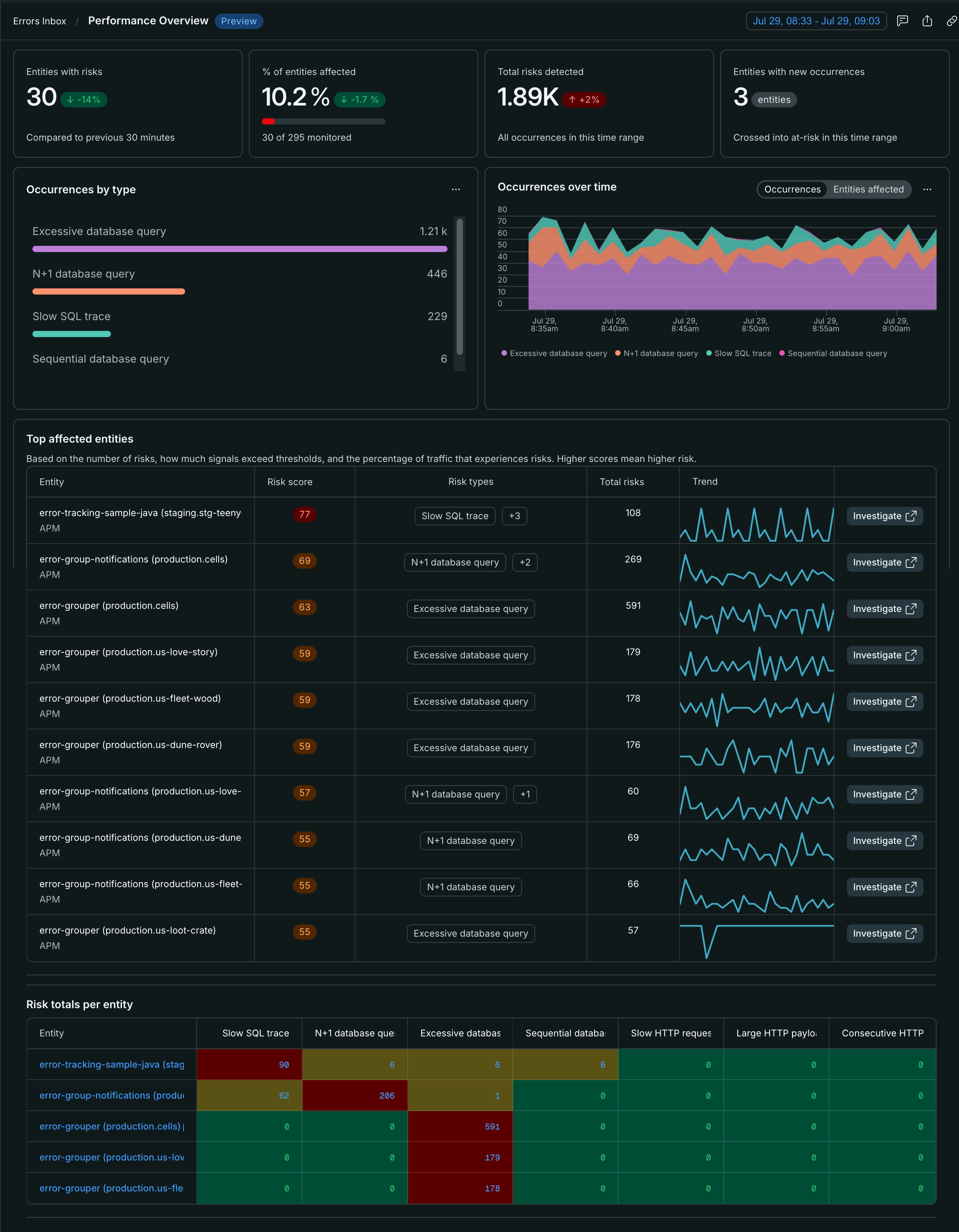
From here, you can drill into a specific entity to open its Triage view for a closer look.
View and analyze performance risks
Once you access Performance Risks inbox, you can view detected issues in two ways: the Triage view and the Group performance risks view. Both views display the same underlying data but offer different ways to analyze it.
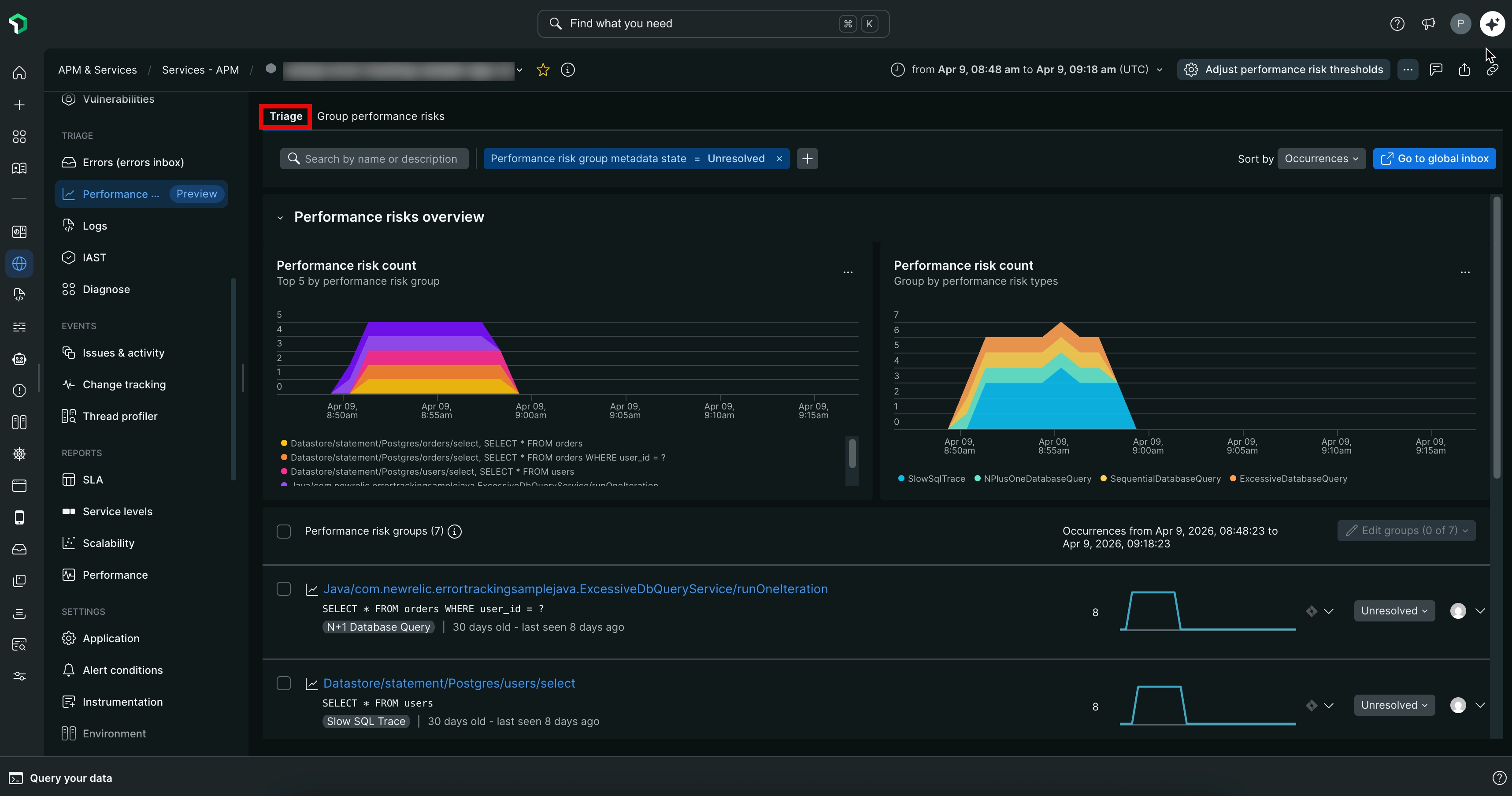
Triage
The Triage view processes and groups similar performance risks together automatically. Similar queries are computed, stored, and merged into a single performance risk group. For example, multiple queries that share the same pattern — such as variations of an IN clause — are grouped into one entry rather than appearing as separate items. This makes it easier to identify and prioritize the most impactful problems without reviewing each occurrence individually.
Use the Triage view when you want a pre-grouped summary of performance issues to identify patterns across your application.
Group performance risks
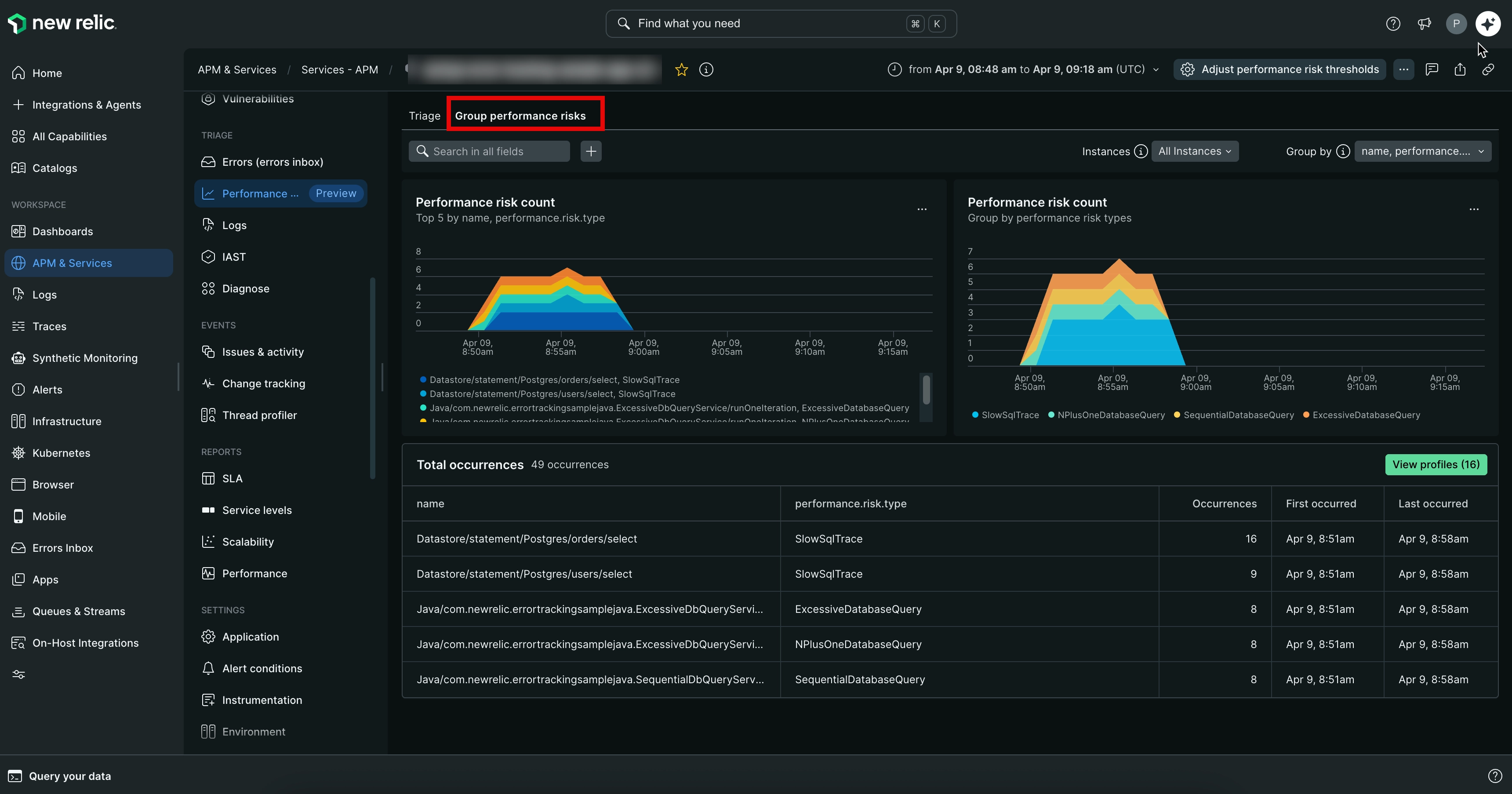
The Group performance risks view displays the raw performance risk data without pre-computed groupings. Normal query representations (such as comma and question mark placeholders) are shown, and you can filter and group the data based on different attributes, such as:
- The user affected by the performance risk
- The service generating the calls
- The API triggering the queries
Use the Group performance risks view when you need to analyze performance risks based on specific attributes that are relevant to your investigation.
Get recommendations
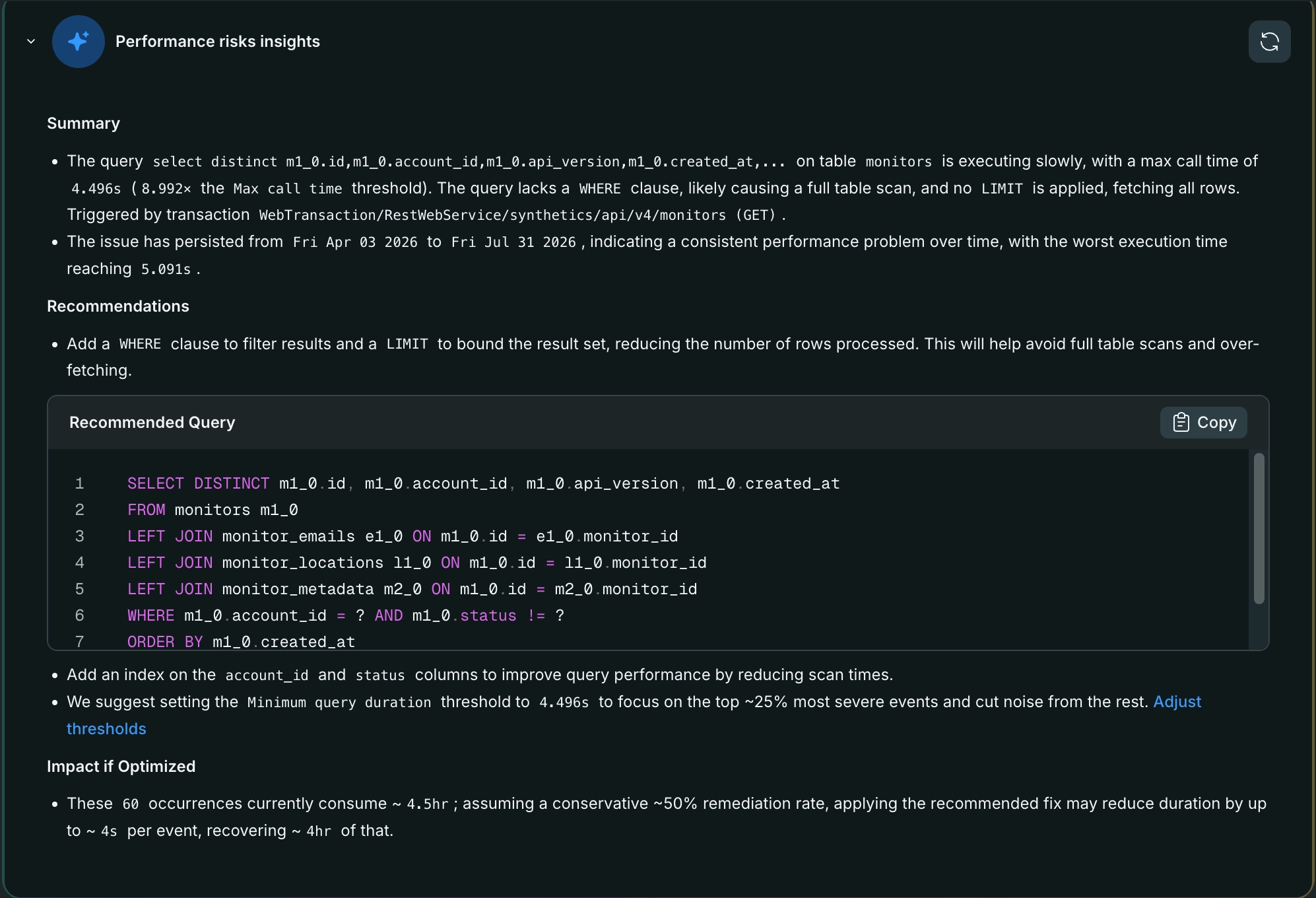
From the Triage view, you can generate AI-powered recommendations for a specific performance risk instead of investigating its occurrences manually.
To get recommendations for a performance risk:
- From the Triage view, open a performance risk that has multiple occurrences.
- Click Generate insights.
Performance Risks inbox analyzes the occurrences for that performance risk and returns a hypothesis about the root cause, along with recommended next steps to resolve it. The exact recommendations vary depending on the performance risk detected.
Important
New Relic enables AI features by default for all accounts. If you don't see this option, your account may not have it enabled. Contact your organization admin to request access.
If a recommendation suggests adjusting a threshold, see Set the thresholds.
Set the thresholds
Performance Risks inbox uses configurable thresholds to automatically detect performance anomalies. You can update these thresholds at both the account and entity levels to ensure that the detection criteria align with your specific performance monitoring needs and priorities. These thresholds determine what constitutes a performance risk and help ensure Performance Risks inbox alerts you to the most relevant and actionable performance issues in your applications.
You can set the Performance Risks thresholds at an account or entity level:
Set the account-level thresholds
Setting thresholds at the account level allows you to establish default performance risk detection criteria that apply across all entities within the account. This is useful for maintaining consistent monitoring standards and ensuring that all applications are evaluated against the same performance benchmarks.
To set the thresholds at an account level:
Set the entity-level thresholds
Setting thresholds at the entity level allows you to customize performance risk detection criteria for specific applications or services that may have unique performance characteristics or requirements. This is particularly useful for tailoring monitoring to different types of applications, environments, or business priorities.
To set the thresholds at an entity level:
You can set the thresholds for a specific entity in one of the following ways:
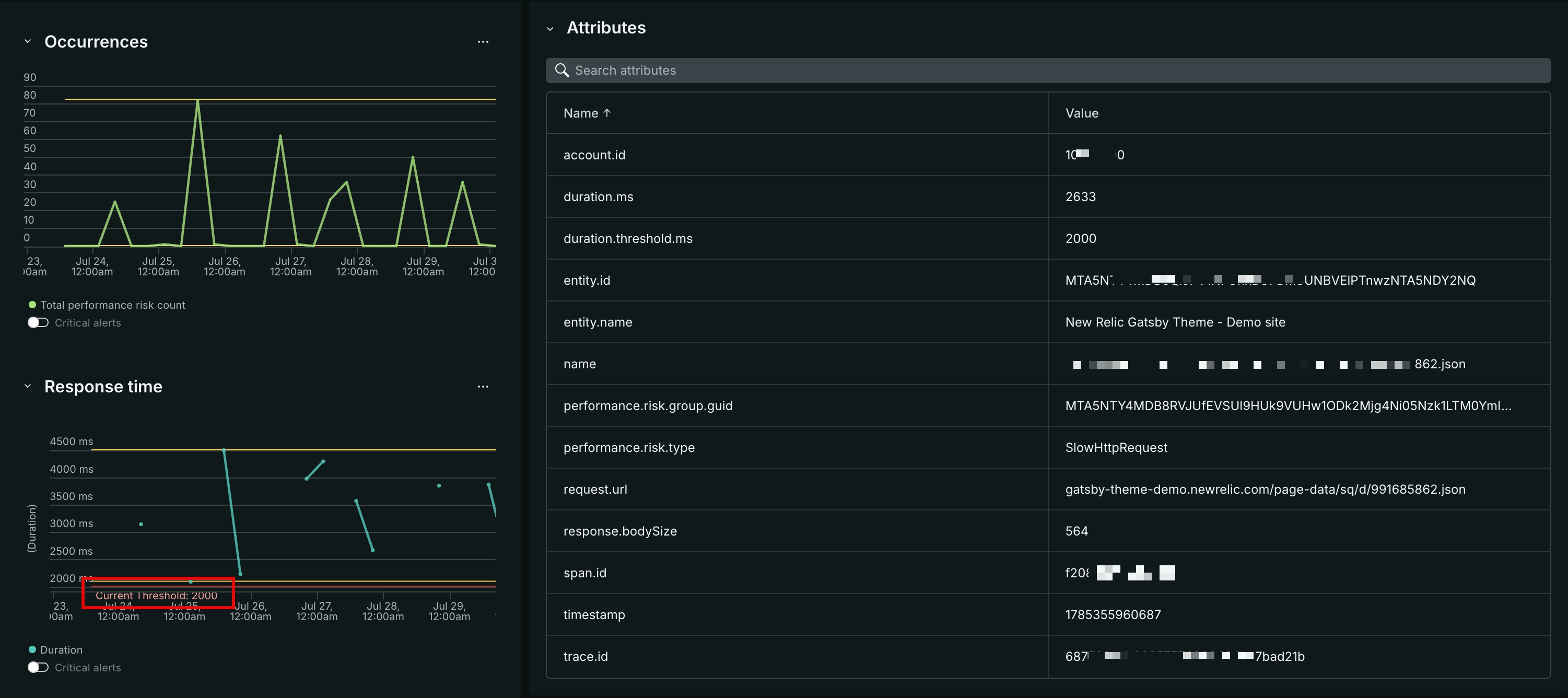
View threshold lines on charts
Performance risk charts display reference lines to help you interpret whether a value is within an expected range:
- Minimum and maximum guidelines: Calculated automatically from the historical data collected for that chart, showing the typical range of values over time.
- Current threshold: Reflects the threshold that's currently active for that analyzer, based on your account-level or entity-level threshold settings. If both are set, the entity-level threshold takes precedence.
Use these lines to see how close a metric is to its configured threshold, without needing to open the threshold settings.
The following is a sample chart. The values and lines you see depend on your own data and threshold settings.
Use the Performance Risks inbox tool in New Relic MCP server
You can also access the Performance Risks inbox tool (list_entity_performance_risk_groups) in New Relic MCP server. This tool lists all the Performance Risks detected for a given entity, along with their details such as risk type, severity, and occurrence count. You can use this tool to programmatically retrieve performance risk data.