avance
Todavía estamos trabajando en esta característica, ¡pero nos encantaría que la probaras!
Esta característica se proporciona actualmente como parte de un programa de vista previa de conformidad con nuestras políticas de prelanzamiento.
Puede acceder y utilizar Performance Risks inbox para identificar y resolver de forma proactiva los problemas de rendimiento de la aplicación antes de que afecten a los usuarios finales. Esta guía le muestra cómo acceder a Performance Risks inbox, ver la descripción general de toda la cuenta, analizar y obtener recomendaciones para riesgos específicos, actualizar los umbrales de detección y utilizar la herramienta dentro del servidor MCP de New Relic. Para obtener más información sobre qué es Performance Risks inbox y sus beneficios clave, consulte la introducción a Performance Risks inbox.
Acceder a la bandeja de entrada de riesgos de rendimiento
Puede acceder a Performance Risks inbox de dos maneras: a nivel de entidad, con alcance a una sola entidad o workload, o a nivel de cuenta, cubriendo cada entidad de su cuenta.
Acceso a nivel de entidad
A nivel de entidad, Performance Risks inbox muestra los problemas de rendimiento para los telemetry data de una sola entidad o workload. Esto está disponible para:
- Servicios de APM
- Aplicación Browser
- Carga de trabajo
Para acceder a Performance Risks inbox de una entidad:
- Vaya a one.newrelic.com > All capabilities, luego seleccione APM & Services, Browser o Workloads.
- Seleccione la entidad o workload requerida.
- En el panel de navegación, en la sección Triage, haga clic en Performance Risks.
Acceso a nivel de cuenta
A nivel de cuenta, Performance Risks inbox está disponible en dos vistas: un dashboard para toda la cuenta y una lista de grupos de riesgo de rendimiento con alcance a una workload o entidad que elija.
Para acceder a Performance Risks inbox para una cuenta:
- Vaya a one.newrelic.com > All capabilities > Errors Inbox.
- En el panel de navegación de la entidad, en la sección Performance Risks, haga clic en Performance Overview para ver el dashboard de toda la cuenta (consulte Ver la descripción general del rendimiento), o en Risk Groups para obtener una lista limitada.
- En Risk Groups, use el selector de alcance para elegir Workload o Entities, luego seleccione la workload o entidad específica que desea revisar, o use el cuadro de búsqueda para encontrarla por nombre o descripción.
- Opcionalmente, agregue más filtros, como por Performance risk group metadata state (por ejemplo, Unresolved), y use Sort by para cambiar el orden de los resultados.
Ver la visión general del rendimiento
Performance overview es un dashboard que resume los riesgos de rendimiento en toda la cuenta. Muestra cada riesgo de rendimiento detectado en las entidades, por lo que no tiene que verificar cada entidad individualmente para encontrar dónde existen problemas.
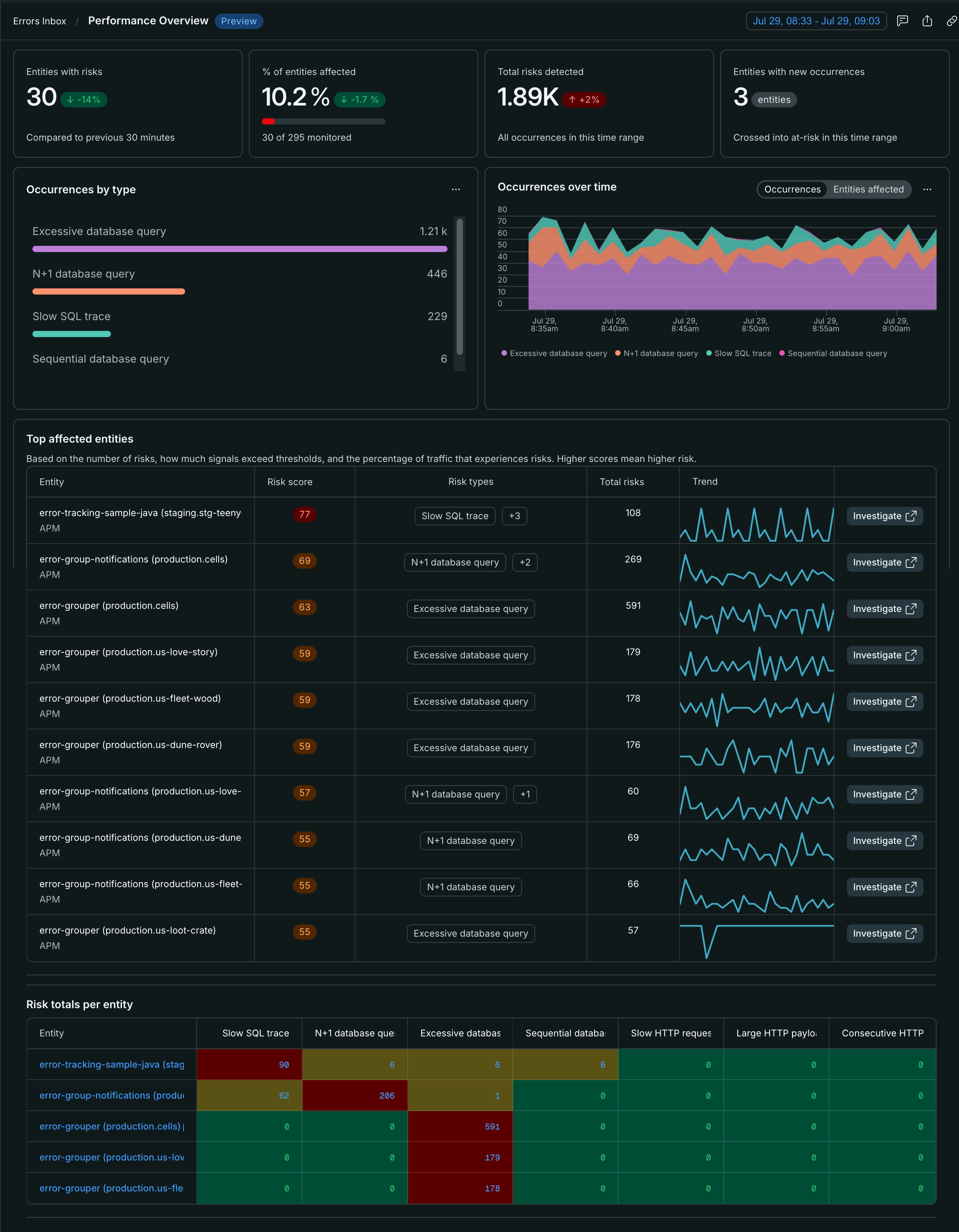
Desde aquí, puede desglosar una entidad específica para abrir su vista de Triage y verla más de cerca.
Ver y analizar riesgos de rendimiento
Una vez que acceda a Performance Risks inbox, puede ver los problemas detectados de dos maneras: la vista Triage y la vista Group performance risks. Ambas vistas muestran los mismos datos subyacentes pero ofrecen diferentes formas de analizarlos.
Triaje
La vista Triage procesa y agrupa automáticamente riesgos de rendimiento similares. Las consultas similares se calculan, almacenan y combinan en un solo grupo de riesgo de rendimiento. Por ejemplo, múltiples consultas que comparten el mismo patrón —como variaciones de una cláusula IN — se agrupan en una sola entrada en lugar de aparecer como elementos separados. Esto facilita identificar y priorizar los problemas de mayor impacto sin revisar cada ocurrencia individualmente.
Use la vista Triage cuando desee un resumen preagrupado de problemas de rendimiento para identificar patrones en toda la aplicación.
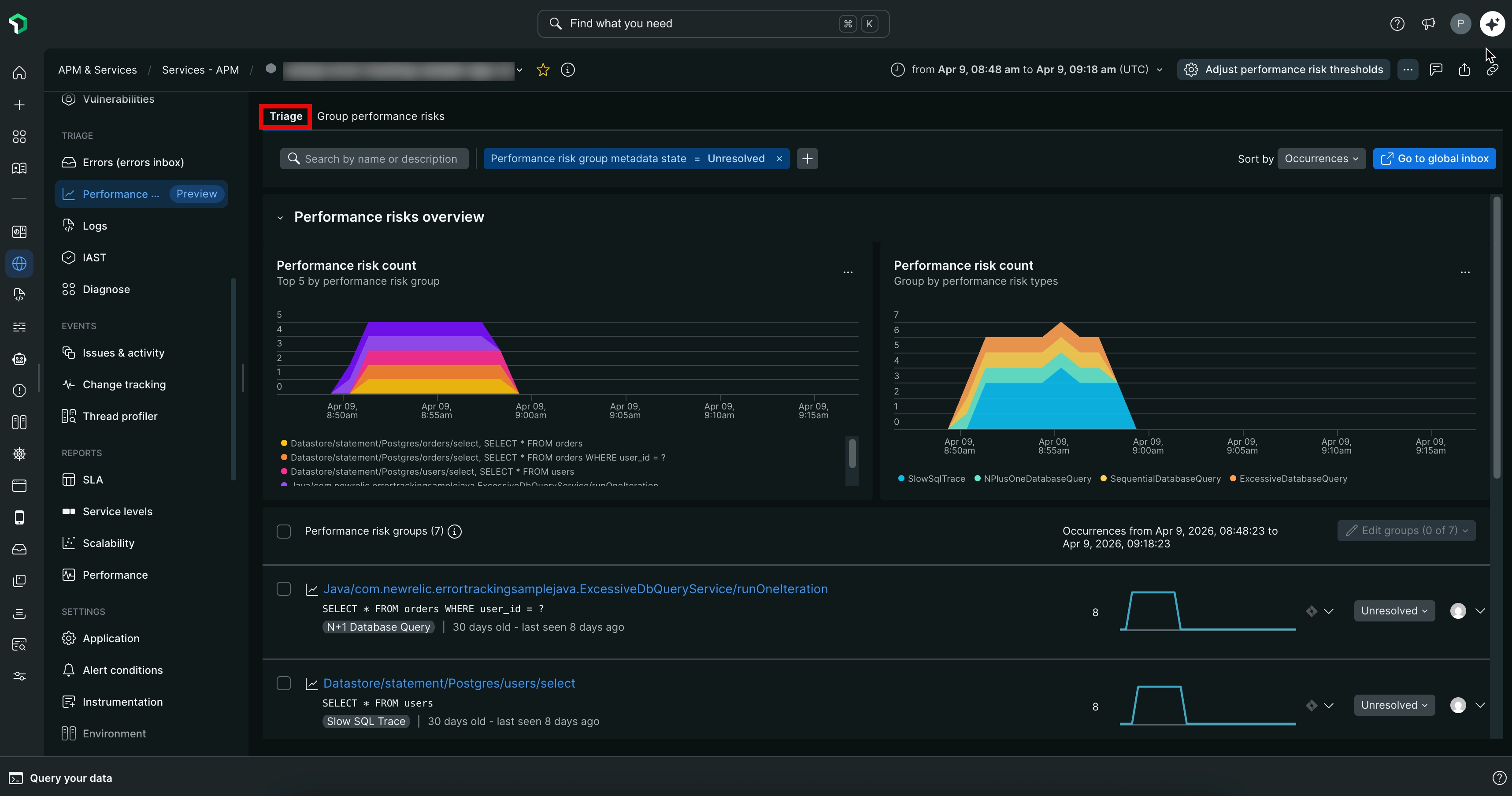
Riesgos de rendimiento del grupo
La vista Group performance risks muestra los datos de riesgo de rendimiento sin procesar sin agrupaciones precalculadas. Se muestran las representaciones de consulta normales (como los marcadores de posición de coma y signo de interrogación), y puede filtrar y agrupar los datos en función de diferentes atributos, como:
- El usuario afectado por el riesgo de rendimiento
- El servicio que genera las llamadas
- La API que desencadena las consultas
Utilice la vista Group performance risks cuando necesite analizar riesgos de rendimiento basados en atributos específicos que sean relevantes para su investigación.
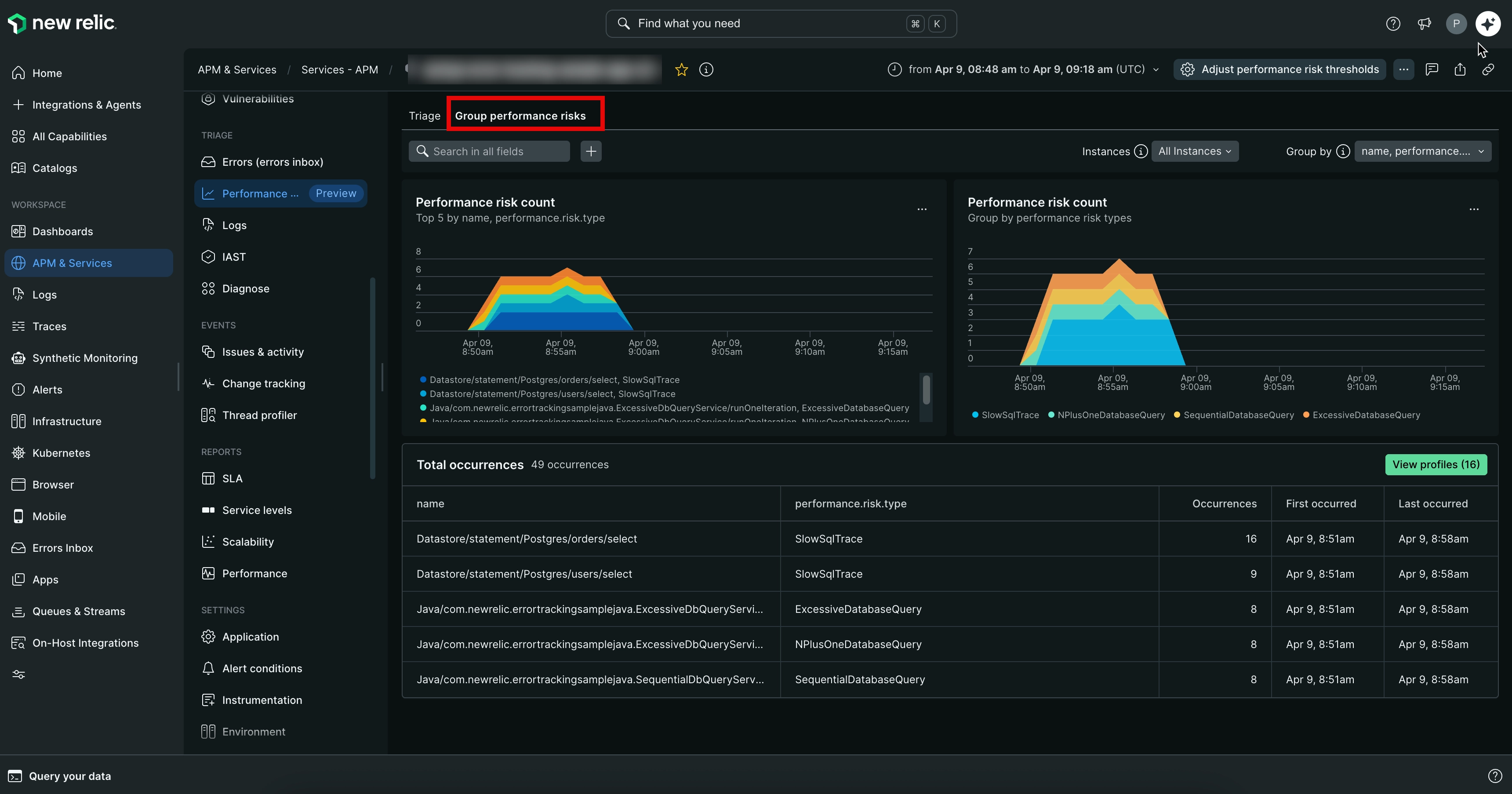
Obtener recomendaciones
Desde la vista Triage, puede generar recomendaciones impulsadas por IA para un riesgo de rendimiento específico en lugar de investigar sus ocurrencias manualmente.
Para obtener recomendaciones para un riesgo de rendimiento:
- Desde la vista Triage, abra un riesgo de rendimiento que tenga múltiples ocurrencias.
- Haga clic en Generate insights.
Performance Risks inbox analiza las ocurrencias de ese riesgo de rendimiento y devuelve una hipótesis sobre la causa raíz, junto con los próximos pasos recomendados para resolverlo. Las recomendaciones exactas varían según el riesgo de rendimiento detectado.
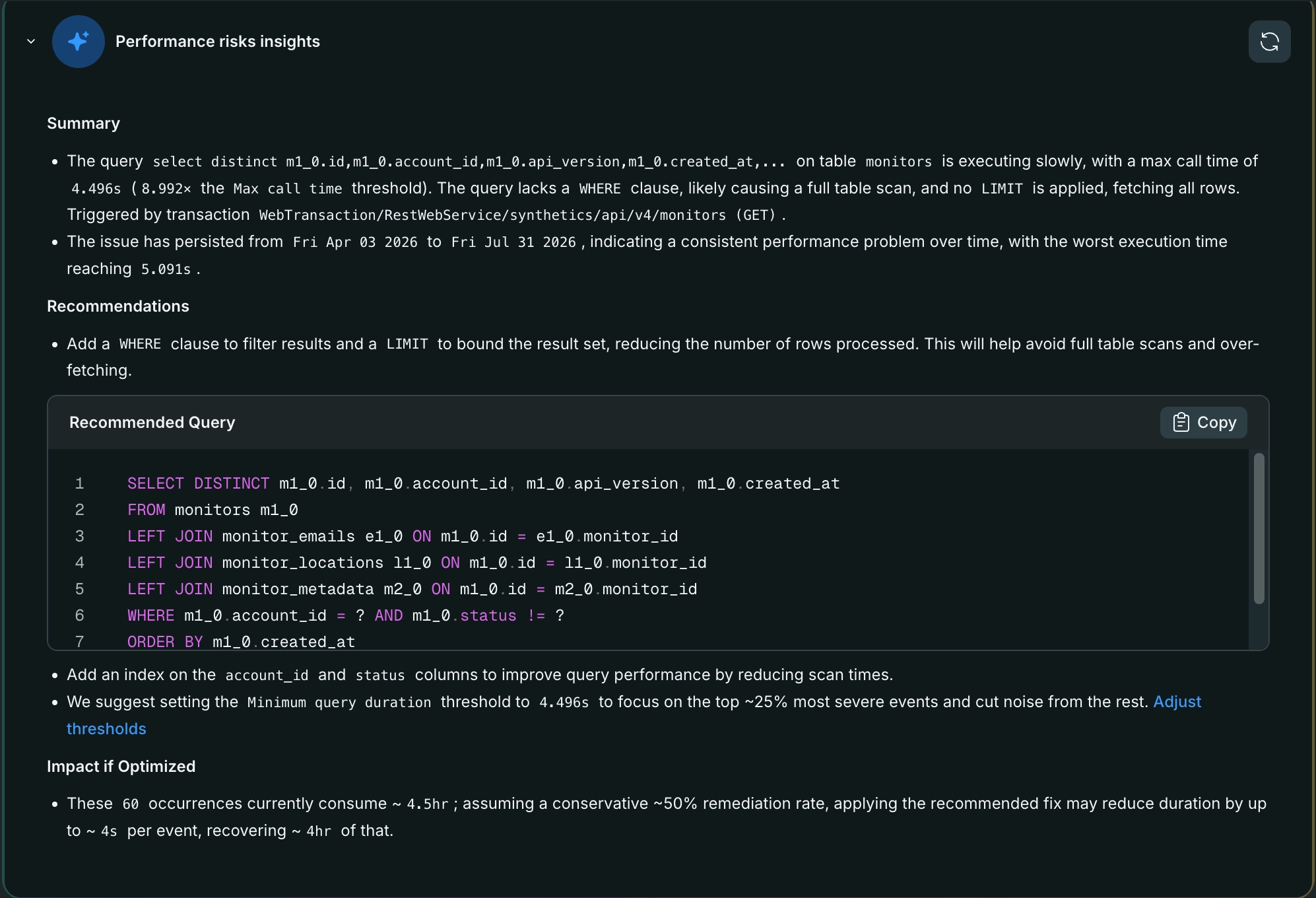
Importante
New Relic habilita las características de IA de forma predeterminada para todas las cuentas. Si no ve esta opción, es posible que su cuenta no la tenga habilitada. Comuníquese con el administrador de su organización para solicitar acceso.
Si una recomendación sugiere ajustar un umbral, consulte Establecer los umbrales.
Establecer los umbrales
Performance Risks inbox usa umbrales configurables para detectar automáticamente anomalías en el rendimiento. Puede actualizar estos umbrales tanto a nivel de cuenta como de entidad para garantizar que los criterios de detección se alineen con las necesidades y prioridades específicas de monitoreo del rendimiento. Estos umbrales determinan qué constituye un riesgo de rendimiento y ayudan a garantizar que Performance Risks inbox genere alertas sobre los problemas de rendimiento más relevantes y procesables en las aplicaciones.
Puede configurar los umbrales de Riesgos de rendimiento a nivel de cuenta o entidad:
Configurar los umbrales a nivel de cuenta
Configurar umbrales a nivel de cuenta le permite establecer criterios predeterminados de detección de riesgos de rendimiento que se aplican a todas las entidades dentro de la cuenta. Esto es útil para mantener estándares de monitoreo consistentes y garantizar que todas las aplicaciones sean evaluadas frente a los mismos puntos de referencia de rendimiento.
Para configurar los umbrales a nivel de cuenta:
Establecer los umbrales a nivel de entidad
Configurar umbrales a nivel de entidad le permite personalizar los criterios de detección de riesgos de rendimiento para aplicaciones o servicios específicos que pueden tener características o requisitos de rendimiento únicos. Esto es particularmente útil para adaptar el monitoreo a diferentes tipos de aplicaciones, entornos o prioridades de negocio.
Para establecer los umbrales a nivel de entidad:
Puede configurar los umbrales para una entidad específica de una de las siguientes maneras:
Ver líneas de umbral en los gráficos
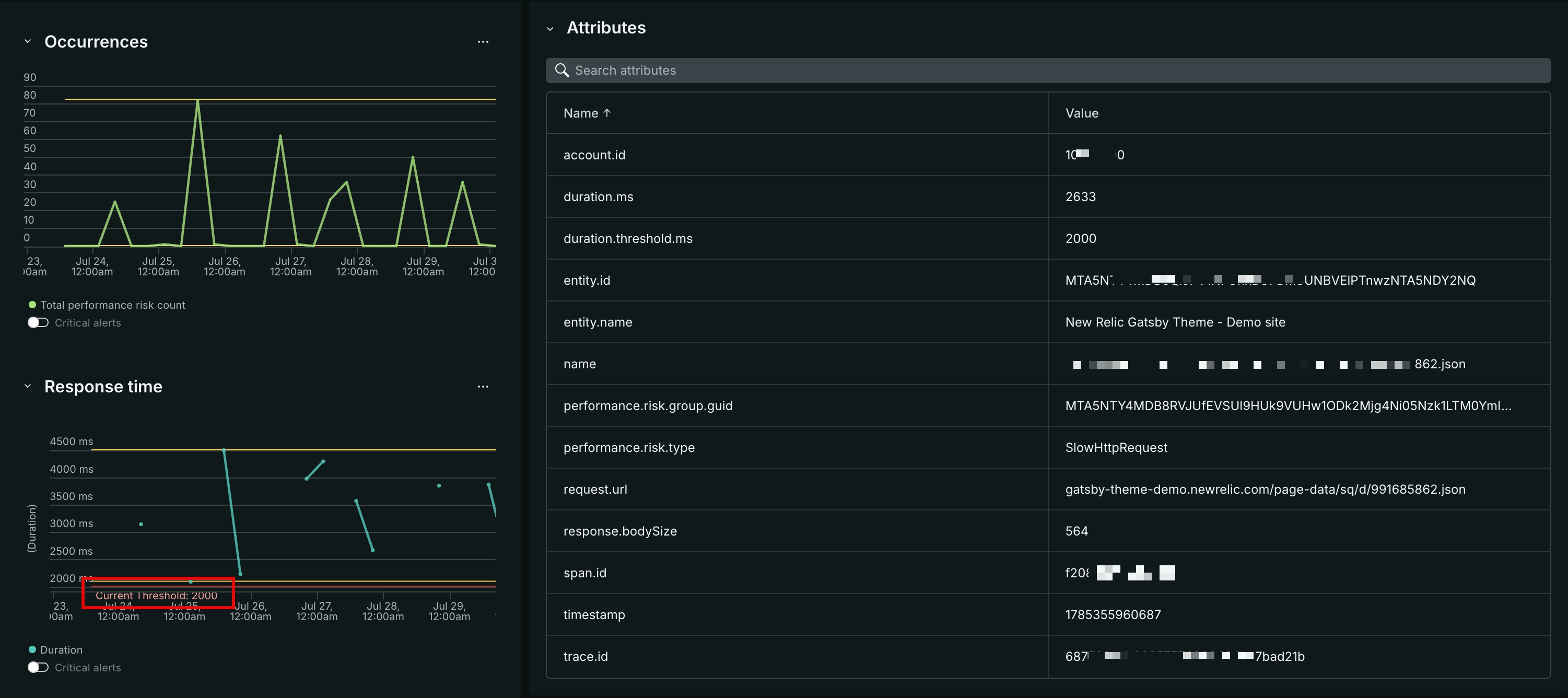
Los gráficos de riesgos de rendimiento muestran líneas de referencia para ayudarle a interpretar si un valor se encuentra dentro de un rango esperado:
- Pautas mínimas y máximas: calculadas automáticamente a partir de los datos históricos recopilados para ese gráfico, mostrando el rango típico de valores a lo largo del tiempo.
- Umbral actual: refleja el umbral que está actualmente activo para ese analizador, según la configuración de umbrales a nivel de cuenta o a nivel de entidad. Si ambos están configurados, el umbral a nivel de entidad tiene prioridad.
Use estas líneas para ver qué tan cerca está una métrica de su umbral configurado, sin necesidad de abrir la configuración del umbral.
El siguiente es un gráfico de muestra. Los valores y las líneas que ve dependen de los datos y la configuración del umbral.
Utilice la herramienta de bandeja de entrada de riesgos de rendimiento en el servidor MCP de New Relic.
También puede acceder a la herramienta Performance Risks inbox (list_entity_performance_risk_groups) en el servidor MCP de New Relic. Esta herramienta enumera todos los riesgos de rendimiento detectados para una entidad determinada, junto con sus detalles, como el tipo de riesgo, la gravedad y el recuento de ocurrencias. Puede utilizar esta herramienta para recuperar datos de riesgo de rendimiento de forma programática.