If you build your Flutter app with --split-debug-info (with or without --obfuscate), the Dart stack traces your app reports contain memory addresses instead of function names, file names, and line numbers. New Relic can symbolicate these stack traces in your browser when you provide the matching debug symbol file for that build. In-browser symbolication applies to handled exceptions only.
This page explains:
- When you need symbolication
- How to generate the symbol files
- How to symbolicate a stack trace in the New Relic UI
- How to symbolicate locally with the Flutter CLI
- How to store symbol files so you can symbolicate errors from any release you've shipped
Importante
Symbolication runs entirely in your browser. New Relic doesn't upload, store, or keep your symbol files or the symbolicated stack traces. The result also isn't shared between errors: You upload the symbol file separately for each error you open, and again whenever you reload the page or come back to it later. Because you'll need the file every time, keep the symbol files for every release.
When you need symbolication
This table shows when symbolication is needed, based on how you build your release:
| How you build your release | What the Dart stack trace looks like | Symbolication needed? |
|---|---|---|
flutter build without --split-debug-info | Readable function and file names | No |
flutter build --split-debug-info=<dir> | Memory addresses (abs, virt) and a build_id | Yes |
flutter build --obfuscate --split-debug-info=<dir> | Memory addresses, and obfuscated names where names appear | Yes |
An unsymbolicated Dart stack trace looks like this:
*** *** *** *** *** *** *** *** *** *** *** *** *** *** *** ***pid: 24564, tid: 532322394208, name 1.uios: android arch: arm64 comp: yes sim: nobuild_id: '7a3ef930539e62583fa36f07eb2df79c'isolate_dso_base: 7887a27000, vm_dso_base: 7887a27000isolate_instructions: 7887b1da40, vm_instructions: 7887b07000 #00 abs 0000007887d2ea63 virt 0000000000307a63 _kDartIsolateSnapshotInstructions+0x211023 #01 abs 0000007887d39077 virt 0000000000312077 _kDartIsolateSnapshotInstructions+0x21b637 #02 abs 0000007887b2d2cf virt 00000000001062cf _kDartIsolateSnapshotInstructions+0xf88f #03 abs 0000007887d38eeb virt 0000000000311eeb _kDartIsolateSnapshotInstructions+0x21b4abIn the New Relic UI, each of these lines appears as its own row in the stack trace, labeled unparsed.
Understand the stack trace header
The first six lines of the trace aren't stack frames. They're metadata about the process and the build that the Dart runtime writes at the top of every unsymbolicated trace:
| Line | What it means |
|---|---|
*** *** *** ... | Marks the start of an unsymbolicated Dart stack trace. |
pid: 24564, tid: 532322394208, name 1.ui | The process ID, thread ID, and thread name where the error happened. 1.ui is Flutter's UI thread. In the New Relic UI, this also appears in the Thread column. |
os: android arch: arm64 comp: yes sim: no | The operating system and CPU architecture of the device. comp: yes means the code was compiled ahead of time (a release build), and sim: no means it ran on a physical device, not a simulator. Use arch to pick the right symbol file. |
build_id: '7a3ef930...' | The unique ID of the build that produced the error. The symbol file you upload must have the same build ID. |
isolate_dso_base, vm_dso_base | The memory address where the app's compiled Dart code was loaded on the device. |
isolate_instructions, vm_instructions | The memory address where the compiled Dart instructions start. |
The address values change every time the app runs, so two occurrences of the same error can show different values. Symbolication uses the build ID and these addresses to find the source location of each frame (#00, #01, ...).
The header lines aren't code locations, so they're never symbolicated. They stay labeled unparsed before and after you upload a symbol file, and they're included unchanged when you export the error. Only the numbered frames below them change.
Understand Flutter symbol files
A Flutter app is made of several layers of compiled code, and each layer has its own kind of debug symbol file. Each file only symbolicates errors from its own layer, so a Flutter release produces several symbol files:
| File | Platform | What it symbolicates | Where it's created | How to use it in New Relic |
|---|---|---|---|---|
.symbols (Dart debug info) | Android, iOS | Dart errors from your Flutter code | The directory you pass to --split-debug-info | Upload in the browser, as described on this page |
mapping.txt (R8/ProGuard mapping) | Android | Obfuscated Java and Kotlin code in Android crashes | build/app/outputs/mapping/release/ | Configure ProGuard or DexGuard |
native-debug-symbols.zip (ELF symbols) | Android | Native (C/C++) frames, including the Flutter engine (libflutter.so) | build/app/outputs/native-debug-symbols/release/ | Native crash reporting |
.dSYM | iOS | Native iOS crashes: Runner, the Flutter engine, App.framework, and native plugins | build/ios/Release-iphoneos/ after flutter build ios, or build/ios/archive/Runner.xcarchive/dSYMs/ after flutter build ipa | Upload dSYM files |
New Relic uses only the .symbols files to symbolicate Dart errors. Uploading a dSYM, mapping.txt, or native-debug-symbols.zip to a Dart error won't symbolicate it. Keep all of them for each release, though, so you can symbolicate every kind of error the release reports.
Generate symbol files
Flutter creates symbol files when you build your release. You can't create them later for a build you've already shipped.
Build with --split-debug-info
Add --split-debug-info to your release build command. We recommend a separate output directory for each version so symbol files from different releases never overwrite each other:
$# Android App Bundle$flutter build appbundle --release --obfuscate --split-debug-info=build/symbols/1.4.2+57$
$# Android APK$flutter build apk --release --obfuscate --split-debug-info=build/symbols/1.4.2+57$
$# iOS (App Store / TestFlight archive)$flutter build ipa --release --obfuscate --split-debug-info=build/symbols/1.4.2+57$
$# iOS (app bundle only)$flutter build ios --release --obfuscate --split-debug-info=build/symbols/1.4.2+57--obfuscate is optional, but if you use it you must also use --split-debug-info.
Find the output files
The build writes the .symbols files to the directory you passed to --split-debug-info, for example build/symbols/1.4.2+57/. Flutter doesn't put them anywhere else, so if you omit the flag or delete that directory, the files are gone. There's one file for each CPU architecture the build compiled for:
| Platform | Files |
|---|---|
| Android | app.android-arm64.symbols, app.android-arm.symbols, app.android-x64.symbols |
| iOS | app.ios-arm64.symbols |
An Android build produces several files because a single App Bundle or APK contains code for several architectures. Each device runs only one of them, so keep all of them. If you build with --target-platform (for example, --target-platform android-arm64), you get only the files for the platforms you listed.
An iOS build produces only app.ios-arm64.symbols, because Flutter release builds run only on physical arm64 devices, not on the simulator. This is the file to upload for every Dart error from that iOS build.
An Android build also creates mapping.txt and native-debug-symbols.zip, and an iOS build also creates dSYM files. They aren't used for Dart errors. See Understand Flutter symbol files.
Symbolicate a stack trace in New Relic
Open the error
Open the Dart error from either place:
one.newrelic.com > Errors Inbox, then select the error.
one.newrelic.com > Mobile > (select your app) > Handled exceptions, then select the error.
Scroll to the Stack trace section.
Note the error's
appVersionandappBuild. These tell you which release's symbol files you need.
Upload the matching symbol file
Above the stack trace, the Not seeing what you expected? banner offers on-demand symbolication. Click Upload .symbols file and select the .symbols file that matches the error's build ID and architecture.
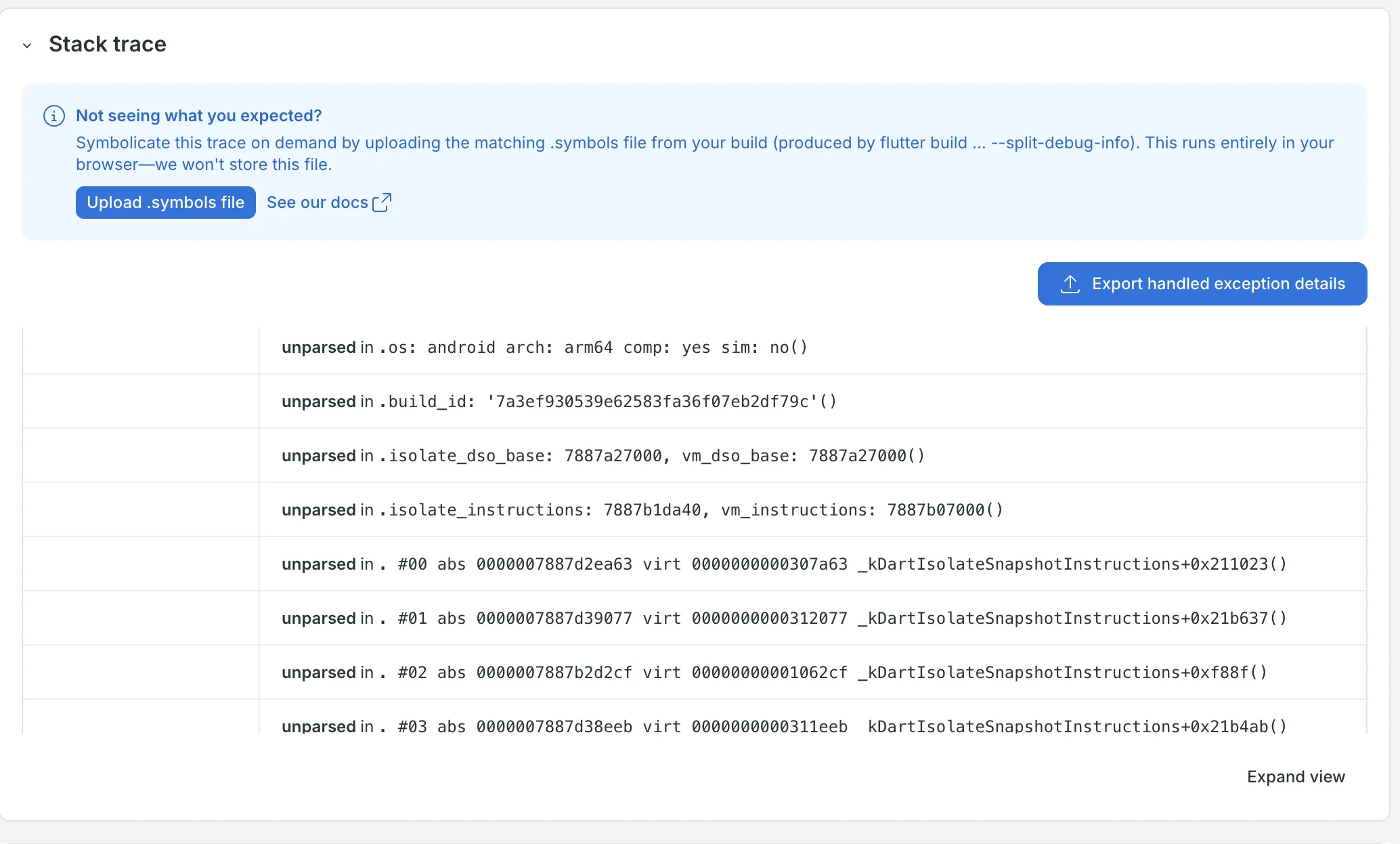
Before symbolication, every row is labeled unparsed.
Review or export the result
When symbolication finishes, the banner changes to Symbolicated your trace and reports how many frames were resolved, for example Symbolicated 4 of 4 unresolved frames. Each resolved frame now shows the file, line number, and function, for example main.dart line 81 in ._testFetch().
The first six rows (the stack trace header) stay labeled unparsed. That's expected: They're metadata about the process and build, not code locations.
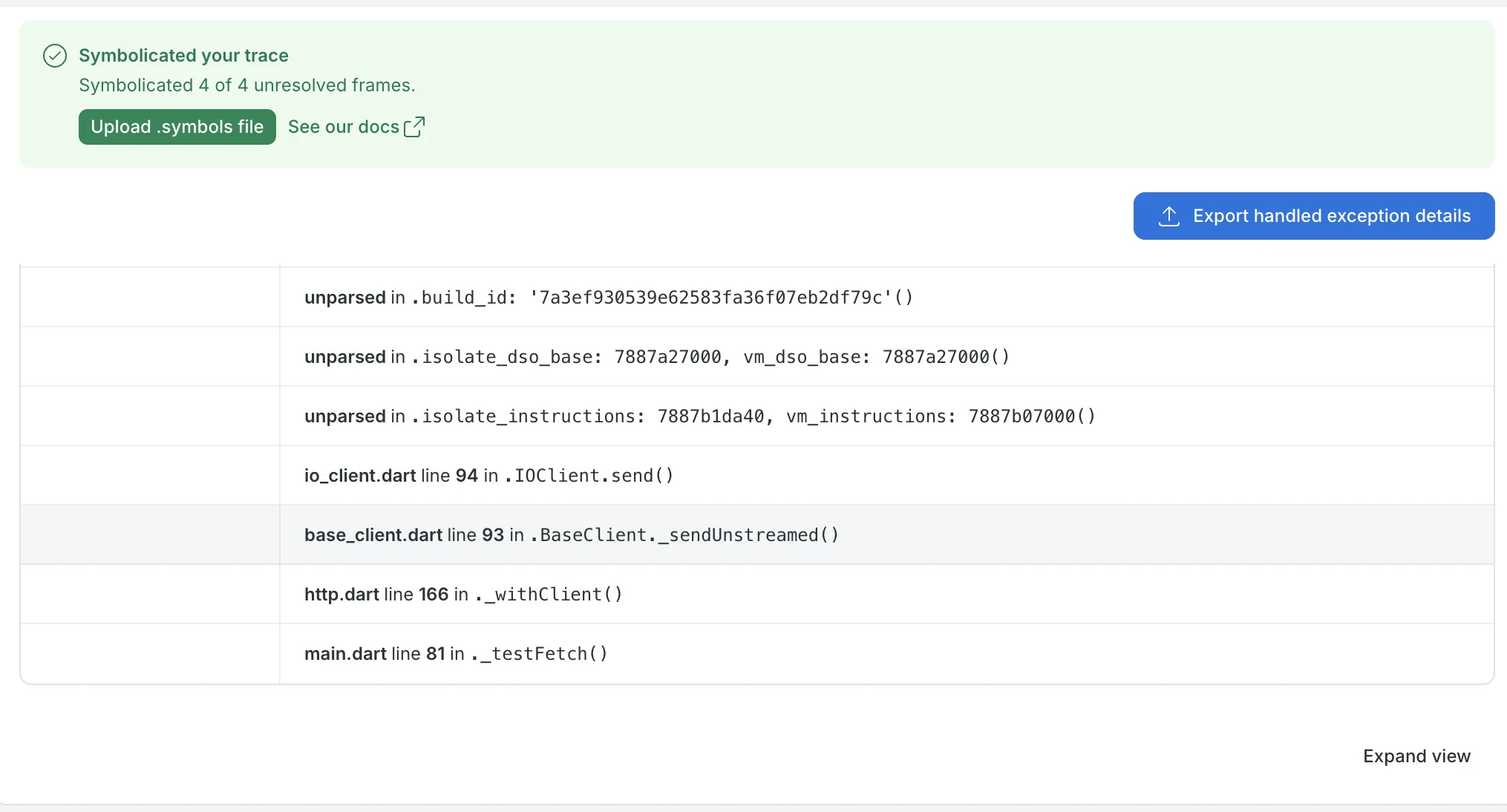
After symbolication, the numbered frames resolve to files, lines, and functions. The header rows stay unparsed.
The result only lasts while the page is open. To keep it, click Export handled exception details. The export includes the symbolicated frames, so you can attach it to a ticket or share it with your team.
To symbolicate another error, open it and upload the symbol file again. The result from one error doesn't carry over to others.
Find the right symbol file
Each symbol file belongs to exactly one build and one CPU architecture. Use these to pick the correct file:
Release: Match the error's
appVersionandappBuildto the symbols folder you saved for that release.Architecture: Match the
archline in the stack trace header to the file name. For example,arch: arm64on Android meansapp.android-arm64.symbols. Most modern Android phones arearm64. Older or low-cost devices may bearm.Build ID: The
build_idin the stack trace must match the build ID inside the symbol file. For Android symbol files, you can read the build ID with thefilecommand on macOS or Linux. It's theBuildIDvalue:bash$file app.android-arm64.symbols$# app.android-arm64.symbols: ELF 64-bit LSB shared object, ARM aarch64, ..., BuildID[md5/uuid]=7a3ef930539e62583fa36f07eb2df79c, with debug_info, not strippediOS symbol files don't show a
BuildIDinfileoutput, so for iOS, rely on the release and the check New Relic does when you upload the file.
New Relic checks the build ID for you, for both Android and iOS errors. If you upload a symbol file from a different build, New Relic can't symbolicate any frames and you see We couldn't symbolicate this trace, with a message that the file's build ID doesn't match the trace's build. Upload the file from the exact build that produced the error.
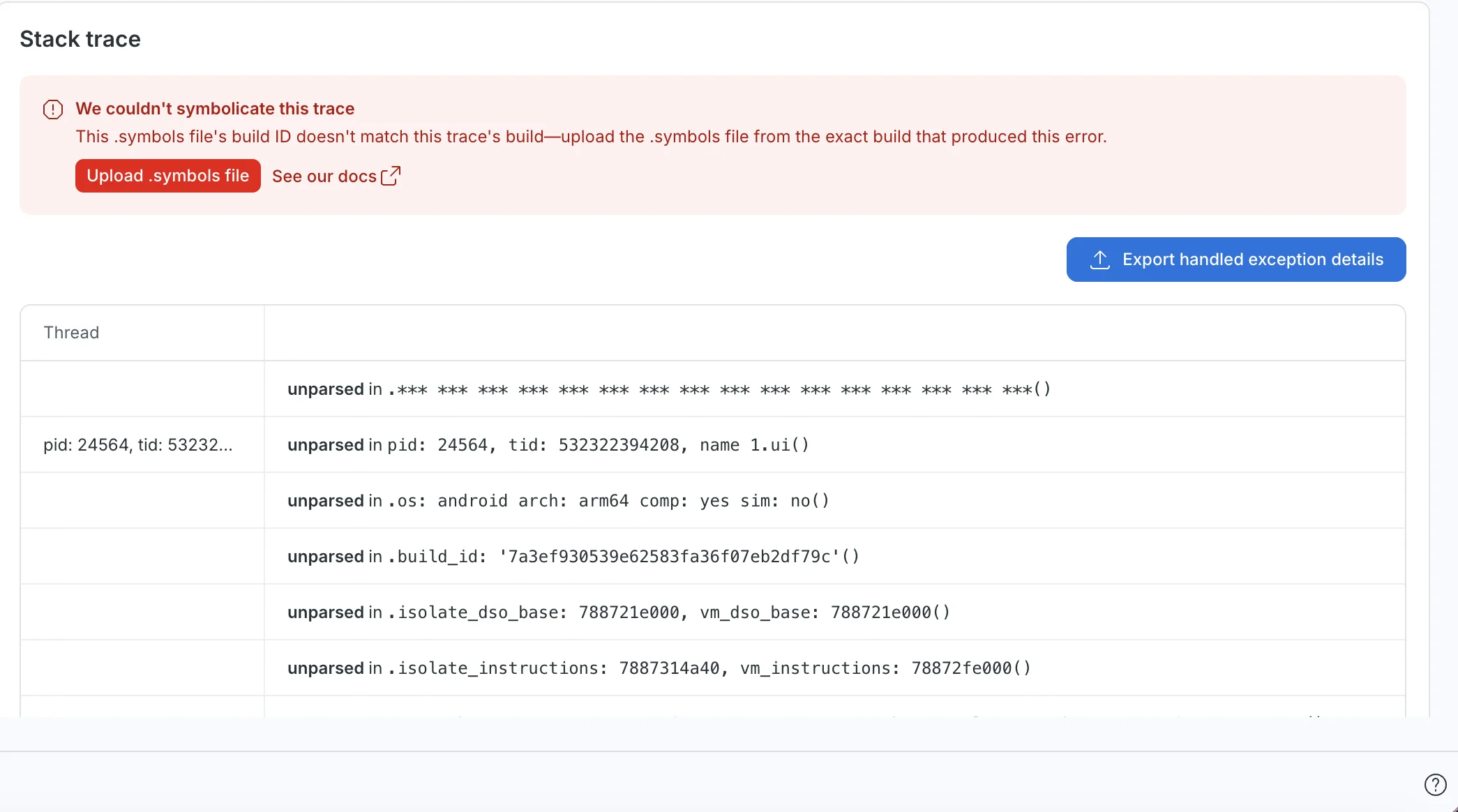
With a mismatched symbol file, no frames are resolved.
Cuidado
A rebuild produces the same build ID only if the source code, dependencies, Flutter version, and build flags are all exactly the same. Any difference produces a new build ID, and the new symbol files won't match. Save the symbol files from the build you actually shipped. Don't count on recreating them.
Symbolicate locally with flutter symbolize
If you can't use the New Relic UI, or you want to symbolicate many traces in a script, you can use the Flutter CLI instead:
Copy the stack trace from the error, including the header lines (
*** *** ***,pid,os/arch,build_id,isolate_dso_base, andisolate_instructions), and save it to a file, for exampletrace.txt.Run
flutter symbolizewith the matching symbol file:bash$flutter symbolize \>--input=trace.txt \>--debug-info=build/symbols/1.4.2+57/app.android-arm64.symbols \>--output=trace-symbolicated.txtUse the long
--debug-infooption. Among Flutter's global options,-dmeans "device", which makes the short form easy to confuse.
Best practice: Store symbols for every release
New Relic doesn't keep your symbol files, so you need to store them yourself. Save them when you build each release, not after an error shows up: You can't create them again for a build you've already shipped.
- Keep the symbol files for every build you distribute, including internal, beta, and store builds.
- Keep every kind of symbol file, not only the
.symbolsfiles. See Understand Flutter symbol files. - Keep all architectures for each build.
- Label them by version and build number, matching the
appVersionandappBuildattributes your app reports, so you can find the right files for an error. - Keep them for as long as that version is in use. Users often stay on old versions for months.
- Restrict access. Symbol files reveal your code structure. Store them with the same access controls as your source code.
Where you store them is up to you, for example your CI system's build artifacts, a storage bucket, or an artifact repository. If you use CI build artifacts, check how long your CI system keeps them, because many delete them automatically after a set time.