PREVIEW
We're still working on this feature, but we'd love for you to try it out!
This feature is currently provided as part of a preview program pursuant to our pre-release policies.
Are you looking to gain deeper insights into your service architecture by leveraging data from your on-premise GitHub Enterprise account? The New Relic GitHub Enterprise integration imports repositories and teams directly into the New Relic platform using a secure collector service deployed within your private network.
With the new selective data fetching feature, you can choose exactly which data types to import—whether it's teams, repositories and pull requests, or both. This integration aims to enhance the management and visibility of Teams, Catalogs, and Scorecards within New Relic. For more information, refer to the Service Architecture Intelligence capability.
Prerequisites
- GitHub Enterprise on-premises account with organization administrator privileges.
- Docker environment to run the collector service within your GitHub Enterprise network.
- New Relic account with appropriate permissions to create integrations.
Security considerations
This integration follows security best practices:
- Uses GitHub App authentication with minimal required permissions
- Webhook events are authenticated using secret keys
- All data transmission occurs over HTTPS
- No user credentials are stored or transmitted
- Only repositories and teams data are imported
To set up the GitHub Enterprise integration:
Create and configure a GitHub App
In your GHE instance, navigate to Settings → Developer Settings → GitHub Apps → New GitHub App. For detailed instructions on creating a GitHub App, refer to the GitHub documentation on registering a GitHub App.
Configure permissions
Configure app permissions accurately to ensure seamless data fetching during the initial sync and efficient listening to webhook events thereafter. App permissions define the scope of access that the application has to various repository and organizational resources on GitHub. By tailoring these permissions, you can enhance security, ensuring that the application only accesses the necessary data while minimizing exposure. Proper configuration facilitates smooth initial data synchronization and reliable event handling, optimizing the application's integration with GitHub's ecosystem.
For detailed guidance on GitHub App permissions, refer to the GitHub documentation on setting permissions for GitHub Apps.
Required repository permissions
Configure the following repository-level permissions exactly as shown to enable data synchronization:
- Administration: Read-only ✓
- Checks: Read-only ✓
- Commit statuses: Selected ✓
- Contents: Selected ✓
- Custom properties: Selected ✓
- Deployments: Read-only ✓
- Metadata: Read-only (mandatory) ✓
- Pull requests: Selected ✓
- Webhooks: Read-only ✓
Required organization permissions
Configure the following organization-level permissions exactly as shown:
- Administration: Read-only ✓
- Custom organization roles: Read-only ✓
- Custom properties: Read-only ✓
- Custom repository roles: Read-only ✓
- Events: Read-only ✓
- Members: Read-only ✓
- Webhooks: Read-only ✓
Webhook event subscriptions
Select the following webhook events exactly as shown for real-time synchronization and monitoring:
✓ Select these events:
check_run- Check run status updatescheck_suite- Check suite completioncommit_comment- Comments on commitscreate- Branch or tag creationcustom_property- Custom property changes for team assignmentscustom_property_values- Custom property values changesdelete- Branch or tag deletiondeployment- Deployment activitiesdeployment_review- Deployment review processesdeployment_status- Deployment status updatesfork- Repository fork eventsinstallation_target- GitHub App installation changeslabel- Label changes on issues and pull requestsmember- Member profile changesmembership- Member additions and removalsmeta- GitHub App metadata changesmilestone- Milestone changesorganization- Organization-level changespublic- Repository visibility changespull_request- Pull request activitiespull_request_review- Pull request review activitiespull_request_review_comment- Review comment activitiespull_request_review_thread- Pull request review thread activitiespush- Code pushes and commitsrelease- Release publications and updatesrepository- Repository creation, deletion, and modificationsstar- Repository star eventsstatus- Commit status updatesteam- Team creation and modificationsteam_add- Team member additionswatch- Repository watch events
Tip
Security best practice: To reduce security exposure, follow the principle of least privilege access and only enable the minimum permissions required for your integration needs.
Set up webhooks
Configure the Webhook URL and create a custom Event Secret for secure communication:
Webhook URL: Use the following format based on your collector service deployment:
- For HTTP:
http://your-domain-name/github/sync/webhook - For HTTPS:
https://your-domain-name/github/sync/webhook
Example: If your collector service is deployed at
collector.yourcompany.com, the webhook URL would be:https://collector.yourcompany.com/github/sync/webhook- For HTTP:
Event Secret: Generate a secure random string (32+ characters) for webhook authentication. Save this value as you'll need it for the
GITHUB_APP_WEBHOOK_SECRETenvironment variable.
Generate and convert keys
After creating the GitHub App, you need to generate a private key. In your GitHub App settings, click Generate a private key. The app will automatically generate and download a unique App ID and a Private Key file (.pem format). Save these securely as they will be needed for the collector service configuration.
Convert your downloaded private key file to DER format and then encode it in Base64:
Step 1: Convert .pem to DER format
bash$openssl rsa -outform der -in private-key.pem -out output.derStep 2: Encode the DER file in Base64
bash$# For Linux/macOS$base64 -i output.der -o outputBase64$cat outputBase64 # Copy this output$$# For Windows (using PowerShell)$[Convert]::ToBase64String([IO.File]::ReadAllBytes("output.der"))$$# Alternative for Windows (using certutil)$certutil -encode output.der temp.b64 && findstr /v /c:- temp.b64Copy the resulting Base64 string and use it as the value for
GITHUB_APP_PRIVATE_KEYenvironment variable in your collector configuration.
✓ Success indicators:
- Github app is created successfully
- App ID and private key are securely saved
- Webhook URL is configured and accessible
Prepare environment variables
Before deploying the collector service, gather the following information:
Required environment variables
Variable | Source | How to obtain |
|---|---|---|
| New Relic | Generate an API key from the New Relic dashboard. |
| New Relic | Generate a License Key from the New Relic dashboard. |
| GHE Server | The base URL for your GHE server (e.g., |
| GitHub App | The unique App ID generated when you created the GitHub App. |
| GitHub App | The content of the private key ( |
| GitHub App | The custom Event Secret value you set when creating the GitHub App. |
Optional SSL environment variables
The following are optional environment variables for making API HTTPS.
Optional Variable | Source | How to obtain |
|---|---|---|
| SSL Configuration | Path to the SSL keystore file for HTTPS configuration. See SSL certificate setup instructions below. |
| SSL Configuration | Password for the SSL keystore file. This is the password you set when creating the PKCS12 keystore. |
| SSL Configuration | Type of the SSL keystore (e.g., PKCS12, JKS). Use PKCS12 when following the SSL setup instructions below. |
| SSL Configuration | Alias for the SSL key within the keystore. This is the name you specify when creating the keystore. |
| SSL Configuration | Server port for HTTPS communication. Use 8443 for HTTPS. |
SSL certificate setup instructions
To obtain an SSL certificate from a trusted Certificate Authority (CA) for HTTPS configuration, follow these steps:
Generate a private key and a Certificate Signing Request (CSR):
bash$openssl req -new -newkey rsa:2048 -nodes -keyout mycert.key -out mycert.csrSubmit the CSR to your chosen CA: Submit the
mycert.csrfile to your chosen Certificate Authority (e.g., DigiCert, Let's Encrypt, GoDaddy).Complete domain validation: Complete any required domain validation steps as instructed by the CA.
Download the certificate: Download the issued certificate files from the CA (commonly a
.crtor.pemfile).Create a PKCS12 keystore: Combine the certificate and private key into a PKCS12 keystore:
bash$openssl pkcs12 -export -in mycert.crt -inkey mycert.key -out keystore.p12 -name mycertUse the keystore: Use the generated
keystore.p12file as the value forSERVER_SSL_KEY_STOREin your Docker configuration.
Deploy the collector service
The collector service is delivered as a Docker image. Deployment can be done in one of two ways:
Option A: Using Docker Compose (recommended)
Create a Docker Compose file that automates the download and deployment of the service.
Create a
docker-compose.ymlfile with the following content:version: '3.9'services:nr-ghe-collector:image: newrelic/nr-ghe-collector:tag # use latest tag available in dockerhub starting with v*container_name: nr-ghe-collectorrestart: unless-stoppedports:- "8080:8080" # HTTP port, make 8443 in case of HTTPSenvironment:# Required environment variables- NR_API_KEY=${NR_API_KEY:-DEFAULT_VALUE}- NR_LICENSE_KEY=${NR_LICENSE_KEY:-DEFAULT_VALUE}- GHE_BASE_URL=${GHE_BASE_URL:-DEFAULT_VALUE}- GITHUB_APP_ID=${GITHUB_APP_ID:-DEFAULT_VALUE}- GITHUB_APP_PRIVATE_KEY=${GITHUB_APP_PRIVATE_KEY:-DEFAULT_VALUE}- GITHUB_APP_WEBHOOK_SECRET=${GITHUB_APP_WEBHOOK_SECRET:-DEFAULT_VALUE}# Optional SSL environment variables (uncomment and configure if using HTTPS)# - SERVER_SSL_KEY_STORE=${SERVER_SSL_KEY_STORE}# - SERVER_SSL_KEY_STORE_PASSWORD=${SERVER_SSL_KEY_STORE_PASSWORD}# - SERVER_SSL_KEY_STORE_TYPE=${SERVER_SSL_KEY_STORE_TYPE}# - SERVER_SSL_KEY_ALIAS=${SERVER_SSL_KEY_ALIAS}# - SERVER_PORT=8443#volumes: # Uncomment the line below if using SSL keystore# - ./keystore.p12:/app/keystore.p12 # path to your keystore filenetwork_mode: bridgenetworks:nr-network:driver: bridgeSet your environment variables by replacing the
DEFAULT_VALUEplaceholders in the Docker Compose file with your actual values, or create environment variables on your system before running the command.
Caution
Never commit environment files containing secrets to version control. Use secure secret management practices in production.
Run the following command to start the service:
bash$docker-compose up -d
Option B: Direct Docker image run
You can download the Docker image directly from our Docker Hub registry and run it using your organization's preferred CI/CD pipeline or deployment method. Note that the customer needs to pass all the environment variables listed above while starting the collector service.
✓ Success indicators:
- Collector service is running and accessible on the configured port
- Docker container logs show successful startup without errors
- Service responds to health checks (if configured)
Install the GitHub App on organizations
After the collector service is running, you need to install the GitHub App on the specific organizations you want to integrate:
- Navigate to your GitHub Enterprise instance.
- Go to Settings → Developer Settings → GitHub Apps.
- Find the GitHub App you created in step 1 and click on it.
- In the left sidebar, click Install App.
- Select the organizations where you want to install the app.
- Choose whether to install on all repositories or select specific repositories.
- Click Install to complete the installation.
✓ Success indicators:
- Webhook deliveries appear in the GitHub App settings
- No authentication errors in the collector service logs
Complete integration setup in New Relic UI
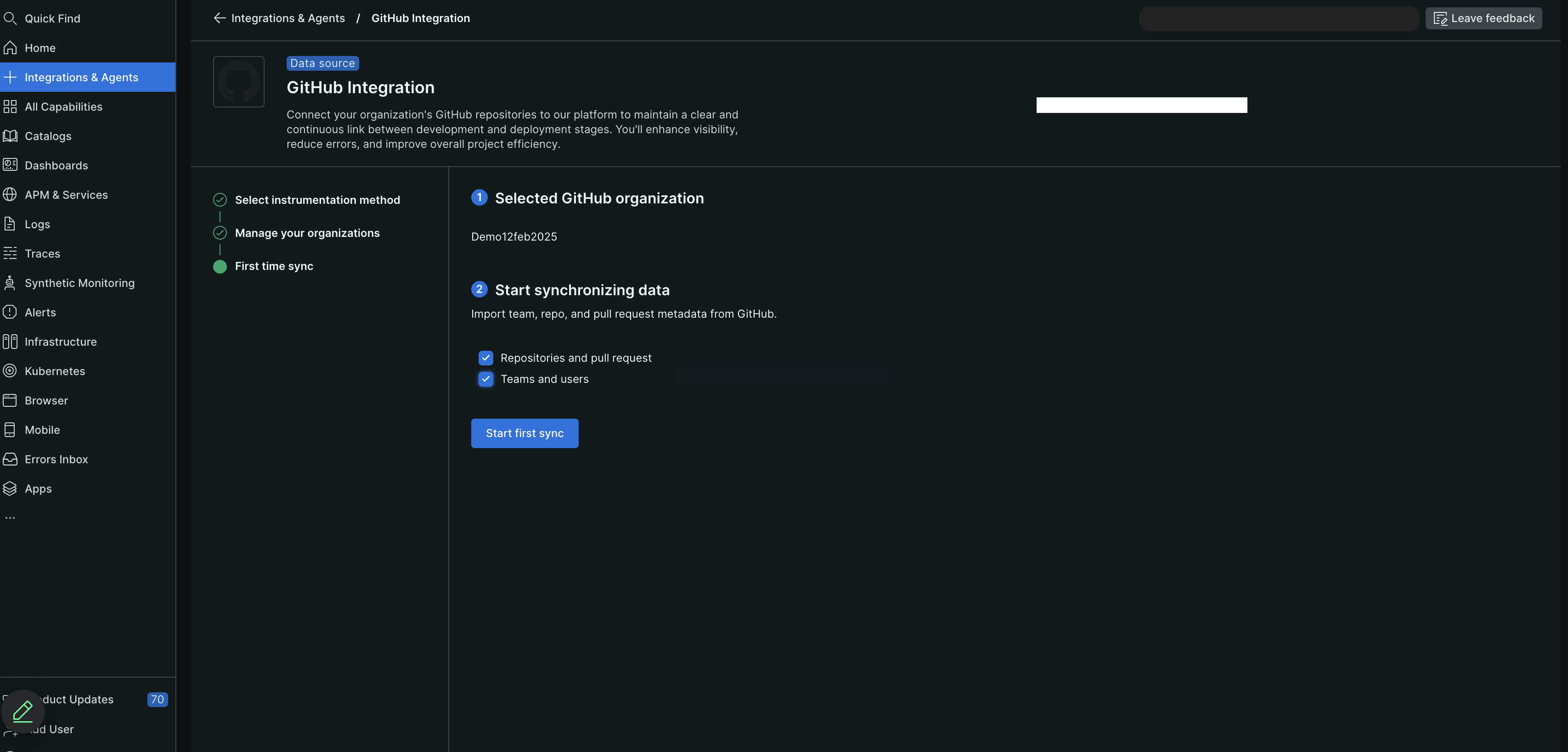
Once the collector service is running and the GitHub App is installed on your GHE organization(s), complete the integration setup as instructed in the New Relic UI:
The corresponding GHE organizations will appear in the New Relic UI.
To start the initial data synchronization, click First time sync.
(Optional) Click On-demand sync to manually sync the data.
tip
You can manually synchronize the data once every 4 hours. The On-demand sync button remains disabled if sync has occurred within the previous 4 hours.
After you view the Sync started message, click Continue. The GitHub Enterprise Integration screen displays the count of teams and repositories, refreshing every 5 seconds. Allow 15-30 minutes for the complete import of all data (timing depends on repository count).
Viewing your data
On the GitHub Enterprise integration screen:
Configure team assignments (optional)
You can auto-assign GitHub repositories to their teams by adding teamOwningRepo as a custom property in GitHub Enterprise.
- Create the custom property at the organization level and assign a value for the custom property at the repository level. Additionally, you can set up a custom property for multiple repositories at the organization level simultaneously.
- Then, in New Relic Teams, enable the Automated Ownership feature, making sure to use
teamas the tag key.
Once this is set up, New Relic automatically matches each repo with its correct team.
For more information on creating custom properties, refer to the GitHub documentation.
Troubleshooting
Common issues and solutions
Webhook delivery failures:
- Verify the collector service is running and accessible from GitHub Enterprise
- Check firewall settings and network connectivity
Authentication errors:
- Verify the GitHub App ID and private key are correctly configured
- Ensure the private key is properly converted to DER format and Base64 encoded
- Check that the webhook secret matches between GitHub App and collector configuration
Sync failures:
- Verify the GitHub App has the required permissions
- Check that the app is installed on the correct organizations
- Review collector service logs for specific error messages
Network connectivity issues:
- Ensure the collector service can reach your GitHub Enterprise instance
- Verify SSL certificates are properly configured if using HTTPS
- Check DNS resolution for your GitHub Enterprise domain
Uninstallation
To uninstall the GitHub Enterprise integration:
- Navigate to your GitHub Enterprise UI.
- Go to the organization's settings where the app is installed.
- Uninstall the GitHub App directly from the GitHub Enterprise interface. This action will trigger the backend process to cease data collection.
- Stop and remove the collector service from your Docker environment.