복잡한 문제를 조사하거나 팀과 인사이트를 공유할 때, 여러 도구를 오가며 쿼리를 복사하고 스크린샷을 찍는 등 번거롭게 데이터를 조합하여 전체적인 맥락을 파악하는 데 어려움을 겪는 경우가 많습니다. 기존 대시보드는 모니터링에는 적합하지만 조사를 문서화하거나, 자세한 사후 분석을 생성하거나, 단계별 분석 흐름을 구축해야 하는 경우에는 부족합니다.
노트북은 데이터를 통해 완전한 이야기를 전달하는 역동적이고 체계적인 방법을 제공함으로써 이 문제를 해결합니다. 데이터 중심의 구조화된 문서인 데이터 중심 문서를 사용하면 쿼리, 시각화 및 기술 텍스트를 하나의 공유 가능한 자산으로 결합할 수 있으므로 분석 중에 여러 도구를 전환하거나 중요한 맥락을 놓칠 필요가 없습니다.
사용 사례
노트북을 활용하여 작성 방식을 개선하고 원시 데이터를 실행 가능한 스토리로 전환하세요.
- 데이터 쿼리, 분석 및 시각화: 모든 옵저버빌리티 데이터(로그, 인덱스, 이벤트)를 쿼리하고 시각화를 생성하여 시스템 성능을 더 잘 이해할 수 있습니다.
- 사후 분석 및 공지 이벤트 문서 작성: 팀과 협력하여 조사 내용을 문서화하고 공지 이벤트 사후 분석 및 근본 원인 분석을 위한 명확하고 재사용 가능한 기록을 만드세요.
- 재사용 가능한 도구우 및 런북 구축: 복잡한 분석을 위한 단계별 가이드를 만들고 공유하세요.
- 맥락과 스토리텔링 추가: 마크다운을 사용하면 쿼리와 차트에 자세한 제목, 메모, 설명을 쉽게 추가하여 서로 연결되지 않은 데이터들을 하나의 일관된 이야기로 만들 수 있습니다.
노트북 사용을 시작해 보세요
이제 노트북의 기본 사항을 이해했으니, 자신만의 노트북을 만들고 관리할 준비가 되었습니다.
노트북에 액세스하세요
노트북에 액세스하려면 다음 단계를 따르세요.
- one.newrelic.com 으로 이동합니다.
- 페이지 하단의 메뉴에서 Query your data 콘솔을 엽니다.
- 쿼리 빌더 헤더에서 Notebooks 을 클릭하면 조직에서 생성한 모든 노트북 목록을 볼 수 있습니다.
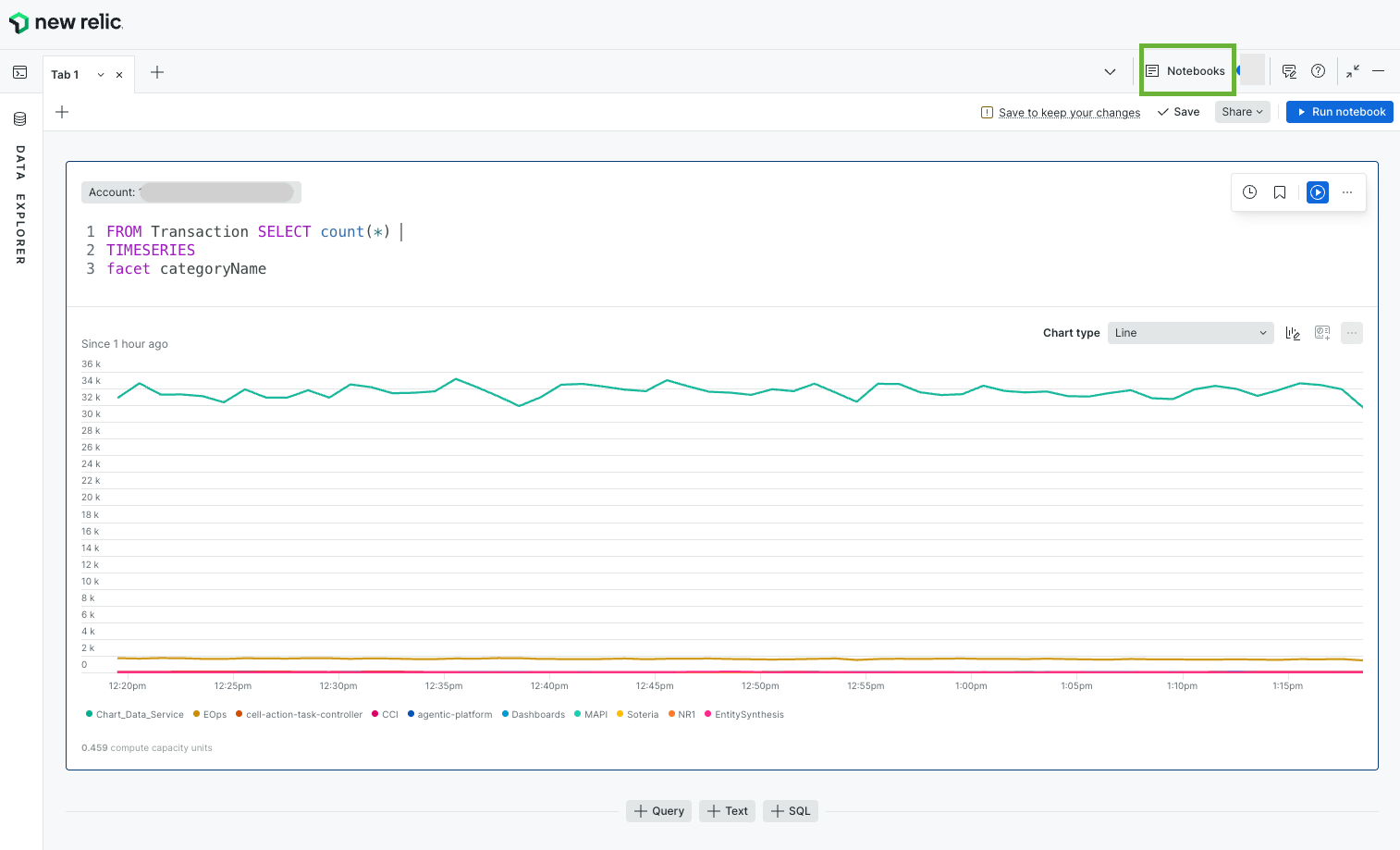
다음으로 이동하여 노트북을 찾아보세요 Query your data > Notebooks
노트북 블록
블록은 노트북을 구성하는 기본적인 단위입니다. 이것들은 분석과 서술을 구성하기 위해 추가하는 개별 섹션입니다.
쿼리 블록
쿼리 블록을 사용하여 NRQL 쿼리 를 작성하고 결과를 시각화합니다. 표준 쿼리 빌더에서 사용할 수 있는 모든 단일 쿼리 차트 유형 및 사용자 지정이 노트북에서 지원됩니다.
텍스트 블록
마크다운을 사용하여 풍부한 텍스트, 제목, 맥락, 설명 및 기술 텍스트를 추가하여 조사 과정을 자세히 전달하세요.
블록 액션
각 블록은 문서를 구성하는 데 맞게 조작할 수 있습니다.
- Duplicate: 블록의 복사본을 만듭니다.
- Delete: 노트북에서 블록 제거
- Move Up/Down: 노트북 내 블록 순서 변경
- Move to Top/Bottom: 블록을 시작이나 끝으로 빠르게 이동
노트북 권한
노트북을 만들기 전에 권한이 어떻게 작동하는지, 누가 노트북에 접근할 수 있는지 이해하는 것이 중요합니다.
조직 협회
모든 노트북은 그것이 만들어진 조직에 속한 자원입니다. 이 관계는 영구적이며 변경될 수 없습니다. 노트북은 다른 조직 간에 공유할 수 없습니다. 조직이 삭제되면 노트북도 함께 삭제됩니다. 사용자가 다른 조직으로 이동하는 경우 이전 조직의 노트북에 접근할 수 없습니다.
현재 권한 모델
뉴렐릭 노트북은 액세스를 제어하기 위해 CRUD 기능이 포함된 사용자 지정 역할을 사용합니다. 액세스에는 두 가지 수준이 있습니다: 조직 수준(관리자가 설정) 및 노트북 수준(생성자가 노트북별로 설정).
조직 수준 권한
이는 뉴렐릭 관리자 UI의 사용자 지정 역할을 통해 부여됩니다.
역할 | 기능 | 허용 사항 |
|---|---|---|
풀 액세스 |
| 조직 내 모든 노트북 생성, 읽기, 편집 및 삭제 |
생성자 |
| 새 노트북 생성(자신의 노트북만 해당) |
노트북 수준 역할
이는 특정 노트북에 할당되며, 일반적으로 노트북 생성자가 할당합니다.
역할 | 허가 | 허용 사항 |
|---|---|---|
소유자 |
| 읽기, 편집, 삭제 및 권한 관리 ― 생성자에게 자동으로 할당됨 |
Editor |
| 노트북 편집 |
Reader |
| 노트북 보기(읽기 전용) |
함께 작동하는 방식
- 관리자가 사용자에게 Creator 조직 수준 역할을 부여합니다. ― 이를 통해 사용자는 노트북을 생성할 수 있습니다.
- 사용자가 노트북을 생성하면 자동으로 해당 노트북의 Owner가 됩니다.
- 그런 다음 소유자는 특정 노트북에 대해 Editor 또는 Reader 역할을 부여하여 다른 사람과 노트북을 공유할 수 있습니다.
- 조직 전체의 모든 노트북에 액세스해야 하는 사용자(예: 관리자)에게는 대신 Full access [풀 액세스] 역할이 부여됩니다.
다음은 뭐지?
이제 노트의 기본을 이해했으니 다음을 수행할 수 있습니다.
- 노트북의 블록에 대해 자세히 알아보세요
- 동적이고 매개변수화된 런북을 구축하려면 노트북의 변수 를 사용하십시오.
- 노트북용 Blob Storage API를 사용하여 프로그래밍 방식으로 노트북 관리
관련 기능도 살펴보실 수 있습니다.
- 영구적인 데이터 시각화를 구축하기 위한 Dashboards
- 개별 쿼리를 생성하기 위한 쿼리 빌더
- 시각화 옵션 이해를 위한 차트