Overview
Application settings provides configuration for your streaming video & ads monitoring for a specific application. Configure QoE (Quality of Experience) scoring, select which KPIs to display, set quality thresholds, and choose which metric charts appear on your application's summary, video overview, and ad overview pages.
ヒント
This document covers settings for a single application. Settings at this level apply only to this specific streaming application.
For account-level settings that apply across all platforms, see Application settings (All platforms).
About application settings
Application settings is located within a specific entity under Settings > Application and contains four main configuration sections:
QoE health index scores status: Set status level thresholds (Good/Warning/Critical) that determine color indicators on the QoE health index card
重要
The QoE feature is currently in Public Preview. To enable it, please contact the Sales team.
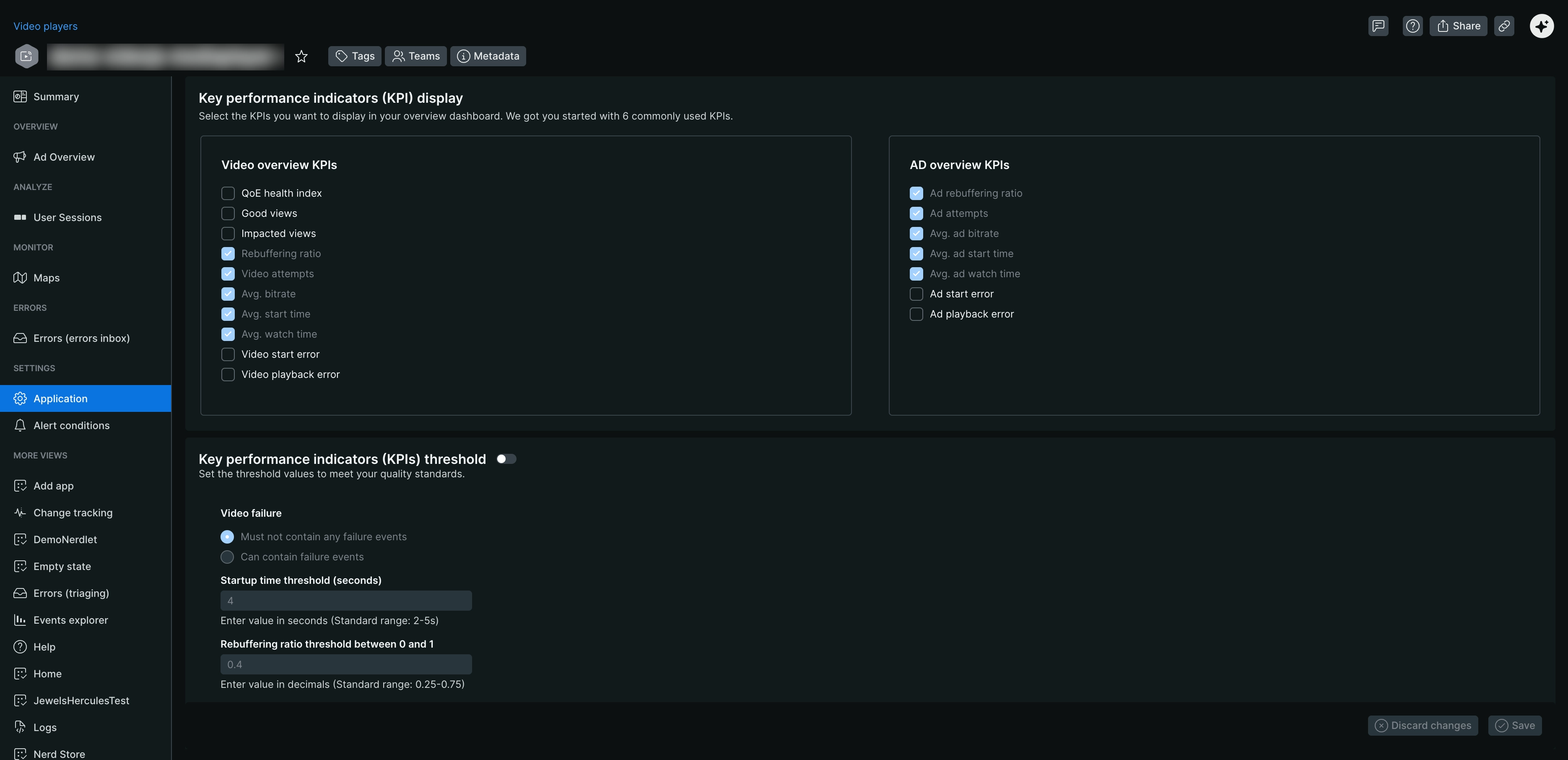
Key performance indicators (KPI) display: Select which KPI cards appear on summary, video overview, and ad overview pages
Key performance indicators (KPIs) threshold: Define quality thresholds that determine a "Good" vs "Impacted" viewing session
Quality metric charts: Choose which trend charts appear in the video quality metrics and ad quality metrics sections
Prerequisites
Streaming agent installed on Browser, Android, iOS, or Roku
Admin or Standard User role
Data retention: 30 days
Access application settings
- Go to one.newrelic.com > All Capabilities > Streaming Video & Ads > Streaming Entities
- Select the application you want to configure
- Select Application from the settings menu
重要
Ensure you're within the specific entity context. Settings configured here apply only to this application.
What is QoE health index
Quality of Experience (QoE) health index provides a single percentage representing overall streaming health for this application. A session is Good only if it meets ALL quality thresholds; failing any single threshold makes it Impacted.
Formula: QoE health index = (Number of Good view sessions / Total number of attempts) × 100
Who should read this
Application developers: Configure quality standards and KPI displays specific to your application's characteristics
Product managers: Set application-specific quality thresholds to assess if your app meets quality targets
Support teams: Troubleshoot issues using the QoE health index and selected KPIs
Operations engineers: Monitor application-specific quality metrics
Configure QoE health index status levels
Set three status levels with color-coded indicators to show streaming health at a glance. These thresholds determine when the QoE health index card displays as green (Good), yellow (Warning), or red (Critical).
Status level
Recommended threshold
Good (Green)
Score greater than 80%
Warning (Yellow)
Score 60 - 80%
Critical (Red)
Score less than 60%
To configure:
Enter your desired percentages
Click Save
These thresholds apply only to this application. The QoE health index card on this application's summary page will display with the corresponding color.
重要
You can enable or disable the QoE Health Index card and related cards (Impacted and Good view cards) in application settings. Keep in mind that enabling QoE increases data ingest, though you can disable it at any time.
Select KPIs to display
Choose which KPI cards appear on this application's summary, video overview, and ad overview pages.
Available overview KPIs:
| Video KPIs | Ad KPIs |
|---|---|
| Rebuffering ratio | Ad rebuffering ratio |
| Video attempts | Ad attempts |
| Avg. bitrate | Avg. ad bitrate |
| Avg. start time | Avg. ad start time |
| Avg. watch time | Avg. ad watch time |
| Video start failure | Ad start failure |
| Video playback failure | Ad playback failure |
To configure:
- Check the boxes for KPIs you want to display
- Click Save
Configure quality thresholds
Define quality thresholds for a Good viewing session for this application. A session must meet ALL thresholds to be classified as Good. Failing any threshold makes it Impacted. These thresholds determine the QoE health index calculation for this application.
Video failure threshold
Choose whether a Good session can contain failure events:
Must not contain any failure events (recommended)
Can contain failure events
Startup time threshold (seconds)
Maximum acceptable time for the first frame to display.
Standard range: 2 - 5 seconds
Recommended: less than 5 seconds
Rebuffering ratio threshold (%)
Maximum acceptable rebuffering as a percentage of total playback time.
Standard range: 0.25 - 1.0%
Recommended: less than 0.4%
Enter value in decimals (e.g., 0.4 for 0.4%)
Rebuffering time threshold (seconds)
Maximum acceptable total rebuffering time during a session.
Standard range: 15 - 30 seconds
Recommended: less than 2 seconds
Average bitrate thresholds by device type
Configure minimum acceptable bitrate for each device type.
Device type
Recommended range
Explanation
Mobile devices (Kbps)
2,000 - 4,000 Kbps
For network stability on mobile connections
Desktop devices (Kbps)
3,000 - 5,500 Kbps
For sustained 1080p performance
TV devices (Kbps)
7,000 - 9,500 Kbps
For optimal HD/4K quality
To configure:
Enter your desired values in each threshold field
Click Save
ヒント
Start with the recommended values and adjust based on this application's specific content, audience, and network conditions. Monitor how threshold changes affect your Good vs Impacted session ratios.
Select quality metric charts
Choose which trend charts appear in the video quality metrics and ad quality metrics sections of this application's overview pages.
Available quality metric charts:
| Video Quality Metrics | Ad Quality Metrics |
|---|---|
| Average bitrate | Ad average bitrate |
| Abandonment | Ad abandonments |
| Average peak bitrate | Average ad peak bitrate |
| Average starting bitrate | Average ad starting bitrate |
| Average watch time | Average ad watch time |
| Average FPS | Average FPS |
| Bitrate switches | Bitrate switches |
| Completed plays | Ads completed |
| Connection-induced rebuffering rate | Connection-induced rebuffering rate |
| Exits before video start | Exits before ad start |
| High start time | Ads with high start time |
| Playback failures | Ads playback failures |
| Start failures | Ads start failures |
| Rebuffered during play | Ads rebuffered during play |
| Total plays | Total ad plays |
| Video attempts | Ad attempts |
To configure:
- Check the boxes for charts you want to display
- Click Save
View configured settings
Your selections appear on this application's pages:
- QoE health index card: Displays with the color (green/yellow/red) based on your status level thresholds
- Selected KPI cards: Only enabled KPIs appear
- Quality metric charts: Only selected charts appear in the video quality metrics section
To view your configuration, go to one.newrelic.com > All Capabilities > Streaming Video & Ads > Streaming Entities, select the application, and view the summary page.
Use cases by role
As an application developer
Configure quality standards specific to your application. Set thresholds based on your application's content type, audience expectations, and target devices. Adjust over time as you optimize your application.
As a product manager
Monitor whether the application meets its quality targets. Compare metrics before and after releasing updates. Filter by appVersion to assess if new releases improved quality.
As a support team member
Use the QoE health index to investigate user-reported problems. View impacted sessions to understand specific issues. Track whether issues are resolved after deploying fixes.
As an operations engineer
Monitor application-specific QoE health index. Use dimensions (like region or ISP) to identify which areas experience issues. View selected metric charts to understand quality trends.
Data access via NerdGraph API
Access QoE health index and related metrics programmatically via the NerdGraph API. Available metrics include QoE health index percentage, count of Good and Impacted views, and QoE health index filtered by attributes like device type, region, or ISP.
What's next
- View Summary to see your configured QoE health index and KPI cards
- View User sessions to investigate individual impacted viewing sessions
- Configure Application settings (All platforms) for account-level configurations
- View Ad overview to monitor ad performance
- Learn about Alerts to get notified when QoE drops below thresholds