Kubernetes環境で NRDOT Collector使用して Adaptive telemory Processor (ATP) をインストールおよび構成する方法を学習します。 ATP は、アプリケーションに対する重要な可視性を維持しながら、テレメトリーデータのボリュームを削減します。
重要
ATP for Kubernetes は実験的なビルドを使用します。このビルド全体は、プレビュー中の ATP 機能だけでなく、 Kubernetesインストレーションの実験的なものです。
インストレーションの方法
Helm (推奨) または Kubernetes マニフェストを使用して、ATP で OpenTelemetry Collector をインストールできます。
Helmメソッドは、 Kubernetesのデプロイ ATP 対応コレクターに推奨されるアプローチです。
あなたが始める前に
以下のものを用意してください:
- あなたのNew Relicライセンスキー
- クラスターにアクセスできるように構成された kubectl
- Cluster管理者の権限
values.yaml をダウンロードしてカスタマイズする
Helm チャート
values.yamlファイルをダウンロードします:bash$curl -o values.yaml https://raw.githubusercontent.com/newrelic/helm-charts/master/charts/nr-k8s-otel-collector/values.yaml特定の設定を使用して
values.yamlファイルを編集します。# Required: Set your cluster name and license keycluster: "YOUR_CLUSTER_NAME"licenseKey: "YOUR_NEW_RELIC_LICENSE_KEY"# Enable ATPenable_atp: true# IMPORTANT: Use experimental collector image for ATPimages:collector:repository: "newrelic/nrdot-collector" # Changed from nrdot-collector-k8stag: "<NRDOT_COLLECTOR_LATEST_VERSION>" # Use latest version from releases pageリリース ページで最新の NRDOT Collector バージョンを見つけて、
tag値を更新します。追加の設定オプションについては、 「設定の問題」を参照してください。
Helmチャートをインストールする
New Relic Helm リポジトリを追加します。
bash$helm repo add newrelic https://helm-charts.newrelic.com$helm repo updateカスタマイズした
values.yamlファイルを使用してチャートをインストールします。bash$helm upgrade nr-k8s-otel-collector newrelic/nr-k8s-otel-collector \>-f values.yaml \>-n newrelic \>--create-namespace \>--install
インストレーションを確認する
ポッドが実行されていることを確認します。
bash$kubectl get pods -n newrelic --watchnewrelicネームスペースに、nr-k8s-otel-collector-<hash>のような名前のポッドが表示されるはずです。書き込みビルダーで次の書き込みを実行して、 New Relicプロセス データを受信していることを確認します。
FROM Metric SELECT *WHERE k8s.cluster.name='YOUR_CLUSTER_NAME'AND metricName LIKE 'process.%'LIMIT 100FROM Metric SELECT uniqueCount(metricName)WHERE k8s.cluster.name='YOUR_CLUSTER_NAME'AND metricName LIKE 'process.%'
New RelicでATPデータにアクセスする
ATP が構成されると、 Kubernetesクラスタからのデータの収集が開始されます。 このデータには New Relic OpenTelemetry UI からアクセスできます。New Relic OpenTelemetry UI の詳細については、 OpenTelemetry APM UIを参照してください。
New Relicで ATP プロセスのメトリクス データを表示するには:
one.newrelic.com > All Entitiesへ移動します。
また
one.newrelic.com > Catalogs > Infrastructureに移動します。
ATP を使用して NRDOT コレクターをインストールしたエンティティを検索します。
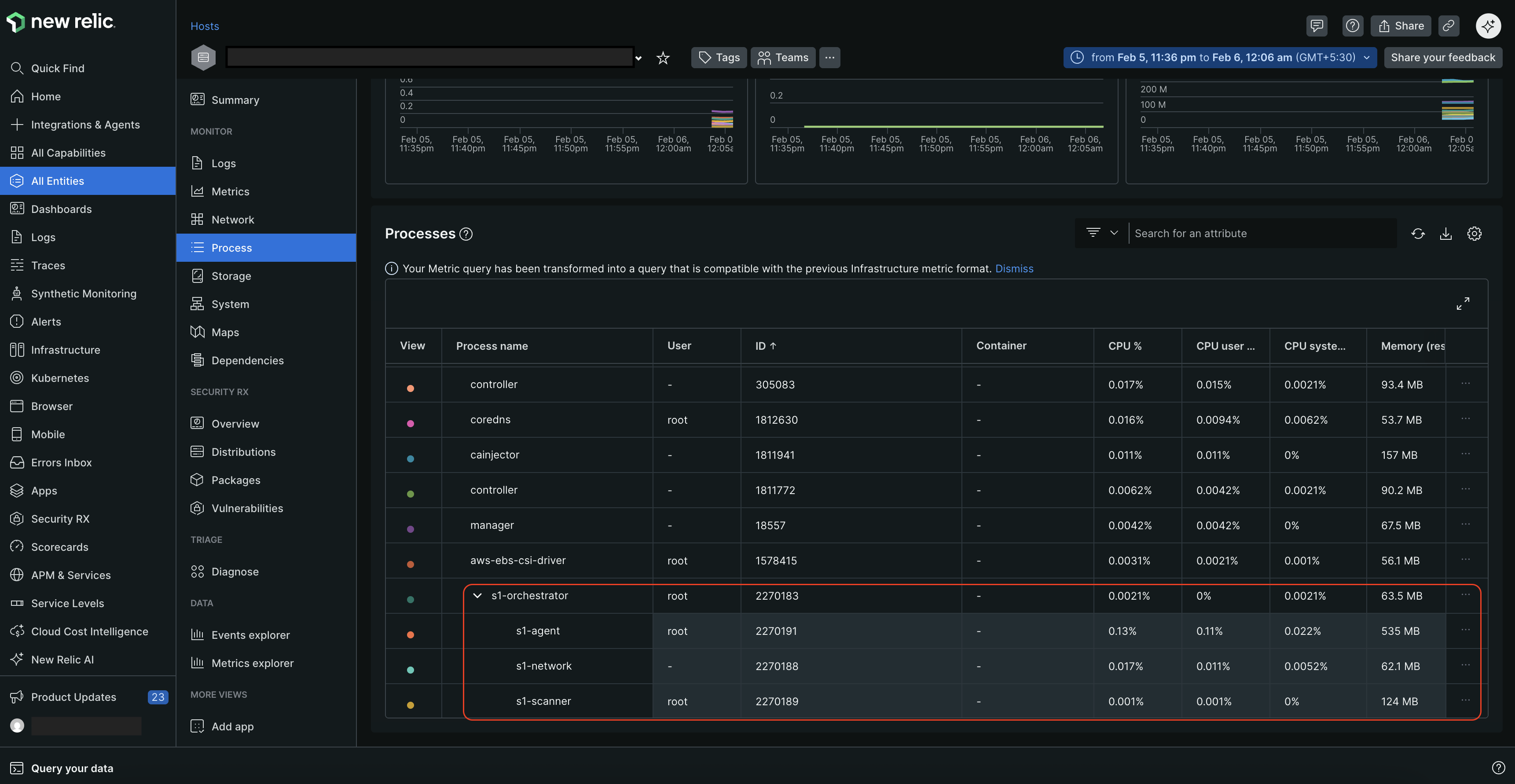
エンティティを選択し、左側のペインでProcessをクリックします。
Processページでは、実行中のすべてのプロセスとその ID、CPU およびメモリ使用率のメトリクスを表示できます。 また、プロセスが他のプロセスを生成する場合、プロセス間の親子関係も表示されます。
マニフェスト インストレーション メソッドは、 Helmを使用せずにKubernetes用にOpenTelemetryセットアップする方法を提供します。 この方法は、より実践的なアプローチを好むユーザーや、手動設定を必要とする特定の要件を持つユーザーに適しています。
あなたが始める前に
以下のものを用意してください:
- あなたのNew Relicライセンスキー
- クラスターにアクセスできるように構成された kubectl
- Cluster管理者の権限
マニフェストファイルをダウンロードして準備する
nr-k8s-otel-collectorのレンダリングされたサンプル ディレクトリの内容をローカル ワークスペースにコピーします。bash$git clone https://github.com/newrelic/helm-charts.git$cd helm-charts/charts/nr-k8s-otel-collector/examples/k8s-with-atp/rendereddaemonset.yamlとdeployment.yamlファイルの両方でコレクター イメージを更新します。変更前:
image: docker.io/newrelic/nrdot-collector-k8sに:
image: docker.io/newrelic/nrdot-collector:<NRDOT_COLLECTOR_LATEST_VERSION>重要
これはKubernetesインストレーションの実験用ビルドです。 最新バージョンはリリース ページからご確認ください。
ライセンスキーとクラスター名を設定する
Base64 でエンコードされたNew Relicライセンスキーを使用して
secret.yamlファイルを更新します。data:licenseKey: <YOUR_BASE64_ENCODED_LICENSE_KEY>ライセンスキーをエンコードするには:
- Linux / macOS:
echo -n "<YOUR_LICENSE_KEY>" | base64 - Windows (PowerShell):
[System.Convert]::ToBase64String([System.Text.Encoding]::UTF8.GetBytes("<YOUR_LICENSE_KEY>"))
- Linux / macOS:
daemonset-configmap.yamlファイルとdeployment-configmap.yamlファイルの両方でクラスター名を更新します。k8s.cluster.nameのインスタンスを探し、<YOUR_CLUSTER_NAME>希望のクラスター名に置き換えます。- key: k8s.cluster.nameaction: upsertvalue: YOUR_CLUSTER_NAME # Replace with your cluster name
マニフェストをデプロイする
newrelicネームスペースを作成し、マニフェストを適用します。bash$kubectl create namespace newrelic$kubectl apply -n newrelic -R -f .ポッドが実行されていることを確認します。
bash$kubectl get pods -n newrelic --watch書き込みビルダーで次の書き込みを実行して、 New Relicプロセス データを受信していることを確認します。
FROM Metric SELECT *WHERE k8s.cluster.name='<YOUR_CLUSTER_NAME>'AND metricName LIKE 'process.%'LIMIT 100FROM Metric SELECT uniqueCount(metricName)WHERE k8s.cluster.name='<YOUR_CLUSTER_NAME>'AND metricName LIKE 'process.%'
New RelicでATPデータにアクセスする
ATP が構成されると、 Kubernetesクラスタからのデータの収集が開始されます。 このデータには New Relic OpenTelemetry UI からアクセスできます。New Relic OpenTelemetry UI の詳細については、 OpenTelemetry APM UIを参照してください。
New Relicで ATP プロセスのメトリクス データを表示するには:
one.newrelic.com > All Entitiesへ移動します。
また
one.newrelic.com > Catalogs > Infrastructureに移動します。
ATP を使用して NRDOT コレクターをインストールしたエンティティを検索します。
エンティティを選択し、左側のペインでProcessをクリックします。
Processページでは、実行中のすべてのプロセスとその ID、CPU およびメモリ使用率のメトリクスを表示できます。 また、プロセスが他のプロセスを生成する場合、プロセス間の親子関係も表示されます。
ATP設定オプション
ATP を有効にすると、次の設定が自動的に適用されます。
パラメータ | 説明 | デフォルト値 |
|---|---|---|
| ATP 機能を有効/無効にします。ATP を有効にするには
に設定します。 |
|
| ATP を使用するには
に変更する必要があります。 |
|
| ATP 対応コレクターのイメージタグ。 |
|
/* ## トラブルシューティング ATP [トラブルシューティング] ### ATP がメトリクスをフィルタリングしていません **問題**: すべてのプロセス メトリクスが送信されており、フィルタリングされていません。 **解決策**: 1. **ATP が有効であることを確認します**: ```bash kubectl get configmap -n newrelic nr-k8s-otel-コレクター-daemonset-config -o yaml | grepadaptivetelemetry ``` 2. **ATP がパイプラインにあることを確認します**: `Metriks/nr` パイプラインで `adaptivetelemetry` を探します。 3. **正しいコレクター イメージを使用していることを確認します**: ```bash kubectl get daemonset -n newrelic nr-k8s-otel-コレクター-daemonset -o yaml | grep "image:" ``` 期待されるもの: `newrelic/nrdot-collectors:1.11.0` (またはそれ以降) **NOT**: `newrelic/nrdot-collector-k8s:1.11.0` 4. **`values.yaml` または ConfigMap で `enable_atp` が `true` に設定されていることを確認します**。 ### ポッドが起動しない **問題**: Collectorが起動に失敗します。 **解決策**: 1. **ポッドログを確認します**: ```bash kubectl ログ -n newrelic -l app.kubernetes.io/name=nr-k8s-otel-collector ``` 2. **ライセンスキーが正しくエンコードされていることを確認します**: ```bash kubectl get secret -n newrelic nr-k8s-otel-コレクター-config -o yaml ``` 3. **リソース制限を確認します**: クラスタにコレクター ポッド用の十分なリソースがあることを確認してください。 ### New Relicにデータがない **問題**: 導入後にNew Relicにメトリクスが表示されません。 **解決策**: 1. **New Relic UI にデータが表示されるまで **2~5 分待ちます**。 2. **クラスター名** が設定で設定した名前と一致していることを確認します**。3. **コレクター ログ**で接続エラーを確認します: ```bash kubectl ログ -n newrelic -l app.kubernetes.io/name=nr-k8s-otel-コレクター | grep -i エラー ``` */