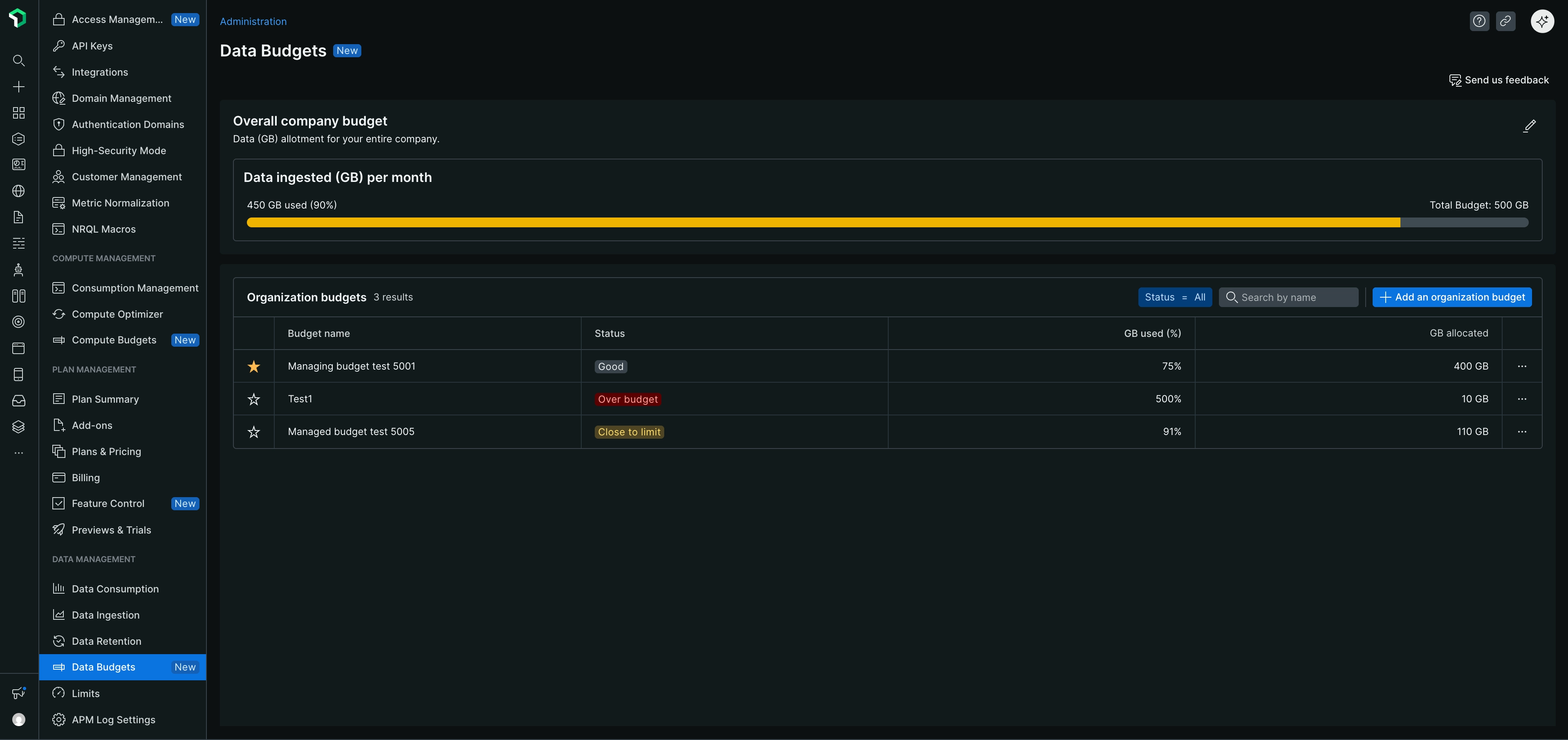
Data ingest budgets help you control costs by setting monthly data limits (GB), tracking usage in real-time, and alerting you before you exceed your budget.
Prerequisites
To create, edit, or delete data ingest budgets, you need:
- Organization manager role (for managing organizations in multi-tenant setups) or equivalent admin permissions
- Paid data ingest subscription
Dica
All users with account access can view budgets and receive notifications if configured as destinations.
Budget types by organization structure
The types of budgets available to you depend on your organization structure.
For single-tenant customers
You can create the following budget types:
- Organization level budgets: Track total data ingestion across all accounts in your organization
- Account level budgets: Allocate portions of your organization budget to individual accounts or groups of up to 5 accounts
For multi-tenant customers
Managing organizations can create the following budget types:
- Company level budgets: Track total data ingestion across all organizations in your multi-tenant setup
- Organization level budgets: Allocate portions of your company budget to individual managed organizations. You can create one budget per organization and create multiple organization budgets as needed.
- Account level budgets: Allocate portions of your organization budget to individual accounts or groups of up to 5 accounts within the managing organization
Managed organizations have view-only access to budgets and cannot create or edit budgets.
Importante
If you are part of a managing organization, you can create budgets for any managed organization under your hierarchy. Use the organization selector to choose the organization when creating an organization budget.
Access Data Budgets
To create or manage any budget type:
- Go to one.newrelic.com.
- In the user menu, select Administration > Data Management > Data Budgets.
Best practices
- Set realistic limits: Base budgets on historical usage and expected growth.
- Use multiple thresholds: Set alerts at 75%, 90%, and 95% to allow time for action before exceeding your budget.
- Allocate by team or project: Use account-level budgets to track high-usage areas and assign accountability.
- Review monthly: Adjust budgets when usage patterns or monitoring capabilities change.
- Analyze trends: Use utilization graphs to identify spikes or anomalies in your data ingestion.
Next steps
Manage organization level budgets
Set up and manage company and organization level budgets.
Set up account level budgets
Create and manage budgets for individual accounts or groups of accounts within your organization.
Related topics
- Learn more about managing your data
- Explore data ingest governance