이 페이지에서는 AAR 파일을 사용하여 스트리밍 비디오 및 광고 에이전트를 수동으로 설치할 때의 설치 단계에 대한 개요를 제공합니다. 코드 예제를 포함한 전체 설치를 위해서는 안내 설치를 이용하세요.
video-에이전트-android 를 복제하세요.
Android Studio로 열어보세요.
Gradle 도구 창을 열려면 View > Tool Windows > Gradle 으로 이동하세요.
Gradle 도구 창에서 NRVideoProject > Tasks > build 펼치고 assemble 두 번 클릭합니다. 이렇게 하면 프로젝트가 빌드되고 각 모듈 폴더 build > outputs > aar 내부에 AAR 라이브러리 파일이 생성됩니다.
프로젝트에서 File > New > New Module 으로 이동하여 .JAR/.AAR 패키지를 가져온 다음 Next 클릭하세요.
이전 단계에서 생성한 AAR 파일을 선택하고 Finish 클릭합니다.
필요한 각 AAR 파일에 대해 5단계와 6단계를 반복하십시오.
- NewRelicVideoCore.aar (필수): 핵심 비디오 에이전트 기능
- NRExoPlayerTracker.aar (필수): ExoPlayer 추적
- NRIMATracker.aar (선택 사항): IMA SDK를 사용한 광고 추적
앱 모듈의 build.gradle 파일에 다음 의존성/종속성을 추가하세요.
dependencies { ... implementation project(":NewRelicVideoCore") // Required: Core video agent implementation project(":NRExoPlayerTracker") // Required: ExoPlayer tracking implementation project(':NRIMATracker') // Optional: Ad tracking with IMA}참고: 광고 추적 기능이 필요한 경우에만 NRIMATracker 포함하세요.
공지 표시줄에서 Sync Now 클릭하거나 File > Sync Project with Gradle Files 로 이동하여 Gradle 파일과 프로젝트를 동기화하세요.
비디오 에이전트를 초기화합니다.
디버그의 onCreate() 메서드 또는 활동에서 뉴렐릭 비디오 에이전트를 초기화합니다. 자세한 코드 예제 및 구현 지침은 안내 설치 가이드를 참조하십시오.
동영상 플레이어 추적 설정
필요에 따라 추적기를 구성하세요.
ExoPlayer 트래커 전용: 동영상 재생 모니터링을 위한 ExoPlayer 트래킹을 설정합니다.
ExoPlayer 및 IMA 트래커: 동영상 재생 및 광고 추적을 위해 ExoPlayer와 IMA 트래킹을 모두 설정합니다.
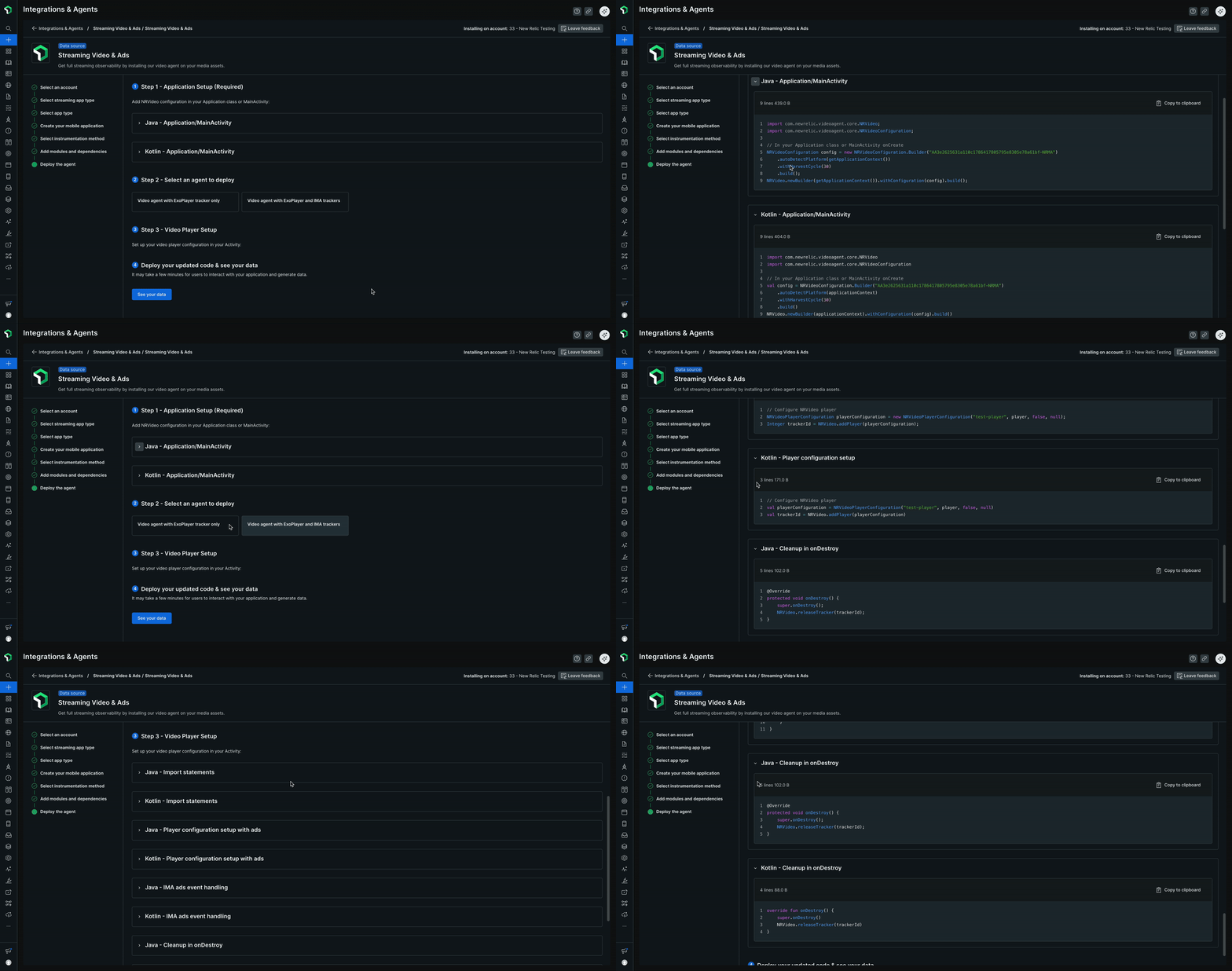
전체 구현 코드 예제는 안내 설치 가이드를 참조하세요.
뉴렐릭에서 비디오 추적 데이터를 보려면 빌드하고 구현하고 배치하세요.