What's new in this version
Removal of Java Enterprise Connector
Starting from this version, New Relic Monitoring for SAP Solutions can connect to New Relic API endpoints without the need for Java Enterprise Connector. There will be no need for any installation activity on the operating system level. This makes this version capable of running on SAP's Private Cloud Edition (RISE).
For backward compatibility, the Java Enterprise Connector from version 2.5 may still be used with 3.0, but is no longer recommended.
Connecting to New Relic API endpoints is now managed with the ABAP Add-on in the following fashion:
- New Relic endpoints are configured as External HTTP Destination (Type G) in SAP transaction
SM59 - New Relic accounts, applicable endpoint destinations and API Ingest Keys are configured in transaction
/n/NEWR/CONNECT
New HANA database monitoring
Connect to HANA using ABAP database connection
HANA databases are now connected using native ABAP database connections. The following prerequisites must be satisfied to monitor the HANA database from the central monitoring system:
Connection to the HANA database
You must have one of the following:
- HANA Client v2.0 (version needs to match the HANA server), or
- HANA Client Lib file
libSQLDBCHDB.so(Linux) andlibSQLDBCHDB.dll(Windows) in the SAP Kernel folder (use SID Admin ID, e.g.,sd1adm)
HANA database user with catalog read and monitoring access
Sample commands:
CREATE ROLE NR_AGENT_ROLE;GRANT CATALOG READ TO NR_AGENT_ROLE;GRANT MONITORING TO NR_AGENT_ROLE;CREATE USER NRAGENT PASSWORD Xxxxxxxx NO FORCE_FIRST_PASSWORD_CHANGE;GRANT NR_AGENT_ROLE TO NRAGENT;Network access
The Central Monitoring System must have access to the HANA server and tenant DB port.
HANA database queries
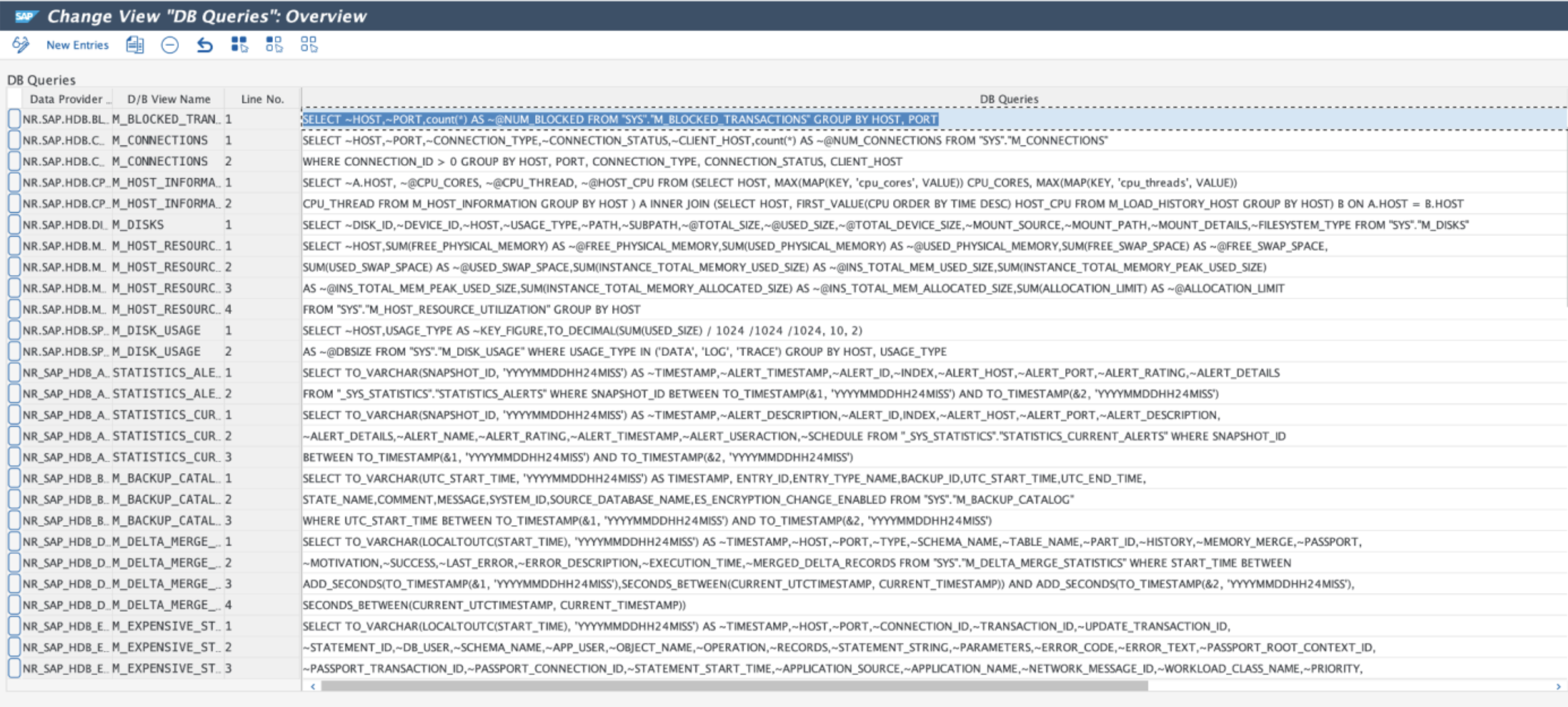
The monitoring queries are now maintained using an ABAP transaction (/NEWR/DB_QUERIES). They can also be accessed via New Relic menu path Expert Mode > HANA DB Monitoring Queries in the menu /NEWR/INSTALL.
팁
Each query line is limited to 192 characters, and the fields retrieved need to be prefixed with ~.
New installation menu
The installation menu (/NEWR/INSTALL) is updated with 5 major sections:
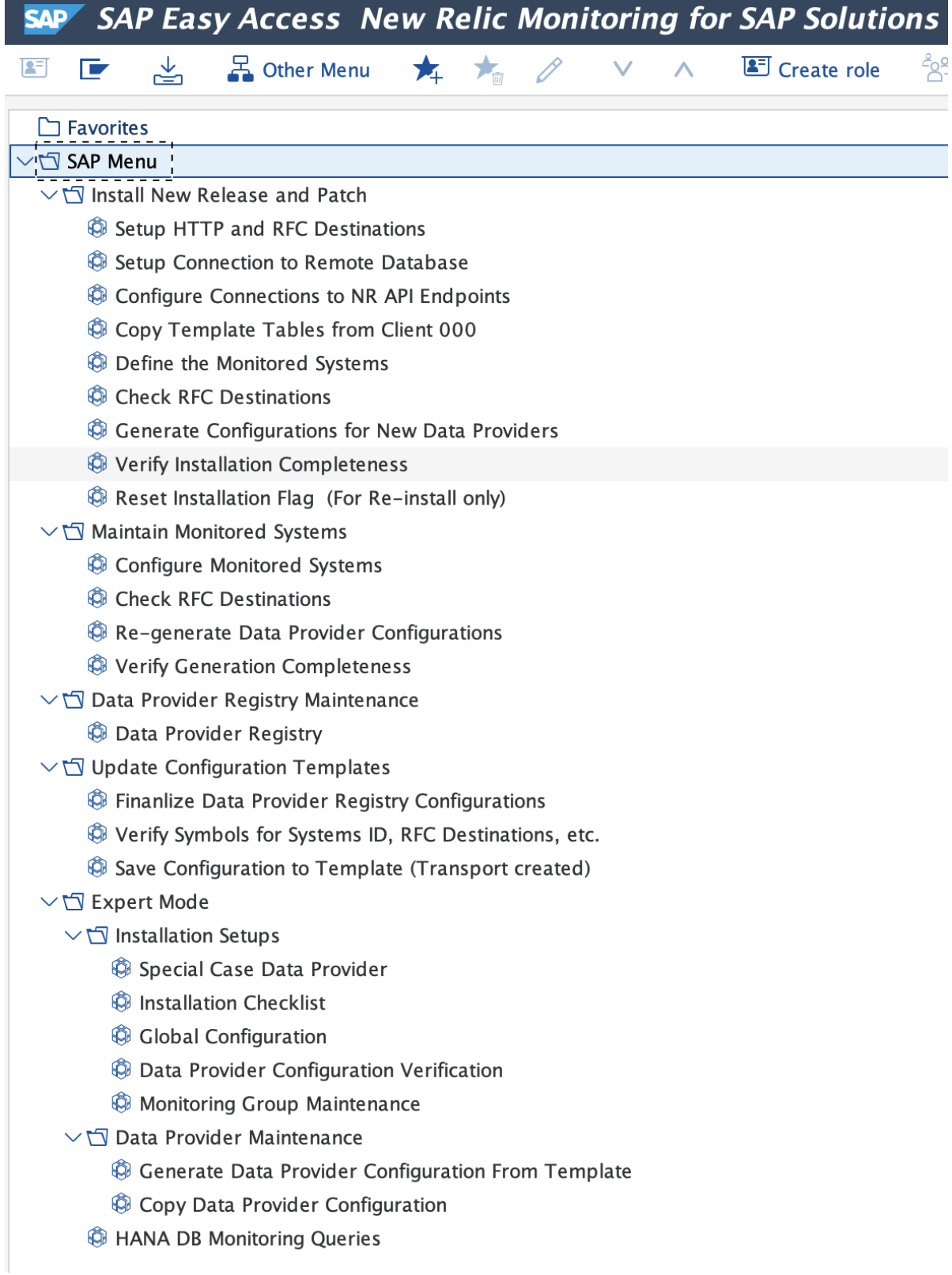
Install new release and patch
This section is used to install new release and/or service patches delivered from New Relic. The menu items in this section are intended to be executed in sequence to complete the installation process. It automatically detects the new release/patch to be installed.
중요
Once the process is completed, the process cannot be repeated, unless the installation flag is reset. Please refer to the installation guide.
Maintain monitored systems
Use this section to add or remove monitored systems or change monitoring groups. The data provider registry configurations can be re-generated in this section as well.
Data provider registry maintenance
This is a convenient way to access the transaction /n/NEWR/REGISTRY.
Update configuration templates
Configuration changes for the data providers, including custom data providers, can be saved back to the template in this section. Once saved, the changes will not be lost when the configurations are generated again.
Expert mode
Here are advanced utilities to maintain the support tables for the installation process, including adding new database queries to monitor the HANA database. Details of these utilities are covered in the Administration Guide.
Supported SAP versions
New Relic Monitoring for SAP Solutions is compatible with the following SAP versions:
SAP_BASIS | SAP_ABA | ST_PI |
|---|---|---|
740 | 740 | SP14 |
750 | 750 | 740 SP14 |
750 | 75A | 740 SP14 |
751 | 75B | 740 SP14 |
752 | 75C | 740 SP14 |
753 | 75D | 740 SP14 |
754 | 75E | 740 SP14 |
755 | 75F | 740 SP14 |
756 | 75G | 740 SP14 |
757 | 75H | 740 SP14 |
758 | 75I | 740 SP14 |
Install New Relic Monitoring for SAP Solutions v3.0
Installation packages included
There are two installation packages included:
K-300AOIINNEWR.SAR: For a fresh install of the New Relic Monitoring for SAP Solutions v3.0K-300AOUINNEWR.SAR: For upgrade to the New Relic Monitoring for SAP Solutions v3.0 from v2.5
Upgrade from v2.5
If you are upgrading from v2.5, it is important to save any configuration changes before configuring the new v3.0. You can do this before or after the v3.0 ABAP Add-on is installed in client 000.
주의
The configuration templates must be saved BEFORE copying the new template from client 000. Otherwise, the factory setting will override any changes made in the previous version.
To save the configuration template:
- Open the menu
/n/NEWR/INSTALL - Open Update or Save Configuration Template folder
- Follow the steps
Update HANA database monitoring
If HANA database is monitored in v2.5, there are a few more steps required to convert from v2.5 JDBC-based database connection to v3.0 ABAP database connection:
Remove v2.5 HDB configuration template
From v2.5 to v3.0, New Relic Monitoring for SAP changes the way it monitors the HANA database from using the Java Enterprise Connector via JDBC to using SAP ABAP database connection. Because of this drastic change, to upgrade, you need to first remove the v2.5 configuration templates.
Steps:
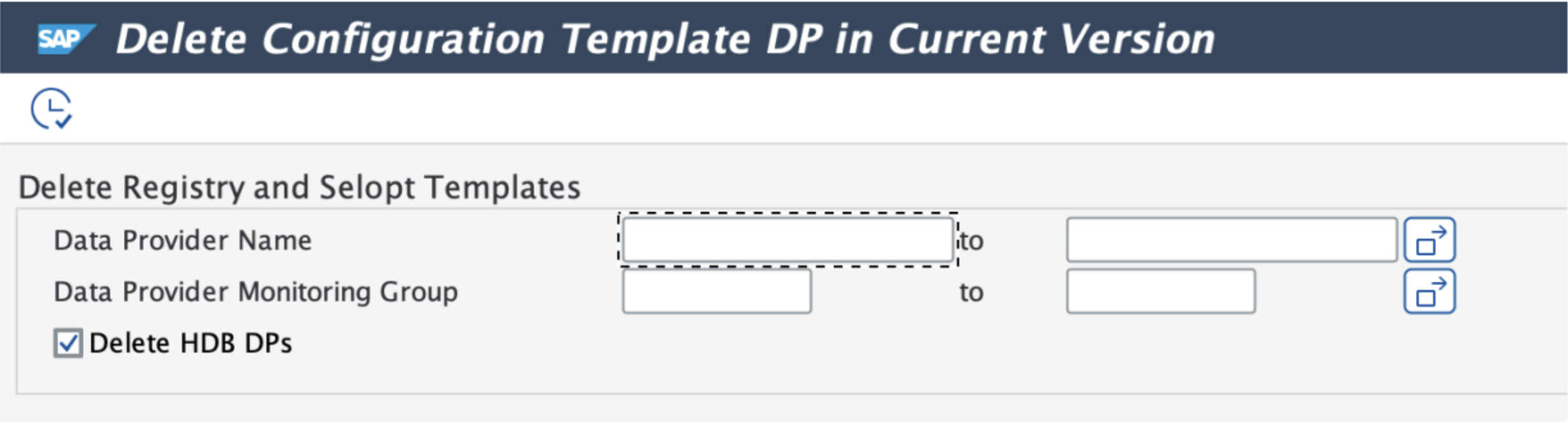
- Use transaction
SE38to execute program/NEWR/REP_DELETE_INS_TEMPLATE - Normally, no adjustment of the parameters is needed
- Click on the execute button
Set up ABAP database connection
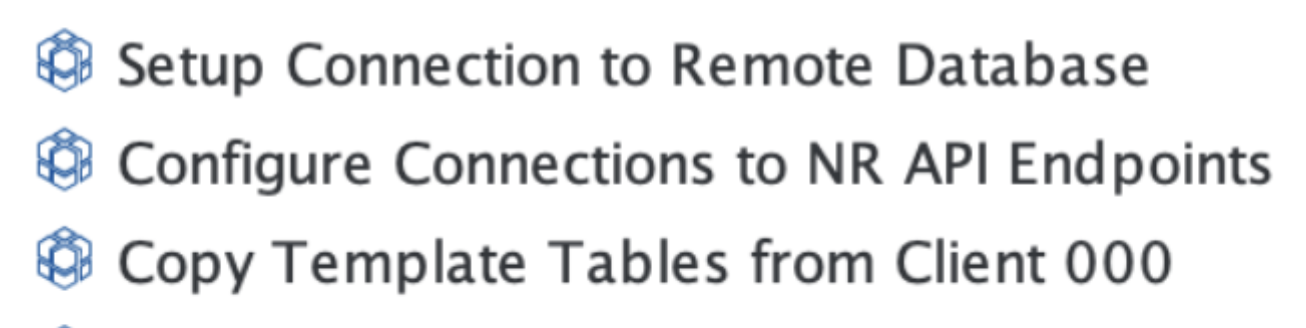
Follow the v3.0 installation guide to complete these tasks:
- Set up HANA database connection in
DBACOCKPIT - Configure connection to New Relic endpoints
- Copy new configuration template from client 000
In the menu folder Install new releases and patches, execute the menu items in sequence.
Update the monitoring group for the monitored systems
In v2.5, because the database connection is handled by the Java Enterprise Connector, the HANA_DB monitoring group is normally set up separately from the rest of the data providers. In v3.0 this is no longer necessary. The separate configuration line connecting to Java Enterprise Connector (normally RFC destination NR_EI_AGENT) should be removed.

To complete the configuration, perform the following steps:
Remove the v2.5 HANA_DB monitoring configuration (row identified by the RFC destination
NR_EI_AGENT)Add the newly created database connection to the DB Connection field
Configure the monitoring group:
- Highlight the monitored system (e.g., SD2)
- Click on "Monitoring Group" button
- Turn on "HANA_DB"
- Click on the "Generate" button
Continue to the next step to re-generate the registry configuration
Re-generate the registry configuration
After updating the monitoring groups, complete the registry configuration regeneration to finalize the upgrade process.