Included patch files
This V3.0 SP9 release contains two files:
- K-300SP09NEWR.SAR
- _NEWR_DATA_PROVIDERV3.9.SAP
Implementation procedures
Installation and configuration steps
- Where to install: Deploy this service pack to client 000 of your Central Monitoring System.
- Configuration location: Perform all subsequent configuration tasks in the business client of your Central Monitoring System.
- Complete instructions: For step-by-step installation procedures, consult Installation Guide V3.0 (Appendix VIII: Install Service Pack) or Admin Guide V3.0 (Section: Install Service Pack).
Authorization role changes
- An updated authorization role is included in the file
_NEWR_DATA_PROVIDERV3.9.SAP. - More information: See the Authorization role changes section below.
- Required action: Apply this role file to update RFC user authorization profiles across all monitored systems.
- Note: The file
_NEWR_DATA_PROVIDER.SAPhas also been updated to ensure fresh installations automatically include the new authorization objects.
What's new in this release
This service pack delivers several enhancements:
- Backup and Restore capabilities in the Registry transaction (
/NEWR/Registry) - Selective registry configuration generation for specific monitored systems
For detailed usage guidance, see the New feature instructions section.
Changes in this release
BTP monitoring enhancements
- Pagination is now supported for BTP and CALM API data provider functions.
- Enhanced pagination for
NR_BTP_IS_MPL:- New finisher function:
/NEWR/BTP_MPL_FINISHER_V2 - New parameter
API_PAGINATION_LIMITwith a default value of 500. The SAP API supports up to 1000 records per call.
- New finisher function:
- Updated query for
NR_CALM_LANDSCAPEdata provider: TheAPI_QUERYnow includes?limit=999. This adjustment addresses a change in the SAP CALM API, which now returns only 100 records by default. The new limit enables more efficient data collection.
Additional changes
Enhanced functionality
- Flexible data provider configuration: Generate or remove data provider configurations for selected monitored systems.
- Registry backup and restore: New capabilities for backing up and restoring the Data Provider Registry.
- Extended resend program support: The resend program (
/NEWR/RESEND_FAILED_API_TRANS) now handles theAPI_TRACEdata provider type.
Performance improvements
- Enhanced payload retrieval for NR_SAP_ABAP_WS: The
NR_SAP_ABAP_WSdata provider can now retrieve attributes from Node Only tags, improving data processing efficiency. - Expanded job logging: The collection manager job (
/NEWR/ONE_COLLECTION) now provides more detailed messages in job logs for better execution tracking.
Resolved issues
- Fixed IDoc timestamp bug: Corrected a timestamp error in the
NR_SAP_IDOCdata provider. - Security role correction: Updated the
/NEWR/DATA_PROVIDERsecurity role to resolve authorization issues affectingNR.SAP.LOG.GWandNR.SAP.LOG.AUDITLOGdata providers.
Authorization role changes
The /NEWR/DATA_PROVIDER authorization role now includes these objects:
- Transaction SM20: Enables Audit Log retrieval
- Transaction /IWFND/VIEW_LOG: Enables Gateway Log retrieval for backward compatibility
New feature instructions
Service pack deployment procedure
To deploy a New Relic Service Pack, complete these steps:
- Deploy the Service Pack file:
- Access client 000 of the Central Monitoring System
- Apply the Service Pack file using transaction SPAM
- Transfer configuration templates:
- Access the business client of the Central Monitoring System
- Navigate to menu
/n/NEWR/INSTALL - Select Copy Template Tables from Client 000
- Create configurations for new data providers:
- Select Generate Configurations for New Data Providers to create delta configurations for the Service Pack
중요
- Do not add or modify monitored systems while applying the Service Pack.
- After Service Pack deployment, use the Maintain Monitored Systems menu to modify monitored systems if necessary.
- For newly added monitored systems, generate configurations only for those systems rather than regenerating all configurations. See Generating configurations for specific monitored systems for details.
Generating configurations for specific monitored systems
Three new configuration fields are now available to improve registry configuration control:
Available fields:
- Process option: Choose between Generate or Remove operations
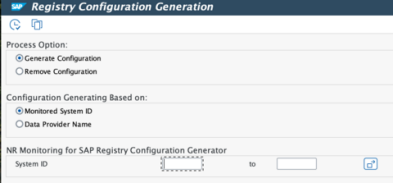
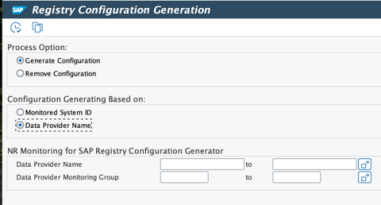
- Configuration generation based on: Choose your generation method:
- Monitored System ID
- Data Provider Name
How to use:
- When using Monitored System ID: Input the System ID for the newly added Monitored System, then click Execute to regenerate data provider configurations.
- When using Data Provider Name: Input the Data Provider Name or Monitoring Group (wildcards are supported), then click Execute to regenerate data provider configurations.
중요
When no System ID or Data Provider Name is entered, all data providers will be removed and regenerated.
For repeat installations, you may encounter a confirmation dialog. Select Yes to proceed. A status bar message will confirm successful completion.
Updating configuration templates
We recommend updating configuration templates only for new custom data providers rather than using the Update Configuration Templates option from the installation menu to update all templates.
Recommended approach:
- Create backups before making configuration changes
- Apply template updates only to data providers needed for newly onboarded systems
Template update procedure:
- Launch program
/NEWR/REP_INSTALL_REPLACINGusing transaction SE38 - Keep "Transfer Stage" at 0 (do not modify)
- Enter only the data provider template from registry entries that requires updating
This targeted method modifies only necessary templates, optimizing the update process and reducing the risk of disrupting existing configurations.
Configuration backup and restore
The Registry transaction (/NEWR/REGISTRY) now includes backup and restore functionality that improves configuration management. These features support both individual and comprehensive backup and restoration operations for data provider configurations.
Feature overview:
Registry backup and restore operations (/NEWR/REGISTRY)
When in change mode, you can access:
- Backup One: Creates a backup for a single selected data provider configuration.
- Backup All: Creates a backup for all active data provider configurations.
- Restore One: Restores a single data provider configuration from any previously created backup (from either Backup One or Backup All).
- Restore All: Restores all data provider configurations from a Backup All backup.
These operations are accessible through the Table View menu in Change Mode.
Management features
- Descriptive comments: Add comments when creating backups to help identify backup versions later.
- Version history: Select from previously created backup versions when restoring configurations.
- Restoration controls: After choosing a backup version, you can:
- Restore: Start the restoration process immediately.
- DP header from backup: Review the Data Provider's technical settings from the backup, including function names and frequencies.
- DP configuration from backup: View the configuration parameters saved in the backup.
These capabilities offer improved control over New Relic configuration management, simplifying recovery from unintended modifications and facilitating efficient updates.