Aperçu
Nous travaillons toujours sur cette fonctionnalité, mais nous aimerions que vous l'essayiez !
Cette fonctionnalité est actuellement fournie dans le cadre d'un aperçu conformément à nos politiques de pré-sortie.
Apprenez à installer et configurer l'Adaptive Telemetry Processor (ATP) avec le NRDOT Collector. ATP est inclus dans la distribution NRDOT standard pour réduire le volume de données de télémétrie tout en conservant une visibilité critique.
Options d'installation
Choisissez la méthode d'installation qui correspond à votre configuration actuelle :
Avant de commencer
Assurez-vous d'avoir :
- Votre clé de licence New Relic
- Privilèges root ou sudo.
- Accès réseau aux releases GitHub
Installer l'hôte du collecteur NRDOT
ATP est pré-intégré à la distribution du collecteur NRDOT. Selon votre système d'exploitation, choisissez votre méthode d'installation :
Configurer ATP
Une fois le collecteur NRDOT installé, modifiez le fichier de configuration du collecteur pour activer et personnaliser ATP. Les chemins des fichiers de configuration varient en fonction de votre méthode d'installation :
Pour les installations DEB/RPM, le fichier de configuration se trouve à
/etc/nrdot-collector/config.yaml.Pour les installations manuelles de binaires, le fichier de configuration se trouve dans le dossier extrait.
Pour modifier le fichier de configuration :
Ouvrez le fichier de configuration (
config.yaml) avec un éditeur de texte :- Pour les installations DEB/RPM :
bash$sudo nano /etc/nrdot-collector/config.yaml- Pour les installations manuelles de binaires :
bash$nano config.yamlPour collecter les métriques de processus, dans la section
scrapersdu récepteurhostmetrics, ajoutez la configurationprocesssuivante :receivers:hostmetrics:scrapers:# Your existing scrapers...process:metrics:process.cpu.utilization:enabled: trueprocess.memory.utilization:enabled: truemute_process_name_error: truemute_process_exe_error: truemute_process_io_error: truemute_process_user_error: truePour activer ATP, localisez la section
processorsexistante et ajoutez la configurationadaptivetelemetryen dessous :processors:adaptivetelemetry:enable_storage: trueretention_minutes: 30include_process_list:- "/usr/bin/postgres"- "/usr/sbin/nginx" # Replace with your target processesmetric_thresholds:process.cpu.utilization: 0.05 # 5% CPUprocess.memory.utilization: 0.05 # 5% memoryAjoutez le processeur ATP à votre pipeline de métriques dans la section
service:service:pipelines:metrics/host:receivers: [hostmetrics]processors:- memory_limiter- adaptivetelemetry # ADD THIS LINE- metricstransform- filter/exclude_cpu_utilization- filter/exclude_memory_utilization(Facultatif) Mettez à jour la configuration ATP, comme les seuils de métriques, si nécessaire. Pour plus de détails sur les options de configuration, consultez les Paramètres de configuration.
Enregistrez le fichier de configuration.
Redémarrez le collecteur NRDOT pour appliquer les modifications :
bash$sudo systemctl restart nrdot-collector
Accédez aux données ATP dans New Relic
Une fois l'ATP configuré, il commence à collecter des données depuis votre hôte Linux. Vous pouvez accéder à ces données dans l'interface utilisateur New Relic OpenTelemetry. Pour plus d'informations sur l'interface utilisateur New Relic OpenTelemetry, consultez OpenTelemetry APM UI.
Pour afficher les données de métriques du processus ATP dans New Relic :
Allez à one.newrelic.com > All Entities.
OU
Allez à one.newrelic.com > Catalogs > Infrastructure.
Recherchez l'entité sur laquelle vous avez installé le collecteur NRDOT avec ATP.
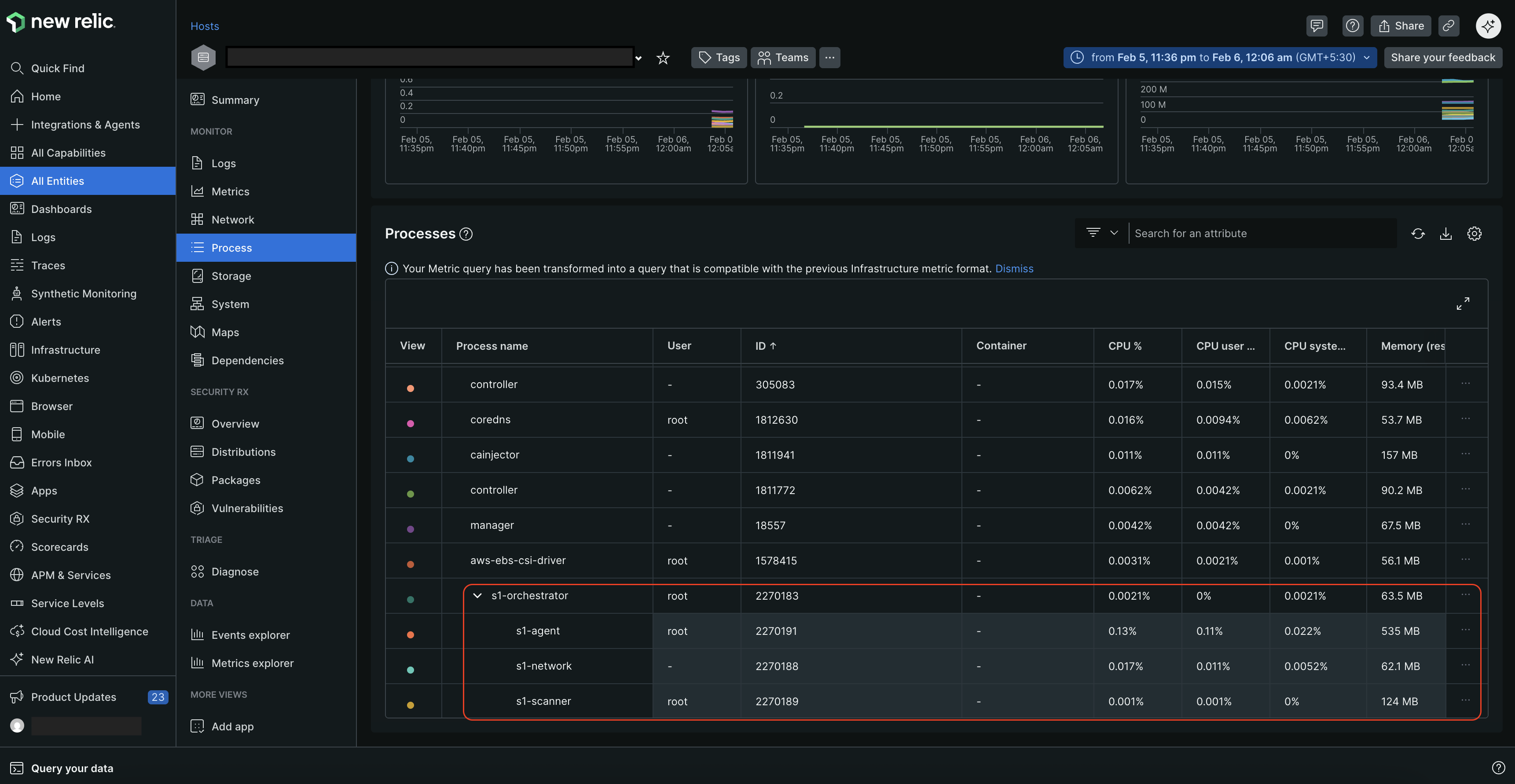
Sélectionnez l'entité, puis cliquez sur Process dans le volet de gauche.
Sur la page Process, vous pouvez consulter tous les processus s'exécutant sur votre hôte, ainsi que leurs ID et les métriques d'utilisation du CPU et de la mémoire. Il affiche également la relation parent-enfant entre les processus si un processus génère d'autres processus.
/ ### Configurer ATP [#atp-configuration] Ajoutez la configuration du processeur ATP à votre config.yaml fichier. Voici un exemple complet de configuration : yaml processors: adaptivetelemetry: enable_storage: true retention_minutes: 30 include_process_list: - "stress-ng" metric_thresholds: process.cpu.utilization: 0.05 process.memory.utilization : 0.05 process.memory.virtual: 20971520 # 20 Mo process.threads: 16 process.open_file_descriptors : 30 process.disk.io : 204800 # 200 Ko process.disk.operations: 300 process.context_switches : 8 process.paging.faults : 50 process.cpu.time : 0.01 # Activer les couches d'intelligence enable_dynamic_thresholds: true dynamic_smoothing_factor: 0.1 min_thresholds: process.cpu.utilization: 0,0005 process.memory.utilization : 0.0005 max_thresholds: process.cpu.utilization: 0.30 process.memory.utilization: 0.30 # Score composite multi-métrique enable_multi_metric: true composite_threshold: 1.5 weights: process.cpu.utilization: 0.5 process.memory.utilization : 0.5 # Détection d'anomalies enable_anomaly_detection: true anomaly_history_size: 15 anomaly_change_threshold: 50.0 anomaly_min_data_points: 3 service: pipelines: metrics: receivers: [hostmetrics] processors: [adaptivetelemetry, batch] exporters: [otlp] /
Avant de commencer
Assurez-vous d'avoir :
- NRDOT Collector existant version
1.11.0ou ultérieure - Votre clé de licence New Relic
- Privilèges root ou sudo
- Sauvegarde de la configuration actuelle
Sauvegarder la configuration actuelle
Sauvegardez vos paramètres actuels avant de continuer :
$sudo cp /etc/nrdot-collector/config.yaml /etc/nrdot-collector/config.yaml.bakMettre à jour le collecteur NRDOT
Pour mettre à jour le collecteur NRDOT vers la dernière version avec la prise en charge d'ATP, réexécutez les commandes d'installation pour la dernière version. Cela écrasera l'ancien binaire tout en conservant votre fichier de configuration existant.
Configurer ATP
La mise à niveau a conservé vos paramètres précédents, donc votre config.yaml ne contient pas encore les nouveaux paramètres ATP. Vous devez les ajouter manuellement.
Pour modifier le fichier de configuration :
Ouvrez le fichier de configuration (
config.yaml) avec un éditeur de texte en utilisant les privilèges root ou sudo :- Pour les installations DEB/RPM :
bash$sudo nano /etc/nrdot-collector/config.yaml- Pour les installations manuelles de binaires :
bash$nano config.yamlPour collecter les métriques de processus, dans la section
scrapersdu récepteurhostmetrics, ajoutez la configurationprocesssuivante :processes:process:metrics:process.cpu.utilization:enabled: trueprocess.memory.utilization:enabled: truemute_process_name_error: truemute_process_exe_error: truemute_process_io_error: truemute_process_user_error: truePour activer ATP, localisez la section
processorsexistante et ajoutez la configurationadaptivetelemetryen dessous :processors:# Your existing processors...adaptivetelemetry:enable_storage: trueretention_minutes: 30include_process_list:- "/usr/bin/postgres"- "/usr/sbin/nginx" # Replace with your target processesmetric_thresholds:process.cpu.utilization: 0.05 # 5% CPUprocess.memory.utilization: 0.05 # 5% memoryAjoutez le processeur ATP à votre pipeline de métriques dans la section
service:service:pipelines:metrics/host:receivers: [hostmetrics]processors:- memory_limiter- adaptivetelemetry # ADD THIS LINE- metricstransform- filter/exclude_cpu_utilization- filter/exclude_memory_utilization(Facultatif) Mettez à jour la configuration ATP, comme les seuils de métriques, si nécessaire. Pour plus de détails sur les options de configuration, consultez les Paramètres de configuration.
Enregistrez le fichier de configuration.
Redémarrez le collecteur NRDOT pour appliquer les modifications :
bash$sudo systemctl restart nrdot-collector
Accédez aux données ATP dans New Relic
Une fois l'ATP configuré, il commence à collecter des données depuis votre hôte Linux. Vous pouvez accéder à ces données dans l'interface utilisateur New Relic OpenTelemetry. Pour plus d'informations sur l'interface utilisateur New Relic OpenTelemetry, consultez OpenTelemetry APM UI.
Pour afficher les données de métriques du processus ATP dans New Relic :
Allez à one.newrelic.com > All Entities.
OU
Allez à one.newrelic.com > Catalogs > Infrastructure.
Recherchez l'entité sur laquelle vous avez installé le collecteur NRDOT avec ATP.
Sélectionnez l'entité, puis cliquez sur Process dans le volet de gauche.
Sur la page Process, vous pouvez consulter tous les processus s'exécutant sur votre hôte, ainsi que leurs ID et les métriques d'utilisation du CPU et de la mémoire. Il affiche également la relation parent-enfant entre les processus si un processus génère d'autres processus.
Pour installer ATP en migrant de l'agent d'infrastructure natif New Relic vers la distribution hôte du collecteur NRDOT, vous devez désinstaller l'agent natif et configurer NRDOT avec ATP.
Avant de commencer
Assurez-vous d'avoir :
- Votre clé de licence New Relic
- Privilèges root ou sudo
- Planifier une interruption de service minimale
Arrêter et désactiver l'agent natif
Pour arrêter l'agent d'infrastructure existant afin d'éviter tout conflit de données, exécutez :
bash$# Stop the service$sudo systemctl stop newrelic-infraPour désactiver le lancement de l'agent d'infrastructure au démarrage, exécutez :
bash$# Disable from starting on boot$sudo systemctl disable newrelic-infra
Installer l'hôte du collecteur NRDOT
ATP est pré-intégré à la distribution du collecteur NRDOT. Selon votre système d'exploitation, choisissez votre méthode d'installation :
Configurer ATP
Une fois le collecteur NRDOT installé, modifiez le fichier de configuration du collecteur pour activer et personnaliser ATP. Les chemins des fichiers de configuration varient en fonction de votre méthode d'installation :
Pour les installations DEB/RPM, le fichier de configuration se trouve à
/etc/nrdot-collector/config.yaml.Pour les installations manuelles de binaires, le fichier de configuration se trouve dans le dossier extrait.
Pour modifier le fichier de configuration :
Ouvrez le fichier de configuration (
config.yaml) avec un éditeur de texte :- Pour les installations DEB/RPM :
bash$sudo nano /etc/nrdot-collector/config.yaml- Pour les installations manuelles de binaires :
bash$nano config.yamlPour collecter les métriques de processus, dans la section
scrapersdu récepteurhostmetrics, ajoutez la configurationprocesssuivante :receivers:hostmetrics:scrapers:# Your existing scrapers...process:metrics:process.cpu.utilization:enabled: trueprocess.memory.utilization:enabled: truemute_process_name_error: truemute_process_exe_error: truemute_process_io_error: truemute_process_user_error: truePour activer ATP, localisez la section
processorsexistante et ajoutez la configurationadaptivetelemetryen dessous :processors:adaptivetelemetry:enable_storage: trueretention_minutes: 30include_process_list:- "/usr/bin/postgres"- "/usr/sbin/nginx" # Replace with your target processesmetric_thresholds:process.cpu.utilization: 0.05 # 5% CPUprocess.memory.utilization: 0.05 # 5% memoryAjoutez le processeur ATP à votre pipeline de métriques dans la section
service:service:pipelines:metrics/host:receivers: [hostmetrics]processors:- memory_limiter- adaptivetelemetry # ADD THIS LINE- metricstransform- filter/exclude_cpu_utilization- filter/exclude_memory_utilization(Facultatif) Mettez à jour la configuration ATP, comme les seuils de métriques, si nécessaire. Pour plus de détails sur les options de configuration, consultez les Paramètres de configuration.
Enregistrez le fichier de configuration.
Redémarrez le collecteur NRDOT pour appliquer les modifications :
bash$sudo systemctl restart nrdot-collector
Vérifier la migration
Une fois l'installation réussie, vérifiez que les données sont transmises à New Relic :
Pour vérifier l'état du service, exécutez :
bash$sudo systemctl status nrdot-collectorPour vérifier les logs, exécutez :
bash$sudo journalctl -u nrdot-collector -f
Accédez aux données ATP dans New Relic
Une fois l'ATP configuré, il commence à collecter des données depuis votre hôte Linux. Vous pouvez accéder à ces données dans l'interface utilisateur New Relic OpenTelemetry. Pour plus d'informations sur l'interface utilisateur New Relic OpenTelemetry, consultez OpenTelemetry APM UI.
Pour afficher les données de métriques du processus ATP dans New Relic :
Allez à one.newrelic.com > All Entities.
OU
Allez à one.newrelic.com > Catalogs > Infrastructure.
Recherchez l'entité sur laquelle vous avez installé le collecteur NRDOT avec ATP.
Sélectionnez l'entité, puis cliquez sur Process dans le volet de gauche.
Sur la page Process, vous pouvez consulter tous les processus s'exécutant sur votre hôte, ainsi que leurs ID et les métriques d'utilisation du CPU et de la mémoire. Il affiche également la relation parent-enfant entre les processus si un processus génère d'autres processus.
Paramètres de configuration
/* ## Directives relatives aux seuils de métriques ### Utilisation du CPU (échelle 0.0-1.0) - **Filtrage léger** : `0.10` (10 % CPU) - **Filtrage standard** : `0.05` (5 % CPU) - **Filtrage agressif** : `0.02` (2 % CPU) ### Utilisation de la mémoire (échelle 0.0-1.0) - **Filtrage léger** : `0.10` (10 % mémoire) - **Filtrage standard** : `0.05` (5 % mémoire) - **Filtrage agressif** : `0.02` (2 % mémoire) ### Utilisation de la mémoire (octets) - **Petits processus** : `52428800` (50 Mo) - **Processus moyens** : `104857600` (100 Mo) - **Processus volumineux** : `209715200` (200 Mo) ### Seuils d'E/S (octets) - **E/S légères** : `1048576` (1 Mo) - **E/S moyennes** : `5242880` (5 Mo) - **E/S intensives** : `10485760` (10 Mo) ## Correspondance des noms de processus ATP fait correspondre les noms de processus en utilisant le chemin complet : ### Exemples - ✅ **Correct** : `/usr/sbin/nginx` - ✅ **Correct** : `/usr/bin/java` - ❌ **Incorrect** : `"nginx"` ne correspondra pas ### Noms de processus courants ```yaml include_process_list: # Serveurs Web - "nginx" - "apache2" - "httpd" # Bases de données - "postgres" - "mysql" - "redis" - "mongodb" # Applications - "java" - "python" - "node" - "php-fpm" ``` */