Le monitoring réseau eBPF offre une visibilité approfondie sur les communications réseau de vos applications en suivant les métriques DNS, TCP et socket critiques directement depuis le noyau. Contrairement au monitoring réseau traditionnel axé sur la connectivité de l'infrastructure, cette solution fournit des informations réseau dans le contexte de vos applications et services spécifiques, vous aidant à répondre à la question : « Est-ce l'application ou le réseau ? »
Cette fonctionnalité fournit une analyse réseau approfondie au niveau des paquets directement depuis le noyau, permettant d'éliminer le besoin d'outils d'analyse réseau supplémentaires tout en fournissant une télémétrie réseau granulaire corrélée à vos données de performance applicative. Vous pouvez utiliser ces métriques pour diagnostiquer les problèmes de connectivité, identifier les goulots d'étranglement des performances et suivre le débit de données, le tout dans le contexte des applications et services spécifiques qui comptent pour votre entreprise.
Métadonnées d'adresse IP
Pour une visibilité complète du réseau et des capacités de dépannage, le monitoring réseau eBPF collecte les adresses IP dans le cadre des métadonnées de connexion réseau. Cela inclut les adresses IP source et de destination pour les connexions TCP, les requêtes DNS et d'autres communications réseau. Les données d'adresse IP sont essentielles pour :
Identification des points de terminaison de connexion et des chemins réseau
Suivi des dépendances réseau entre les services
Diagnostiquer les problèmes de connectivité et les goulots d'étranglement des performances
Corrélation des métriques réseau avec des applications et services spécifiques
Les données des métriques réseau sont conservées conformément à vos paramètres de rétention des données New Relic. Vous pouvez configurer les durées de rétention des données via les paramètres de votre compte ou en contactant votre équipe de compte pour des exigences de rétention personnalisées. Pour plus d'informations, consultez Gérer la rétention des données. Si vous ne souhaitez pas collecter les adresses IP source et de destination pour les communications réseau, veuillez ne pas instrumenter le monitoring réseau eBPF.
capacités du réseau monitoring
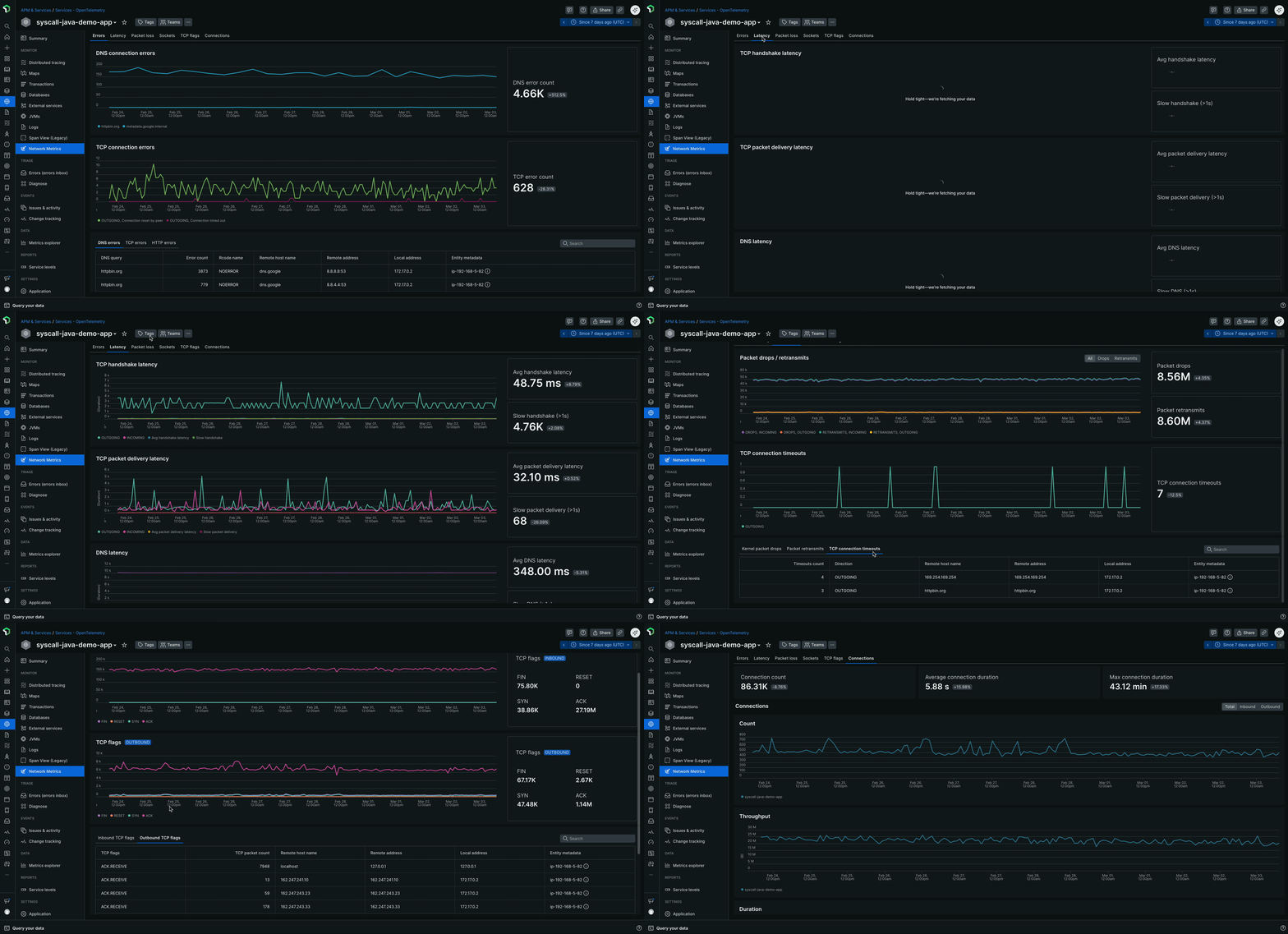
Le dashboard des métriques réseau fournit une analyse complète du réseau via six onglets spécialisés, conçus pour vous guider dans un workflow de dépannage systématique :
Onglets de monitoring réseau
Le dashboard de monitoring du réseau est organisé selon les onglets suivants, chacun fournissant des informations spécifiques pour vous aider à diagnostiquer et résoudre les problèmes de performance liés au réseau :
Erreurs : l'onglet Errors est votre point de départ pour diagnostiquer les problèmes réseau, en offrant une vue d'ensemble de toutes les erreurs liées au réseau. Cela inclut :
- Erreurs de connexion DNS et nombre d'erreurs
- Erreurs de connexion TCP et nombre d'erreurs
- Erreurs HTTP telles que les codes d'état 4xx et 5xx, ainsi que leur nombre et leurs tendances au fil du temps
Latence : L'onglet Latency fournit des informations détaillées sur les performances réseau en suivant des métriques temporelles critiques, notamment :
- La latence du handshake TCP, qui mesure le temps nécessaire pour établir une connexion TCP
- Latence de livraison des paquets TCP, qui indique le temps nécessaire pour que les paquets soient transmis et acquittés
- La latence de résolution DNS, qui indique le temps nécessaire pour trouver une adresse IP pour un nom de domaine
Perte de paquets : L'onglet Packet loss vous aide à identifier les problèmes de fiabilité du réseau en surveillant :
- Rejets de paquets au niveau du noyau, qui indiquent les paquets rejetés par le système d'exploitation
- Les délais d'attente de connexion TCP, qui surviennent lorsqu'une connexion ne parvient pas à s'établir dans un délai spécifié
- Les retransmissions de paquets, qui se produisent lorsque des paquets sont perdus et doivent être renvoyés
Sockets : l'onglet Sockets fournit des informations sur les problèmes de connexion au niveau du système, notamment :
- Les erreurs de socket et leur nombre, qui peuvent indiquer des problèmes d'allocation de mémoire tampon, de contraintes de mémoire ou de limites de descripteurs de fichiers
Drapeaux TCP : L'onglet TCP flags offre une visibilité approfondie sur les états de connexion TCP, notamment :
- Drapeaux TCP entrants, qui indiquent l'état des connexions entrantes via l'analyse des paquets SYN, ACK, FIN et RST
- Drapeaux TCP sortants, qui indiquent l'état des connexions sortantes via l'analyse des paquets SYN, ACK, FIN et RST
Connexions : L'onglet Connections fournit des métadonnées de connexion complètes pour le trafic entrant et sortant, notamment :
- Nombre de connexions, qui indique le nombre de connexions actives au fil du temps
- Statistiques de durée de connexion, qui indiquent la durée pendant laquelle les connexions sont maintenues
- Détails au niveau des processus, qui fournissent des informations sur les applications générant du trafic réseau
Cas d'utilisation
- Dépannage des appels d'API externes lents : lorsque les applications présentent des temps de réponse dégradés vers des services externes, les métriques réseau peuvent aider à identifier si le problème provient de délais d'établissement de liaison TCP, de pertes de paquets ou de problèmes de retransmission plutôt que de la logique applicative.
- Analyse des causes profondes de la dégradation des performances : corréler les problèmes de performances des applications avec les problèmes de la couche réseau en examinant l’état de la connexion TCP, la latence de livraison des paquets et les changements d’état de la connexion.
- Monitoring des communications inter-services : monitorez l'état de la communication entre microservices sur l'ensemble de votre cluster, en identifiant la congestion du réseau ou les problèmes de routage entre les services.
- Dépannage des dépendances externes : Identifiez rapidement quand les problèmes de performance proviennent de points de terminaison d'API externes ou de services tiers en analysant les modèles de réseau sortant et la qualité de la connexion.
Options de déploiement
Vous pouvez activer les métriques réseau eBPF de deux manières en fonction de votre configuration monitoring actuelle :
Pour les clients New Relic APM existants : Si vous avez déjà déployé des agents New Relic APM, vous pouvez ajouter des métriques réseau eBPF à votre instrumentation existante. L'agent eBPF fonctionne en mode réseau uniquement, complétant vos données APM par des informations réseau au niveau du noyau sans perturber votre configuration actuelle. Pour plus d'informations, consultez la section Activer le mode métriques réseau uniquement pour les clients APM existants.
Pour un monitoring plus complet : Déployez l'agent eBPF complet avec les fonctionnalités eBPF APM et de métriques réseau pour une observabilité totale à travers les couches applicatives, d'infrastructure et réseau. Cette approche permet une collecte de télémétrie unifiée via un agent unique.
Les deux options de déploiement offrent les mêmes capacités de réseau monitoring décrites ci-dessous.
Activer le mode « métriques réseau uniquement » pour les clients APM existants
Si vous avez déjà déployé des agents APM New Relic et souhaitez ajouter la visibilité réseau sans modifier votre instrumentation APM actuelle, vous pouvez configurer l'agent eBPF pour qu'il fonctionne en mode métriques réseau uniquement. Cela fournit des informations réseau au niveau du noyau qui complètent vos données APM existantes.
Lorsque le mode métriques réseau uniquement est activé, l'agent eBPF détecte automatiquement la présence d'agents APM New Relic existants sur votre système et désactive intelligemment la collecte de données APM eBPF pour éviter les conflits. Cette intégration transparente vous permet de conserver votre instrumentation APM actuelle tout en bénéficiant d'une visibilité supplémentaire sur la couche réseau, garantissant ainsi que les deux solutions de monitoring fonctionnent ensemble pour aider à éviter les doublons.
Pour l'environnement Kubernetes
Environnement hôte Linux
Consultez les données du réseau monitoring eBPF
Vous pouvez consulter les données du réseau monitoring eBPF dans l'interface utilisateur New Relic APM :
- Accédez à one.newrelic.com > APM & Services.
- Sélectionnez l'entité eBPF souhaitée.
- Dans la section moniteur, cliquez sur Network Metrics. Les métriques du réseau s'affichent.
Conseil
L'agent eBPF génère automatiquement des noms d'entités différemment selon l'environnement :
Dans les hôtes ou Docker, ces noms sont une combinaison du nom du processus, de son répertoire ou de son ID de conteneur et du port d'écoute. Par exemple,
ruby:/home/ubuntu/app:[5678]oujava:f4aead533895:[8080].Dans Kubernetes, ces noms sont dérivés du nom du service, par exemple,
mysql-database-service.Attribution d'un nom personnalisé aux applications :
Vous pouvez attribuer un nom personnalisé à votre application en définissant la variable d'environnement
NEW_RELIC_APP_NAMEpour les applications Kubernetes et sur l'hôte.
APM eBPF
Découvrez comment utiliser l'APM de New Relic basé sur eBPF pour un monitoring d'applications sans code et indépendante du langage, avec découverte automatique des services.
dépannage eBPF
Apprenez à résoudre les problèmes liés à l'agent New Relic eBPF.
eBPF bonnes pratiques
Découvrez les bonnes pratiques d'utilisation de l'agent New Relic eBPF.