Avance
Todavía estamos trabajando en esta característica, ¡pero nos encantaría que la probaras!
Esta función se proporciona actualmente como parte de una vista previa de conformidad con nuestras políticas de prelanzamiento.
Aprenda a instalar y configurar el Adaptive Telemetry Processor (ATP) con el NRDOT Collector. ATP se incluye en la distribución estándar de NRDOT para reducir el volumen de datos de telemetría, al tiempo que se mantiene la visibilidad crítica.
Opciones de instalación
Seleccione el método de instalación que coincida con su configuración actual:
Antes de que empieces
Asegúrese de tener:
- Su clave de licencia de New Relic
- Privilegios de root o sudo.
- Acceso de red a los lanzamientos de GitHub
Instalar el host del colector NRDOT
ATP viene preempaquetado con la distribución del colector NRDOT. Según su sistema operativo, seleccione el método de instalación:
Configurar ATP
Una vez instalado el colector NRDOT, edite el archivo de configuración del colector para habilitar y personalizar ATP. Las rutas de los archivos de configuración varían según el método de instalación:
Para las instalaciones DEB/RPM, el archivo de configuración se encuentra en
/etc/nrdot-collector/config.yaml.Para las instalaciones manuales de binarios, el archivo de configuración se encuentra dentro de la carpeta extraída.
Para editar el archivo de configuración:
Abra el archivo de configuración (
config.yaml) con un editor de texto:- Para instalaciones DEB/RPM:
bash$sudo nano /etc/nrdot-collector/config.yaml- Para instalaciones manuales de binarios:
bash$nano config.yamlPara recopilar las métricas de procesos, en la sección
scrapersdel receptorhostmetrics, agregue la siguiente configuraciónprocess:receivers:hostmetrics:scrapers:# Your existing scrapers...process:metrics:process.cpu.utilization:enabled: trueprocess.memory.utilization:enabled: truemute_process_name_error: truemute_process_exe_error: truemute_process_io_error: truemute_process_user_error: truePara habilitar ATP, ubique la sección
processorsexistente y agregue la configuraciónadaptivetelemetrydebajo de ella:processors:adaptivetelemetry:enable_storage: trueretention_minutes: 30include_process_list:- "/usr/bin/postgres"- "/usr/sbin/nginx" # Replace with your target processesmetric_thresholds:process.cpu.utilization: 0.05 # 5% CPUprocess.memory.utilization: 0.05 # 5% memoryAgregue el procesador ATP a su pipeline de métricas en la sección
service:service:pipelines:metrics/host:receivers: [hostmetrics]processors:- memory_limiter- adaptivetelemetry # ADD THIS LINE- metricstransform- filter/exclude_cpu_utilization- filter/exclude_memory_utilization(Opcional) Actualice la configuración de ATP, como los umbrales de métricas, según sea necesario. Para más detalles sobre las opciones de configuración, consulte los Parámetros de configuración.
Almacene el archivo de configuración.
Reinicie el colector NRDOT para aplicar los cambios:
bash$sudo systemctl restart nrdot-collector
Acceda a los datos de ATP en New Relic
Una vez que el ATP esté configurado, comienza a recopilar datos de su host Linux. Puede acceder a estos datos en la UI de New Relic OpenTelemetry. Para obtener más información sobre la UI de OpenTelemetry de New Relic, consulte OpenTelemetry APM UI.
Para ver los datos de métricas del proceso ATP en New Relic:
Vaya a one.newrelic.com > All Entities.
O
Vaya a one.newrelic.com > Catalogs > Infrastructure.
Busque la entidad donde instaló el colector NRDOT con ATP.
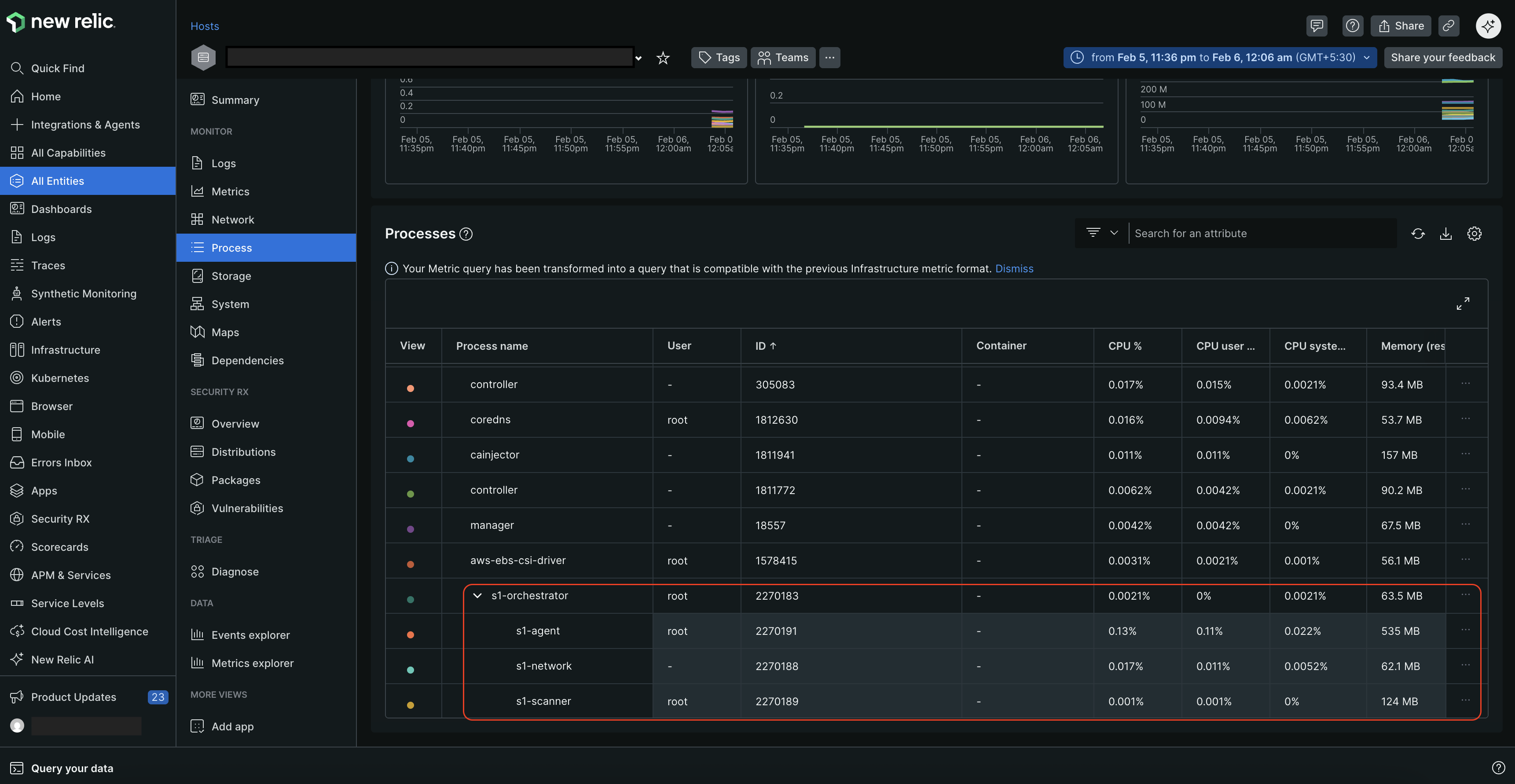
Seleccione la entidad y luego haga clic en Process en el panel izquierdo.
En la página Process, puede ver todos los procesos que se ejecutan en su host, junto con sus ID y las métricas de utilización de CPU y memoria. También muestra la relación padre-hijo entre procesos si un proceso genera otros procesos.
/ ### Configurar ATP [#atp-configuration] Agregue la configuración del procesador ATP a su config.yaml archivo. Este es un ejemplo de configuración completo: yaml processors: adaptivetelemetry: enable_storage: true retention_minutes: 30 include_process_list: - "stress-ng" metric_thresholds: process.cpu.utilization: 0.05 process.memory.utilization: 0.05 process.memory.virtual: 20971520 # 20 MB process.threads: 16 process.open_file_descriptors: 30 process.disk.io: 204800 # 200KB process.disk.operations: 300 process.context_switches: 8 process.paging.faults: 50 process.cpu.time: 0.01 # Habilitar capas de inteligencia enable_dynamic_thresholds: true dynamic_smoothing_factor: 0.1 min_thresholds: process.cpu.utilization: 0.0005 process.memory.utilization: 0.0005 max_thresholds: process.cpu.utilization: 0.30 process.memory.utilization: 0.30 # Puntuación compuesta multimétrica enable_multi_metric: true composite_threshold: 1.5 weights: process.cpu.utilization: 0.5 process.memory.utilization: 0.5 # Detección de anomalías enable_anomaly_detection: true anomaly_history_size: 15 anomaly_change_threshold: 50.0 anomaly_min_data_points: 3 service: pipelines: metrics: receivers: [hostmetrics] processors: [adaptivetelemetry, batch] exporters: [otlp] /
Antes de que empieces
Asegúrese de tener:
- NRDOT Collector existente versión
1.11.0o posterior - Su clave de licencia de New Relic
- Privilegios de root o sudo
- Respaldo de la configuración actual
Respaldar la configuración actual
Resguarde su configuración actual antes de continuar:
$sudo cp /etc/nrdot-collector/config.yaml /etc/nrdot-collector/config.yaml.bakActualizar el colector NRDOT
Para actualizar el colector NRDOT a la versión más reciente con soporte para ATP, vuelva a ejecutar los comandos de instalación de la versión más reciente. Esto sobrescribirá el binario antiguo conservando su archivo de configuración existente.
Configurar ATP
La actualización conservó su configuración anterior, por lo que su config.yaml aún no contiene la nueva configuración de ATP. Debe agregarlos manualmente.
Para editar el archivo de configuración:
Abra el archivo de configuración (
config.yaml) con un editor de texto usando privilegios de root o sudo:- Para instalaciones DEB/RPM:
bash$sudo nano /etc/nrdot-collector/config.yaml- Para instalaciones manuales de binarios:
bash$nano config.yamlPara recopilar las métricas de procesos, en la sección
scrapersdel receptorhostmetrics, agregue la siguiente configuraciónprocess:processes:process:metrics:process.cpu.utilization:enabled: trueprocess.memory.utilization:enabled: truemute_process_name_error: truemute_process_exe_error: truemute_process_io_error: truemute_process_user_error: truePara habilitar ATP, ubique la sección
processorsexistente y agregue la configuraciónadaptivetelemetrydebajo de ella:processors:# Your existing processors...adaptivetelemetry:enable_storage: trueretention_minutes: 30include_process_list:- "/usr/bin/postgres"- "/usr/sbin/nginx" # Replace with your target processesmetric_thresholds:process.cpu.utilization: 0.05 # 5% CPUprocess.memory.utilization: 0.05 # 5% memoryAgregue el procesador ATP a su pipeline de métricas en la sección
service:service:pipelines:metrics/host:receivers: [hostmetrics]processors:- memory_limiter- adaptivetelemetry # ADD THIS LINE- metricstransform- filter/exclude_cpu_utilization- filter/exclude_memory_utilization(Opcional) Actualice la configuración de ATP, como los umbrales de métricas, según sea necesario. Para más detalles sobre las opciones de configuración, consulte los Parámetros de configuración.
Almacene el archivo de configuración.
Reinicie el colector NRDOT para aplicar los cambios:
bash$sudo systemctl restart nrdot-collector
Acceda a los datos de ATP en New Relic
Una vez que el ATP esté configurado, comienza a recopilar datos de su host Linux. Puede acceder a estos datos en la UI de New Relic OpenTelemetry. Para obtener más información sobre la UI de OpenTelemetry de New Relic, consulte OpenTelemetry APM UI.
Para ver los datos de métricas del proceso ATP en New Relic:
Vaya a one.newrelic.com > All Entities.
O
Vaya a one.newrelic.com > Catalogs > Infrastructure.
Busque la entidad donde instaló el colector NRDOT con ATP.
Seleccione la entidad y luego haga clic en Process en el panel izquierdo.
En la página Process, puede ver todos los procesos que se ejecutan en su host, junto con sus ID y las métricas de utilización de CPU y memoria. También muestra la relación padre-hijo entre procesos si un proceso genera otros procesos.
Para instalar ATP migrando desde el agente de infraestructura nativo de New Relic a la distribución de host del recopilador NRDOT, debe desinstalar el agente nativo y configurar NRDOT con ATP.
Antes de que empieces
Asegúrese de tener:
- Su clave de licencia de New Relic
- Privilegios de root o sudo
- Planificar para una interrupción mínima del servicio
Detener y deshabilitar el agente nativo
Para detener el agente de infraestructura existente para evitar conflictos de datos, ejecute:
bash$# Stop the service$sudo systemctl stop newrelic-infraPara evitar que el agente de infraestructura se inicie en el arranque, ejecuta:
bash$# Disable from starting on boot$sudo systemctl disable newrelic-infra
Instalar el host del colector NRDOT
ATP viene preempaquetado con la distribución del colector NRDOT. Según su sistema operativo, seleccione el método de instalación:
Configurar ATP
Una vez instalado el colector NRDOT, edite el archivo de configuración del colector para habilitar y personalizar ATP. Las rutas de los archivos de configuración varían según el método de instalación:
Para las instalaciones DEB/RPM, el archivo de configuración se encuentra en
/etc/nrdot-collector/config.yaml.Para las instalaciones manuales de binarios, el archivo de configuración se encuentra dentro de la carpeta extraída.
Para editar el archivo de configuración:
Abra el archivo de configuración (
config.yaml) con un editor de texto:- Para instalaciones DEB/RPM:
bash$sudo nano /etc/nrdot-collector/config.yaml- Para instalaciones manuales de binarios:
bash$nano config.yamlPara recopilar las métricas de procesos, en la sección
scrapersdel receptorhostmetrics, agregue la siguiente configuraciónprocess:receivers:hostmetrics:scrapers:# Your existing scrapers...process:metrics:process.cpu.utilization:enabled: trueprocess.memory.utilization:enabled: truemute_process_name_error: truemute_process_exe_error: truemute_process_io_error: truemute_process_user_error: truePara habilitar ATP, ubique la sección
processorsexistente y agregue la configuraciónadaptivetelemetrydebajo de ella:processors:adaptivetelemetry:enable_storage: trueretention_minutes: 30include_process_list:- "/usr/bin/postgres"- "/usr/sbin/nginx" # Replace with your target processesmetric_thresholds:process.cpu.utilization: 0.05 # 5% CPUprocess.memory.utilization: 0.05 # 5% memoryAgregue el procesador ATP a su pipeline de métricas en la sección
service:service:pipelines:metrics/host:receivers: [hostmetrics]processors:- memory_limiter- adaptivetelemetry # ADD THIS LINE- metricstransform- filter/exclude_cpu_utilization- filter/exclude_memory_utilization(Opcional) Actualice la configuración de ATP, como los umbrales de métricas, según sea necesario. Para más detalles sobre las opciones de configuración, consulte los Parámetros de configuración.
Almacene el archivo de configuración.
Reinicie el colector NRDOT para aplicar los cambios:
bash$sudo systemctl restart nrdot-collector
Verificar la migración
Una vez que la instalación sea exitosa, verifique que los datos estén fluyendo a New Relic:
Para verificar el estado del servicio, ejecute:
bash$sudo systemctl status nrdot-collectorPara consultar los logs, ejecute:
bash$sudo journalctl -u nrdot-collector -f
Acceda a los datos de ATP en New Relic
Una vez que el ATP esté configurado, comienza a recopilar datos de su host Linux. Puede acceder a estos datos en la UI de New Relic OpenTelemetry. Para obtener más información sobre la UI de OpenTelemetry de New Relic, consulte OpenTelemetry APM UI.
Para ver los datos de métricas del proceso ATP en New Relic:
Vaya a one.newrelic.com > All Entities.
O
Vaya a one.newrelic.com > Catalogs > Infrastructure.
Busque la entidad donde instaló el colector NRDOT con ATP.
Seleccione la entidad y luego haga clic en Process en el panel izquierdo.
En la página Process, puede ver todos los procesos que se ejecutan en su host, junto con sus ID y las métricas de utilización de CPU y memoria. También muestra la relación padre-hijo entre procesos si un proceso genera otros procesos.
Parámetro de configuración
/* ## Pautas de umbrales de métricas ### Utilización de CPU (escala 0.0-1.0) - **Filtrado ligero**: `0.10` (10% CPU) - **Filtrado estándar**: `0.05` (5% CPU) - **Filtrado agresivo**: `0.02` (2% CPU) ### Utilización de memoria (escala 0.0-1.0) - **Filtrado ligero**: `0.10` (10% memoria) - **Filtrado estándar**: `0.05` (5% memoria) - **Filtrado agresivo**: `0.02` (2% memoria) ### Uso de memoria (bytes) - **Procesos pequeños**: `52428800` (50 MB) - **Procesos medianos**: `104857600` (100 MB) - **Procesos grandes**: `209715200` (200 MB) ### Umbrales de E/S (bytes) - **E/S ligera**: `1048576` (1 MB) - **E/S media**: `5242880` (5 MB) - **E/S pesada**: `10485760` (10 MB) ## Coincidencia de nombres de procesos ATP busca coincidencias de nombres de procesos usando la ruta completa: ### Ejemplos - ✅ **Correcto**: `/usr/sbin/nginx` - ✅ **Correcto**: `/usr/bin/java` - ❌ **Incorrecto**: `"nginx"` no coincidirá ### Nombres de procesos comunes ```yaml include_process_list: # Servidores web - "nginx" - "apache2" - "httpd" # Bases de datos - "postgres" - "mysql" - "redis" - "mongodb" # Aplicaciones - "java" - "python" - "node" - "php-fpm" ``` */