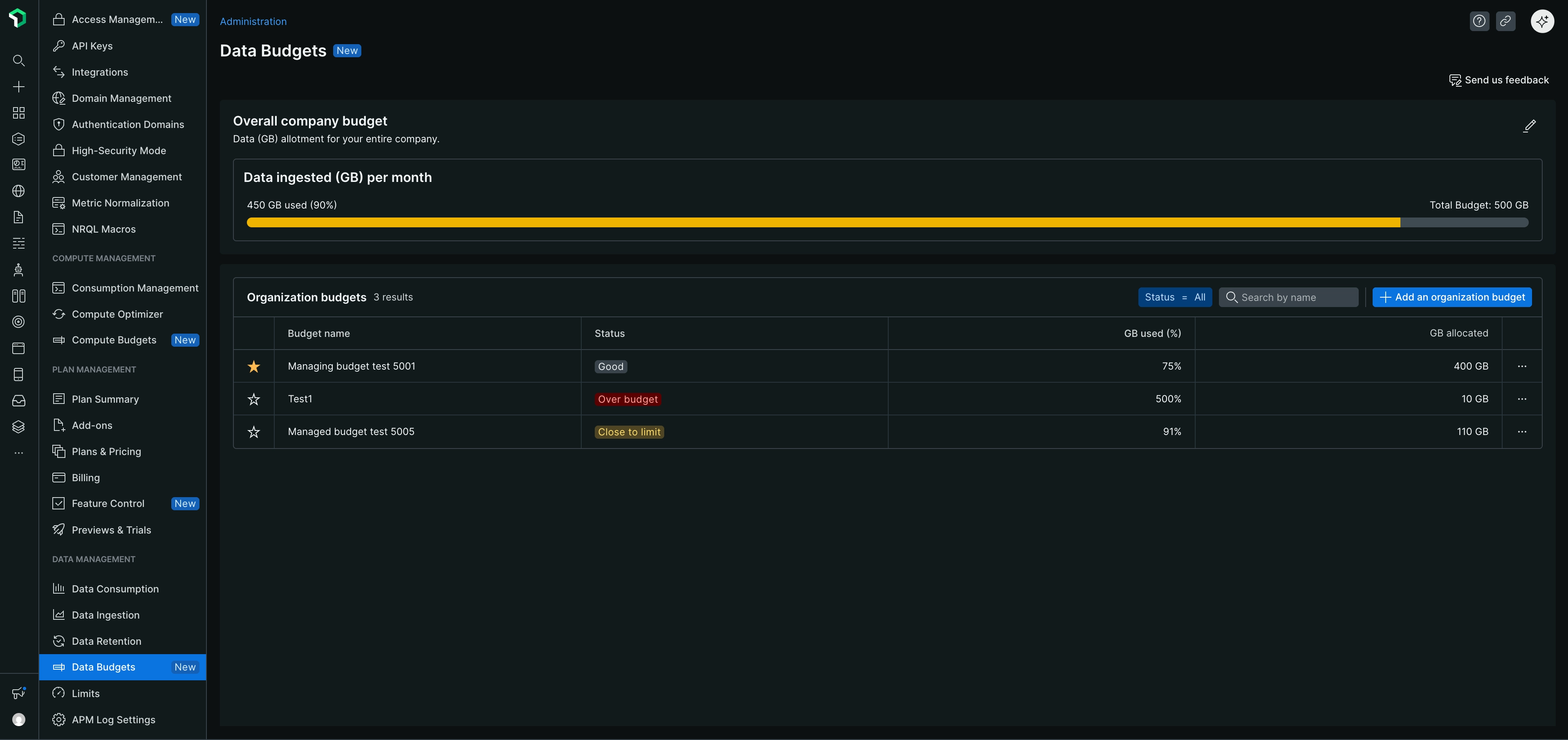
As organizations scale their observability practices, managing data ingestion becomes critical for cost optimization and predictable spending. Data ingest budgets help you shift from reactive to proactive cost management by tracking how much data your organization ingests, setting spending limits based on gigabytes (GB) ingested, and configuring alert thresholds to prevent unexpected charges.
This feature addresses common challenges:
- Unpredictable costs: Manage your monthly bills despite fluctuating data volumes
- Limited control: Set budgets at organization and account levels
- Budget surprises: Get proactive alerts before exceeding budget limits, not after the billing cycle
- Poor visibility: Track real-time data ingestion against predefined limits
Prerequisites
To use data ingest budgets, you must have:
- A paid data ingest subscription
- A single-tenant organization (not available for multi-tenant organizations)
- The organization manager role to create, edit, or delete budgets
Who uses data ingest budgets
Different roles in your organization use data ingest budgets for specific purposes:
Organization managers
As an organization manager, you can:
- Set and allocate budgets: Define data ingest budgets at organization and account levels
- Monitor overall usage: Track total ingestion across the organization and ensure budget adherence
- Manage budget limits: Adjust budgets based on actual usage patterns and organizational needs
- Configure notifications: Set up alerts at multiple threshold levels to provide early warning of budget issues
Team leads
As a team lead, you can:
- Monitor team budgets: Track your team's data ingestion to ensure it stays within allocated limits
- Communicate budget status: Relay budget warnings to team members and guide them on adjusting workloads based on current budget status
General users
As a general user, you can:
- Track project usage: Monitor data ingestion for projects you're responsible for
- Respond to warnings: Take action when budget alerts are triggered, such as optimizing resource usage
Manage organization level data budgets
Organization level data budgets help you track and manage your total data ingestion across your entire organization.
Access data budgets
Go to one.newrelic.com. In the user menu, click Administration > Data Management > Data Budgets.
Importante
When you open the Data Budgets page, the Organization Budget appears by default if you have contract commitments. This budget reflects your data ingestion commitments, updates monthly, and provides a clear overview of how much data (GB) you've ingested and how much remains available. Notifications are not set up by default—you must configure thresholds and destinations to receive budget alerts.
Sugerencia
If you don't have a contract commitment defined, you'll see an empty state with an option to create an organization budget.
Manage budget limits
In the Organization Budget section, click Manage limits. The Edit Organization Budget page appears.
Set monthly budget limits
To update the spending thresholds for your organization, go to the Set monthly budget limits section and specify the amount of data (GB) you want to track in your organization budget.
Importante
By default, we configure this based on your monthly contract commitments.
You can increase or decrease the budget amount based on your expected usage. For example, if you anticipate using 250 GB in a month, update the value accordingly.
Click Next.
Set up notifications
To prevent overages and manage costs effectively, go to the Set up organization budget notifications page. Set the threshold percentage and choose the destination for notifications.
To receive a warning when you've used a certain percentage of the GB assigned to your budget for a specific month, go to the Thresholds tab. Select + Add a threshold and enter the percentage at which you want to receive notifications (for example, 75%, 90%, or 95%).
To ensure notifications are sent when the budget exceeds the threshold, go to the Destinations tab. Add at least one destination to be notified. You can choose from the following options:
- Email: Enter the email addresses of New Relic users to notify them about the budget.
- Webhook: Enter the webhook URL to send notifications to a specific endpoint.
Importante
You must add at least one threshold and one destination, or the system will not allow you to create the budget.
Click Finish.
Your organization budget is updated and will track your data ingestion usage and notify you when you reach the defined thresholds.
Manage account level data budgets
Account level data budgets allow you to allocate portions of your organization budget to specific accounts, enabling granular control over data ingestion costs for teams, applications, or business units.
Create an account level budget
- From the Data Budgets page, click + Add functional budget.
- The Create account level budget page appears.
Configure budget details
In the Budget name field, enter a descriptive name for your budget.
In the Select accounts section, choose up to 5 accounts that don't already have budgets assigned.
Sugerencia
Accounts that already have budgets will appear disabled in the selection list.
Click Next.
Allocate data budget
On the Allocate budget page, you'll see how many GB are remaining in your organization budget.
Enter the amount of GB you want to allocate to this account level budget.
Sugerencia
You can allocate more than your organization budget.
Click Next.
Set up account level notifications
In the Thresholds section, select + Add a threshold and enter the percentage at which you want to receive notifications for this account level budget.
In the Destinations section, configure where notifications should be sent:
- Email: Enter the email addresses of users to notify.
- Webhook: Enter the webhook URL to send notifications to a specific endpoint.
Importante
You must add at least one threshold and one destination, or the system will not allow you to create the budget.
Click Finish.
Your account level budget is now created and will appear in the budgets list.
View and manage existing budgets
Once you've created account level budgets, you can view and manage them from the Data Budgets page.
Budget information displayed
For each account level budget, you'll see:
- Budget name: The name you assigned to the budget
- Status: Current status of the budget
- GB allocation: How much data (GB) has been allocated to this budget
- GB utilized: How much of the allocated data has been used
- Utilization percentage: Percentage of the budget that has been used
Manage existing budgets
To manage an existing account level budget:
- Locate the budget in the list and click the three-dot menu.
- Choose from the following options:
- View details: See detailed information about the budget, including utilization graphs, thresholds, notification settings, associated accounts, and data sources.
- Edit: Modify the budget allocation, thresholds, or notification settings.
- Delete: Remove the budget.
View budget details
When you click on a budget name or select View details, you'll see a detailed page showing:
- Total allocation: The total GB allocated to this budget
- Utilization: How much has been utilized with a visual graph showing usage over time
- Thresholds: The notification thresholds you've configured
- Notification destinations: Where alerts are sent when thresholds are exceeded
- Associated accounts: The accounts included in this budget
- Data sources: Information about the data sources contributing to the budget usage
Best practices
To effectively manage your data ingest budgets:
- Set realistic limits: Base your organization budget on historical usage patterns and expected growth to avoid frequent adjustments.
- Configure multiple thresholds: Set alerts at different percentages (for example, 75%, 90%, 95%) to give yourself time to respond before hitting limits.
- Review regularly: Monitor your budgets monthly to ensure they align with your actual usage and adjust as needed.
- Use account level budgets: Allocate budgets to specific accounts to track costs at a granular level and identify high-usage areas or teams.
- Enable proactive notifications: Configure email and webhook destinations to ensure the right people are notified when thresholds are exceeded.
- Analyze usage patterns: Use the utilization graphs to identify trends, anomalies, or unexpected spikes in data ingestion.
- Update as needed: Adjust your budgets when your data ingestion patterns change or when you add new monitoring capabilities.
What's next
- Learn more about managing your data
- Explore data ingest governance